 Tasks
Tasks Decisions
Tribium Decisions — User Manual
A guide for someone who has never used Decisions and has never built a decision model.
Decisions is a program for choosing between options when several things matter at once — a house to buy, a supplier to keep, a bridge design to build — and for showing afterwards how the choice was made. You say what matters and how much, you say how good each fact is, the people who know the facts enter them, and Decisions ranks the options, tells you how firm the ranking is, and records the decision with everything it stood on. This manual explains every page, every button and every number, in plain words. Where a term from decision analysis is needed, it is explained the first time it appears, and again in the glossary in Chapter 2.
Decisions does not decide for you. It computes a ranking from the facts, the weights and the preferences you give it, and it shows you how much that ranking depends on each of them. The decision stays yours — the dialog that records it lets you choose an alternative that is not first, as long as you say why.
The screenshots in this manual were taken on a practice installation with the sample model Home Purchase Decision and the sample problem Houses we viewed in March: four houses called Elm Street 12, Oak Road 3, Birch Lane 7 and Willow Court 1, judged by an invented family and their estate agent. The numbers are illustrations, not advice about houses.
Contents
- What Decisions is, and what it is not
- The words you will meet
- How a decision is made with Decisions
- Getting started
- The Decision Catalog
- Step 1 — Build a decision model
- Step 2 — Create a decision problem
- Step 3 — Enter the alternatives and their values
- Step 4 — Set the preferences, parameters, constraints and goals
- Step 5 — Read the results
- Step 6 — Test the ranking: Sensitivity
- Talking it over: the Discussion tab
- Step 7 — Conclude, and share the brief
- Working together
- For account administrators
- Development mode and the sample generators
- When something looks wrong
- Appendix A — The methods, explained
- Appendix B — Quick reference
1. What Decisions is, and what it is not
What it is
Decisions is built for a choice that has to be explained and defended: to a partner, a committee, a board, or to yourself in a year’s time. It separates the three things people usually argue about all at once:
- How do we judge? A decision model says what matters (a tree of objectives), how much each part matters (weights), and how a fact — a price, a commute time, a rating — turns into a score. A model is built once and used for many decisions of the same kind.
- What are the facts? A decision problem uses a model for one real choice: the alternatives on the table, the values of each, and the people deciding. Experts enter the values; where a value is not known exactly, they enter a range instead.
- What do we prefer? The decision makers of a problem can weigh the objectives their own way and change how a value is scored, for this problem only, without touching the model.
From these, Decisions computes a ranking, live, with every change. Then it does what a spreadsheet cannot: it tells you how firm the ranking is — how far each weight, each value and each curve could move before a different alternative came first — and, when values were given as ranges, how often each alternative wins across thousands of simulated outcomes. When you are ready, it records the decision with the exact numbers it was made on, writes a one-page brief for the people who were not in the room, and lets you share that brief by a link.
What it is not
- Not a spreadsheet with a column of scores. The model, the weights and the reasoning are kept, not only the result — and every number can be traced to the value and the curve it came from.
- Not an oracle. The ranking is only as good as the facts and the preferences you put in. The Sensitivity tab exists so that you do not trust a ranking that rests on one rough guess.
- Not a place to write code. Functions are short expressions (
purchasePrice / livingArea), written in a form that checks them as you type. There is nothing to program. - Not a vote. When several people decide, Decisions shows where their weights differ and what each one’s weights would rank first; it does not count hands.
2. The words you will meet
These are the terms used across the application. Each is explained again where it is used.
| Term | Plain meaning |
|---|---|
| Decision model (or just model) | A reusable description of how a kind of decision is judged: the objectives, their weights, and how each measured value becomes a score. |
| Decision problem (or just problem) | One real decision made with a model: the alternatives, their values, the preferences of the people deciding, and — in the end — the decision itself. |
| Alternative | One of the options being chosen between: a house, a supplier, a design. |
| Objective | Something the decision is trying to achieve, such as Financial Fit or Purchase Price. Objectives form a tree: a compound objective is made of sub-objectives; a terminal objective, at the bottom, is measured. |
| Weight | How much an objective counts among its siblings under the same parent. Weights are relative: 3 and 1 means the first counts three times as much; a weight of 0 takes an objective out. |
| Share | An objective’s part of the overall score — the product of its relative weights on the way down from the top of the tree. Shares under one parent add up to the parent’s share. |
| Measure | What a terminal objective is scored from: its own input (a value entered for each alternative), a function (calculated from other values), a parameter (set once per problem), or the experts’ judgement when there is nothing to measure. |
| Input | A fact entered per alternative. An objective’s own input is scored by that objective; an independent input is entered but not scored directly — functions and conditions use it. |
| Function | A value calculated from other values by a short expression: a price per square foot, an age from a year of construction. |
| Parameter | A value that belongs to the decision rather than to any alternative — a budget, a target date — declared by the model and set by each problem. |
| Data type | The kind of value an input or parameter takes: a number with a unit, yes/no, a date, a duration, one of a list of symbols, or free text. Shared across the account, or local to one input. |
| Preference function (or curve) | How a measured value turns into a score: a straight line, a curve of a chosen shape, or a set of points. |
| Score | A number from −1 (the worst that matters) through 0 (no effect) to +1 (the best that matters). Every objective, and every alternative overall, has one. |
| Overall score | The score at the top of the tree: the weighted average of everything below it. What the ranking is by. |
| Contribution | An objective’s score times its share: what it adds to, or takes from, the overall score. Contributions add up exactly to the overall score. |
| Override | A weight or a preference function that this problem sets differently from the model, for itself only. |
| Constraint | A hard limit: “nothing with fewer than three bedrooms”. An alternative that breaks one is inadmissible — still shown, but not ranked. |
| Goal | A wish: “anything scoring above +0.3 on Financial Fit”. Goals exclude nothing; they mark which alternatives are satisfactory. |
| Uncertain value | A value given as a range or a distribution instead of a single number, because it is not known exactly. The ranking uses its most likely value; the simulation uses the whole shape. |
| Simulation | Thousands of re-runs of the whole evaluation, each with every uncertain value drawn afresh, to see how often each alternative comes first. |
| Sensitivity | How far a weight, a curve, a value or a parameter could move before another alternative came first. |
| Threshold | That point of change: “Location & Commute down to 2.36 (−41%) → Birch Lane 7”. |
| What-if | A scratch copy of the weights and parameter values, to try other numbers without saving them. |
| Modeller | A person who may create and change the account’s models and data types. Everyone else can read them. |
| Decision maker | A member of a problem who sets it up and concludes it. |
| Expert | A member of a problem who enters the values of the alternatives. |
| Observer | A member of a problem who sees everything and changes nothing. |
| Stage | Where a problem is on its way to a decision: Framing, Gathering values, Weighing, Ready to decide, then Concluded. Worked out from the problem, never set by hand. |
| Conclusion | The recorded decision: which alternative, by whom, when, why, and the exact evaluation it was made on. |
| Brief | The decision on one page, written by fixed wording from the record, for the people who were not in the room. |
| Validation | The list of everything wrong or missing in a model or a problem, each item addressed to the person who can fix it. |
3. How a decision is made with Decisions
Everything in Decisions follows one path, and the chapters of this manual follow it too.
- A modeller builds a model — or imports one, or starts from a sample (Chapter 6).
- A decision maker creates a problem from the model, names it, and adds the people (Chapter 7).
- The experts enter the alternatives’ values — exact ones, or ranges (Chapter 8).
- The decision makers set the preferences: weights, curves, parameters, constraints and goals (Chapter 9).
- Everyone reads the results — the ranking and why it is what it is (Chapter 10).
- The decision makers test the ranking in Sensitivity, and try what-ifs (Chapter 11).
- They conclude, and share the brief (Chapter 13).
Steps 3 to 6 are not strictly in order: the results are computed live, so you can look at them with half the values in, and go back to change a weight after reading the sensitivity.
How a score is made
The one calculation behind every number in the application:
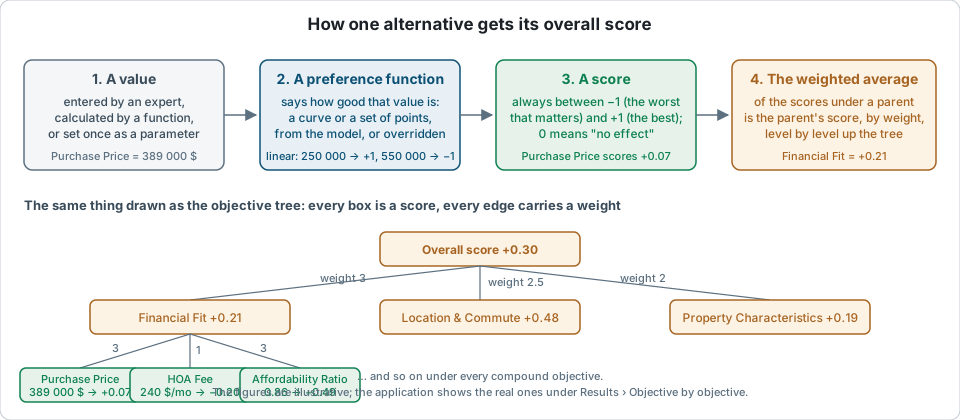
In words: every value goes through its objective’s preference function and becomes a score between −1 and +1. Under each compound objective, the scores of its children are averaged by their weights, level by level, up to one overall score per alternative. The alternatives are ranked by it. A value that nobody has entered scores 0 — “no effect” — so that every alternative is scored on the same weights; the application tells you how much of each score rests on real data.
Models and problems
A model is built once; many problems use it, each with its own alternatives, its own people and its own preferences:
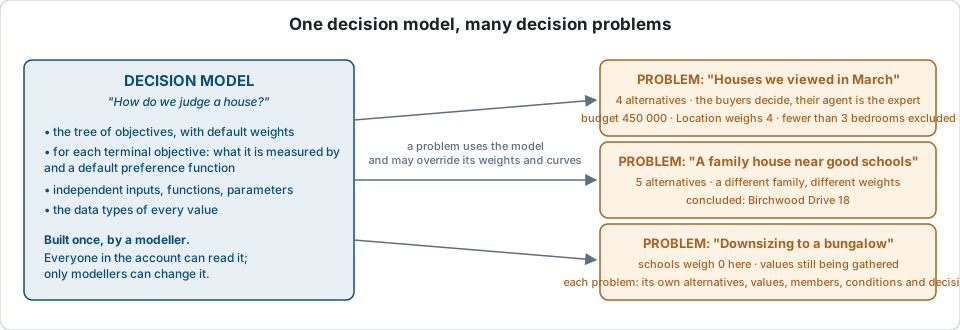
A problem never changes its model. When it wants a different weight or a different curve, it overrides that one thing for itself, and the override is marked wherever it has an effect.
Who does what
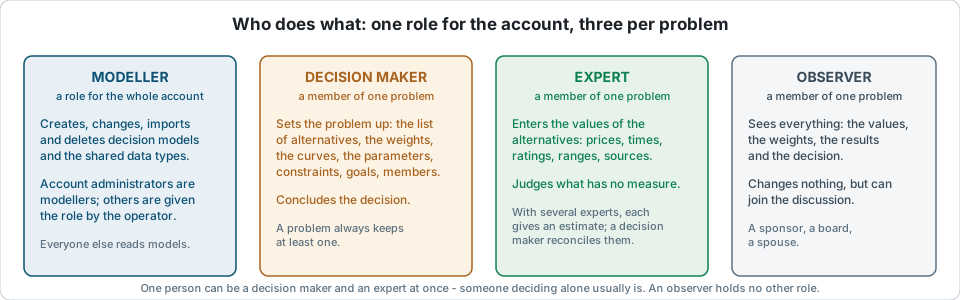
A person deciding alone is a decision maker and an expert at once — the usual case, and the roles never get in the way of it. The roles matter when several people take part: the expert who measured the house cannot quietly change the weights, and the decision makers cannot quietly change a value. Chapter 14 is about that.
4. Getting started
Signing in
Decisions is a web application: you open it in a browser at the address your administrator gives you, and sign in with your login and your password.
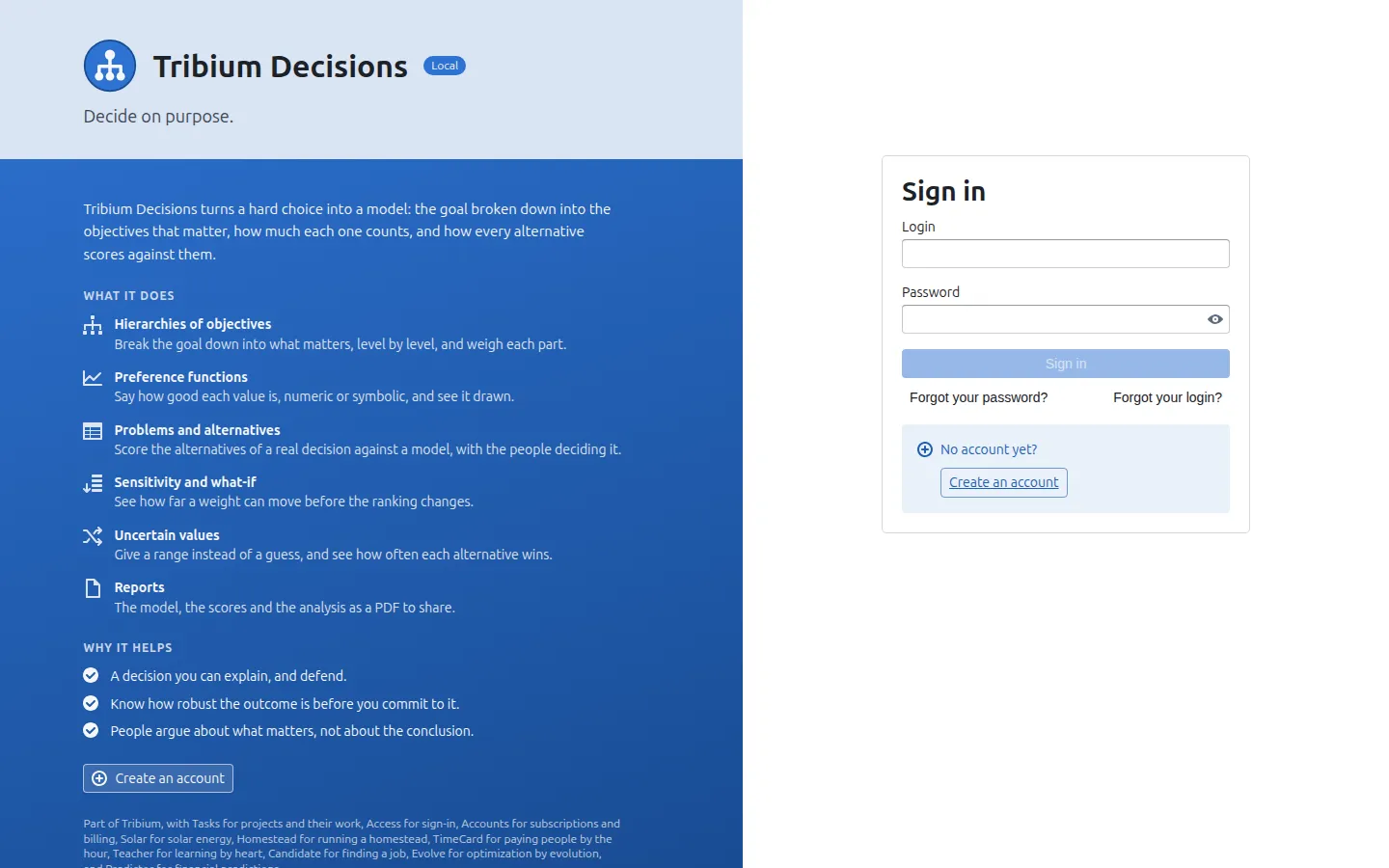
The left side of the sign-in page describes the application; the form on the right is the sign-in itself. “Forgot your password?” sends you an email with a link to set a new one; “Forgot your login?” finds it by your email address. Create an account registers a new account, with you as its first administrator — who is then a modeller in Decisions, and adds the others from the Account button.
The window
Once signed in, every page has the same frame: a bar across the top, and the page below.

From left to right:
| Item | What it does |
|---|---|
| Tribium Decisions (the logo and name) | Opens the About dialog: which version is running, when it was built, and a link to the user manual. |
| Decision Catalog | The home page: every model and every problem of yours, side by side. Chapter 5. |
| Data types | The kinds of value the account’s inputs and parameters take. 6.9. |
| Development (with a DEV tag) | Only on a practice installation with development mode on. Chapter 16. |
| The theme icon (a lightning bolt in the light theme, a moon in the dark) | Light or dark theme. |
| Account (account administrators only) | The account’s details, usage, statements and users (Chapter 15). |
| Your name | The menu about you: email, phone, password, roles, log out. |
Every page explains itself: the “?” button
Beside the title of every page, every tab and every dialog there is a small round ? button. Press it and an explanation opens over the page in four parts: what it is for, how it works, how to use it, and how to read it. It closes when you click anywhere else or press Escape. This manual follows the same four-part structure; when in doubt on a page, the ? is the quickest help.
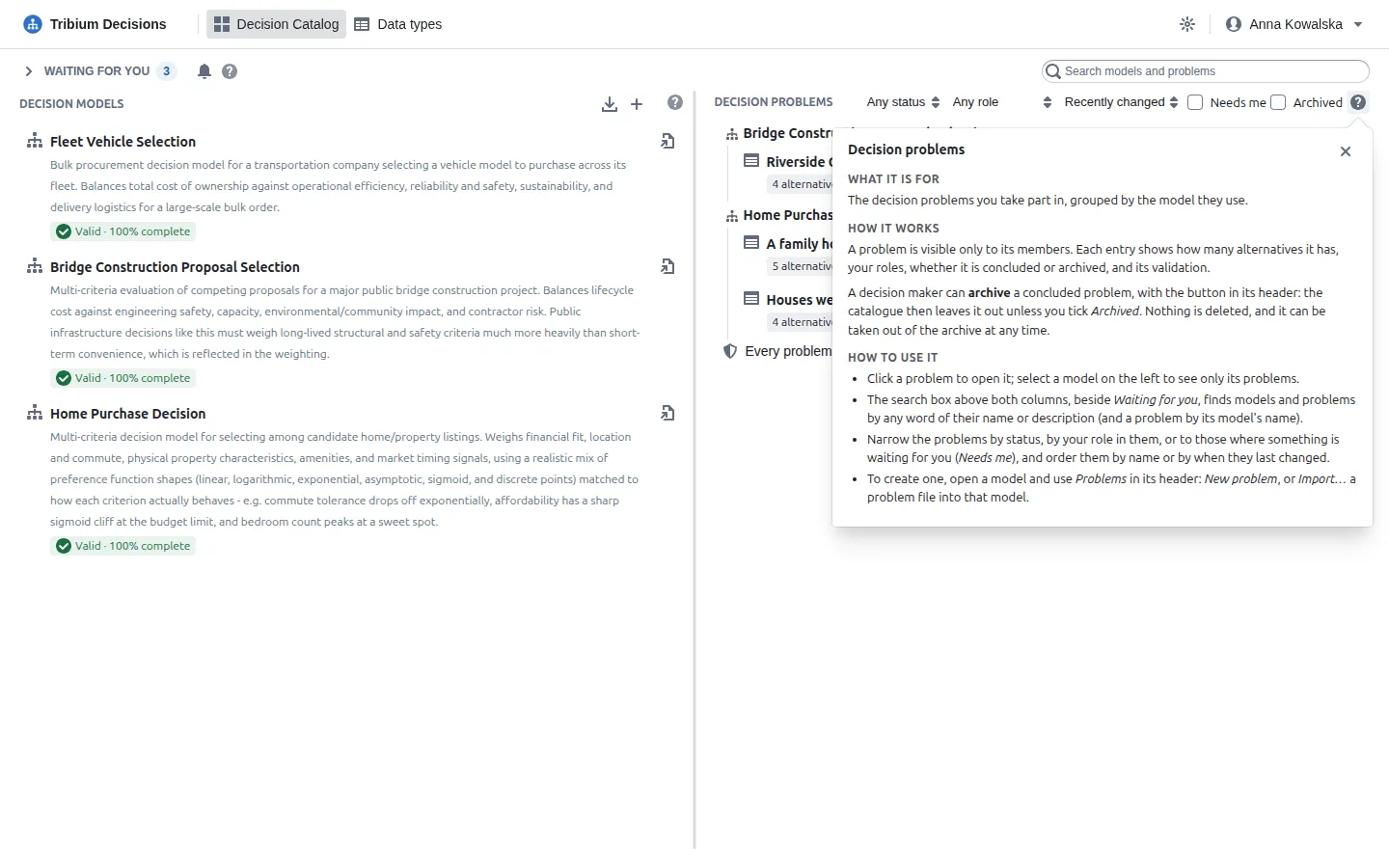
Also, nearly every button, field and tab has a tooltip: hold the mouse over it for a moment and a short explanation appears.
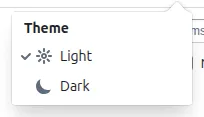
The theme
The theme icon in the bar switches between the light and the dark theme. The choice is remembered on this device.
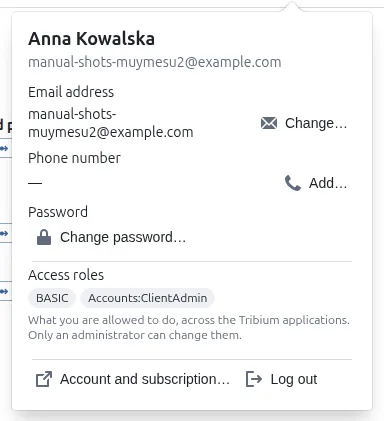
The menu under your name
Click your name at the top right to see who you are signed in as and in which account, change your email address or phone number, change your password, see your access roles (what you are allowed to do — only an administrator can change them) and log out.
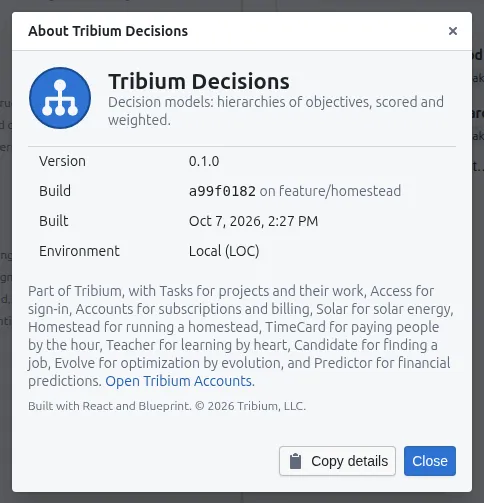
The About dialog
Clicking the logo or the name “Tribium Decisions” opens a dialog with the version, the build time and the environment. Copy details copies them, to paste when you report a problem.
Your first visit
On a new account the catalog is empty. The quickest way to see the application at work:
- A modeller builds a model with the + above the models (Chapter 6), or brings one in with the import button (the arrow) — a model file exported from another installation, or one of the sample models (Home Purchase Decision is the one this manual uses), which your administrator can give you.
- Open the model, press Problems in its header and create a problem (Chapter 7), or Import… a problem file for that model; an imported one opens with its alternatives, values, constraints and goals filled in.
- Look at Results, then Sensitivity, then press ? wherever you want to know more.
On a practice installation the Development menu makes a model and a problem with made-up data at the press of a button (Chapter 16).
5. The Decision Catalog
What it is for. The home page, and what you come back to with the Decision Catalog button: the account’s decision models on the left, your decision problems on the right, and above both, what is waiting for you.
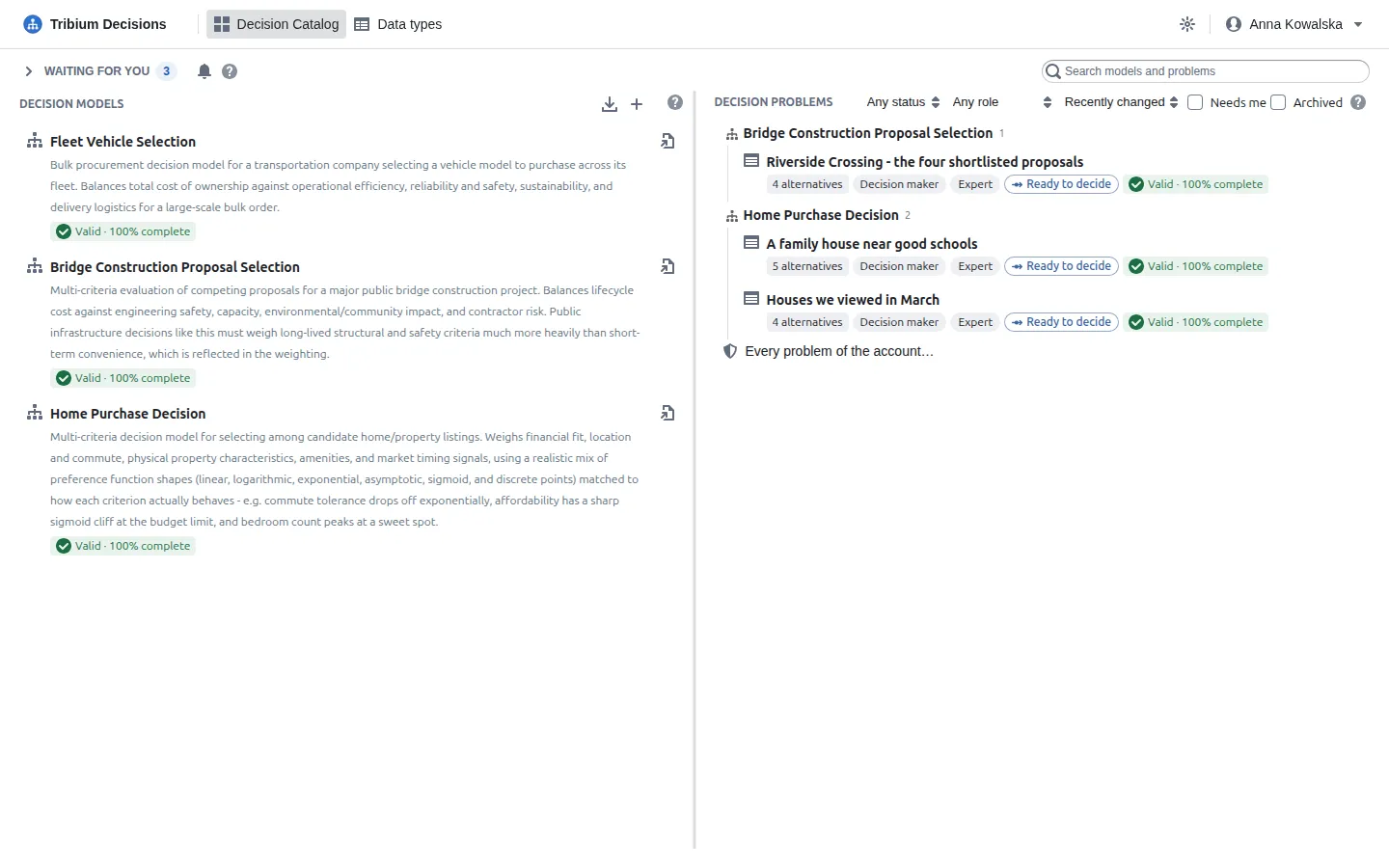
Waiting for you
The line at the top counts the problems where you have something to do now. Press it to see which, and what:
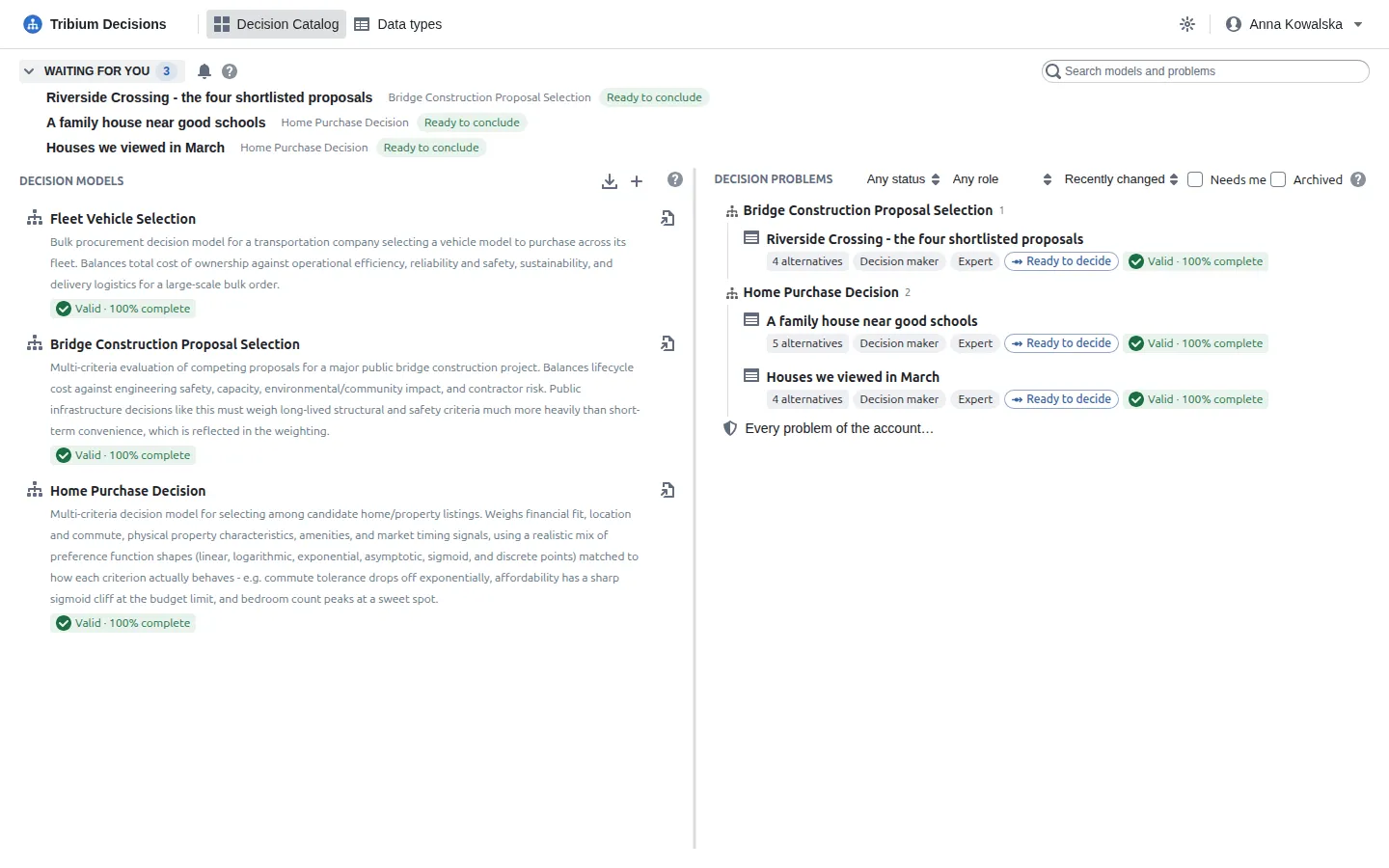
- As an expert: how many values the evaluation needs that nobody has entered yet.
- As a decision maker: how many errors the problem has — or, with none, every value entered and at least two alternatives, that it is ready to conclude.
- Either way: model changed, when the model was changed since you last looked at the problem; N decisive disagreements, when experts’ estimates of a value differ enough to change the outcome (8.5); and due in 2 days, due today or overdue by N days when the decision date is three days away or less — shown if you have something else to do there, or are a decision maker.
- A discussion in which someone mentioned you by name, until it is resolved.
A concluded problem is listed only while a discussion in it still asks you something. Press a problem’s name to open it. The list starts folded and stays as you left it.
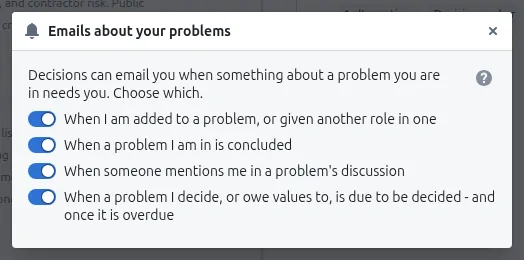
The bell beside the title chooses which emails Decisions sends you about your problems:
| When | |
|---|---|
| Added to a problem | A decision maker (or an account administrator) makes you a member, or gives you another role, or duplicates a problem with you among its members. The email says what the role asks of you, and links to the problem. |
| Concluded | A problem you are in is decided — what was chosen, and why. |
| Mentioned | Someone asks you by name in a problem’s discussion, with what they wrote. |
| Due | Once the decision date is three days away or less, and once more if it passes undecided — to its decision makers, and to its experts while values are still being gathered. |
Nobody is emailed about what they did themselves. The switches apply to every problem.
The search
The box at the top right finds the models and problems whose name or description contains every word you type (a problem also by its model’s name). It narrows both columns at once.
Decision models
The left column lists every model of the account, with its description and its validation badge — Valid · 100% complete, or a count of errors and warnings. Everyone in the account sees every model.
- Click a model to select it: the problems on the right narrow to those made from it. Click it again, or Show all, to see every problem.
- The open button at the end of the entry opens the model in the editor (Chapter 6).
- The + button creates a new, empty model. The import button reads a model from a JSON file exported earlier — a model file, or a problem file’s model. The data types the file carries become the account’s, unless it already has one of the same name and kind.
Only modellers see the + and import buttons; for everyone else the editor opens read-only (Chapter 15).
Decision problems
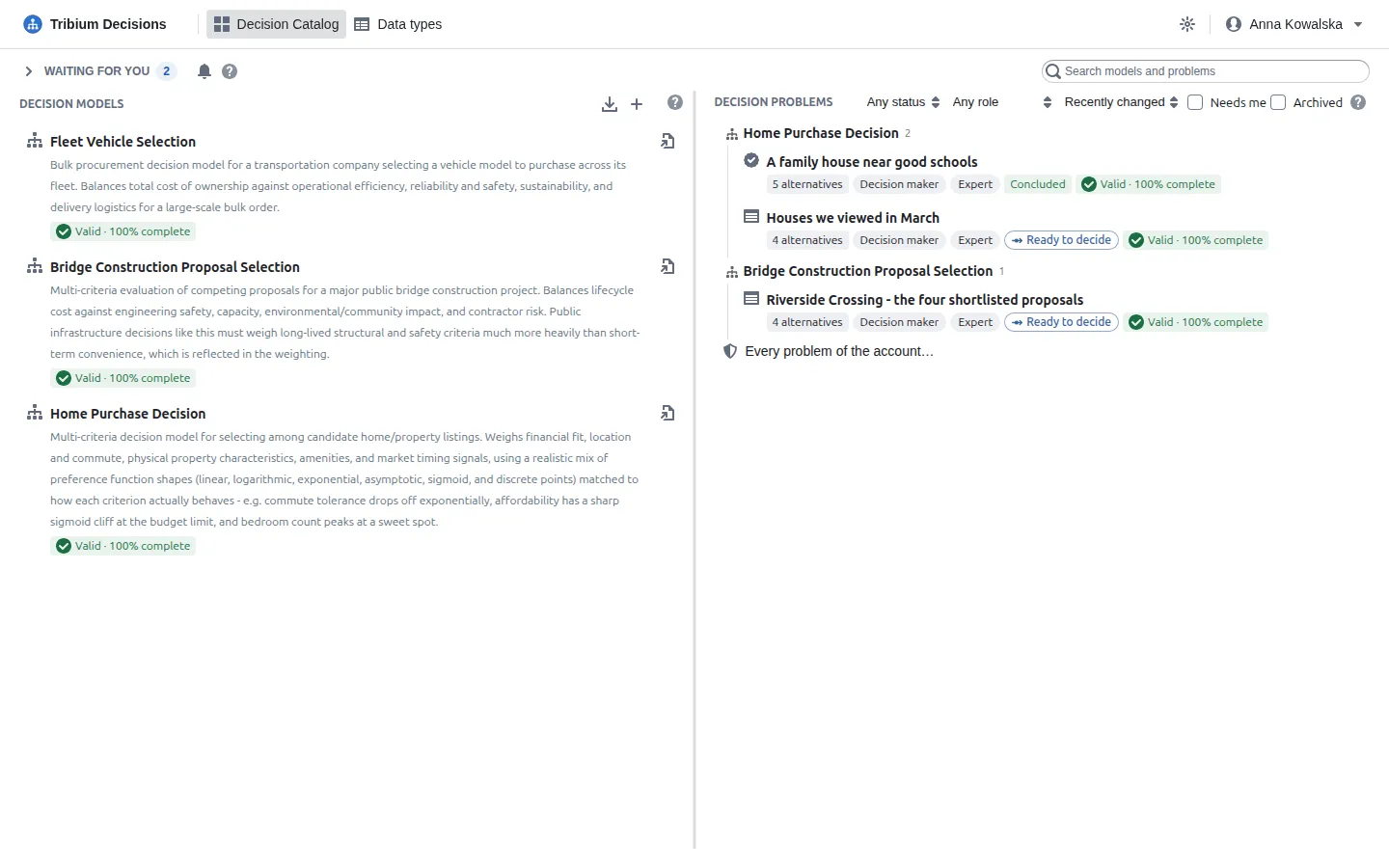
The right column lists the problems you are a member of, grouped by model. To everyone else in the account a problem does not exist. Each entry shows how many alternatives it has, your roles in it, its stage (Ready to decide in the screenshot), whether it is concluded or archived, how far its decision date is, and its validation.
Click a problem to open it. The controls on the column’s title line:
| Control | What it does |
|---|---|
| Any status | Open problems, concluded ones, or both. |
| Any role | Only the problems where you are a decision maker, an expert, or an observer. |
| Recently changed | The order: by when the problem last changed, by name, or by decision date. |
| Needs me | Only the problems where something is waiting for you. |
| Archived | Show archived problems too. A decision maker can archive a concluded problem to get it out of the way; nothing is deleted, and it can be taken back out at any time. |
To create a problem, open a model and use Problems in its header (Chapter 7). Every problem of the account… at the bottom appears for account administrators only (Chapter 15).
6. Step 1 — Build a decision model
What it is for. The structure of a kind of decision: a tree of objectives with weights, and for every terminal objective a measure and a preference function. A model answers how do we judge? and nothing else: it holds no alternatives and no values. That is what makes it reusable.
Who. Only a modeller can create or change a model. Everyone else can open it and read it — a decision maker or an expert needs to understand the model behind their problem.
The model editor
Open a model from the catalog. The editor has a header, four tabs down the left, the list of the open tab in the middle, and — when you click an item — a pane on the right where you see and change it. The list stays in view with the item marked in it.
The pane has no Save button. What you change in it is kept when you leave the item: its close button, another item, another tab, or closing the model. Something that cannot be saved as it is — no name, a variable name already used, a weight that is not a number of 0 or more — keeps the pane open until you fix it or discard the change. The header says whether the model is Saving…, has Unsaved changes, or was Not saved. Validation runs as you type. (The dialogs — the name and description, the weights of a group — have their own Save.) The editor opens on the tab you last used.
Someone who is not a modeller sees the model read-only, with a notice that says so; its pencil button (Details) shows the name and description without changing them.
The header:
-
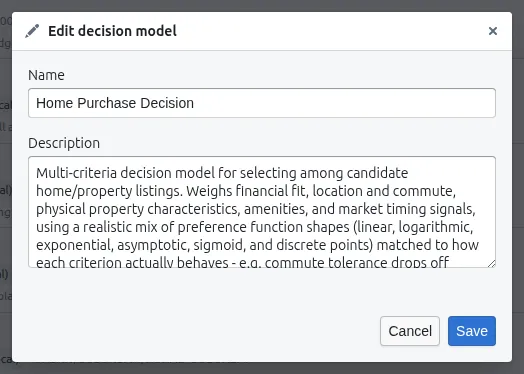
The name and the description. The pencil button changes them:
-
The validation badge — Valid · 100% complete, or the count of errors and warnings. Click it for the list; click an issue to go to it, on whichever tab it is (6.7).
-
Problems lists this model’s decision problems and creates new ones (Chapter 7).
-
The history button: what changed in the model, when, and who changed it (6.8).
-
Export saves the model as a JSON file, as saved, with the data types it uses — to keep, to send to another account, or to import again.
-
The bin deletes the model. A model that has problems cannot be deleted while they exist.
-
The cross closes the editor and returns to the catalog.
If someone else saved the model since you opened it, saving stops and a notice says so: Reload theirs shows the model as they saved it; Keep mine saves yours over it, as a whole. Every open problem follows its model, so neither happens without asking.
6.1 Objectives
What it is for. What the decision is trying to achieve, broken down until each part can be measured.
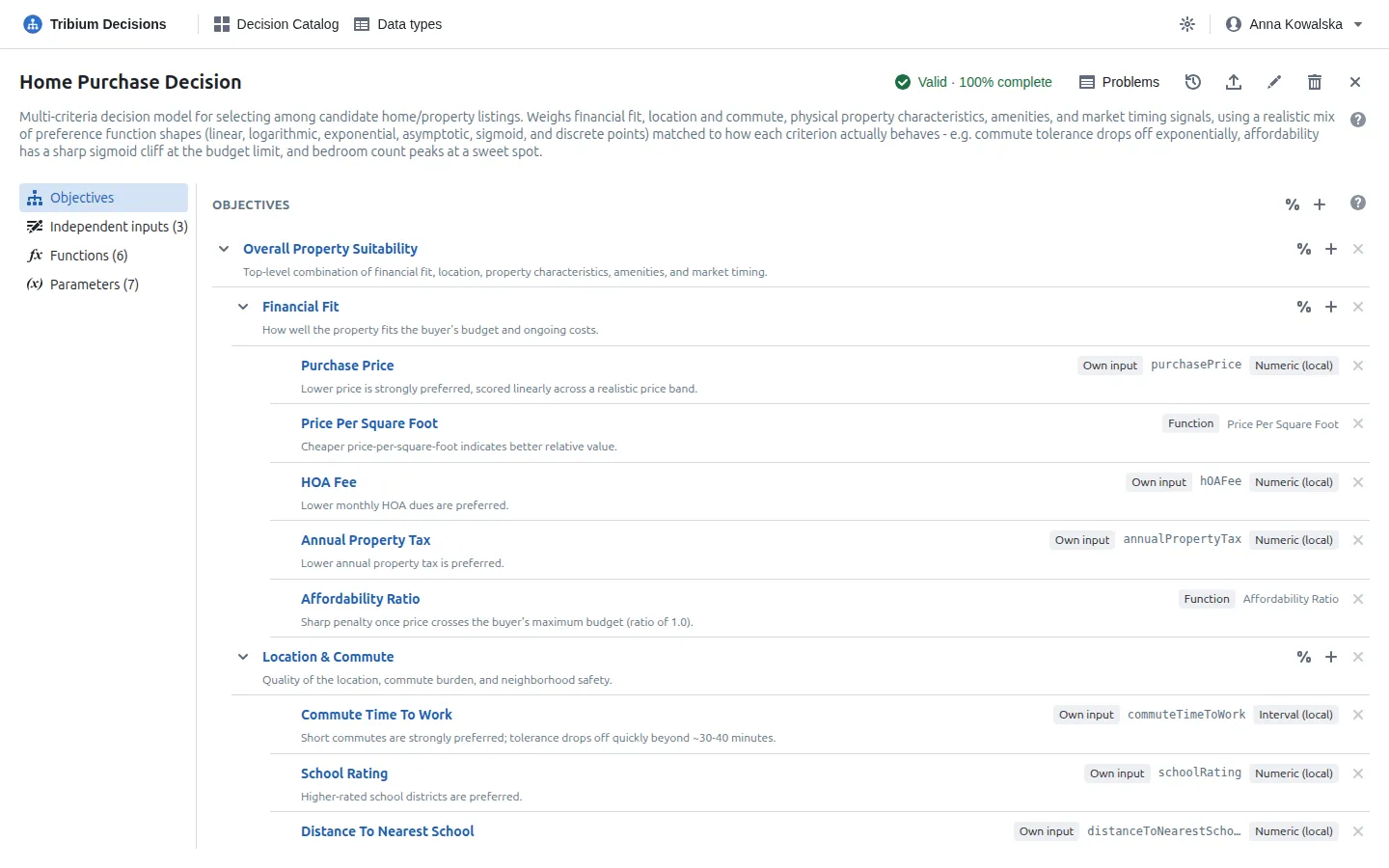
The tree in the screenshot: Overall Property Suitability at the top, under it Financial Fit,
Location & Commute, Property Characteristics, Amenities and Market Timing, and under
each of those the terminal objectives — Purchase Price, HOA Fee, Commute Time To Work…
Each row shows the objective’s description, and for a terminal one, how it is measured: Own
input (with its variable name, purchasePrice, and its data type), Function or
Parameter (with its name), or Judged by the experts.
The buttons. The + at the top of the list adds a top-level objective; the + on a compound objective adds one under it — either one asks whether it is a compound objective (one with objectives under it) or a terminal one (one that is measured). The % button on a compound objective edits the weights of its children together, and the % at the top of the list the weights of the top-level objectives:
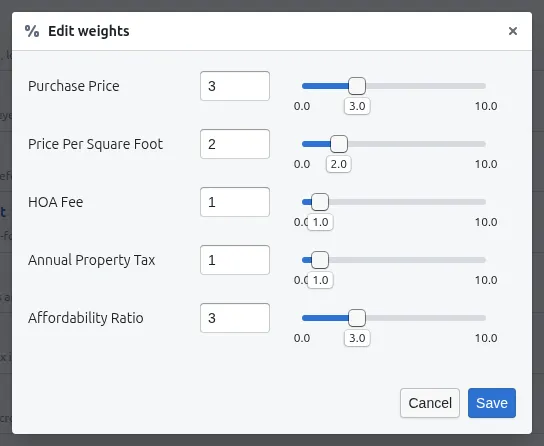
Weights are relative among siblings, so only how they compare matters: 3, 2, 1, 1, 3 means Purchase Price and Affordability Ratio each count three times as much as HOA Fee. These are the model’s defaults; a problem can override them. A weight of 0 takes an objective out of the score (validation notes it). The × at the end of a row deletes an objective, with its children. When it carries its own input, the dialog offers Delete, keep its input — kept as an independent input, with the values entered for it — or Delete everything, and warns when a function uses the input.
6.2 An objective: name, weight, measure
Click an objective’s name to open it in the pane. At the top, its name, its weight and a description — write there what the objective means, for the people who will enter and read its values. A terminal objective then has two tabs: Measure and Scoring.
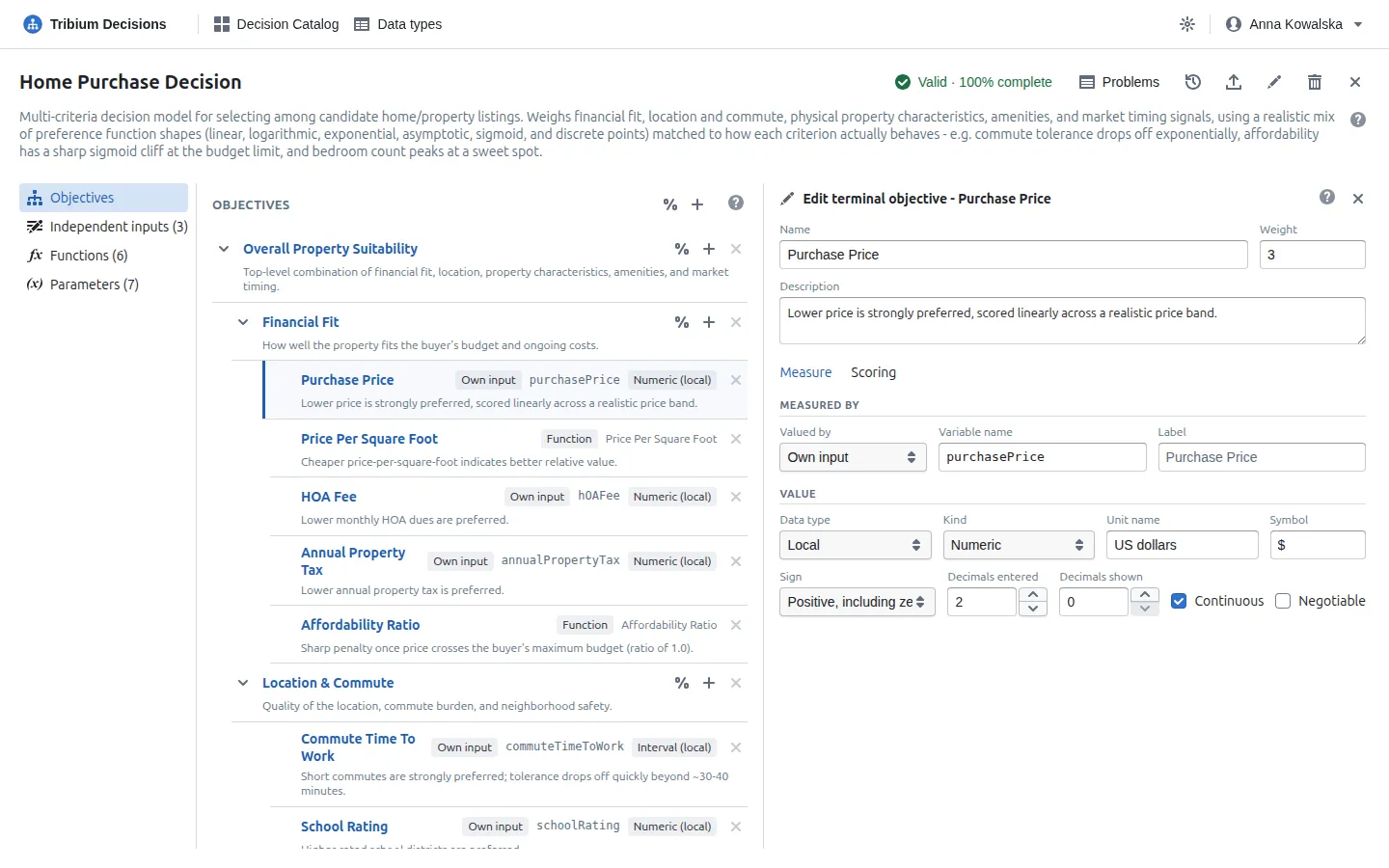
Valued by chooses the measure:
| Valued by | Meaning |
|---|---|
| Own input | A value entered for each alternative, defined right here: its variable name (how functions refer to it — made from the objective’s name unless you type one), an optional label shown where values are entered (the objective’s name if left empty), and its data type, either one of the account’s shared types or a local one defined for this input alone. |
| Function | One of the model’s functions (6.4). |
| Parameter | One of the model’s parameters (6.5). An objective measured by a parameter shifts every alternative equally and cannot change a ranking — useful only as a reference. |
| Judged by the experts | No measure at all. The experts compare the alternatives on it — by rank, by rating, or pair by pair — and the comparison gives the scores (8.7). A judged objective has no Scoring tab. |
Switching away from an own input offers to keep it as an independent input, so that functions using it keep working.
Negotiable marks an input whose value could be bargained over — a price, a delivery date. The Results tab’s Negotiation view looks at negotiable inputs first (10.7).
6.3 Scoring: the preference function
The Scoring tab says how a measured value becomes a score from −1 to +1, and draws it.
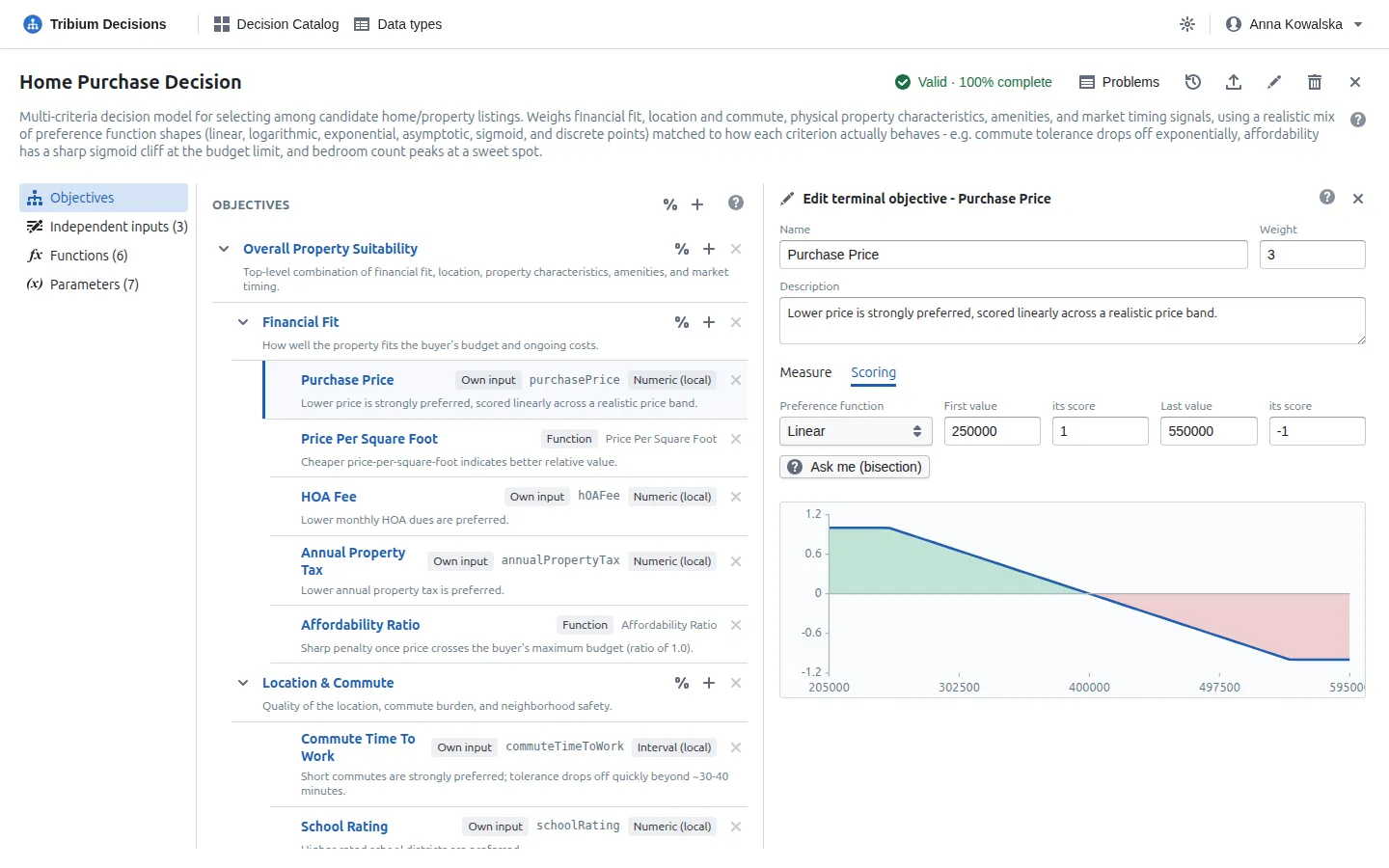
The chart draws exactly what scores: the value along the bottom, the score up the side, green where the score is positive and red where it is negative. Hover the chart to read the score of any value. The shapes:
| Preference function | What it says | Settings |
|---|---|---|
| Linear | A straight line from one value and its score to another, flat beyond them. “Every dollar counts the same.” | First value and its score, last value and its score. |
| Logarithmic | Rises fast, then levels off. “More is better, but less and less so” — living area, say. | A span and its scores; both values above zero. |
| Exponential | Slow, then fast (or the reverse). For thresholds that matter more and more — a commute that is fine up to 30 minutes and then quickly unbearable. | A span, its scores, and a bend. |
| Asymptotic | Approaches a level it never reaches. | A start value and its score, the level it approaches, and a speed. |
| Sigmoid | An S-curve around a midpoint, between a lowest and a highest score. “Acceptable below, unacceptable above” — a price against a budget. | A midpoint, a steepness, the two scores. |
| Points | Pairs of value → score. Numbers and dates are interpolated between the points and held at the end values beyond them. For symbols, yes/no and text, every possible value needs a point, and the value is looked up (ignoring case and surrounding spaces). | The points. |
The curves apply to numbers and durations, and to functions that give a number. Dates, symbols, yes/no and text are scored by points only. Whatever the shape, every score is kept within −1 to +1.
Unsure of the numbers? Ask me (bisection). For a continuous value, press the button, check the worst and the best value, and answer one question and two optional ones:
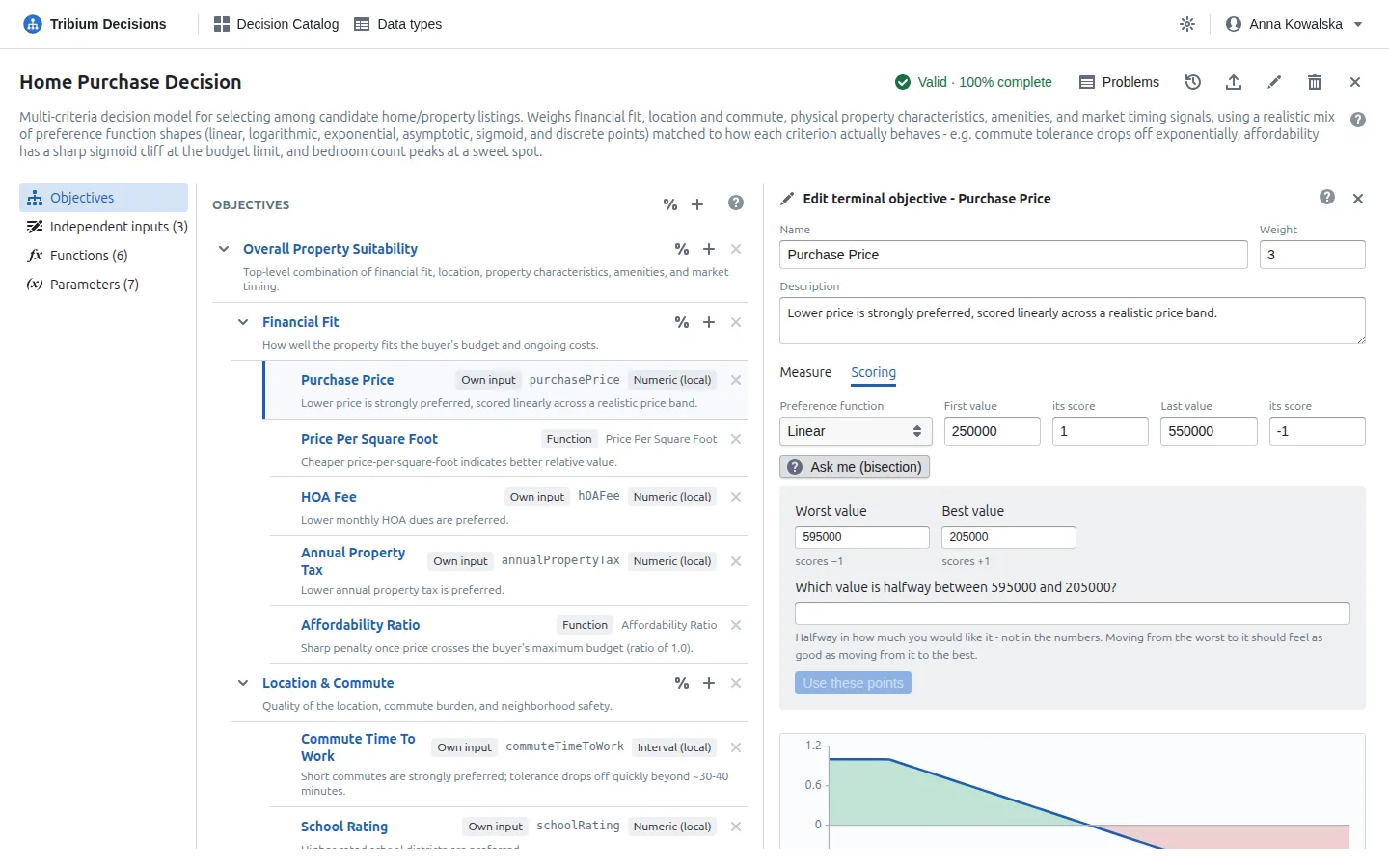
It asks which value is halfway in desirability between the worst and the best — halfway in how much you would like it, not in the numbers — and then, if you want, the same for each half. From the answers it makes a points curve — the worst at −1, the halfway values at −0.5, 0 and +0.5, the best at +1 — and Use these points puts it in place of the current curve.
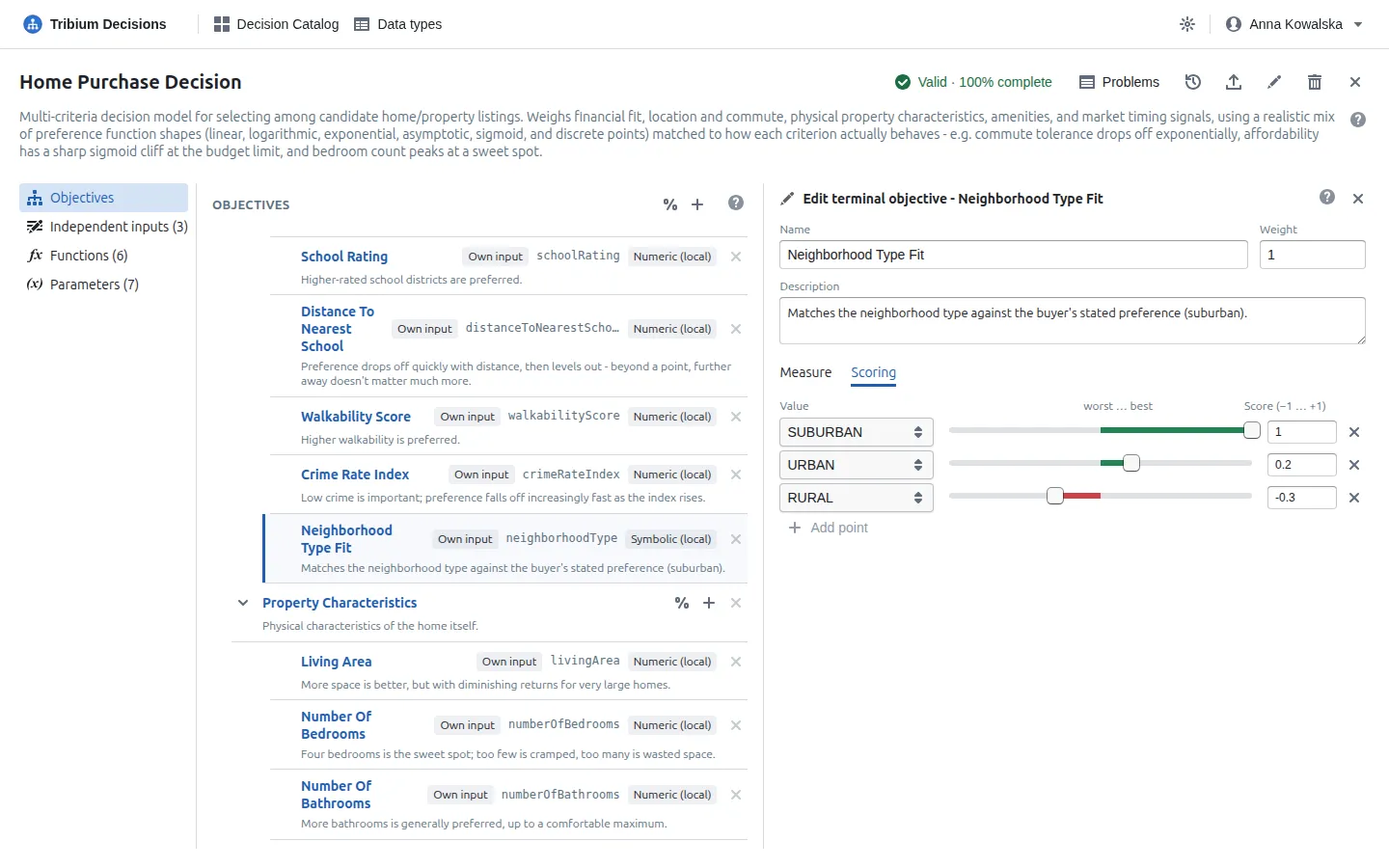
A symbolic or yes/no value is scored by points only, one per value: drag each value’s slider, or type its score. Add point adds a value not scored yet; Add the N unscored values (or Add a point for every value) adds them all at once.
6.4 Functions
What it is for. Values calculated from others — a price per square foot, an affordability ratio, an age from a year — so that an objective can score something no one enters directly.
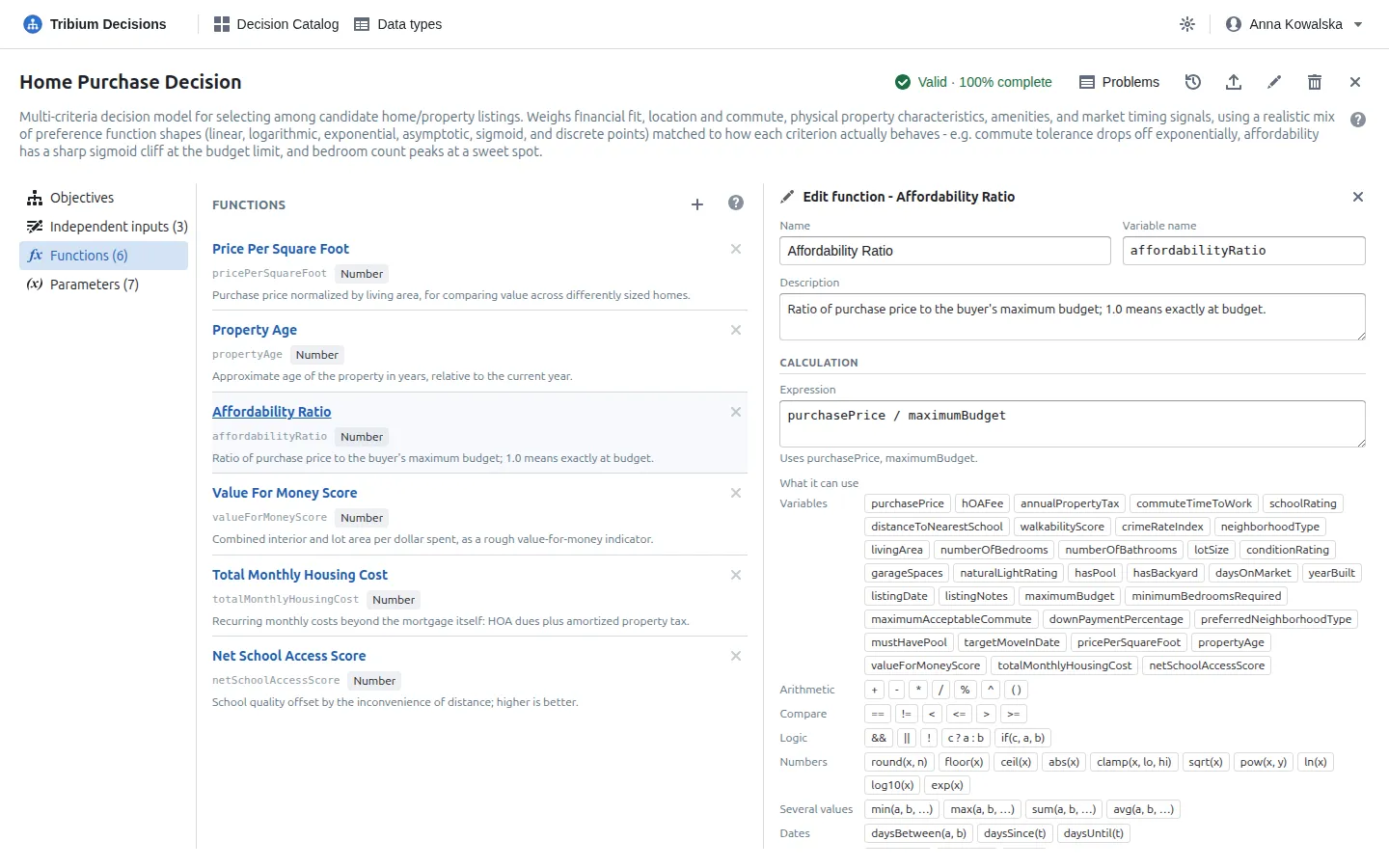
A function is an expression over the variable names of inputs (both kinds), parameters and other functions. It is calculated for each alternative, in dependency order. While you type, the form points at syntax errors and at names that are not variables of the model (variable names are case-sensitive). Under the expression, What it can use lists everything an expression can be made of: hover an item for what it does, click it to put it in.
The language, in short (the full reference is in Appendix B):
- Arithmetic
+ - * / % ^, comparisons== != < <= > >=, logic&& || !, andtest ? then : else. min max abs round(x, n) floor ceil sqrt ln log10 exp pow(x, y) clamp(x, lo, hi) sum(...) avg(...) if(test, then, else).- Dates:
daysBetween(a, b), anddaysUntil(d)/daysSince(d), which count from the problem’s reference date — never from today, so a ranking does not change overnight. - Literals: numbers (
2e3too),true/false, and"text"or'text'to compare with symbols. - Arithmetic and
< <= > >=work on numbers;==and!=compare two values of the same kind. Dates are compared throughdaysBetween,daysUntilanddaysSince.
A missing value usually makes the result missing — but false && x is false, true || x is
true, and only the branch a condition takes counts. A division by zero, the root of a negative
number, the logarithm of a value of zero or less, mixing kinds, and daysUntil / daysSince in a
problem without a reference date give no value either. Two functions that depend
on each other in a circle cannot be calculated, and validation says so. Each function in the list
shows what it gives — Number, Days, Yes / no, Text or Date — worked out from its
expression, or why that cannot be told (No expression, Invalid, Circular, Mixed when the
two branches of a condition give different kinds).
6.5 Parameters
What it is for. Values that belong to a decision, not to an alternative — a budget, a target date, the minimum number of bedrooms — declared here and set by each problem.
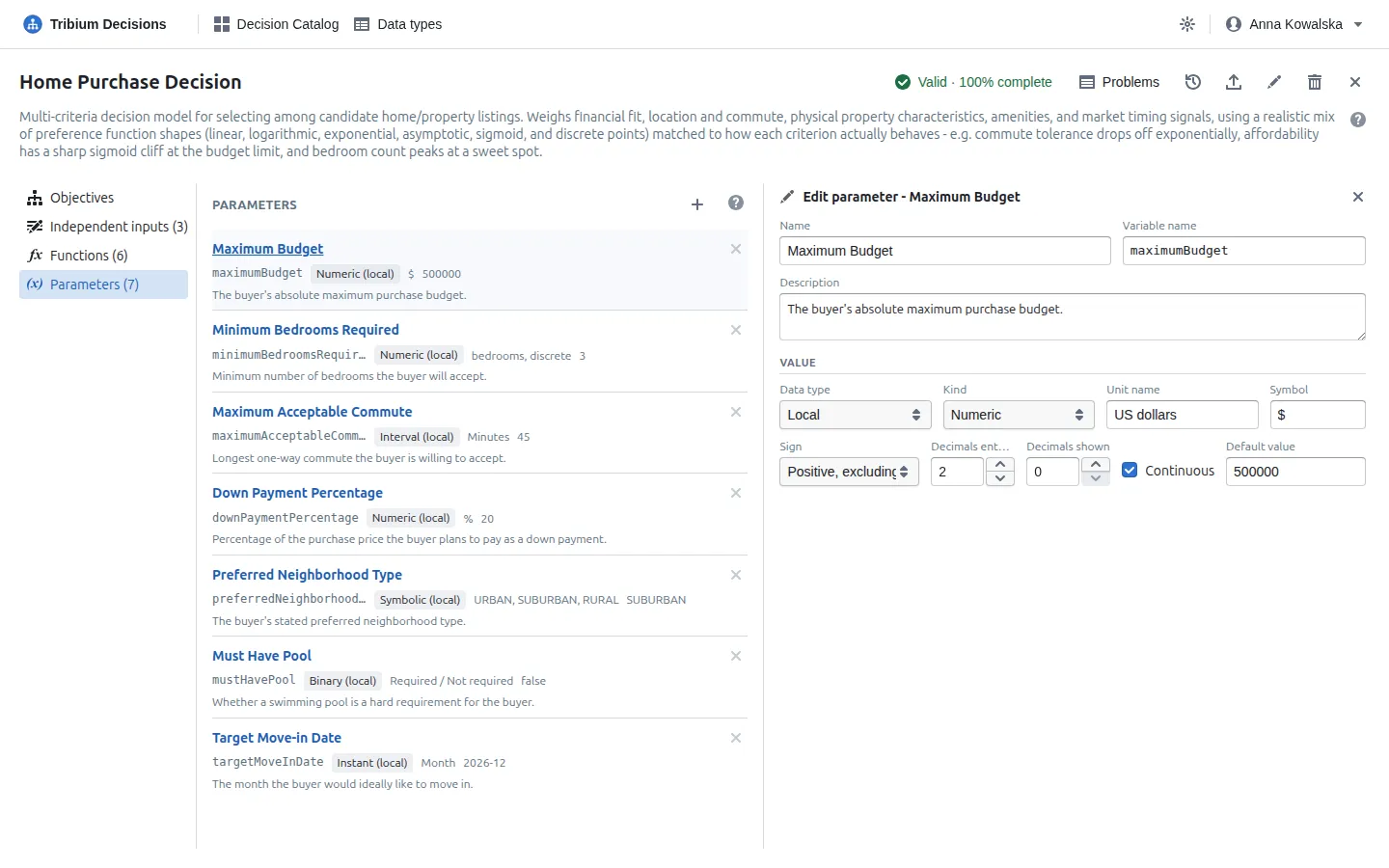
A parameter has a variable name, a data type and, optionally, a default value, which a
problem uses until it sets its own. Functions and conditions can use it: Affordability Ratio is
purchasePrice / maximumBudget. A parameter without a default should be set by every problem
that uses it: validation notes it in the model, and warns in a problem that leaves it empty.
6.6 Independent inputs
What it is for. Facts entered for each alternative that no objective scores directly — a year of construction that a function turns into an age, a listing date, free-text notes.
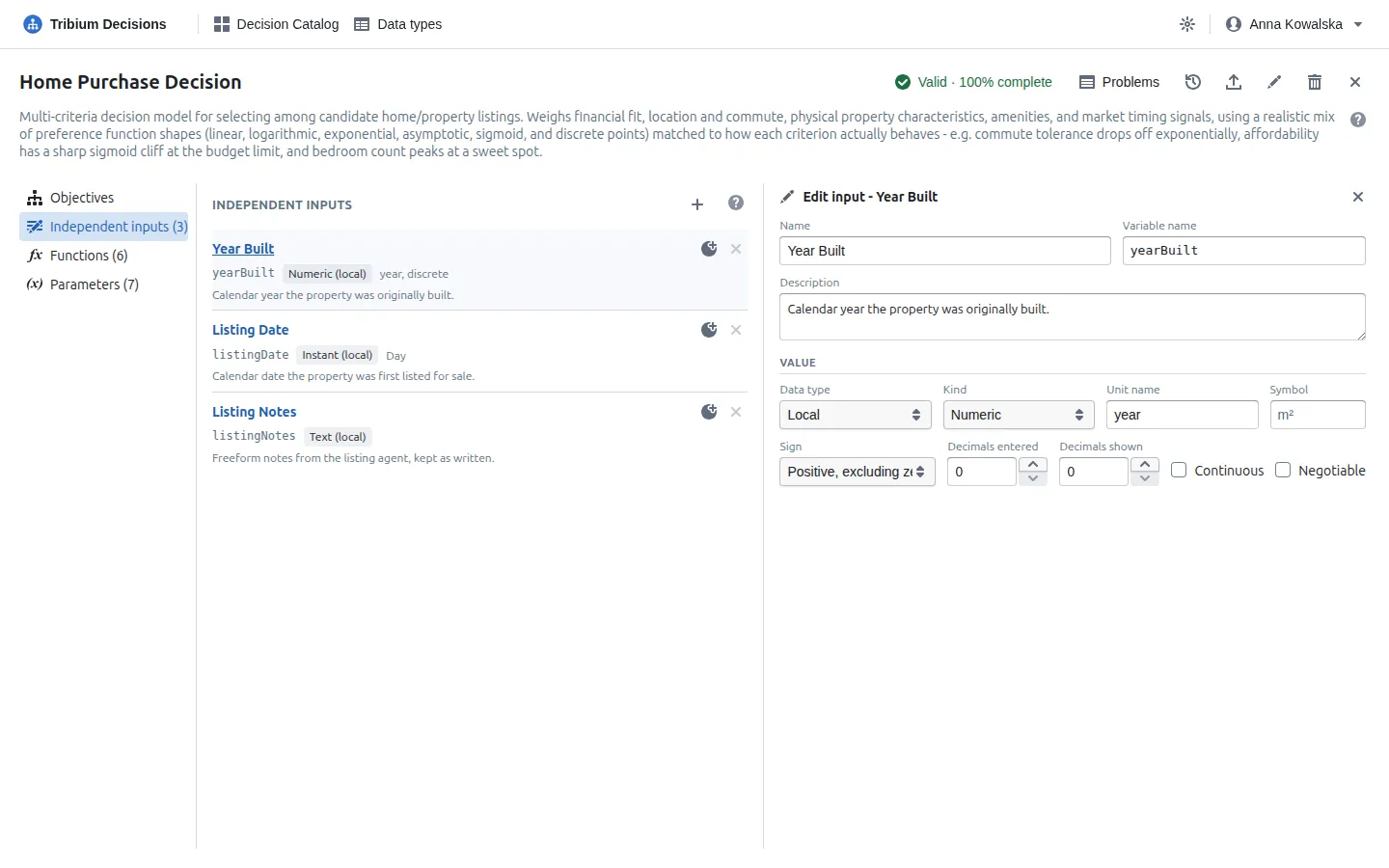
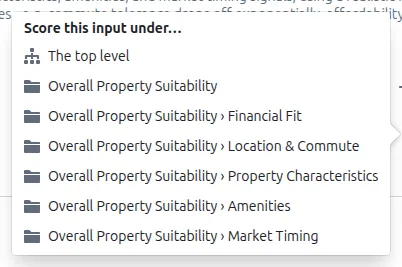
An independent input has a name, a variable name and a data type, like an objective’s own input, and can be marked Negotiable too; the difference is only that nothing scores it. Functions, constraints and goals can use it, and the alternatives grid shows it under Other data. The menu on an input offers Score this input under… the top level or a compound objective: the input becomes a new terminal objective that measures it, and the values already entered in problems are kept.
6.7 Validation
The badge in the header counts errors (something cannot be evaluated as written) and warnings (something is incomplete or suspicious; the numbers are still honest) — the list also has info notes, such as an element nothing uses or a weight of 0 — and says how structurally complete the model is: what share of the objectives, by weight, can be scored at all. Click the badge for the list:
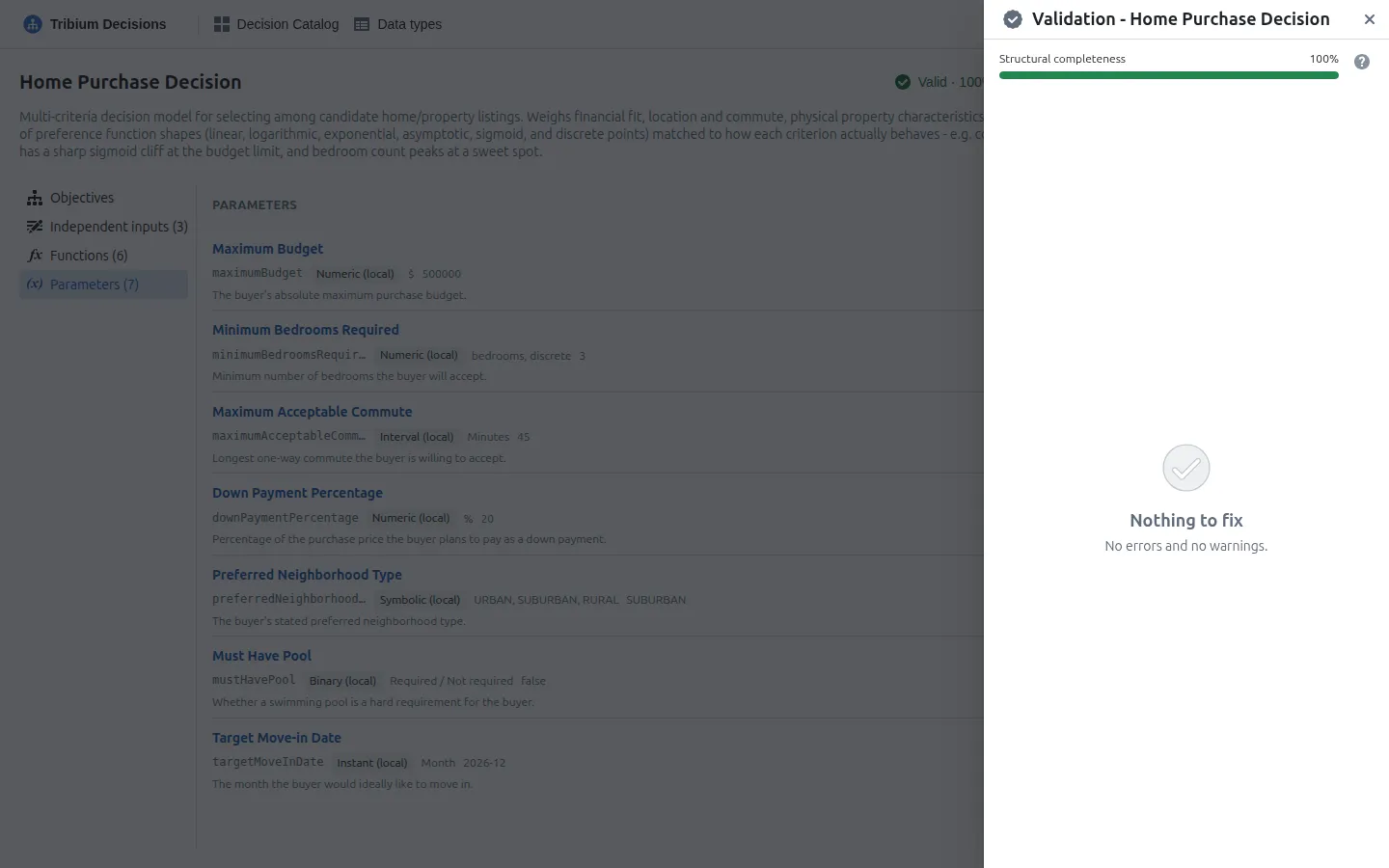
Click an issue to go to what it is about. A problem built on a model with errors cannot be concluded, so a modeller fixes these first.
6.8 The history of a model
Every open problem follows its model, so a change here can change their results. The history button in the header shows what changed, when, and who changed it:
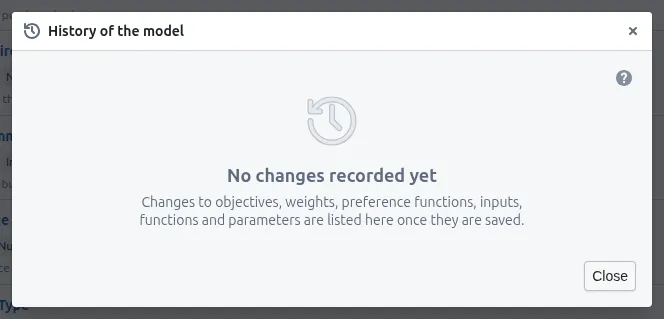
Each save records what can move a result: objectives added, removed, renamed or moved, weights, preference functions, measures, which data type an input or parameter uses, inputs, functions and parameters — not descriptions, labels or variable names. (A change to a shared data type itself is not in a model’s history.) One person’s saves, each within ten minutes of the last with nobody else saving in between, are one entry, and a change undone within it leaves none; the latest hundred entries are shown. The members of an open problem see the same changes in a notice at the top of the problem, until they press Got it.
6.9 Data types
What it is for. The kinds of value inputs and parameters take, defined once for the account and shared by every model. Open them with Data types in the navigation bar.
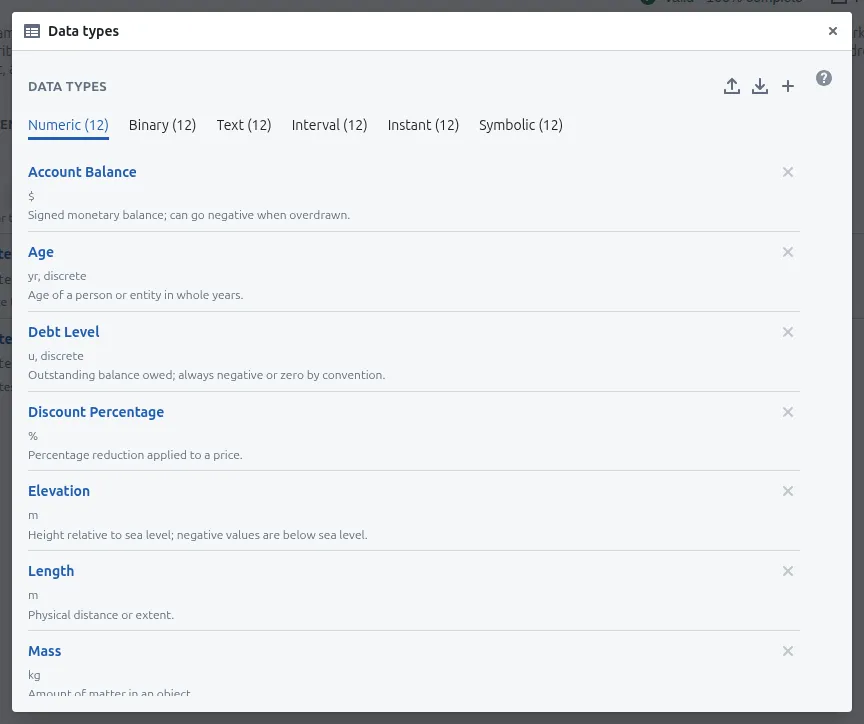
| Kind | What it holds | Its settings |
|---|---|---|
| Numeric | A number with a unit | The unit’s name and symbol, a sign rule (any, positive, zero or more…), the decimals a value may be entered with (0: whole numbers only), the decimals shown, and whether it is continuous (if not, curves are read at whole values). |
| Binary | Yes or no | The labels to show for each. |
| Text | Free text | Its case: as typed, or made lower, upper or title case. |
| Interval | A duration | Its unit, from years to milliseconds, and its decimals. |
| Instant | A date, or a date and time | Its precision: day, month, year… |
| Symbolic | One of a list of symbols | The symbols, each with a description. |
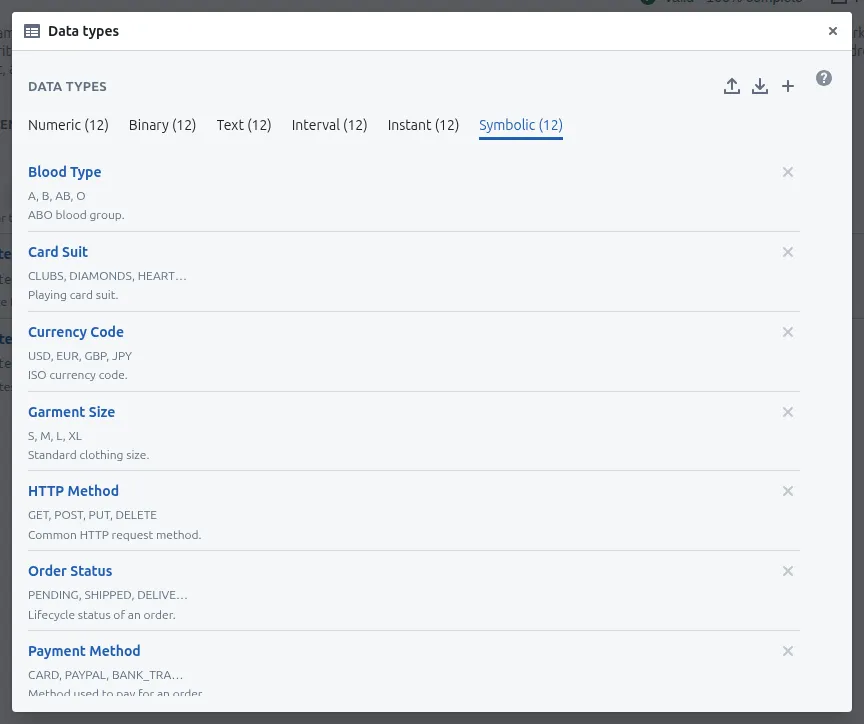
Choose a kind’s tab; the + adds a type, a click edits one. Export and import move them between accounts as JSON; an imported type the account already has (the same name and kind) is skipped rather than added twice. An input or parameter can also define a local type of its own, in its dialog, when no shared type fits.
Changing a type changes how every model that uses it validates and scores. If the change would make values already entered in open problems invalid — a symbol removed, a sign narrowed — you are told how many and where, and can save anyway: those values are then reported, not deleted. A type’s kind is chosen when it is made and cannot change; a type that models use cannot be deleted.
7. Step 2 — Create a decision problem
What it is for. One decision being made with a model: the alternatives and their values, the preferences of this problem’s decision makers, and — when they are ready — the decision.
Creating one
Open the model and press Problems in its header:
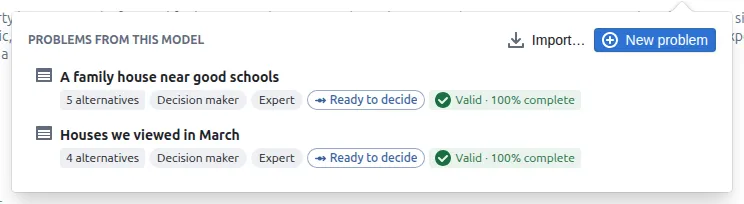
It lists the problems made from this model that you are a member of. New problem creates an empty one and opens it; you become its first decision maker and expert, so you can use it at once without managing members. It is named after the model (Home Purchase Decision - decision); rename it in its properties. Import… reads a problem file exported earlier — with its values, members aside — into this model. (Values are matched to the model by element id, then by variable name, so a file made on a copy of the model imports too.)
The properties
The pencil beside the problem’s name opens its properties:
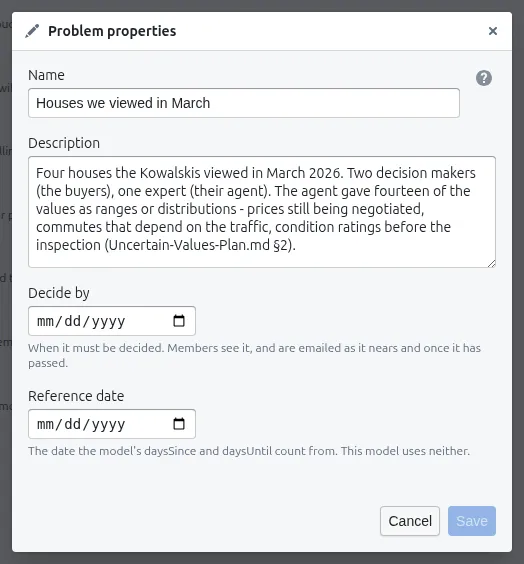
- Name — one that tells it apart from the others on the same model: Houses we viewed in March.
- Description — what is being decided and for whom, and anything a new member should know first. Hover the problem’s name to read it.
- Decide by — the deadline, if there is one. Members see how far away it is; its decision makers (and its experts, while values are still being gathered) are emailed once it is three days away or less, and once more if it passes undecided, unless they switched these emails off.
- Reference date — the day the model’s
daysUntilanddaysSincecount from: the day you will move, or sign. A date you choose rather than today, so the ranking is the same tomorrow and when someone reads the decision a year later. Without one,daysUntilanddaysSincegive no value.
The properties dialog has its own Save.
The problem’s page

Under the name, tags say whether the problem is Open or Concluded (and Archived), your roles in it, its reference date, and its validation. Then the buttons: the pencil (properties — decision makers, while the problem is open), Model (opens the model, read-only unless you are a modeller), Brief (13.3), export (the problem, its model, the data types it uses and its evaluation, as JSON), duplicate (an open copy, members kept), and for decision makers Conclude… (Chapter 13) and the bin while it is open, or archive / unarchive once it is concluded.
The tabs down the left follow the work: Alternatives (experts enter the values), Preferences, Parameters, Constraints and Goals (decision makers set the problem up), Members, Discussion (with the count of open discussions), then Results and Sensitivity, computed live. A concluded problem gains a Conclusion tab at the top and opens on it.
The validation badge counts the problem’s errors and warnings and says how complete its data is. Click it for the list, each issue addressed to the person who can fix it; click an issue to go to it — an objective, a function, a cell of the grid:
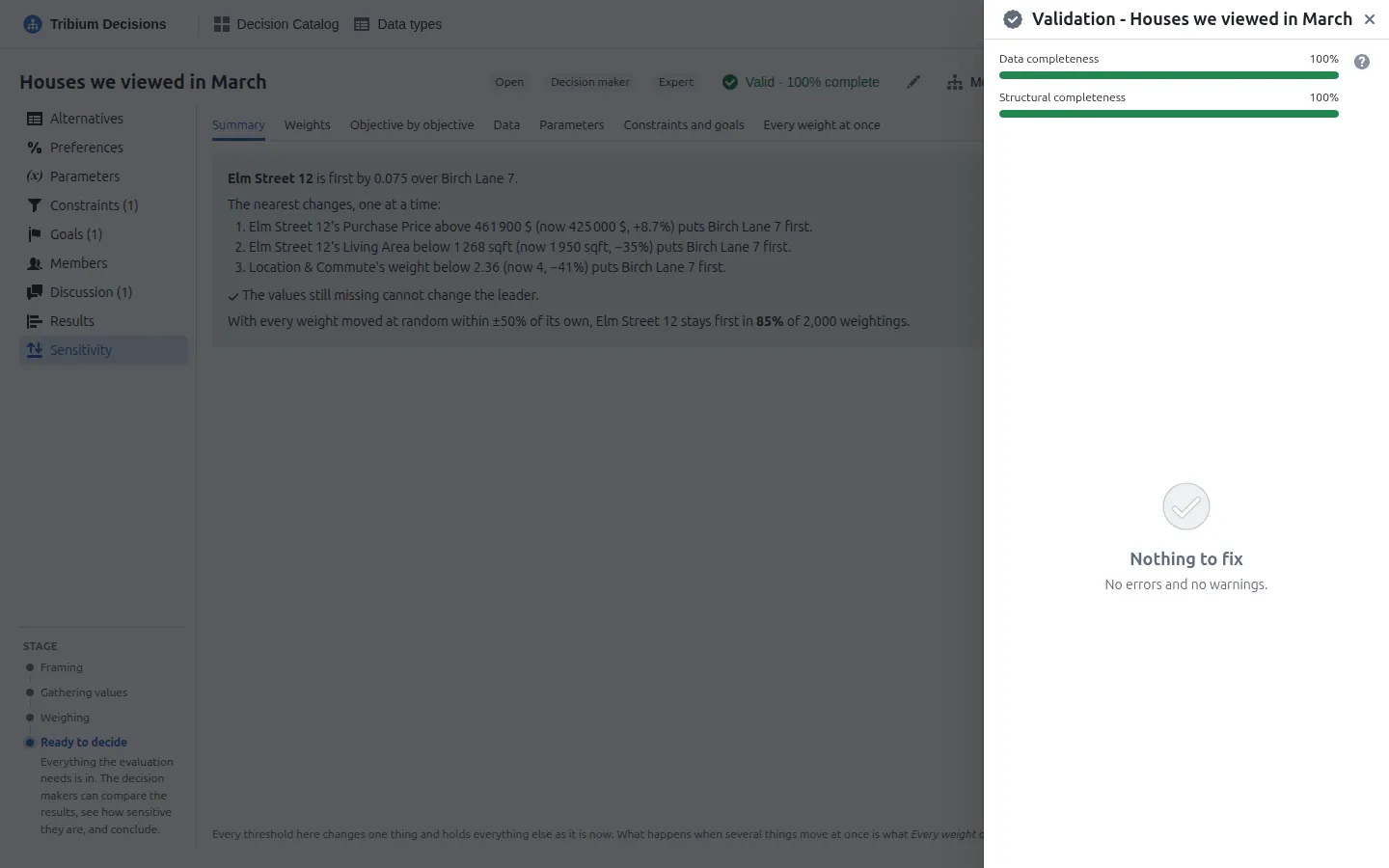
At the foot of the tabs, the stage line says where the problem is on its way to a decision, with the current stage explained under it:
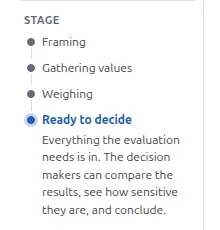
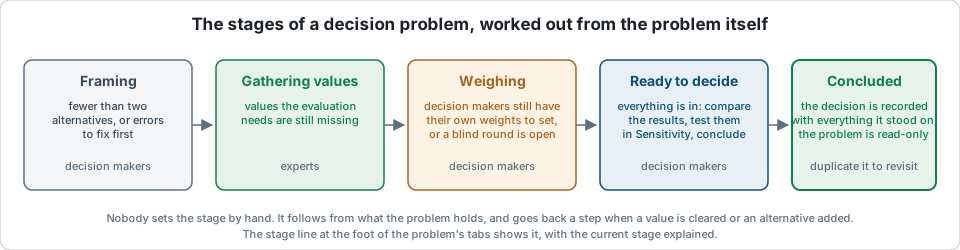
Every change on the tabs is saved as it is made, section by section; only dialogs — the properties, Conclude — have a Save of their own. What other members save — and changes to the model — appear within about fifteen seconds, without reloading; what you are typing is never replaced. If two people change the same section at once, a notice offers Take theirs or Keep mine.
Members
The Members tab is where a decision maker brings the others in:
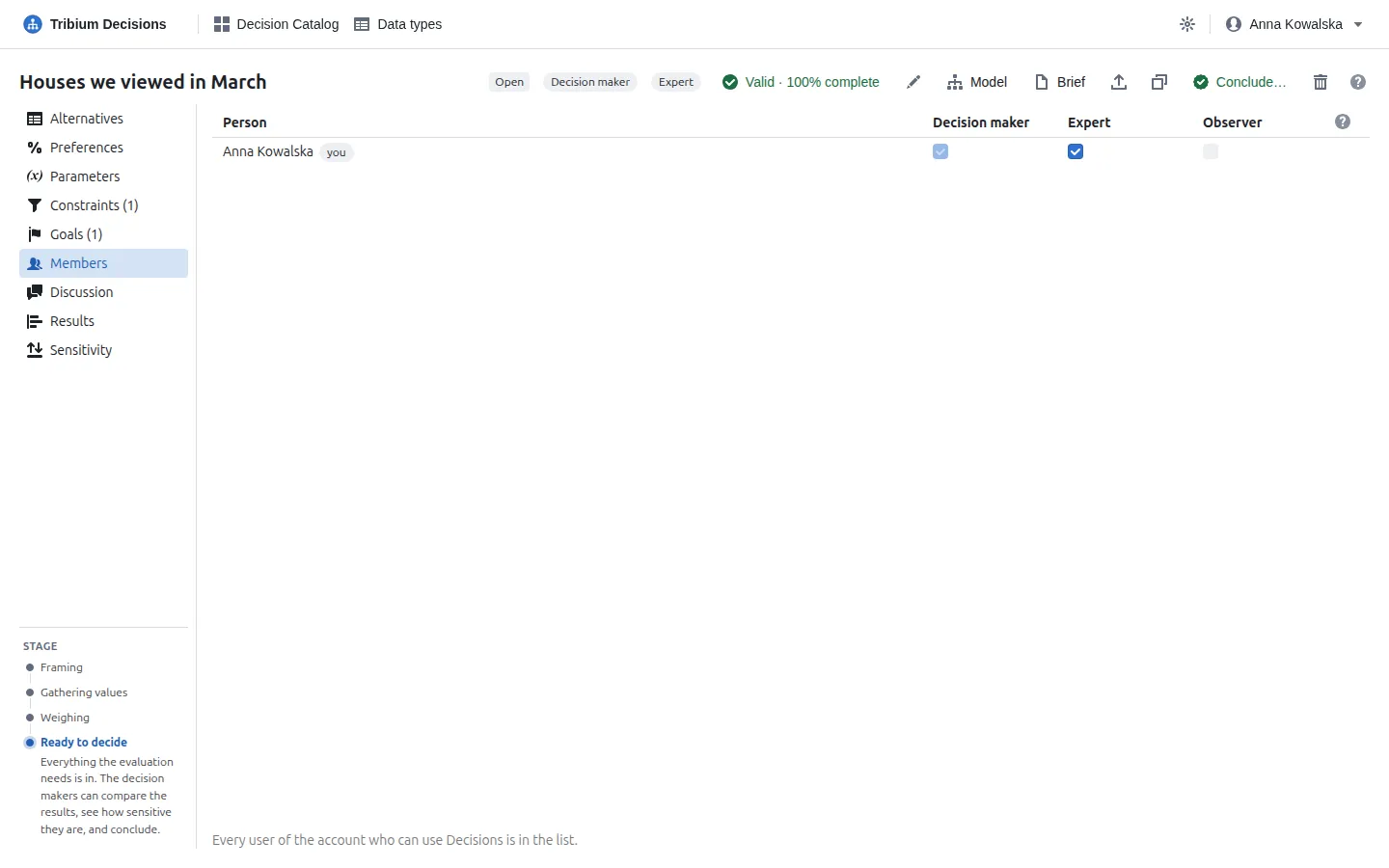
Add a person picks another user of the account who can use Decisions and adds them to the table; tick their roles to make them a member. A person can be a decision maker and an expert at once; an observer holds no other role (ticking it clears the others). Unticking every role takes a person out. A problem always keeps at least one decision maker. Someone added, or given another role, is emailed with what their role asks of them (unless they switched that email off). Everyone else sees the members read-only: decision makers choose who takes part.
With two experts or more, Estimates from several experts appears: whether the problem is blind (nobody sees the others’ estimates until everyone has given theirs), the rule by which estimates are reconciled into the value unless another is chosen for it (pooling, the default, averaging or median), and a weight per expert (1 unless changed, more than 0) with the reason for it — the surveyor who inspected the house may count more on its condition (8.5).
8. Step 3 — Enter the alternatives and their values
What it is for. The candidates being chosen between, and the facts about each one. The whole evaluation rests on these values: every score, ranking and sensitivity figure is computed from them.
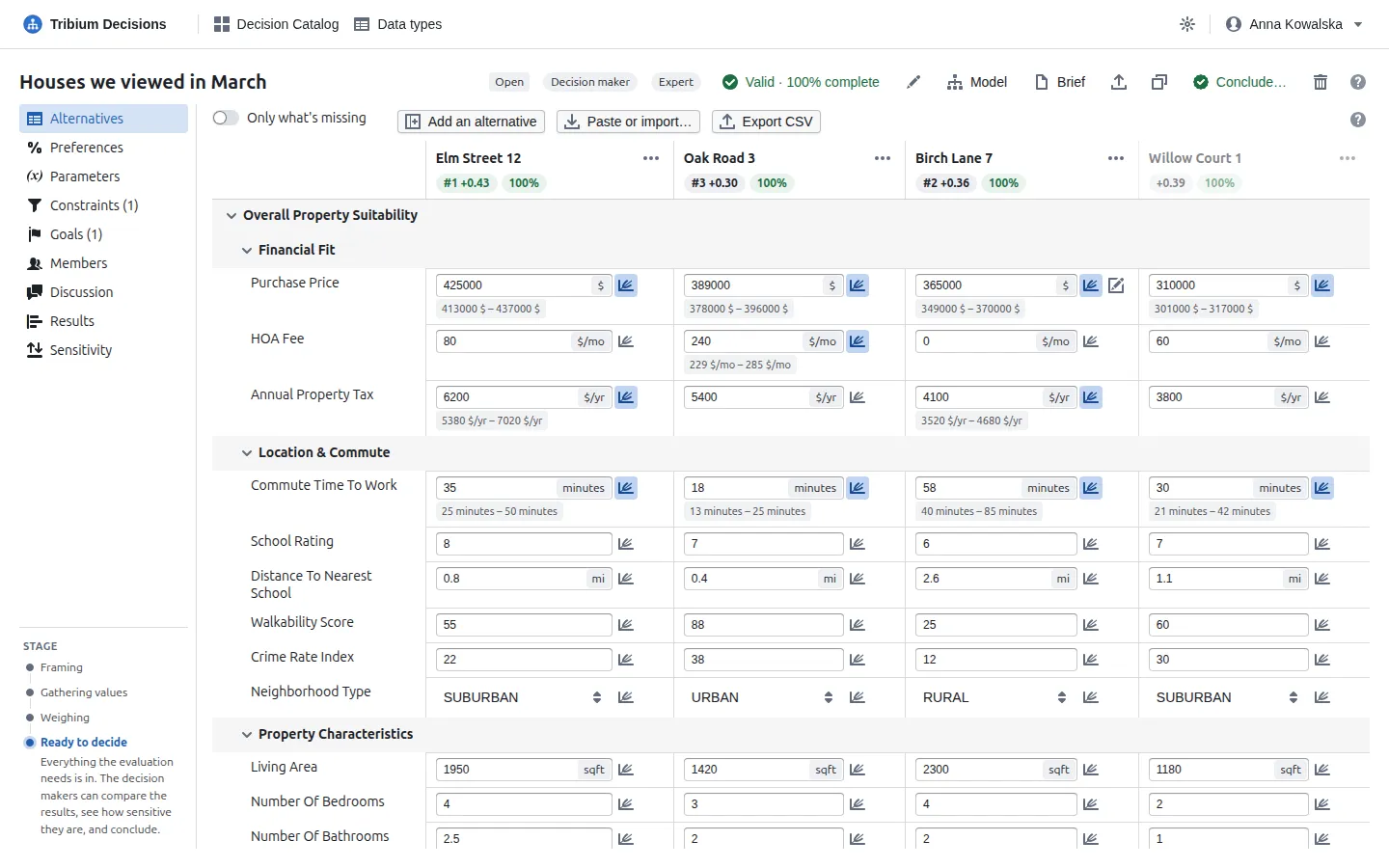
Reading the grid
Each column is an alternative and each row an input the model asks for. The rows follow the model’s objective tree: Purchase Price sits under Financial Fit, so it is clear why it matters. The Functions come after — the values the model calculates, read-only — and then the values used only by calculations, under Other data.
Each column header shows the alternative’s rank and overall score (#1 +0.43) and how much
of its required data is entered (100%). An alternative excluded by a constraint — Willow
Court 1 in the screenshot, two bedrooms — shows its score greyed and no rank.
| What you see in a cell | Meaning |
|---|---|
| A tinted empty cell | A value the evaluation needs and nobody has entered yet. |
| An empty cell that is not tinted | Not needed — nothing scores it. |
| A cell marked in red | A value that is not valid for its type, usually after the model changed. |
A small grey line under the value (378 000 $ – 396 000 $) |
An uncertain value: the range 90% of outcomes fall in, or the possible outcomes. Hover it for the whole distribution. |
| A lit chart button | The value is uncertain; press it to edit the distribution. |
| A lit note button | The value has a source; hover it to read it, press it for the link. |
| A blue speech bubble | An open discussion about this value. |
Entering values
- Experts enter the values: click a cell, type, and leave it — it is saved at once. A number is checked against its data type as you type (a unit, a sign rule, whole or not); a symbol is chosen from a list; yes/no from two choices; a date from a calendar. Enter saves too, and Escape gives up the edit.
- If someone else changed the cell while you were typing, it says changed by them, with keep mine and use theirs.
- Decision makers manage the list: Add an alternative adds a column; click an alternative’s name in its column header to rename it, and its ⋯ menu deletes it.
- Only what’s missing hides every complete row — an expert’s to-do list.
- Hover a row’s name to see what the objective is, how it is scored and how much it counts. Hover a value to see who entered it and when, what it was before, and how far it could change before another alternative came first — the same answer as the Sensitivity tab gives for that one value.
8.1 Uncertain values
Not sure of a value? Say what is not known instead of pretending it is exact: a price still being negotiated, a commute that depends on the traffic, a condition before the inspection.
The quickest way is to type it: 405000..445000 is a range; 405000..425000..445000 is
lowest, most likely, highest (for numbers, durations and dates). Or press the chart
button beside the value — it is there for the experts; everyone else sees the value and its
range:
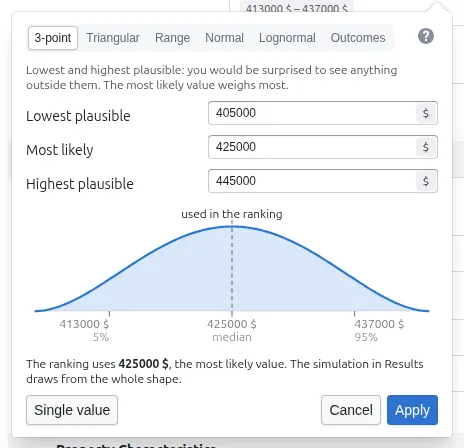
| Shape | When |
|---|---|
| 3-point | Lowest plausible, most likely, highest plausible. The usual way to give an estimate. |
| Triangular | The same three numbers, with more weight towards the ends. |
| Range | Anywhere between two values, all equally likely. |
| Normal | Symmetric around a value: a measurement ± its error. You may give the range 90% of outcomes fall in instead of a standard deviation. Not for durations. |
| Lognormal | Skewed to the long side: travel times, delays, costs that overrun. Not for dates. |
| Outcomes | A few possible values, each with a probability. For yes/no and for symbols, the only choice; move the sliders and the others adjust so the total stays 100%; Equally likely evens them out. |
A text value cannot be uncertain. Apply saves the distribution.
The chart draws what will be simulated; its ticks mark the 5%, the median and the 95%; the dashed line is the value the ranking uses — the most likely value (the middle of a range, the centre of a normal, the median of a lognormal, the most probable outcome), so making a value uncertain around what was already there does not change the ranking. The Results › Uncertainty view then shows what the uncertainty does to the ranking (10.9). Single value turns it back into one number. People asked for “lowest and highest” tend to give ranges that are too narrow — if in doubt, widen them.
8.2 Where a value came from
The small note button in a cell (it shows when you point at the cell) holds the value’s source — “listing of 20 Sep”, “surveyor’s report p. 4” — a link, and a note:
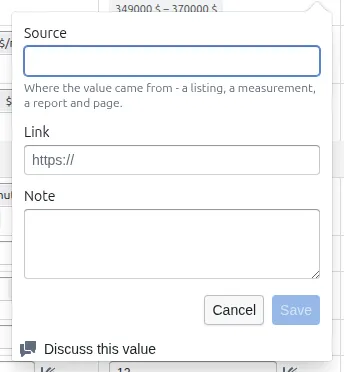
Experts write it; everyone can read it, and the PDF report lists the sources. The same place lists every change of the value and of its source, who made it and when, and starts a discussion about the value (Chapter 12).
8.3 Paste or import from a spreadsheet
Data in a spreadsheet? Select the block with its headings — the alternatives’ names and the inputs’ names — copy it, and paste it anywhere in the grid. Or press Paste or import… and choose a CSV file:
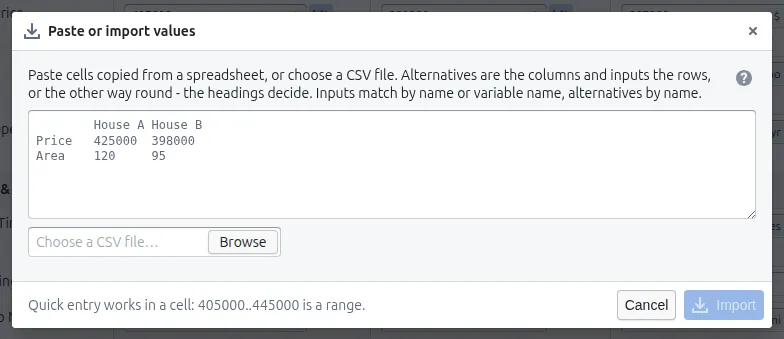
The table’s first row and first column are its headings. The side whose headings match more of
the model’s inputs is taken as the inputs; the other names the alternatives. An input matches by
its name, its label or its variable name, an alternative by its name, ignoring case; a heading
that matches no alternative is a new one. Only an expert’s import writes values, and only a
decision maker’s adds alternatives. Numbers may be written as spreadsheets print them
(425 000, 425,000, $425,000, with a unit), ranges as 405000..445000, yes/no as yes, no,
y, n, 1, 0, x, ✓, -, ✗, true, false or the type’s own labels. You see what matched before anything is written; if the table was taken the
wrong way round, switch Alternatives are the rows. An import never clears a value: an empty
cell leaves the value as it is, and a value refused is named with the reason while the rest are
still written.
Export CSV saves the grid with the functions’ values and the scores. A range or a 3-point
estimate is written as a..b or a..m..b; any other distribution as the single value the
ranking uses, so importing the file again does not bring those distributions back.
8.4 Values no longer in the model
When a modeller removes an input, the values entered for it are not lost: the grid lists them under No longer in the model, by the removed input’s internal id, where an expert can clear them. They no longer count.
8.5 Several experts: estimates
With two experts or more on a problem, nobody overwrites anyone. The people button in a cell holds each expert’s own estimate of the value — a value, or low..likely..high — with a line of why. Its picture shows each estimate as a range, the value now, and the dashed points past which another alternative would be first: if the estimates lie on both sides of one, the disagreement decides, and the button turns orange.
A decision maker then reconciles the estimates into the value: pooled (every view kept, as uncertainty), averaged (one consensus), their median, or one expert’s. For yes/no and symbols, averaged and median take the value most experts gave (weighted), and pooled gives the outcomes with their shares. The record keeps the estimates and how they were reconciled. In a blind problem nobody sees the others’ estimates until everyone has given theirs. The blindness, the experts’ weights and the default rule (pooled, unless changed) are set on the Members tab; a decision maker can pick another rule for one value in its panel. An expert can take their estimate back with Take mine back.
8.6 What was it before?
Hovering a value says what it was before its last change; the note button lists every change with who made it and when (the latest thousand changes of the problem). The history starts when the value is first entered.
8.7 Judging what has no measure
Some objectives have no number to measure — how a place feels, a design, a candidate’s fit. The modeller makes such an objective judged by the experts, and its row in the grid holds a Judge… button instead of cells. People compare alternatives far better than they place each one on a made-up scale alone, so the dialog offers three ways:
| Method | How it scores |
|---|---|
| Rank | Put them in order, best first. The best scores +1, the worst −1, the others evenly between. |
| Rate | Give each 0 to 100: 0 as bad as it gets, 100 as good; 50 scores 0. |
| Pairwise | For each pair, which is better and how many times (1 to 9). The scores come from all the answers together, spread so the best scores +1 and the least −1; a consistency ratio says whether the answers agree with each other (below 0.1 they do) and points at the pair to look at again. Up to seven alternatives: with more, the first seven are compared and the dialog suggests ranking or rating the rest. |
An alternative added later has no score until it is placed. Only experts judge; everyone else sees how the scores were given.
9. Step 4 — Set the preferences, parameters, constraints and goals
These four tabs are the decision makers’. Everyone else sees them read-only.
9.1 Preferences: weights and curves
What it is for. How much each objective matters in this decision, and how a value turns into a score. The model supplies defaults; the decision makers can change them here without changing the model or any other problem.
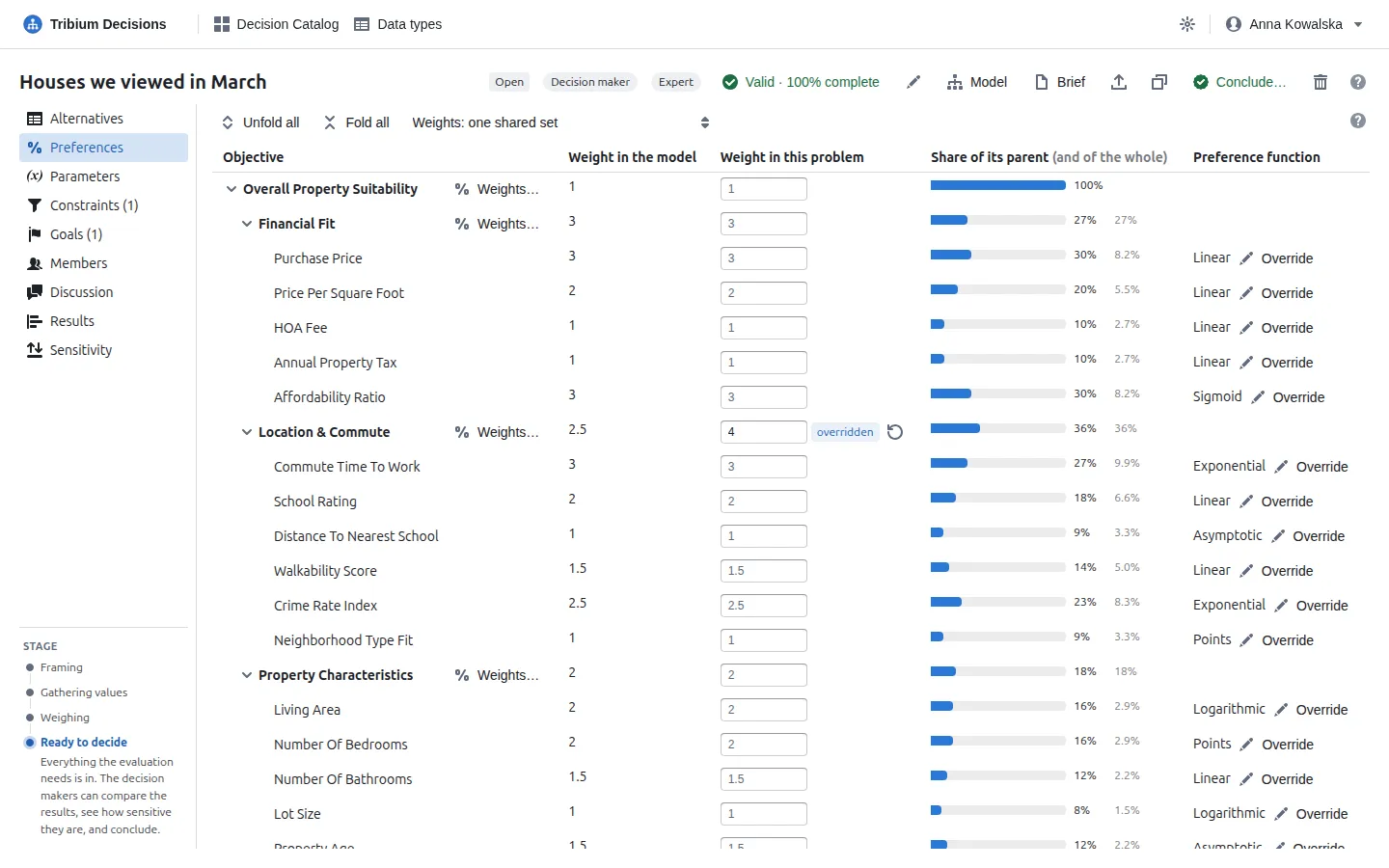
The tree shows every objective with its weight — the model’s, greyed, until you type your own — and a bar for its share of the overall score. An overridden weight or curve is tagged and shown beside the model’s default, with a reset button that goes back to the model’s. Reset, or clearing the weight’s field, makes it the model’s again, so the problem follows the model if a modeller later changes it. (In the Weights… dialog, a weight typed at the model’s value is no override either; one a method gave always is.)
Weights… on a compound objective sets its children’s weights together. The dialog asks the question four ways; use whichever you can answer:
| Tab | What you do | What it is good for |
|---|---|---|
| Direct | Drag a slider or type a number; the share beside it follows. | When you know the numbers. |
| Rank order | Put the objectives in order of importance, nothing more. The weights follow by the rank-order centroid — for three objectives 61%, 28% and 11%. | The fastest way to weights. It cannot say that two are nearly equal, or that the first dwarfs the rest. |
| Swing | Each row shows the objective’s worst and best among the alternatives on the table (the admissible ones, when at least two are). Give the swing you would most like to make 100, and each other swing what it is worth beside it. | “How important is price?” has no good answer; “how much is it worth to go from the dearest of these houses to the cheapest?” does. |
| Pairwise | For each pair of objectives, which matters more and by how much, on the 1–9 scale. The weights are those that fit all the answers best; a consistency ratio above 0.10 means the answers contradict each other, and the comparison that disagrees most is marked. | Up to seven objectives. |
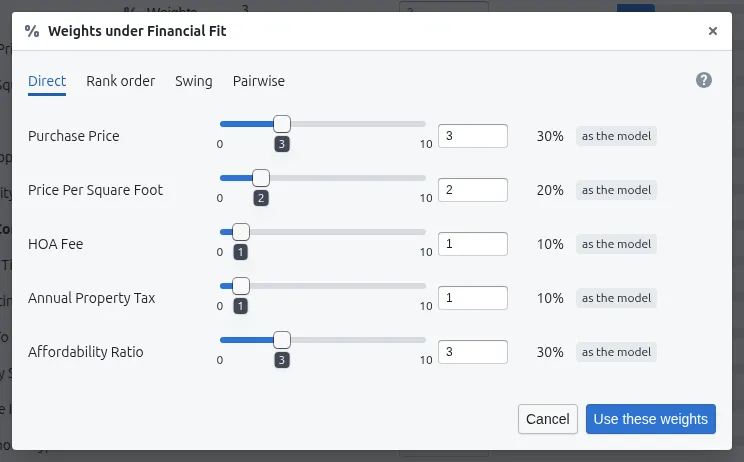
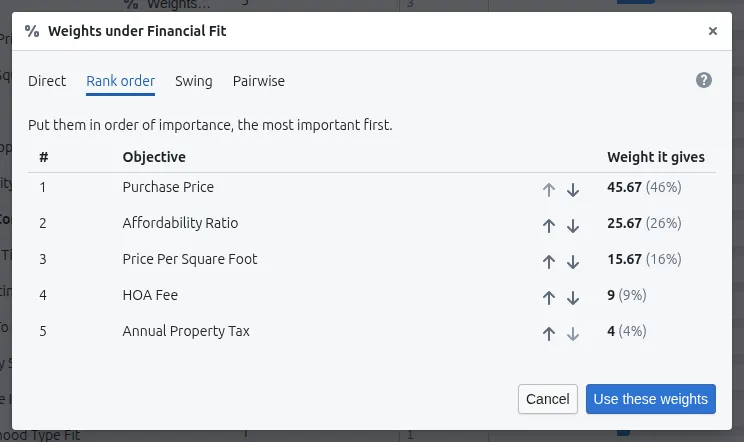
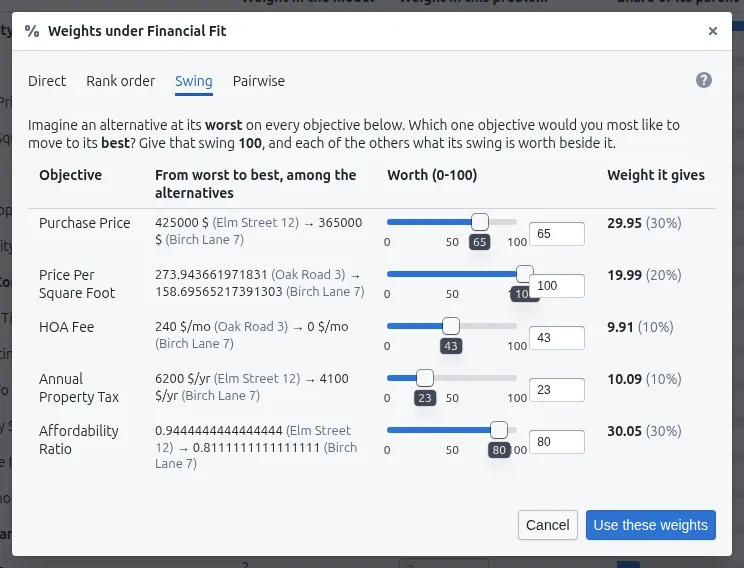
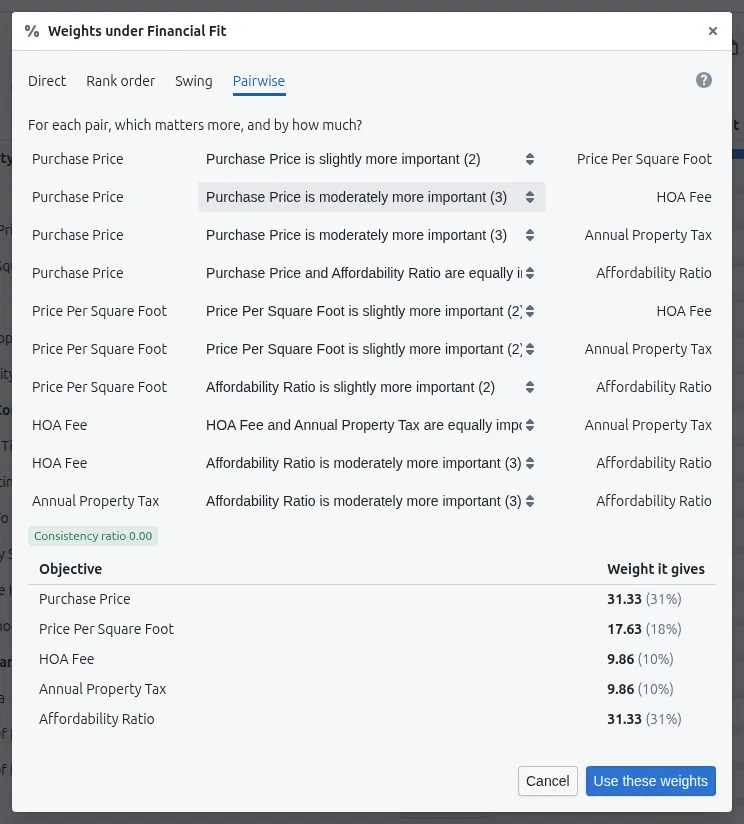
Each tab starts from what the current weights imply, and Use these weights writes them. Top-level weights… does the same for the objectives at the top of the tree. Unfold all and Fold all open and close the tree.
Override beside an objective’s preference function opens it, starting from a copy of the model’s curve with the model’s drawn beside it:
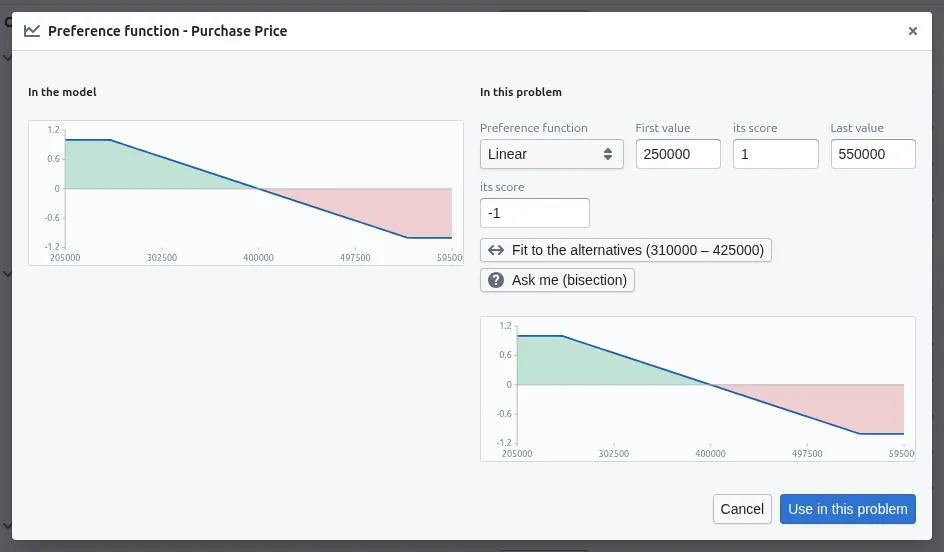
The same shapes and the same Ask me (bisection) as in the model; in a problem there is also Fit to the alternatives, which stretches the curve over the lowest and highest value the alternatives actually have — a curve that stops short of them scores several alike at its ends. Use in this problem saves the override. The Results tab marks objectives scored with an overridden curve, because two problems on one model may now score the same value differently.
Whose weights. Weights: one shared set is one set of weights every decision maker edits. Weights: each decision maker’s own, combined gives each decision maker a column of their own and ranks by the combination — the mean of their shares, so every alternative scores the average of what it scores under each one’s weights:
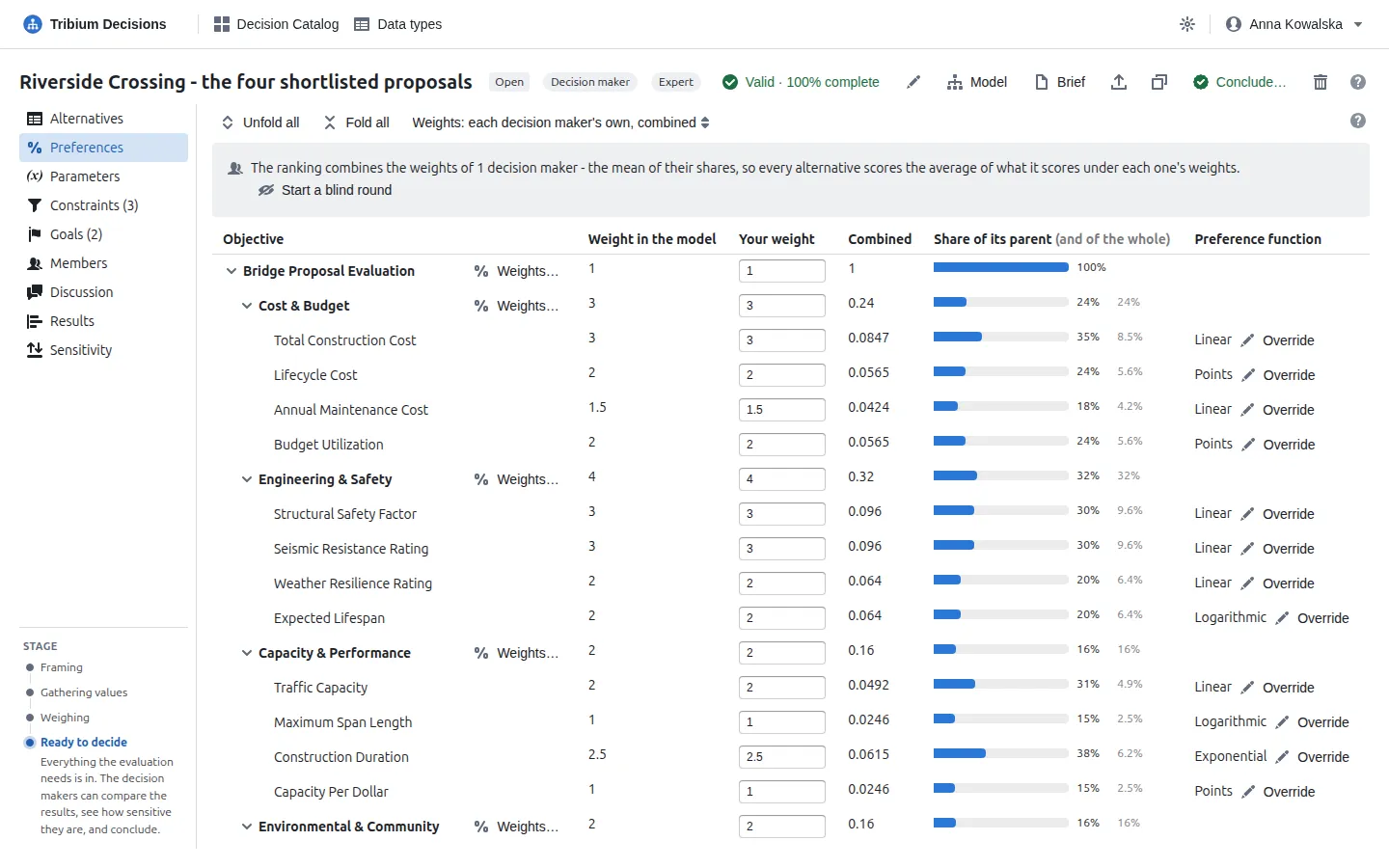
With own weights, Start a blind round asks every decision maker to answer without seeing the others’ — people anchor on the first numbers they see. While it is open your column is your hidden answer, the others see only that you have answered, and the ranking stays as it was. When everyone has answered, or a decision maker closes the round, all answers are revealed together; discuss where you differ, run another round, and Results › Whose weights shows how far each round was apart (10.8). A problem cannot be concluded while a round is open.
9.2 Parameters
What it is for. The values that belong to the decision as a whole. The model declares them; this problem gives them values.
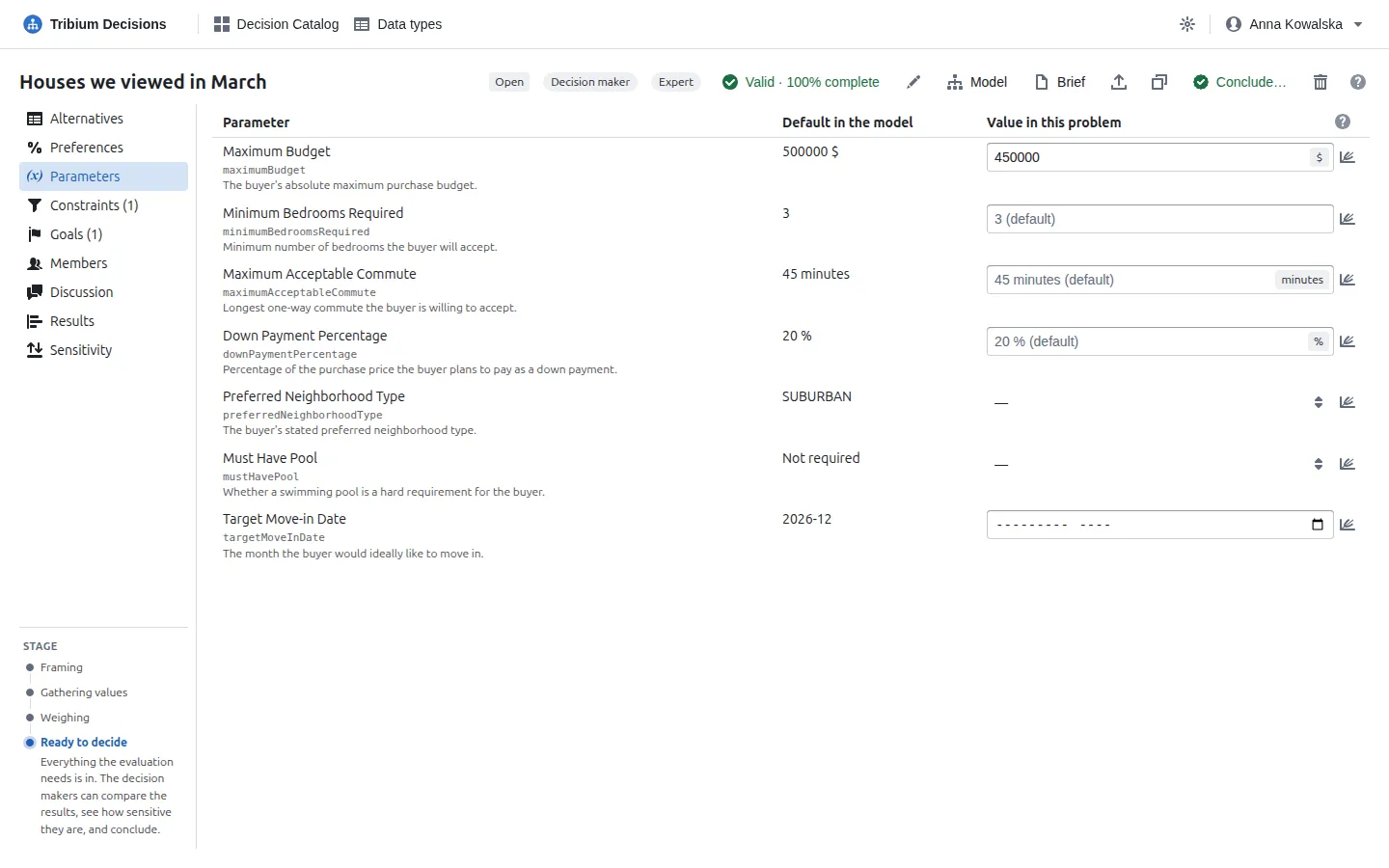
Type a value; it is saved when you leave the field. An empty field shows the model’s default, marked (default), and clearing a value returns to it. A parameter matters when a function uses it (Affordability Ratio divides the price by Maximum Budget) or a constraint or goal refers to it. A parameter can be uncertain too — a demand forecast, an interest rate: press the chart button beside it. In the simulation it is drawn once per outcome and holds for every alternative together, which is how a forecast can change the winner.
9.3 Constraints
What it is for. Hard limits — “I will not accept anything that…”. An alternative that breaks an active constraint is inadmissible: still evaluated and shown, greyed, with the reason, but not ranked.
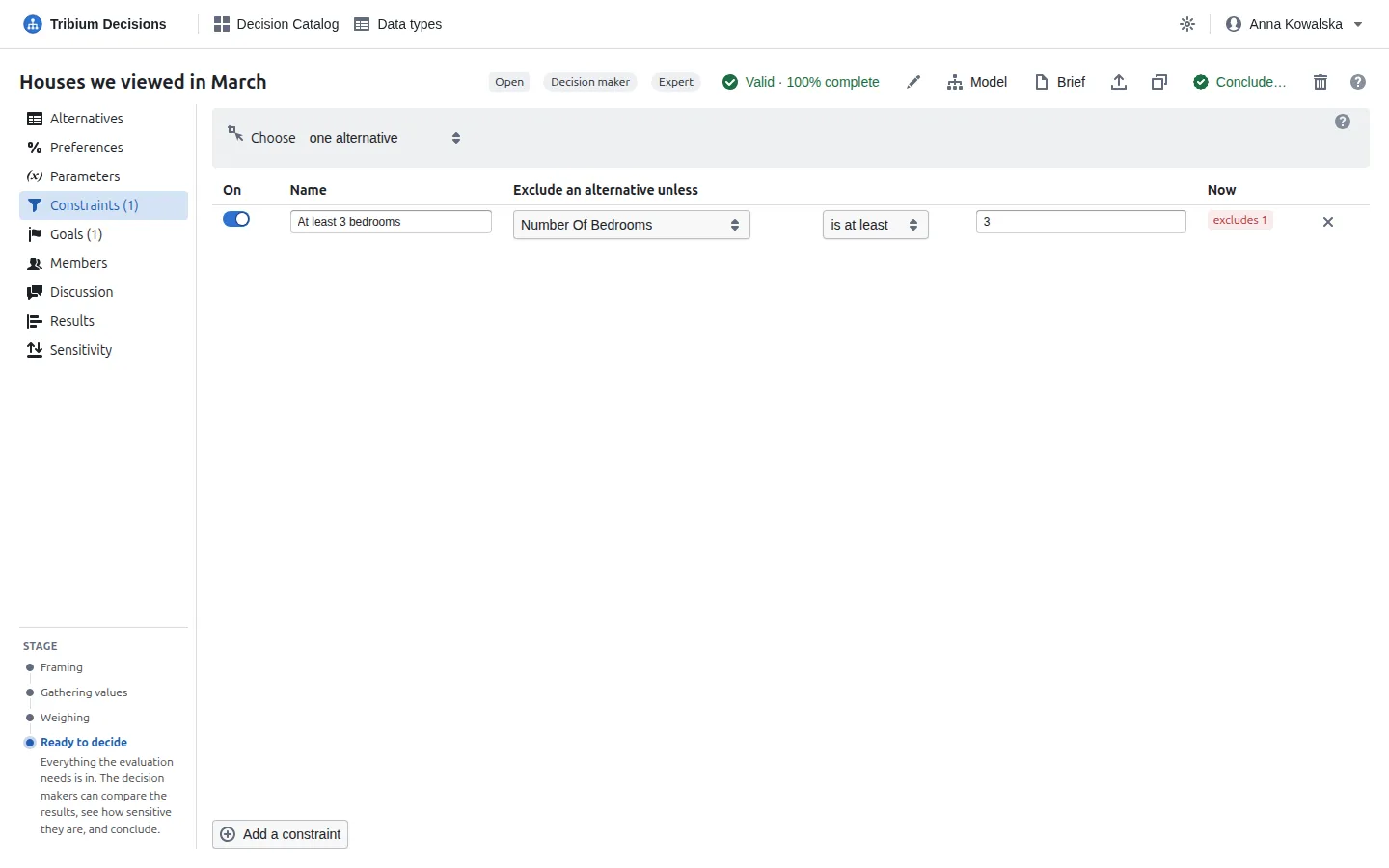
Add a constraint, then choose what it is about — an input, a function or a parameter — the operator (is, is not, is less than, is at most, is more than, is at least, is between, is one of, is none of; the operators offered depend on the kind of value) and the value. A name is optional. A constraint cannot be about an objective’s score — only a goal can. The switch at the start of a row turns a constraint off without deleting it — to see the ranking without it.
When the value a constraint needs is missing, the constraint is undetermined: the alternative stays in the ranking but is flagged, because excluding it would reward alternatives for having their data entered.
Choose, at the top, says how many alternatives the decision picks: one alternative, or several within a budget — costing what one of the inputs says, with a smallest and a largest number of choices if you want:
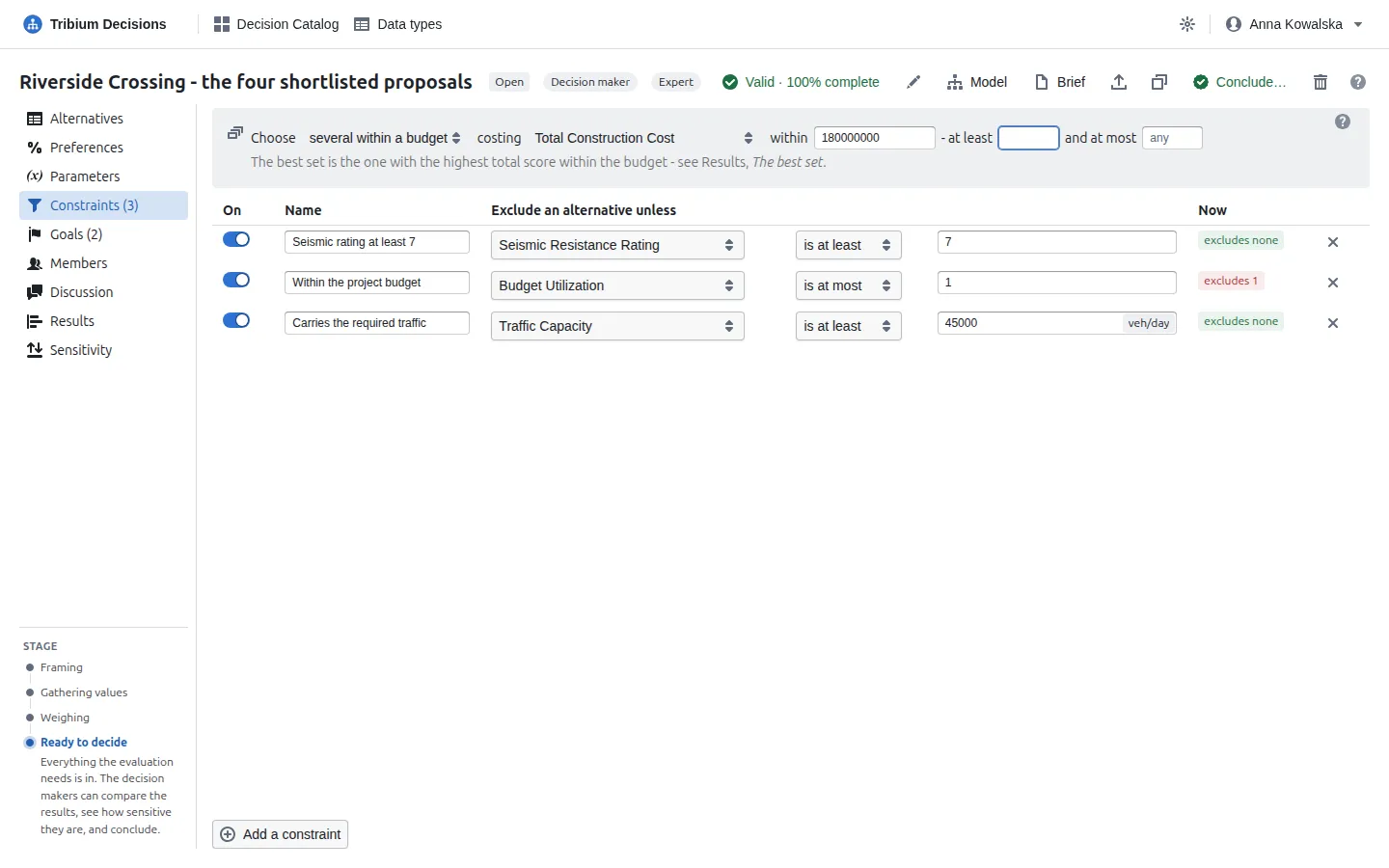
Results then shows The best set (10.3).
9.4 Goals
What it is for. What would be good enough — “I would be happy with anything that…”. Goals exclude nothing and do not change the ranking; they mark which alternatives are satisfactory, to draw attention to them.
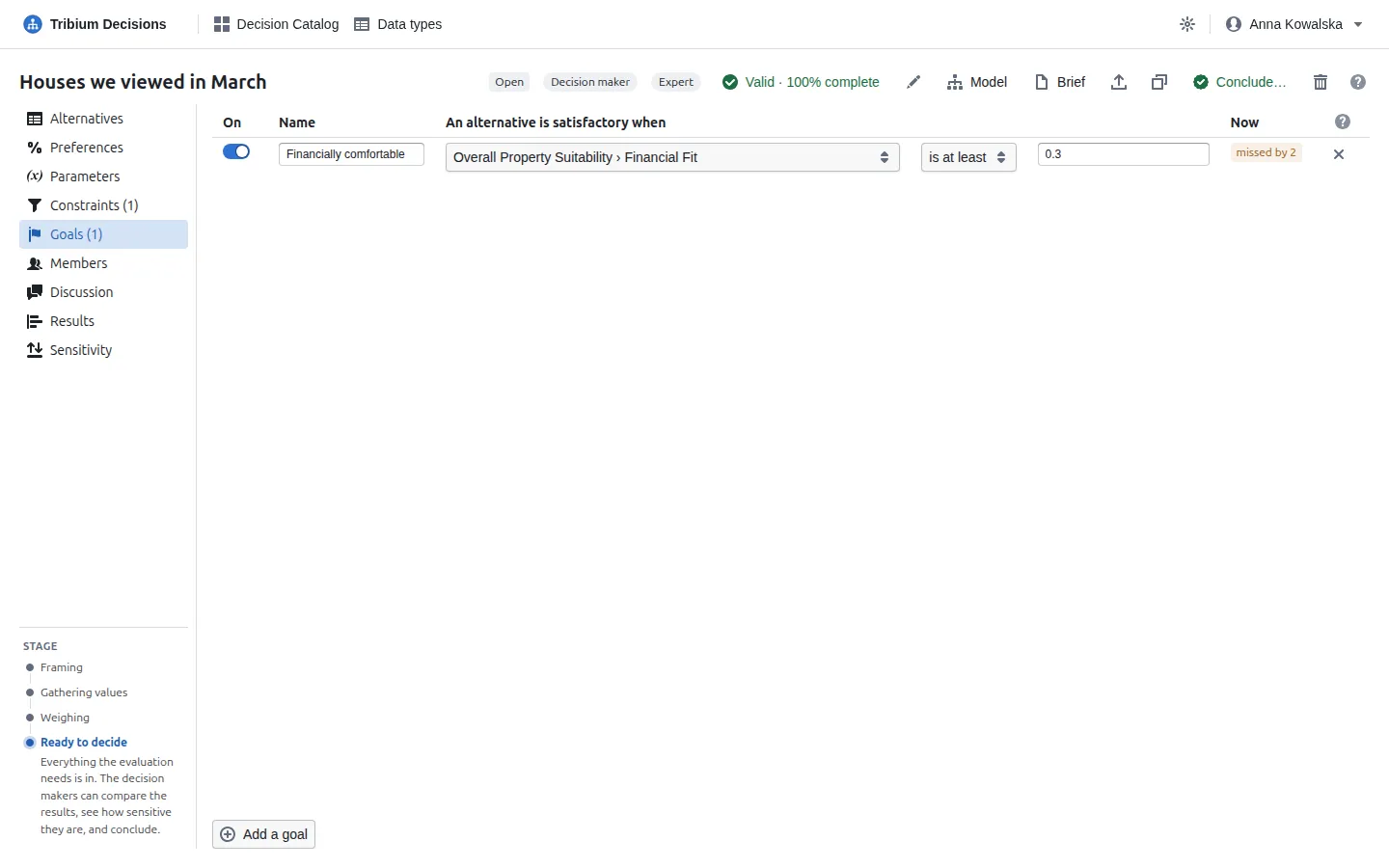
A goal is written like a constraint, and can also be about an objective’s score (Financial Fit is at least +0.3). An alternative is satisfactory when it meets every active goal; a goal whose value is missing counts as missed. The Results tab shows how many goals each alternative meets, and the Sensitivity tab how far each is from each goal.
10. Step 5 — Read the results
What it is for. Which alternative the evaluation puts first, by how much, and why — computed live from the values, the preferences and the conditions, and recomputed with every change. The sub-tabs look at the same evaluation from different sides. Two buttons sit above them on every sub-tab: Export PDF report and What if… (11.8).
10.1 Ranking
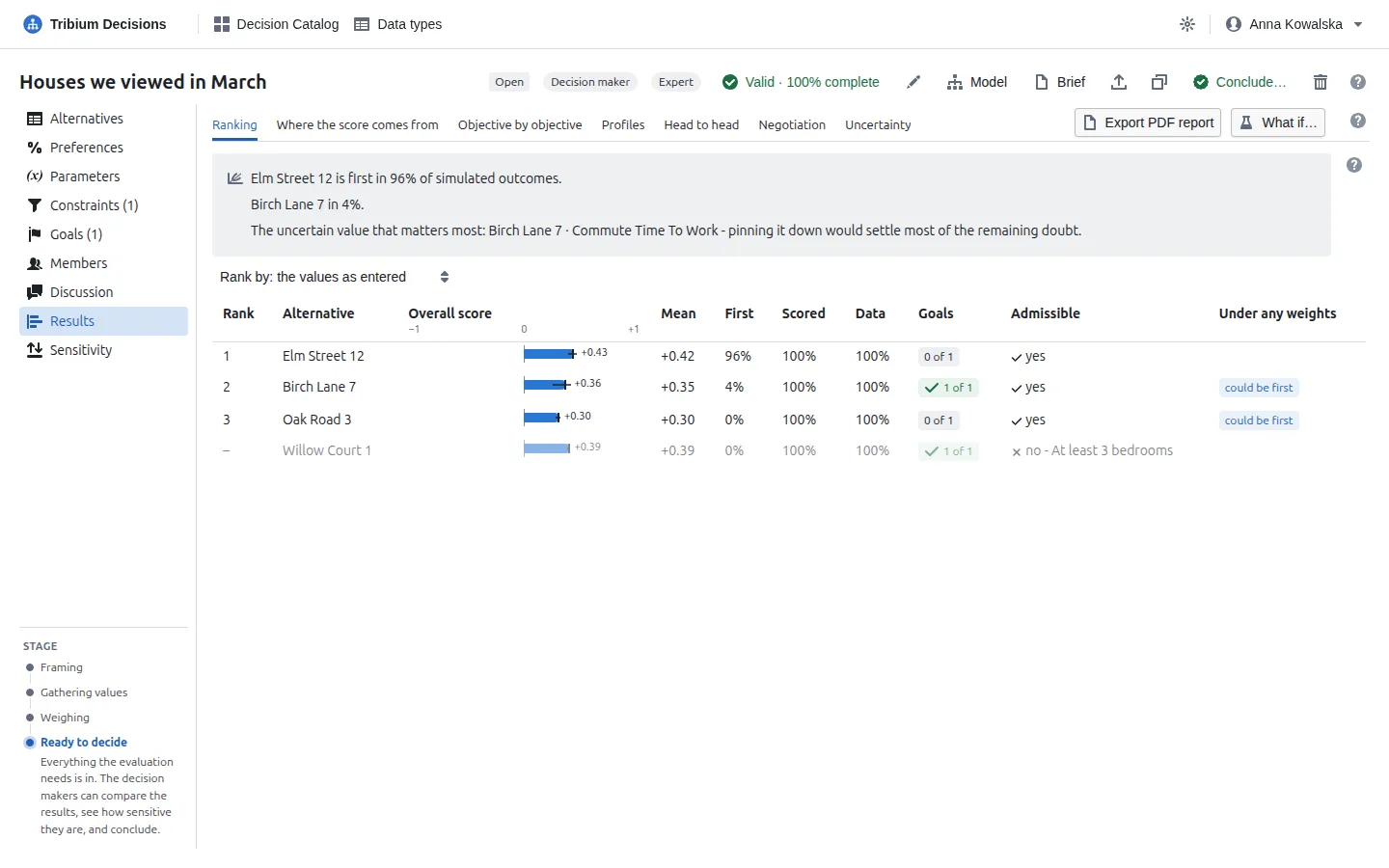
Admissible alternatives are ranked by overall score, highest first; alternatives excluded by a constraint are listed after, greyed and unranked, with the constraint that excludes them.
| Column | Meaning |
|---|---|
| Overall score | From −1 to +1, on a bar diverging from 0: blue to the right for positive, red to the left for negative. A gap between two bars is the margin between them. |
| Scored | How much of the score rests on entered data, weighted by the objectives. Below 100%, some of the score is a placeholder 0. |
| Data | The share of the values this alternative needs that are entered. |
| Goals | How many goals it meets; hover for the ones it misses. |
| Admissible | Whether it passes every constraint; not all known when a constraint’s value is missing. |
| Under any weights | What no argument about weights can change: dominated by another alternative that is at least as good on every objective and better on one; never first under any weighting; at best level with the first; or could be first — hover for weights that would put it there. |
Before arguing about weights, set aside what Under any weights says is dominated or never first: no weighting would change that.
With uncertain values, a thin line over each bar spans 90% of the simulated outcomes with a tick at the median, and more columns appear: Mean (the average score over the outcomes), First (the share of outcomes in which the alternative comes first) and — when a constraint excludes an alternative in some outcomes but not all — Admitted (the share in which no constraint excludes it). Rank by reorders the table by the mean score, the chance of coming first, or a bad case (the 5th percentile), and a tag says when that puts another alternative first; the ranking itself — and what concluding records — stays the one of the values as entered.
10.2 Where the score comes from
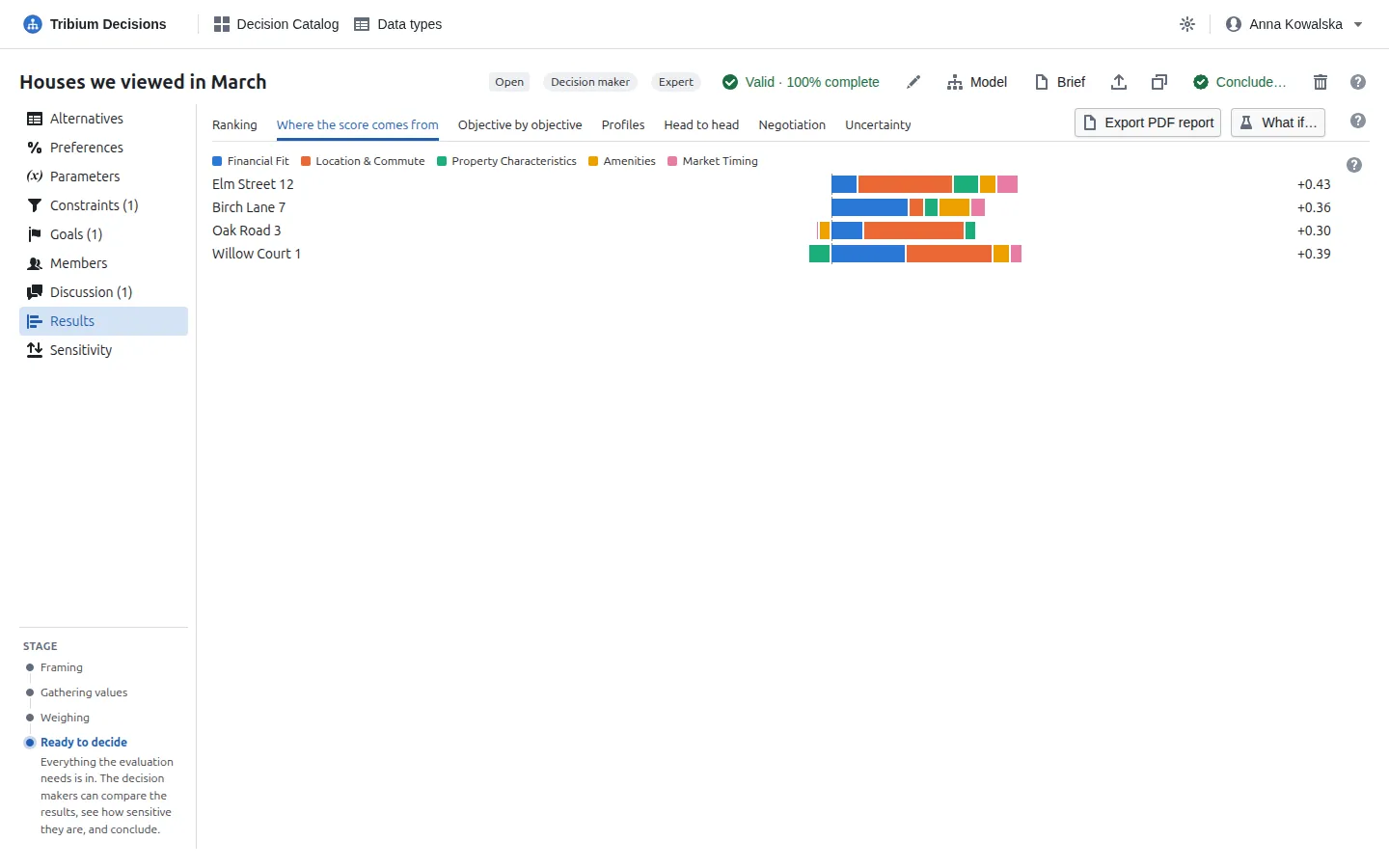
Each alternative’s overall score taken apart into what each main objective adds or takes away. An objective’s contribution is its score times its share, and the contributions add up exactly to the overall score. Each bar starts at 0: positive contributions stack to the right, negative ones to the left, and the total at the end of the row is the overall score. Compare alternatives by where their bars are long — that is where they win. Hover a segment for its value.
10.3 The best set
Shown when the problem chooses several within a budget. A set is worth the sum of its alternatives’ overall scores, and among all the sets that fit the budget — and the number of choices allowed — the best is found by an exact search, not by picking the best-scoring ones until the money runs out: a cheaper pair can beat one expensive favourite. (On a very large problem the search may stop at the best it found, and says not proven.) Only admissible alternatives with a score and a cost take part; one that scores 0 or less adds nothing. Score per 1 000 shows what each alternative gives for its cost.
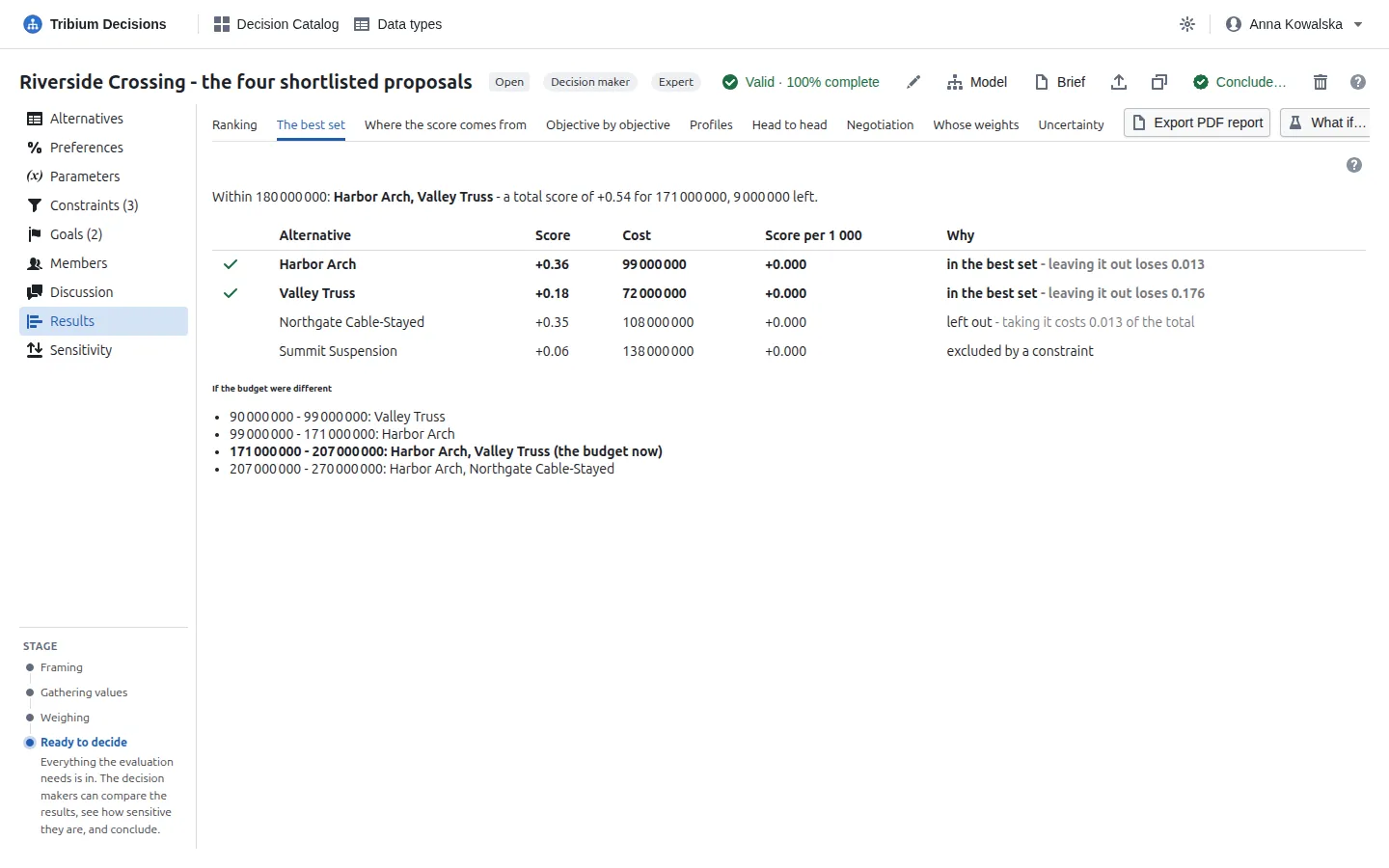
Why says, for each alternative, what it costs the set as a whole: leaving it out loses 0.176 — the best set without it scores that much less; taking it costs 0.013 of the total — the best set that includes it scores that much less. If the budget were different lists the budgets, from half to one and a half times this one, at which the best set changes. When concluding, the best set is ticked; you may choose another, and the record keeps both.
10.4 Objective by objective
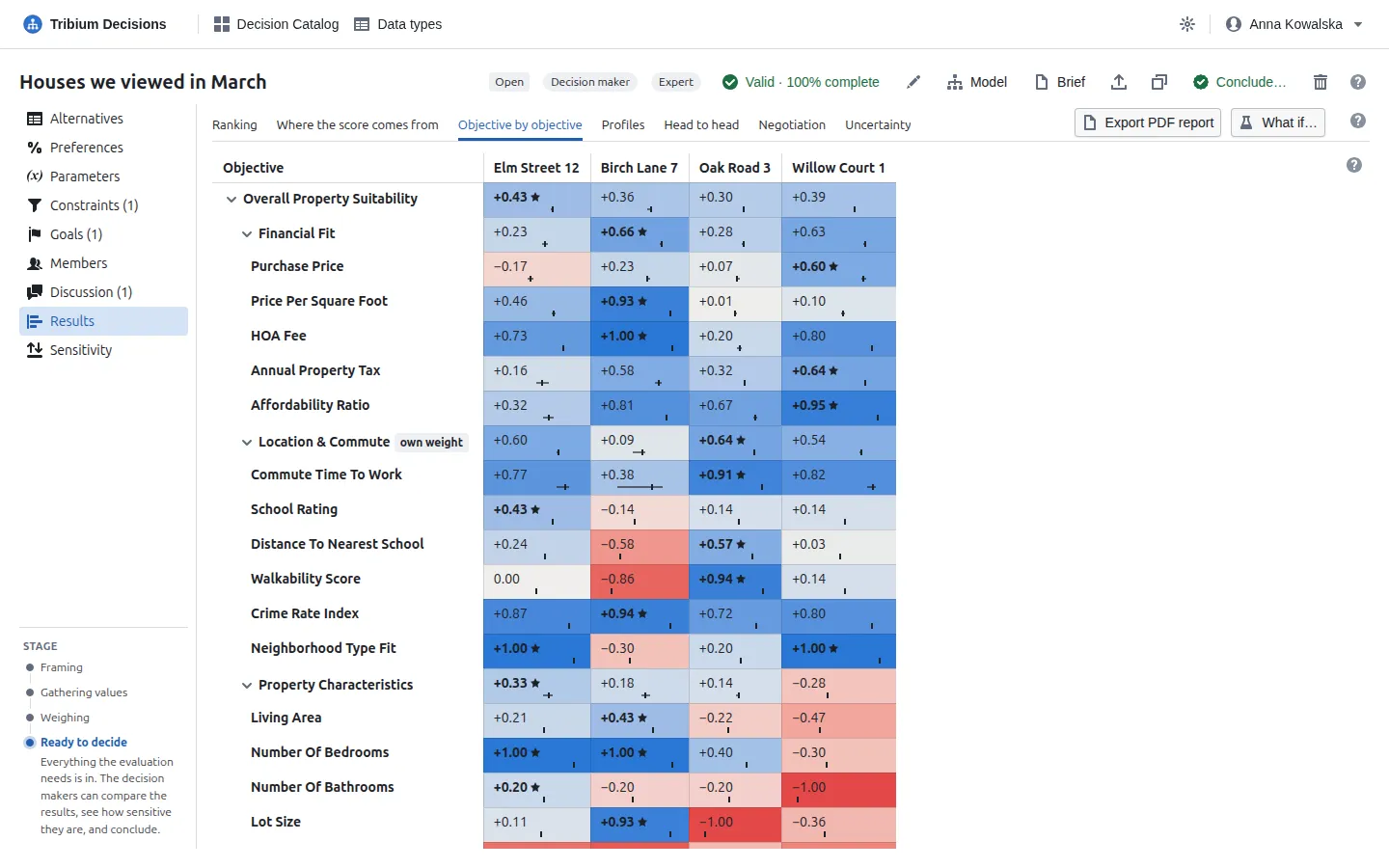
Every objective’s score for every alternative — the detail behind the ranking. Rows are the objective tree, compound objectives in bold with their children below; columns are the alternatives, ranked. Cells are coloured by score: blue for good, red for bad, grey around 0, the stronger the colour the further from 0. The best score in a row is in bold with a star. own curve or own weight marks an objective this problem scores or weighs differently from the model. Hover a cell for the measured value, its score and its contribution; fold a compound objective to see only its average. With uncertain values, the line under a score spans 90% of the simulated outcomes, and clicking the cell shows the whole distribution — and how the value’s spread passes through the preference curve.
10.5 Profiles
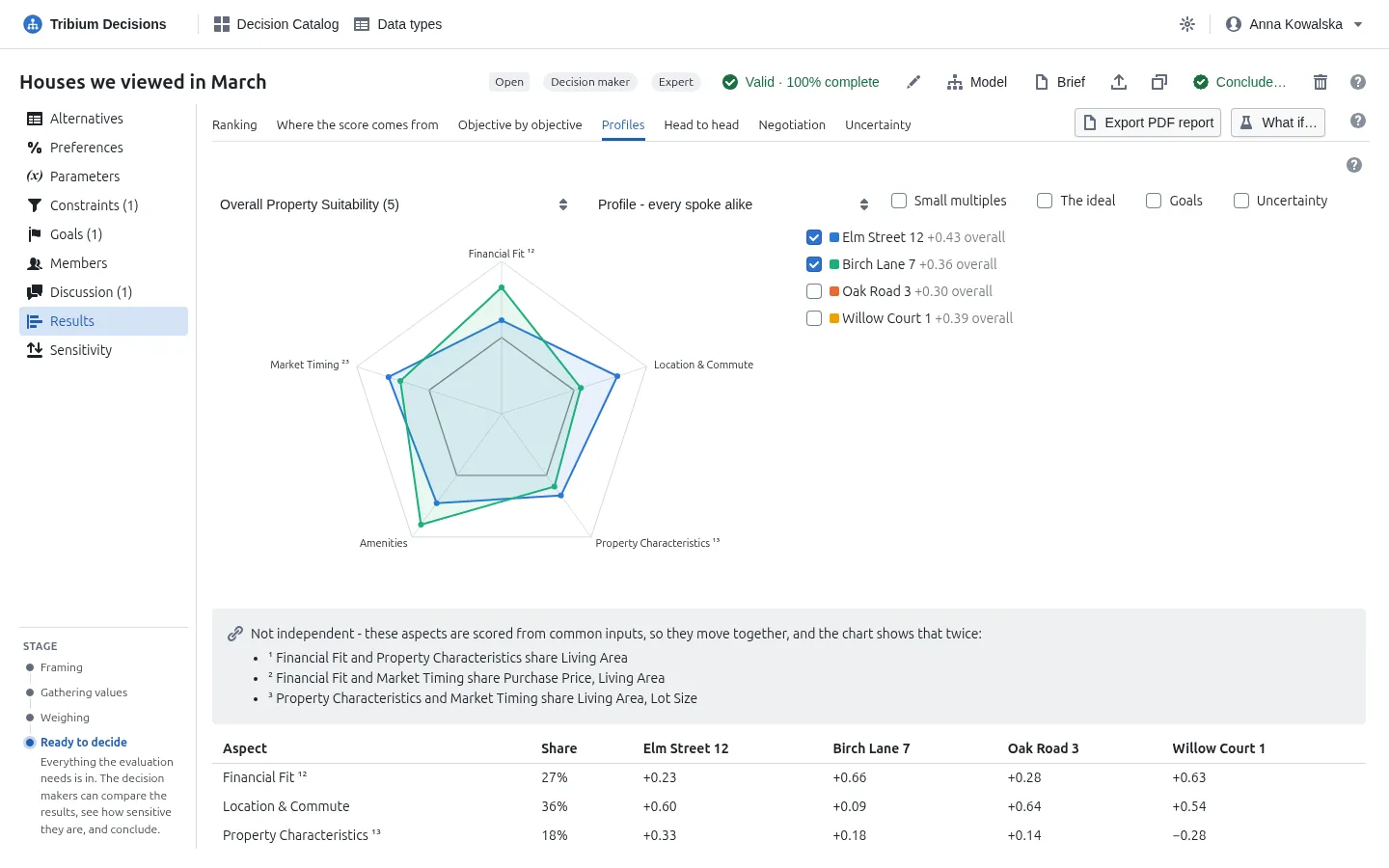
Each alternative’s shape across the aspects of the decision — strong on money, weak on location — on a radar chart. The aspects are one level of the objective tree, by default the first that splits; each spoke runs from −1 at the centre to +1 at the rim, and the inner ring is 0. In the weighted mode each spoke is as long as the aspect’s share, so a spike on a long spoke counts for more. Tick up to four alternatives to lay over each other, or Small multiples for one small radar each. The ideal draws the best any admissible alternative reaches on each aspect; Goals marks goals; Uncertainty the 5–95% of the simulated outcomes on each spoke. Read the shape, not the area: the area depends on the order of the spokes. The table under the chart has every number.
10.6 Head to head
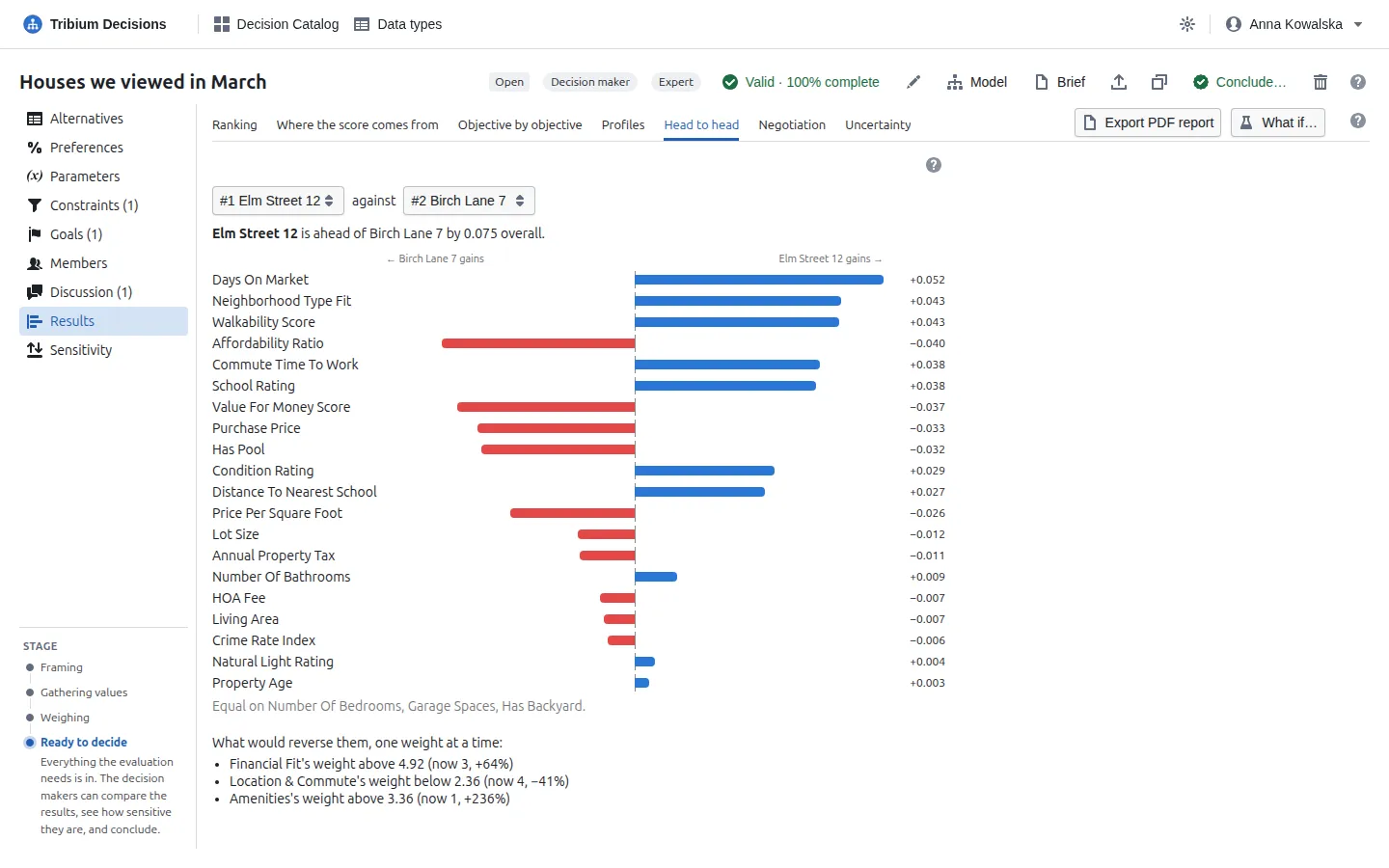
Why one alternative is ahead of another: the gap between the two, taken apart objective by objective. The gap is exactly the sum of their differences in contribution, and the bars are those differences, the largest first: a bar to the right is where the first alternative gains, to the left where the second does. Below them: the weights that, each moved alone, would put the two the other way round — above 7.2 (now 3, +140%); the nearer, the more the order of the two depends on it. Pick the two to compare; the first two of the ranking to begin with. Use it to write the rationale when concluding: “Elm Street wins on price and loses on commute”.
10.7 Negotiation
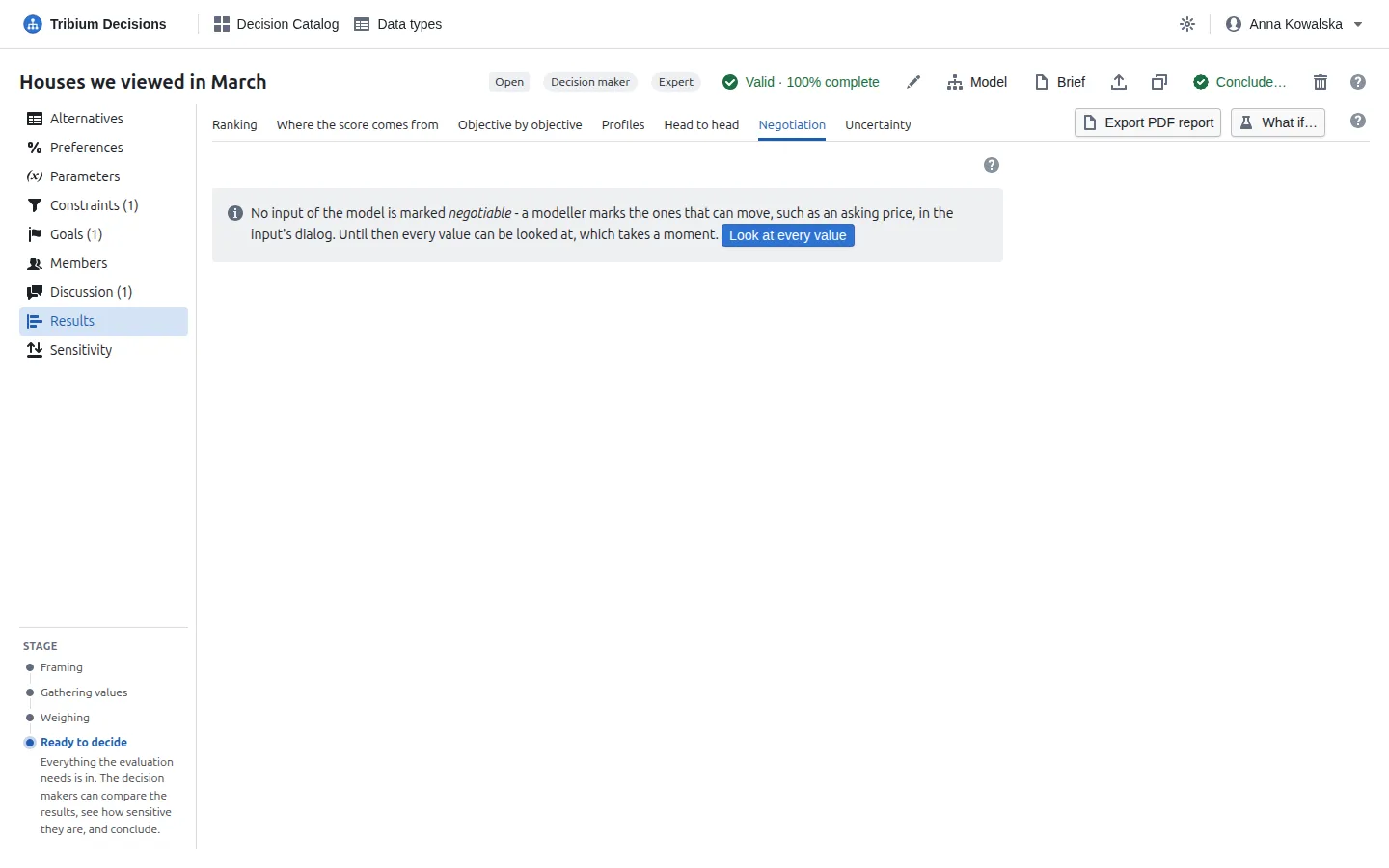
What each alternative would have to become to be first — the offer to take into the room — and, for the one that is first, how far its values could get worse before it stops being first. One value at a time, everything else as it is, the value is searched for the point at which the ranking changes. Read a line as an offer: “Oak Road 3 would be first if Purchase Price below 371 000 (it is 389 000, −4.6%)”. For the leader, the walk-away point. Only the inputs the model marks negotiable are looked at; when none is marked, every value can be, on request. Copy puts the lines on the clipboard, and the PDF report has them when the model marks inputs negotiable.
10.8 Whose weights
Shown when the decision makers have their own weights, when a what-if was saved as a scenario, or when a blind weighting round is open or has been held.
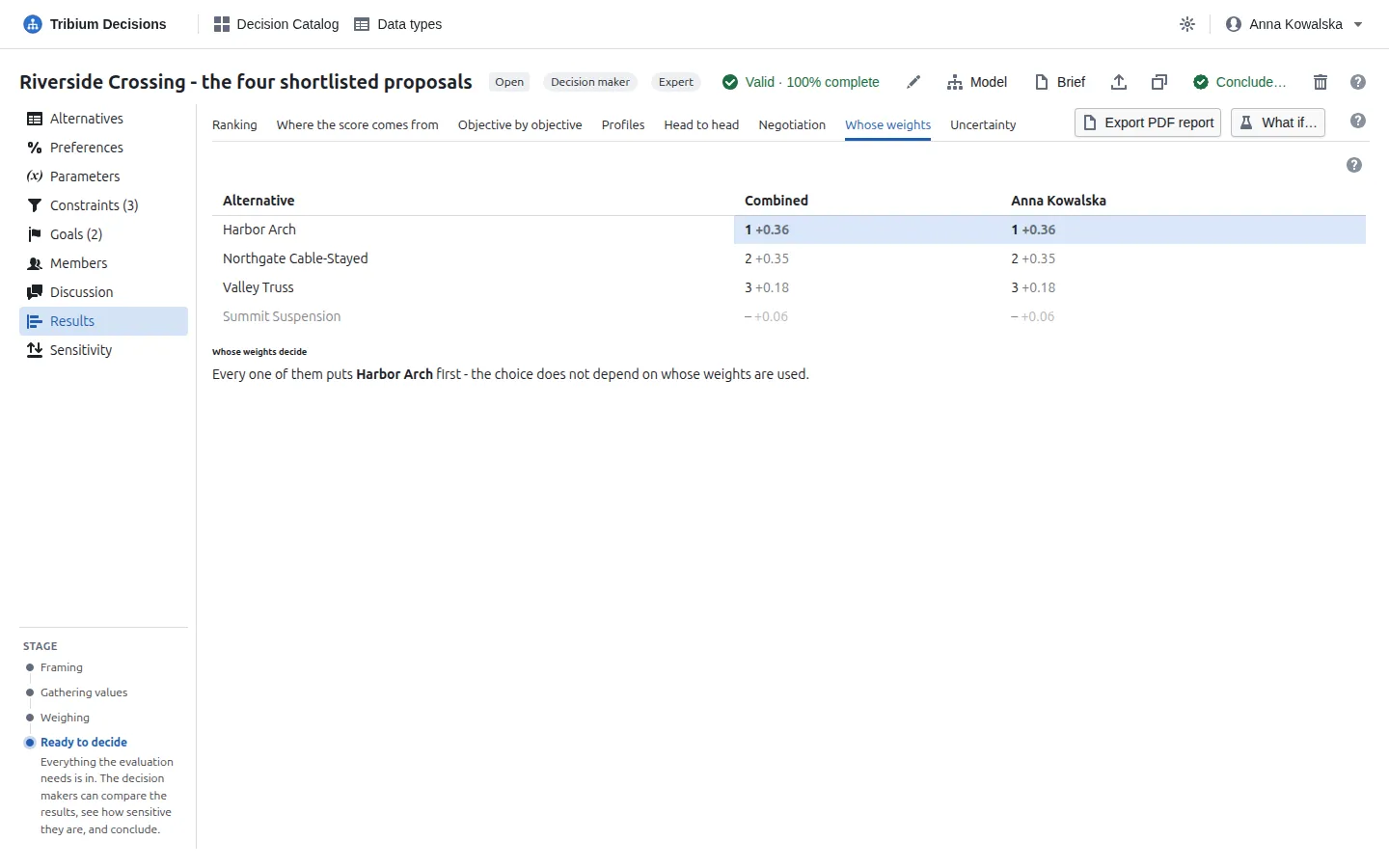
Each column ranks the alternatives with one set of weights and everything else as it is (a scenario also brings its own parameter values); the first column is what ranks now — the combination, or the problem’s shared weights. Whose weights decide, under the table, says it in words: if every column puts the same alternative first, the choice does not depend on whose weights are used — there is nothing to settle. If not, Where they disagree most names the objectives to talk about: those whose share differs most between the sets. How the group moved shows, for each blind round, how many answered, how many different alternatives their weights put first, and the objective they were furthest apart on — fewer first choices and smaller gaps from round to round mean the discussion is working.
10.9 Uncertainty: the simulation
Shown when some values are uncertain. What it is for. What the uncertain values do to the decision: how likely each alternative is to come out first, how widely its score could vary, and which uncertain value it would pay to pin down before deciding.
How it works. A Monte Carlo simulation: thousands of times over, every uncertain value is drawn from its distribution — a price somewhere in its range, a commute on a good or a bad day — and the whole evaluation runs again on those values. Each run is one outcome. The draws are spread evenly over each distribution and are the same every time for the same problem, so the figures do not change unless the problem does. Draws chooses how many — 500, 2 000 or 10 000: 2 000 is usually plenty (and is what a conclusion records, fewer on a very large problem, marked so), and the note beside it says how precise a first-place share is.
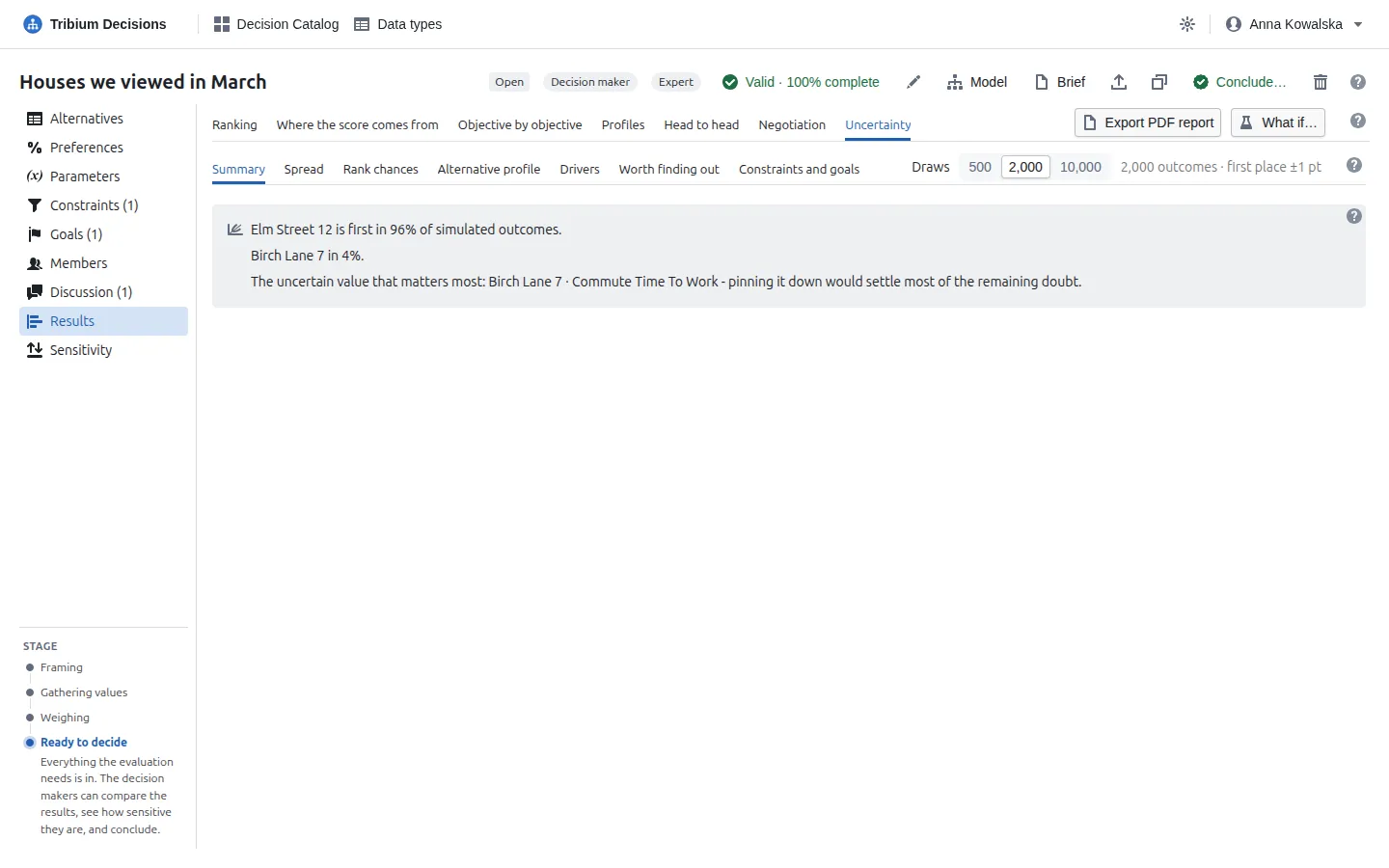
Read the Summary first: how often each alternative comes first, and — when the lead is in doubt — the uncertain value that matters most. The other sub-tabs show the detail behind each sentence:
| Sub-tab | What it shows |
|---|---|
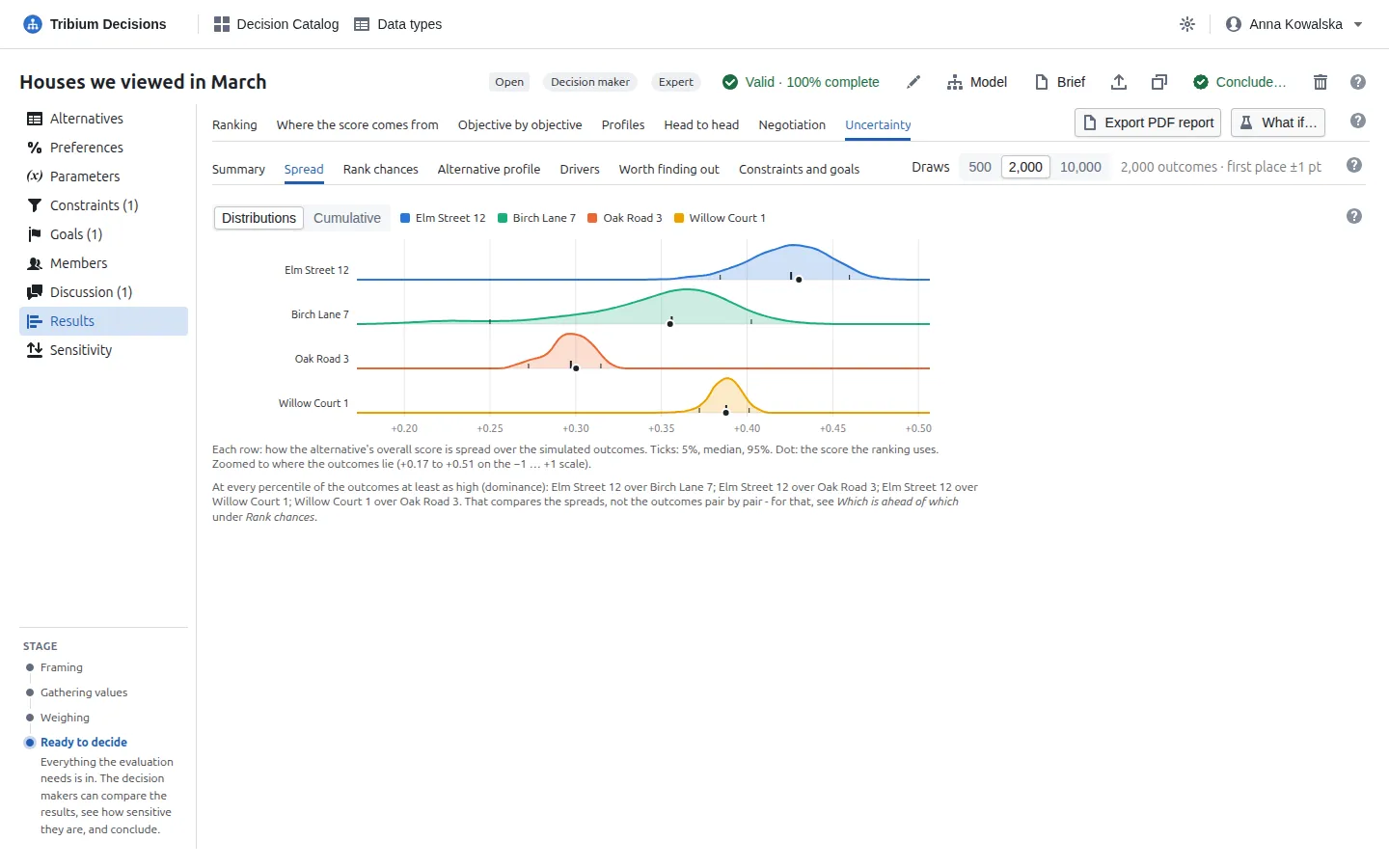
| Spread | How widely each alternative’s score could vary: one distribution per alternative, or every alternative on one cumulative plot — a curve entirely to the right of another is better in every respect. |
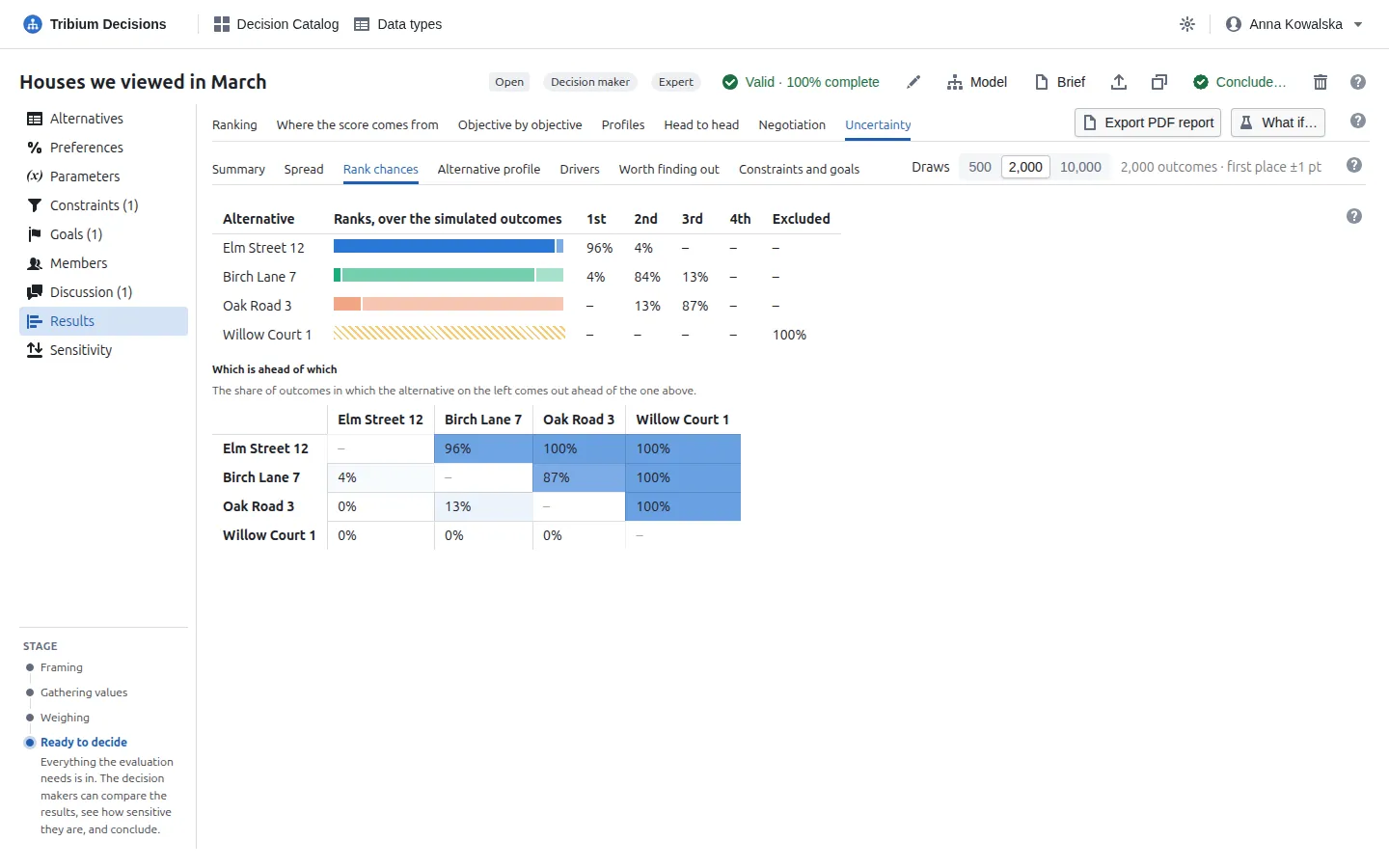
| Rank chances | How often each alternative comes 1st, 2nd, 3rd… (hatched: how often a constraint excludes it), and Which is ahead of which, pair by pair. |
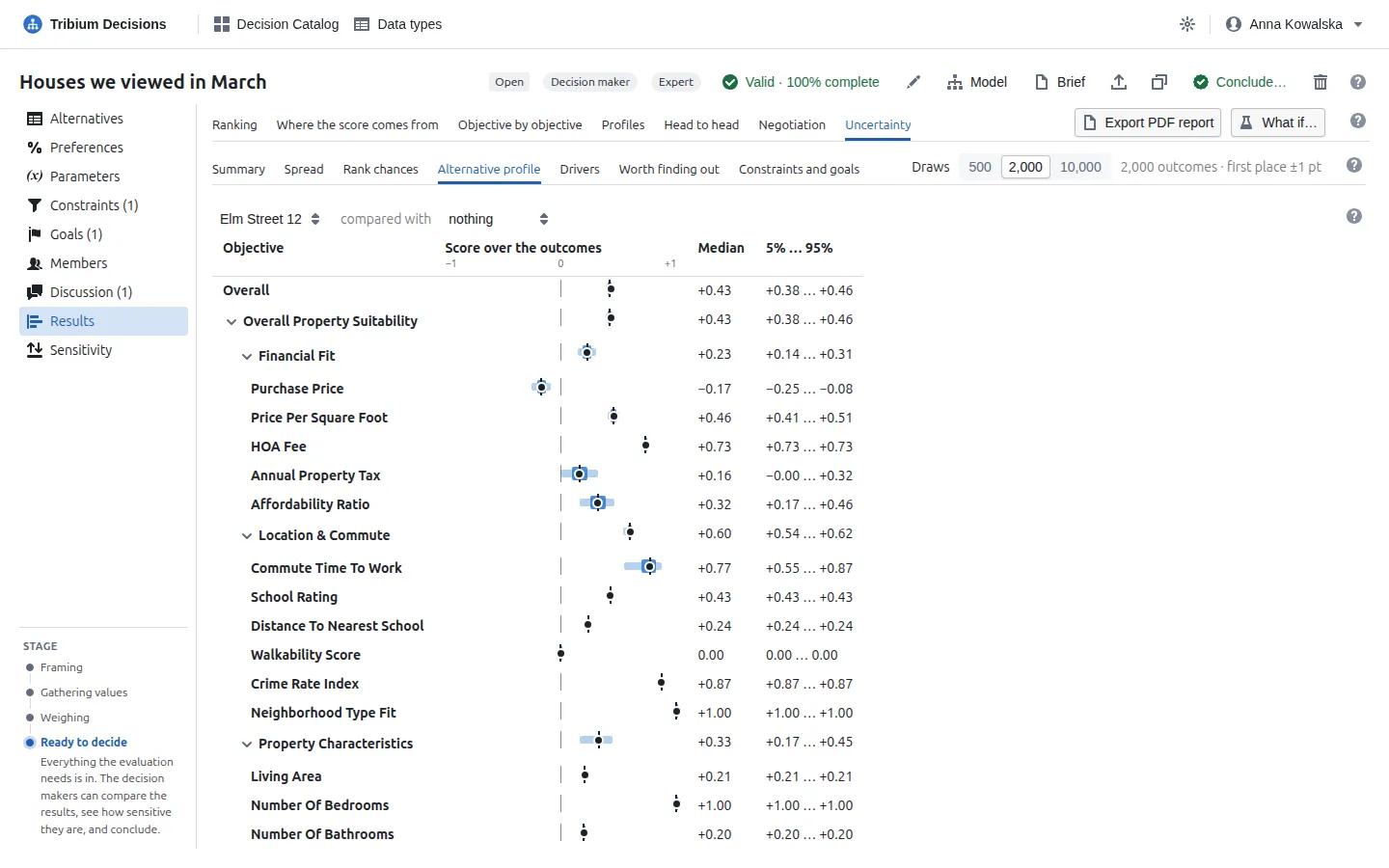
| Alternative profile | One alternative’s uncertainty, objective by objective. |
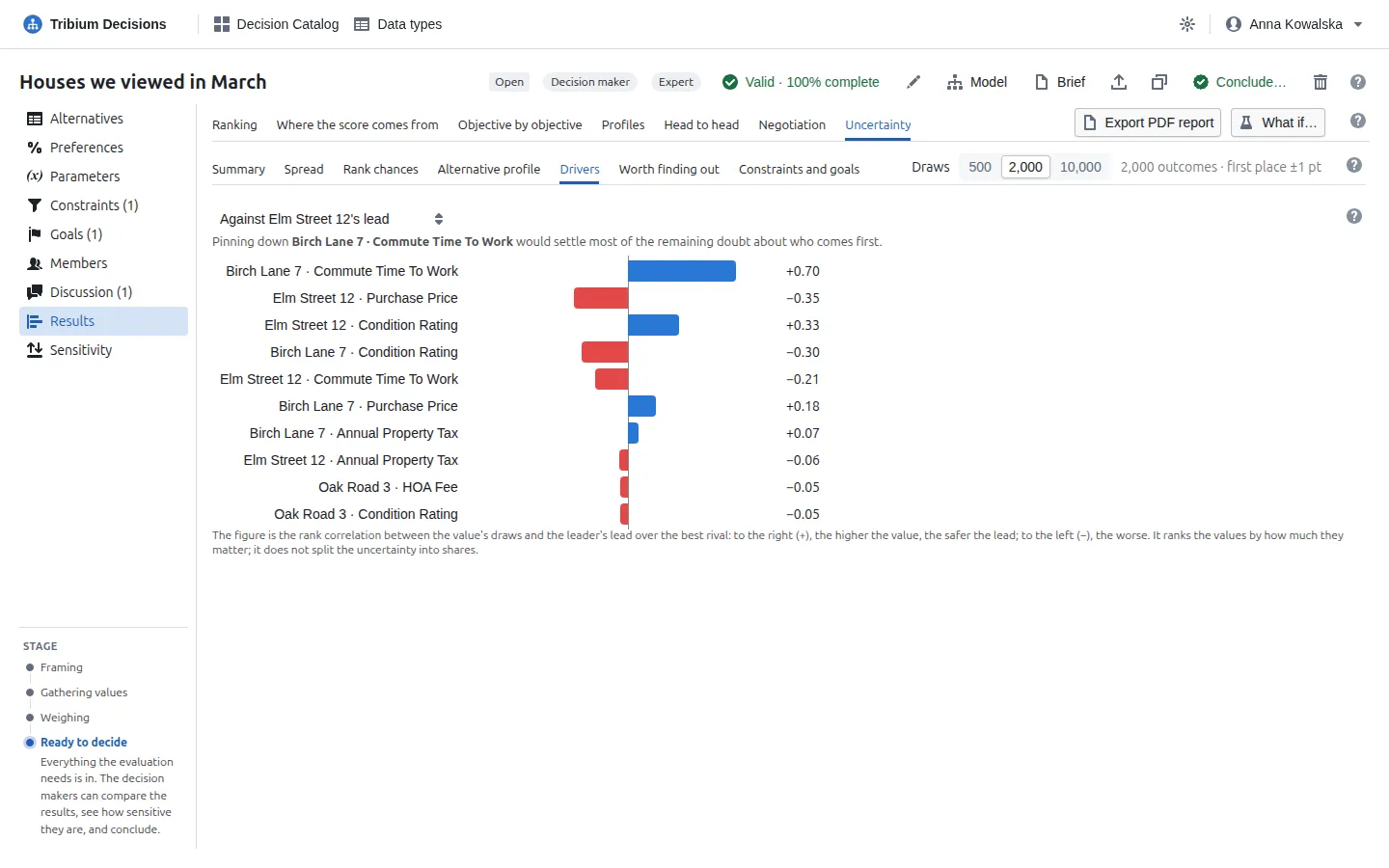
| Drivers | Which uncertain values move the result most — to the right, the higher the value the safer the leader’s lead. Click one to go to its cell. |
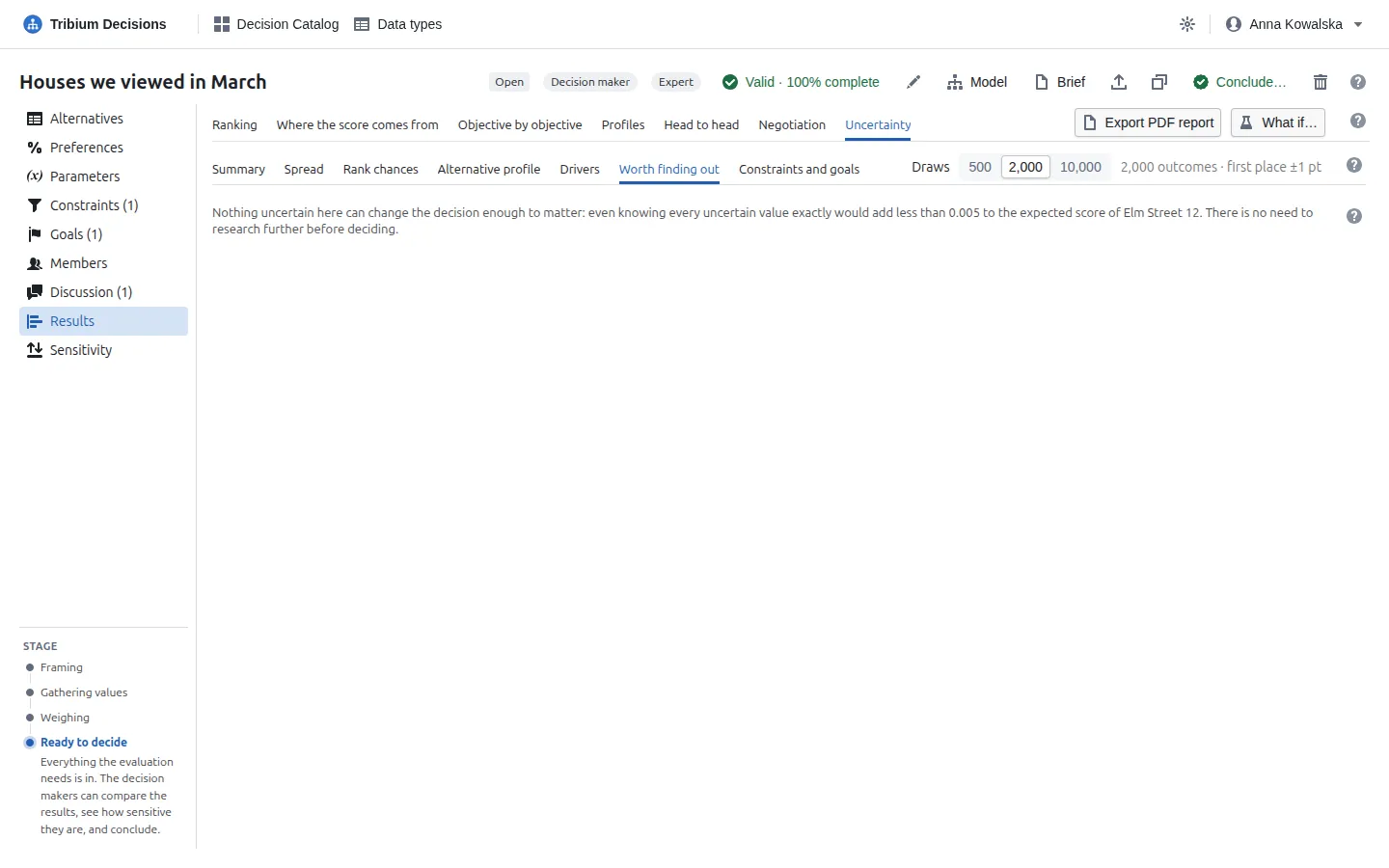
| Worth finding out | The value of information: what knowing each uncertain value exactly would be worth, on the overall-score scale, before deciding. Research the values at the top first; when nothing is worth more than a few thousandths, stop researching. Unlike Drivers, which says what moves the lead, this says what would change the choice. |
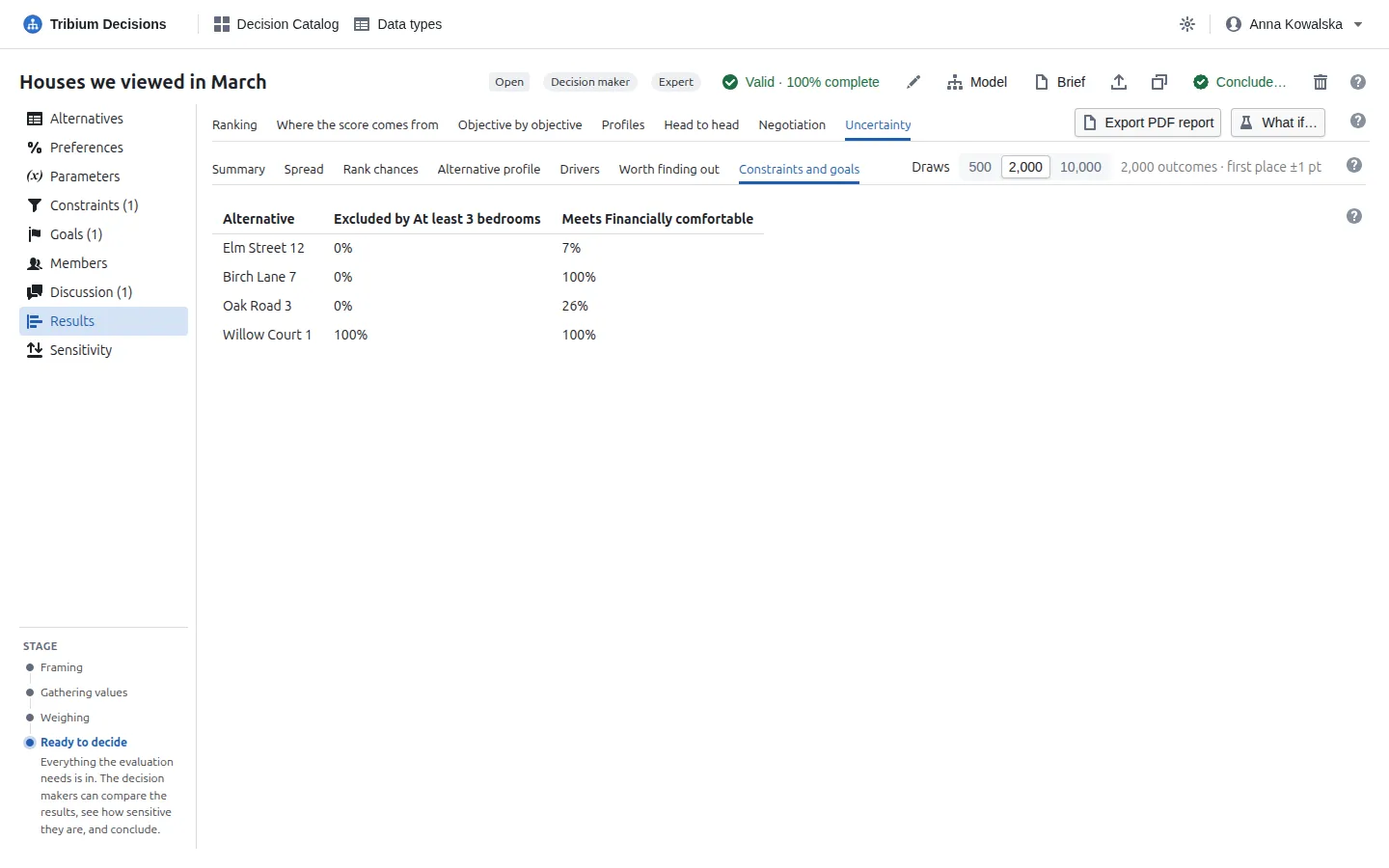
| Constraints and goals | How often each constraint excludes each alternative, and how often each goal is met. An alternative often excluded is a risky choice even if it ranks well. |
10.10 The PDF report
Export PDF report makes a report that stands on its own: for a concluded problem the decision and its rationale first, then validation, the ranking and its explanation, where the score comes from, objective by objective, profiles, negotiation (when inputs are negotiable), the weights and preference functions, the parameters, the constraints and goals, the uncertainty when there is any, and an appendix with every value and its source. It cannot be exported while a what-if is open. The same button on the Sensitivity tab makes a report of that analysis, and the conclusion of a concluded problem makes the full report as it was decided.
11. Step 6 — Test the ranking: Sensitivity
What it is for. How far the ranking can be trusted. The Results tab says which alternative comes first; this tab says what would have to change — and by how much — before a different one did. A ranking that survives large changes is a safe basis for a decision; one that flips when a single weight moves a little deserves a closer look.
How it works. Each sub-tab changes one kind of thing, one at a time, holding everything else as it is now, and reports the threshold: the value at which another alternative would come first, and who that would be. A threshold is always given in the thing’s own units (a weight of 2.36, a price of 461 900) and as a change from now (−41%, +8.7%), so thresholds of different kinds can be compared. Everything is recomputed from the problem as it is now.
11.1 Summary
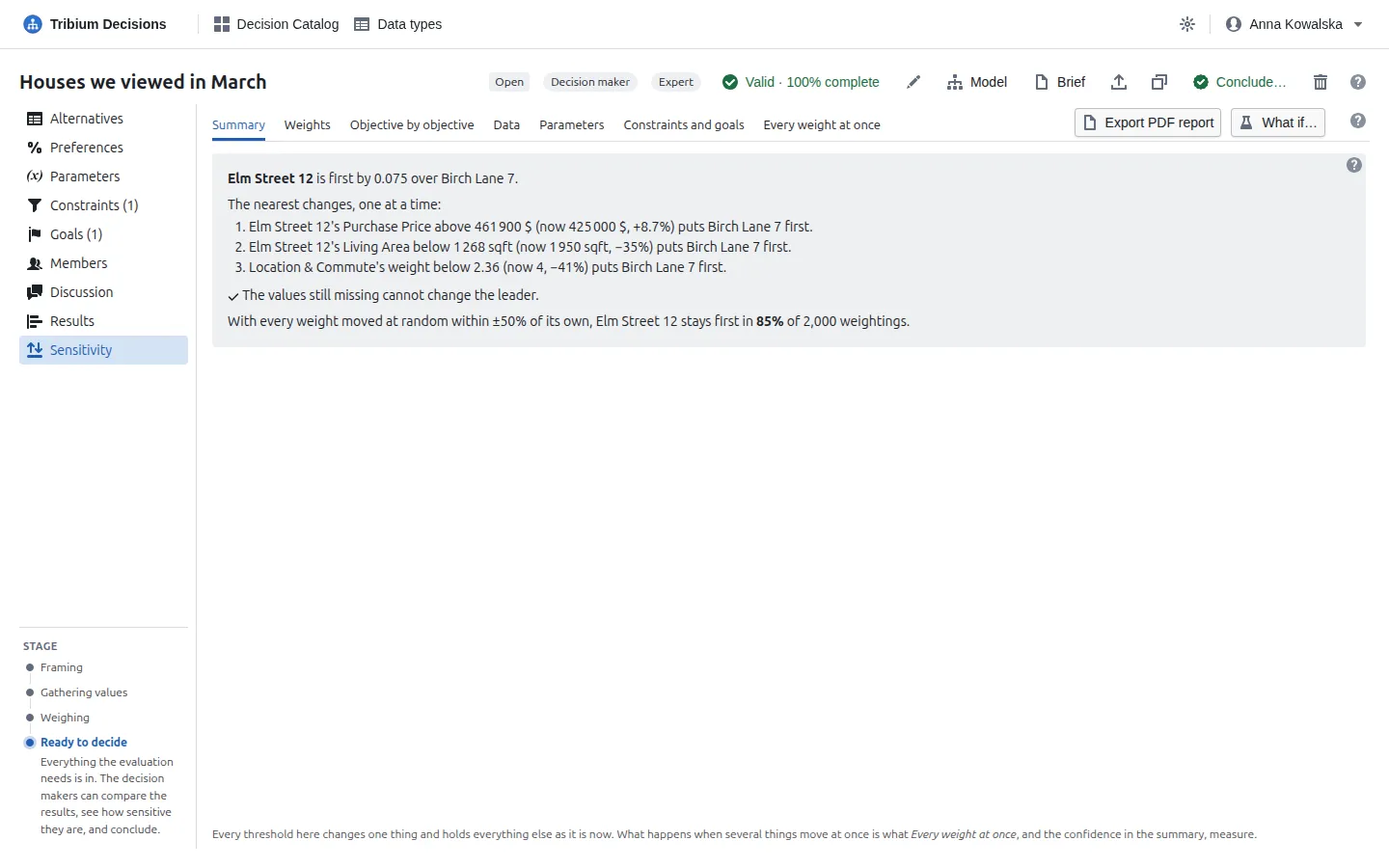
Who leads, by how much, and the nearest changes that could change it, collected from the weights, the curves, the leader’s own values and the parameters, and ordered by how far each is from now. Read each as a question: could that really happen? If the price could easily be 9% higher, check it; if nobody would weigh commute that low, the ranking is safe on that count. “No single weight, curve, value… changes the leader within the ranges tried” means the ranking is firm against any one change. A line says whether the values still missing could change the leader. The confidence comes from Every weight at once: near 100% means the leader stays first however the weights are shuffled within ±50%.
11.2 Weights
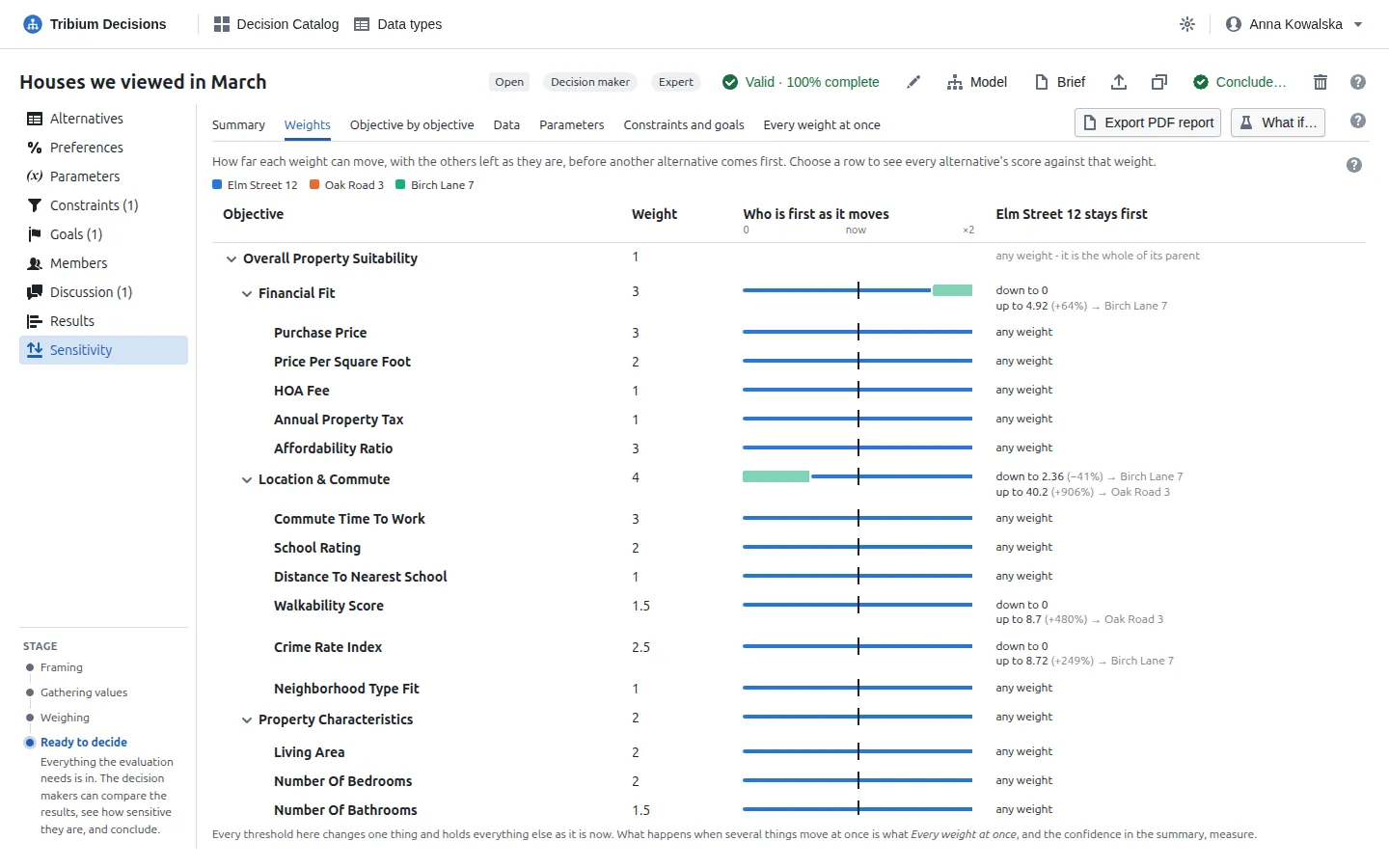
How much each weight can move before another alternative comes first. The bar is the weight’s scale from 0 to twice its current value, with a tick at the current weight; the thin stretch is where the current leader stays first, and a full-height stretch is where another alternative — in its colour — takes over. down to / up to give the thresholds, with the change from now and who takes over; any weight means no change on either side moves the leader. Click a row for a chart of every alternative’s overall score against that weight:
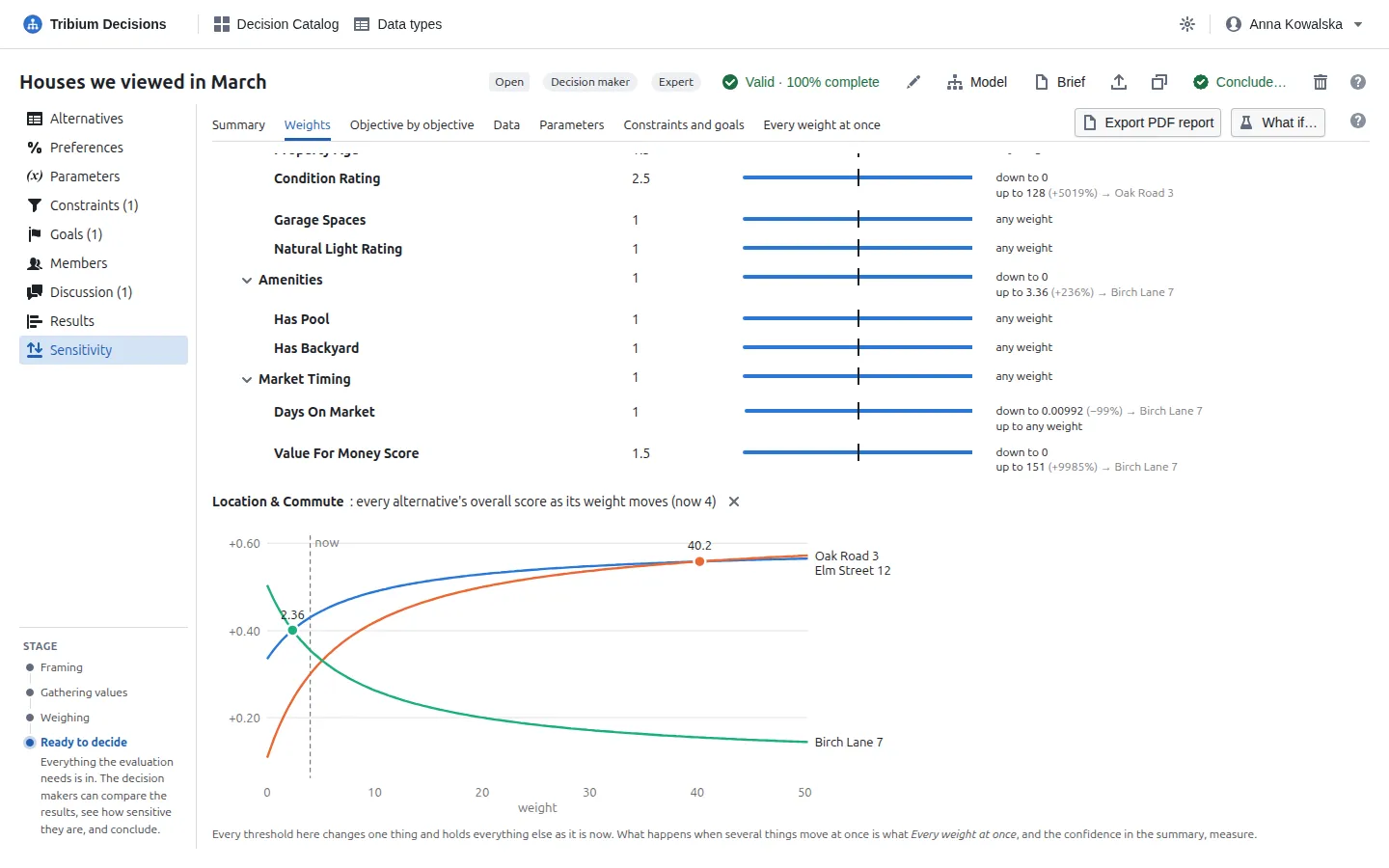
Each line is an alternative; the dashed line is now; a marked point is where another alternative’s line rises above the leader’s.
11.3 Objective by objective
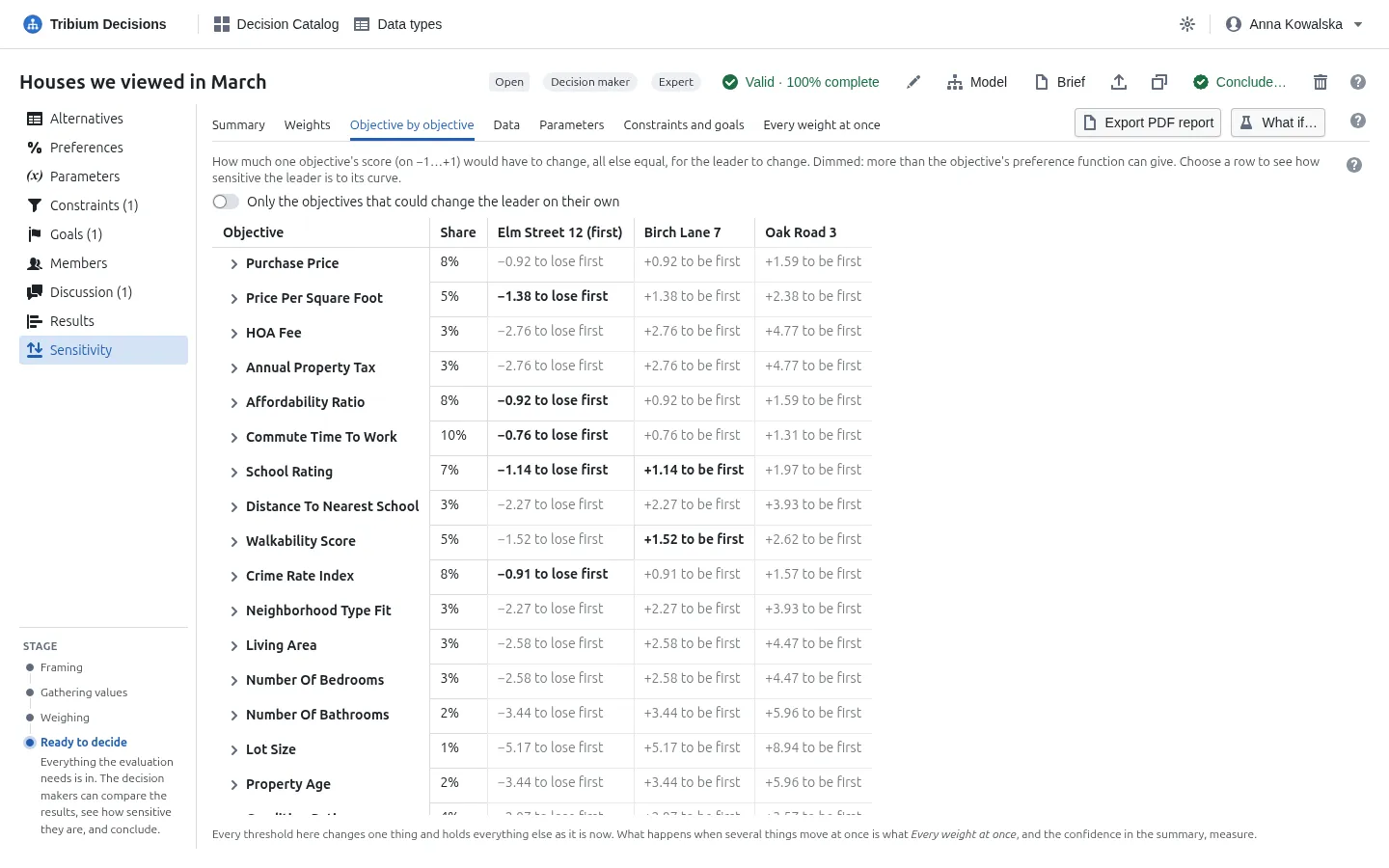
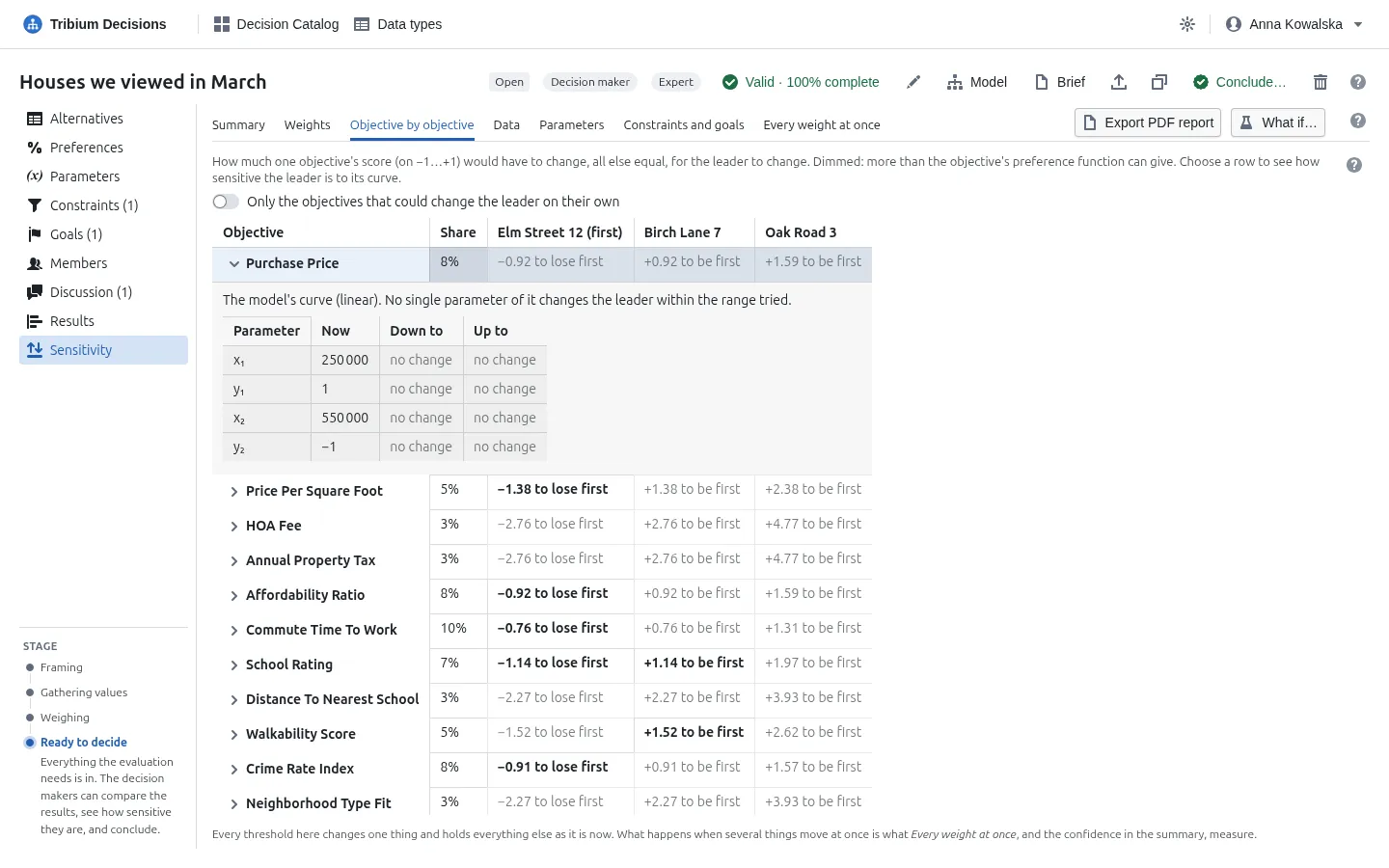
For each objective, how much one alternative’s score on it would have to change for the leader to change — −0.62 to lose first for the leader, +0.48 to be first for the others — and whether that is possible at all: a score cannot leave the range its preference function can give, so a change that would need more is dimmed. The switch hides the objectives that could never change the leader on their own. Click a row to see the objective’s curve with, for each setting of it, the value at which the leader would change:
11.4 Data
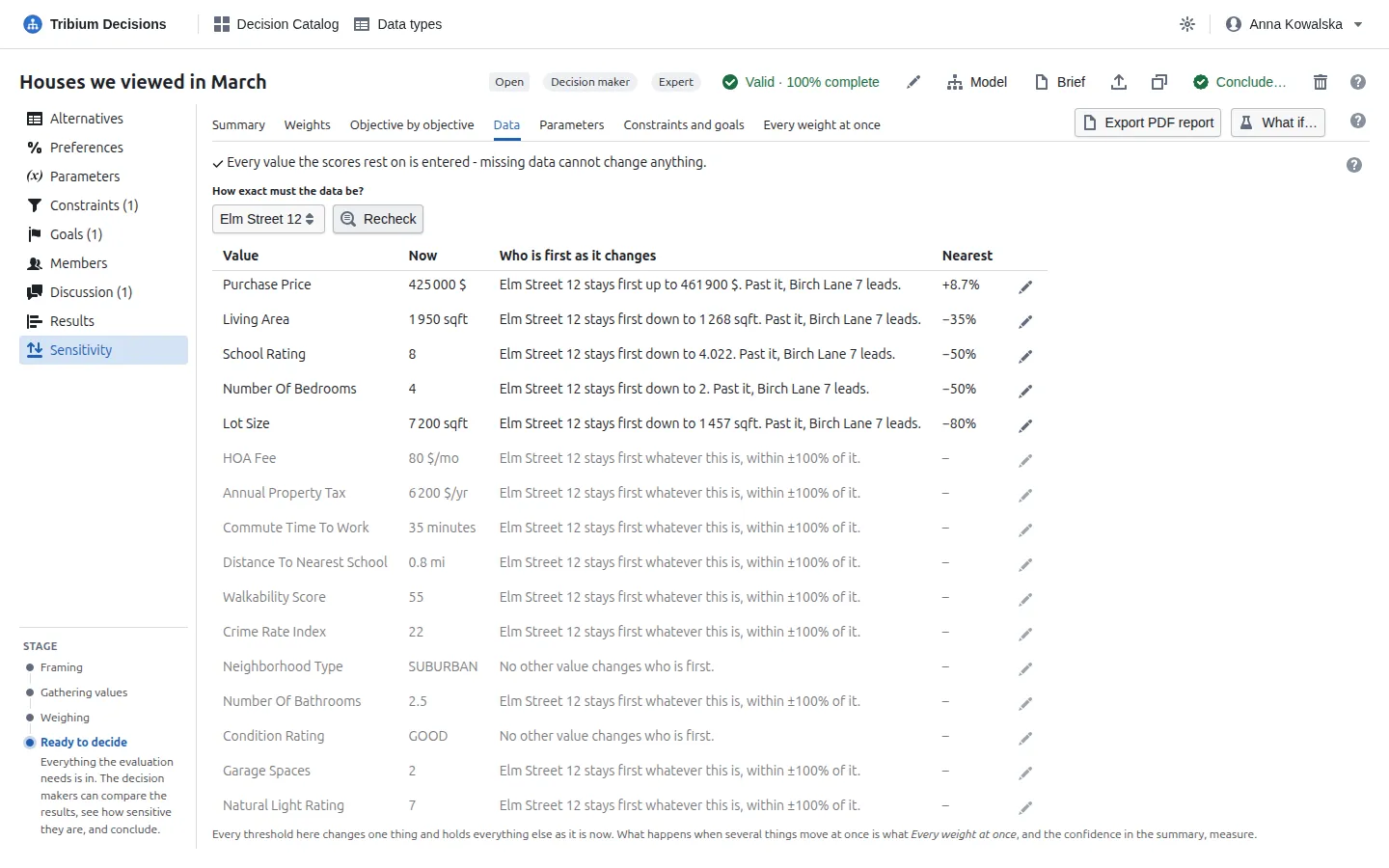
Two questions about the values. Could the values still missing change the winner? A missing value scores 0 today; once entered it will score somewhere in its curve’s range, and adding up the best and the worst it could do gives the range each alternative’s score could still reach. The leader is safe when its worst still beats every other alternative’s best. How exact must each value be? Choose an alternative and Check its values: each one is tried at other values — up to double and down to nothing for a number, a year either way for a date, every other choice for a symbol, both ways for yes/no, the curve’s points for text — and the nearest at which another alternative would come first is listed, nearest first. “Stays first up to 461 900 $. Past it, Birch Lane 7 leads” — above that value the leader changes; “whatever this is, within ±100%” — this value can be rough (for a date, the range tried is a year either way). Checking takes a moment on a large problem, so it runs only when asked. The missing values that matter most lists them, with Go to it.
11.5 Parameters
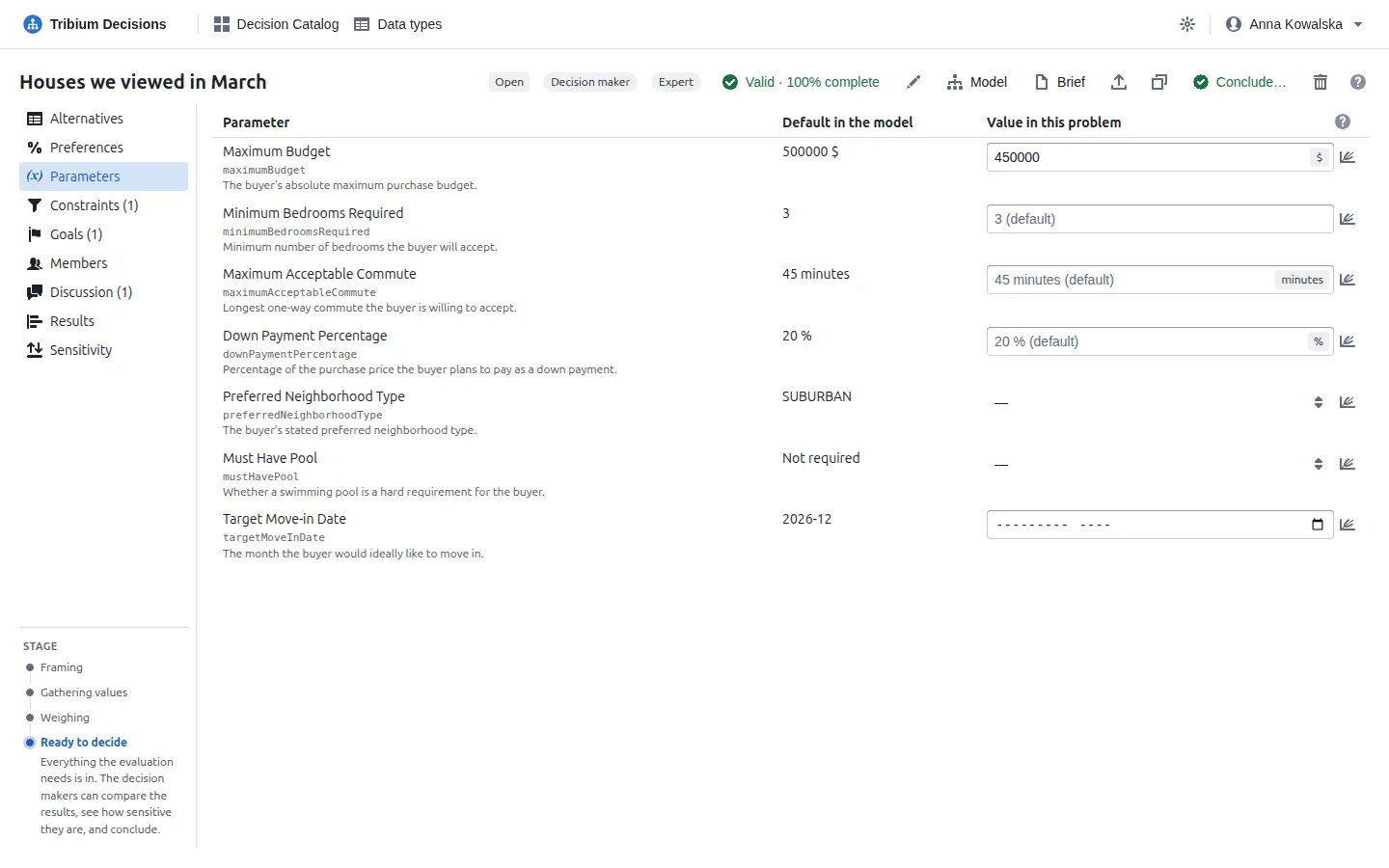
Whether the values set for the decision as a whole decide its outcome, and at what value they would. “Cannot change the ranking” — nothing that separates the alternatives uses it; “stays first whatever this is, within ±100%” — it is used, but no value up to double or nothing changes the leader.
11.6 Constraints and goals
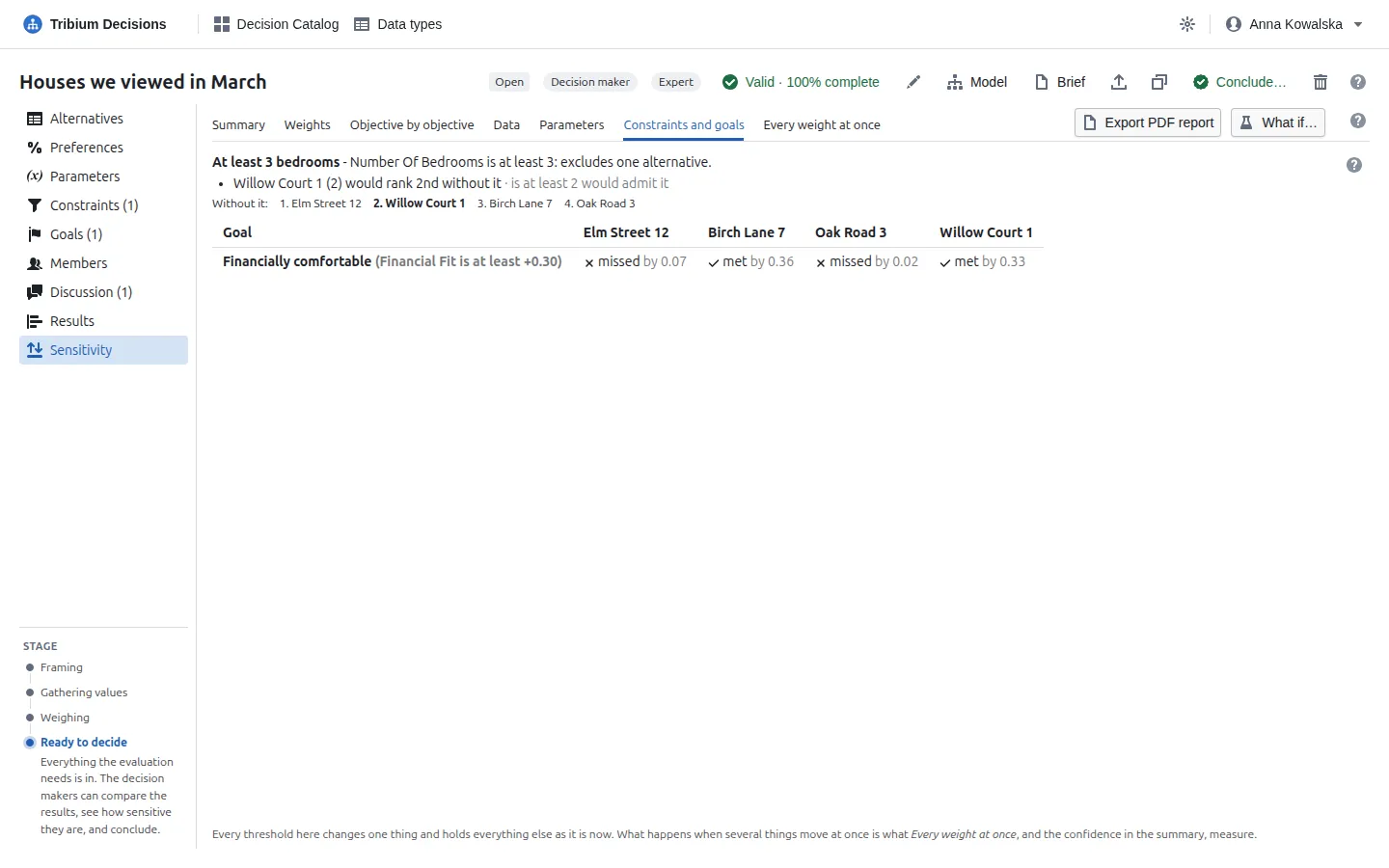
What each constraint costs: for each alternative it excludes, where it would rank without the constraint and the value that would let it in — “Willow Court 1 (2) would rank 2nd without it · is at least 2 would admit it”. If an excluded alternative would rank high, reconsider the constraint. For goals, how far inside or outside each one every alternative is.
11.7 Every weight at once
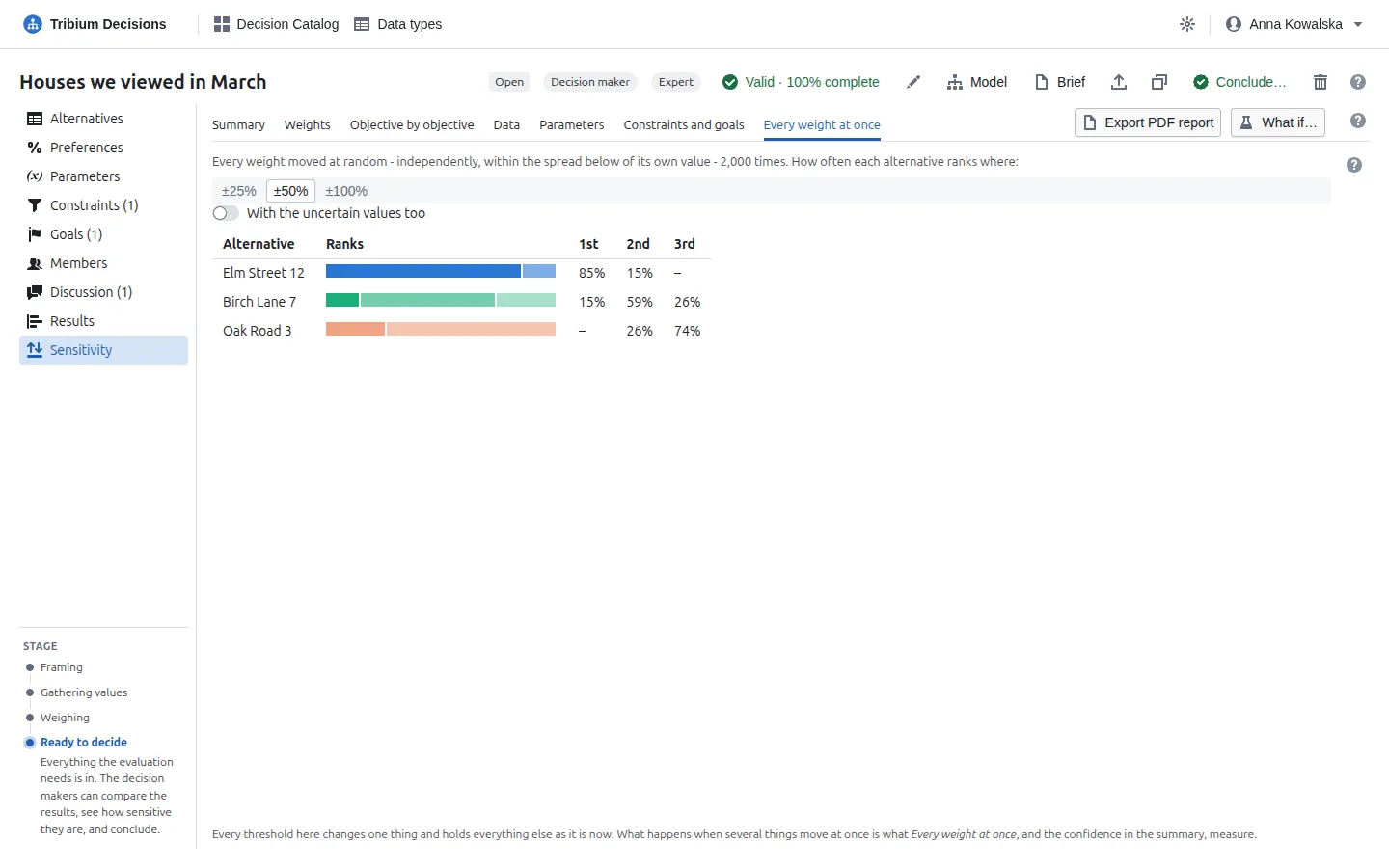
The other sub-tabs move one thing at a time; in reality several weights are uncertain together. Every weight is multiplied by its own random factor within the chosen spread — within ±50%, a weight of 4 becomes anything from 2 to 6 — and the alternatives are ranked; this is done 2 000 times. Each bar shows how often the alternative ranks 1st (in its full colour), 2nd, 3rd… (lighter). Choose the spread that matches how sure the decision makers are of their weights: ±25% for weights argued over carefully, ±100% for rough guesses. With the uncertain values too draws the uncertain values as well, in the same draws — how the choice fares when neither the weights nor the data are exact. The draws start from a fixed seed, so the same problem gives the same figures here, in the PDF and in a concluded decision’s record.
11.8 What if…
What if… on the Results or Sensitivity toolbar opens a panel beside the tabs with a scratch copy of the weights and parameter values:
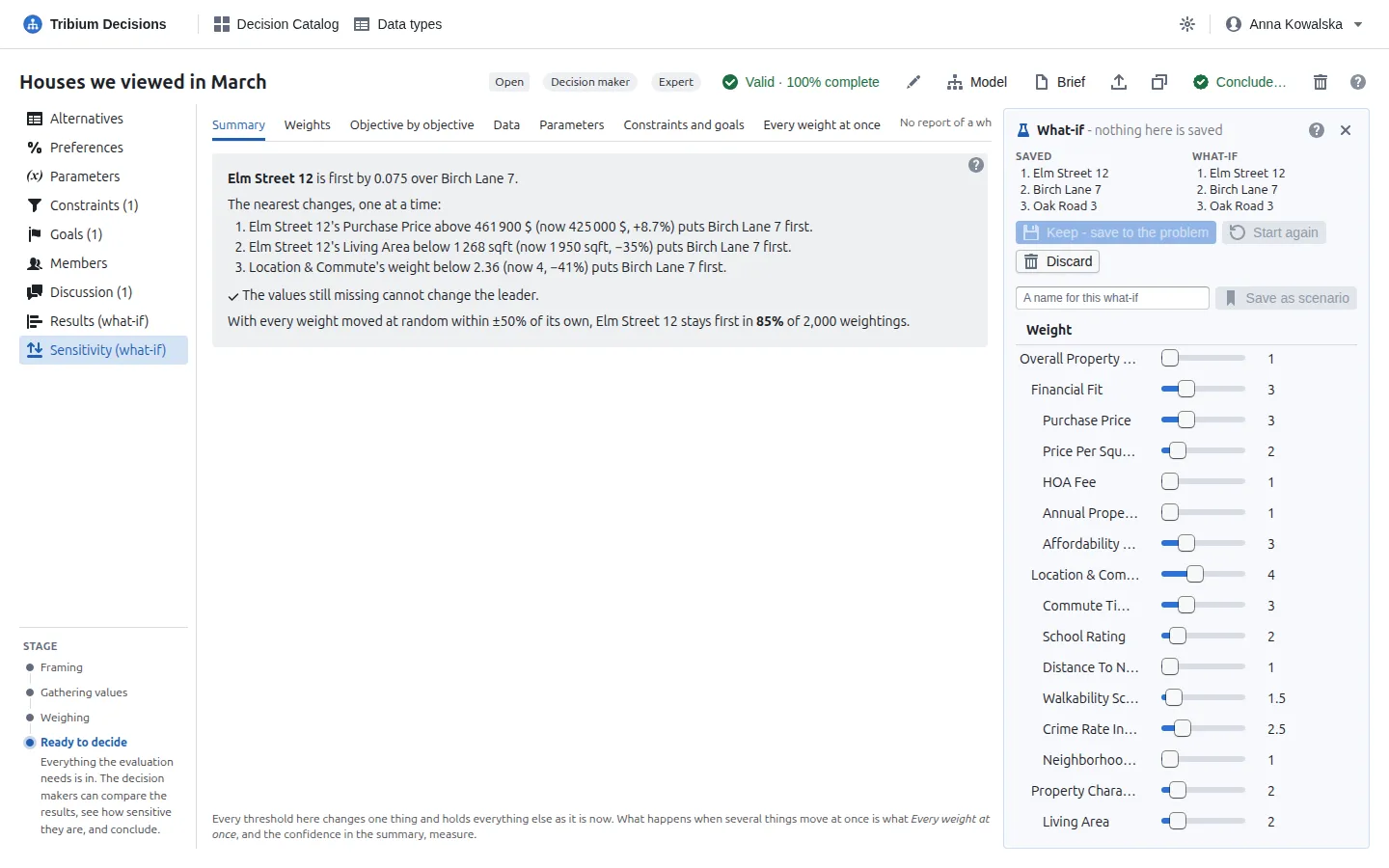
Move a weight’s slider or change a parameter, and both tabs show the what-if, marked (what-if), with the saved and the what-if rankings side by side and the places that moved in bold. The what-if lives in your browser only; every other member sees the problem as it is. Start again returns to the saved values; Discard ends the what-if; Keep — save to the problem (decision makers only) saves the weights and parameter values as if they had been changed in Preferences and Parameters — with each decision maker’s own weights it is Keep as my weights; Save as scenario (decision makers only) keeps them under a name, to compare with in Whose weights. The saved scenarios are listed in the panel, to Load or delete. While a what-if is open the PDF report cannot be exported.
12. Talking it over: the Discussion tab
What it is for. Talk about the decision where the numbers are: a question about a price, a doubt about a weight, a reason for a curve — each discussion about one thing in the problem, and kept with it.
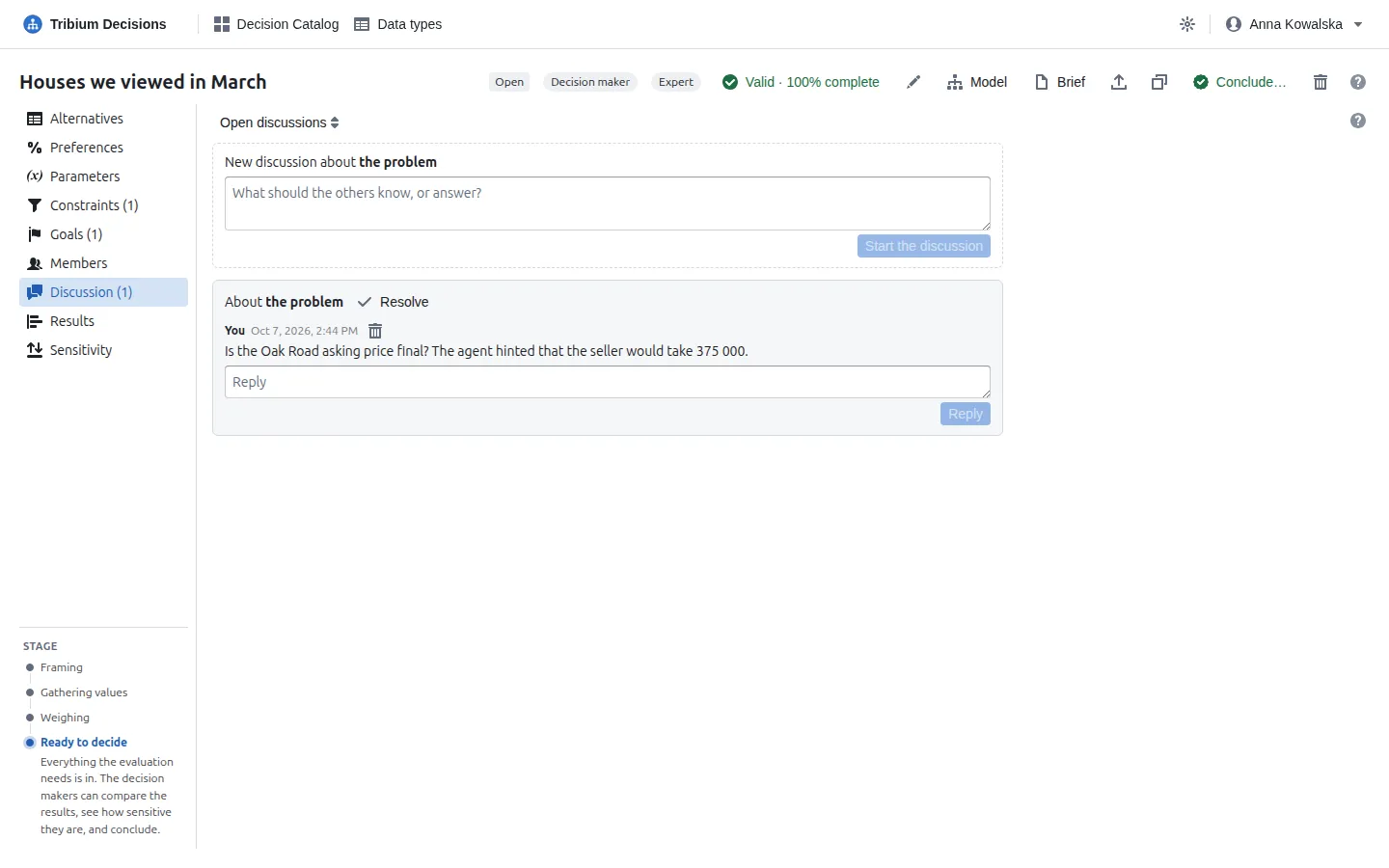
A discussion is about the problem, a value or an objective. Start one about a value from the value’s note panel in the grid (Discuss this value), about an objective from the speech bubble in its row in Preferences, or here about the problem. Every member can take part, observers too — talking changes nothing in the decision. Mention… asks a member by name: they are emailed, and it shows in their Waiting for you until the discussion is resolved. Whoever started a discussion, or a decision maker, resolves it; a reply reopens it. Ctrl+Enter sends. A blue speech bubble in a cell, or beside an objective, marks an open discussion about it; the tab’s title counts them. The list shows the open discussions, the resolved ones or all; Go to it takes you to what one is about. You can delete your own comment — it keeps its place, empty. Once the problem is concluded its discussion is part of the record — readable, closed.
13. Step 7 — Conclude, and share the brief
13.1 Concluding
When the stage line says Ready to decide, a decision maker presses Conclude… in the header:
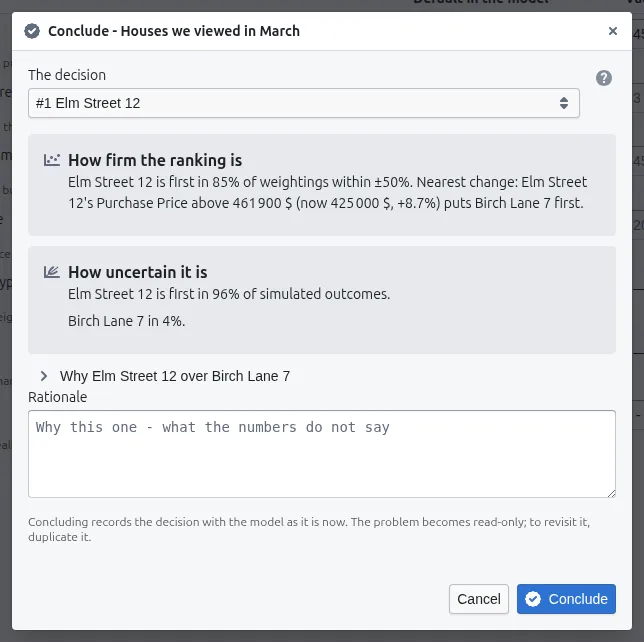
Choose the alternative — it need not be the first-ranked one — and say why in the rationale, in your own words: what the numbers do not say. If you choose one that is not first, the dialog shows what it would take for it to lead; the rationale is where to say which of those you believe. Why … over … opens the head-to-head of the chosen alternative against the one it had to beat, to help you write it. The dialog also warns when the chosen alternative is excluded by a constraint or dominated by another. When the problem chooses several within a budget, you tick the set instead, and the dialog shows its cost against the budget.
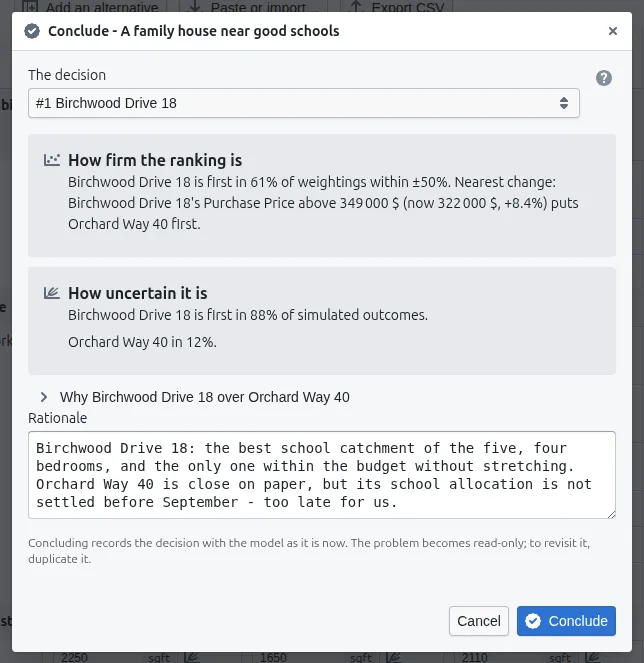
Errors block concluding; warnings must be read and acknowledged (I have read these, and conclude anyway). An open blind round blocks it too, and so does not having chosen; the dialog says what is in the way. Then Conclude: the server evaluates and validates the problem once more and stores its own numbers, how firm the ranking was, the simulation if values were uncertain, and a copy of the model. The record never changes, and the problem is read-only from then on. Members are emailed.
13.2 The Conclusion tab
A concluded problem opens on its Conclusion tab:
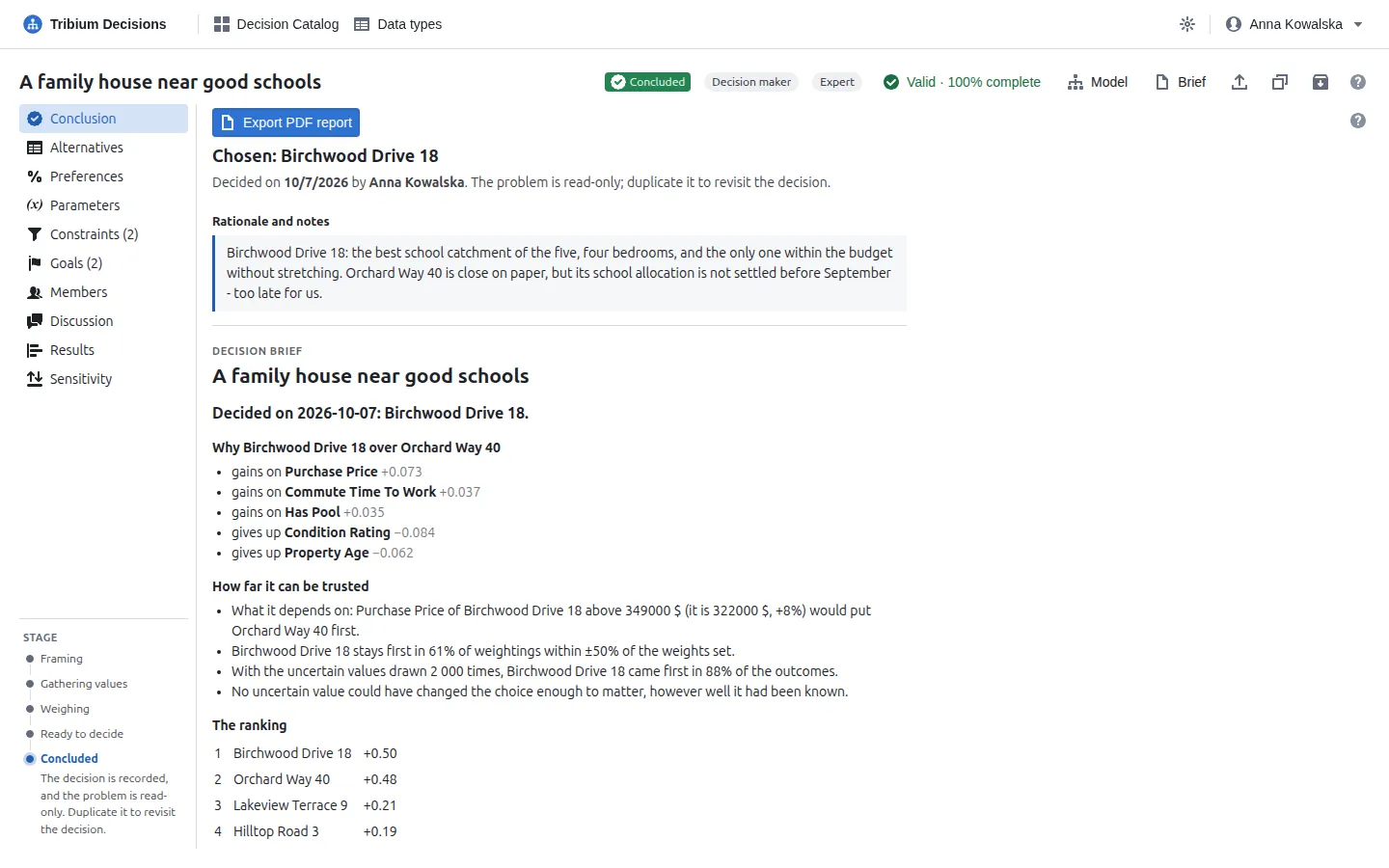
What was chosen, by whom and when; the rationale and notes; then the brief — why the chosen alternative over the one it had to beat, what the choice depends on, and the final ranking. The tags say what else the record holds: warnings that were acknowledged, an alternative that dominated the one chosen, a chosen set’s cost against the budget, whose weights ranked it, how many discussions there were and how many were left open. Export PDF report makes the full report of the problem as it was decided. The other tabs still show every value, weight and result as they were. To revisit the decision, duplicate the problem from its header; a decision maker can also archive it to get it out of the catalog’s way.
13.3 The brief
Brief in the header — of an open problem or a concluded one — is the decision on one page, for the people who were not in the room: what was decided and the decision makers’ rationale, why against the alternative it had to beat, what it depends on, how sure the numbers were, (once concluded, with uncertain values) what knowing them exactly would have been worth, the final ranking (the first five), a chosen set’s cost against the best set, whose weights ranked it, discussions left open, and what was never in contention.
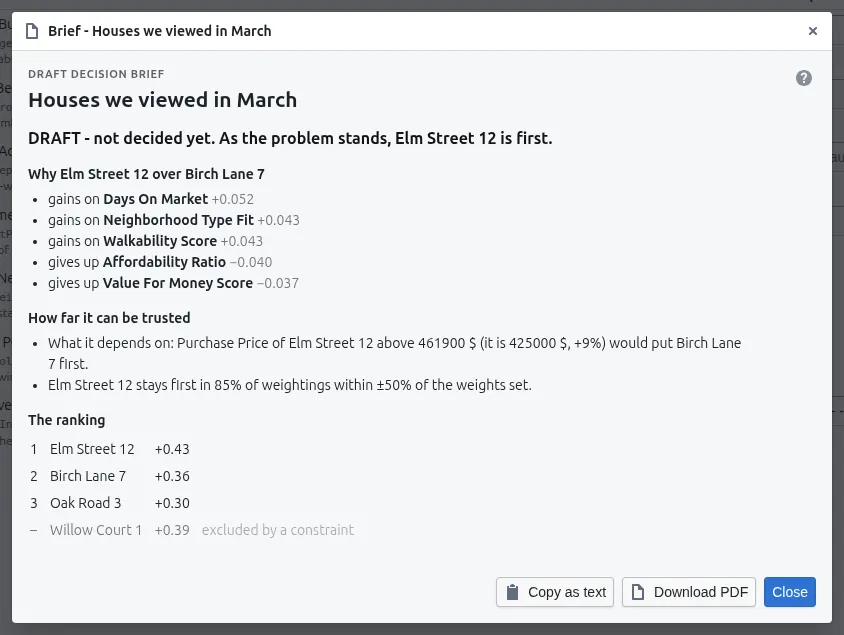
Every sentence is written from the record by fixed wording, so it says nothing the analysis does not, and says it the same way every time. It names no person. While the problem is open it is a DRAFT, from the problem as it stands. Copy as text for an email; Download PDF for a single printable page.
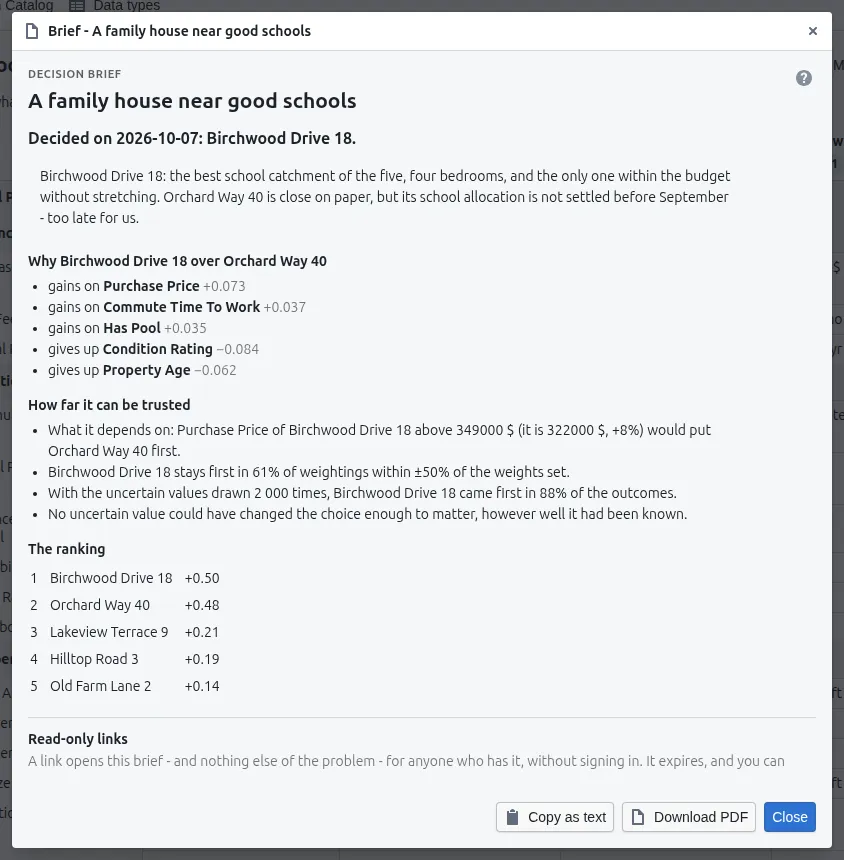
Once concluded, a decision maker can Make a link: anyone with it sees this brief — and nothing else of the problem — without signing in. Choose how long it works (7, 30, 90 or 365 days); copy it when it is made, because it is not shown again; Withdraw it when it is no longer needed. Opened counts how often it was read.
14. Working together
Decisions is built for several people deciding together, without anyone’s work being lost or overwritten. What that means in practice:
-
Roles keep hands apart. Decision makers set the problem up and conclude; experts enter values; observers watch. The Members tab is the decision makers’ (Chapter 7). A person who is both, as someone deciding alone is, never notices the roles.
-
Everything saves as it happens, and arrives as it happens. What another member saves appears on your screen within about fifteen seconds; what you are typing is never replaced. If two people change the same section at once, the second one is told and chooses Take theirs or Keep mine; in the grid, the one cell says so and offers keep mine / use theirs.
-
Nobody overwrites an expert. With several experts, each gives an estimate; a decision maker reconciles them, and the record keeps both (8.5).
-
Nobody anchors on the others. Blind rounds for weights (9.1) and blind estimates (8.5) hide the others’ answers until everyone has answered.
-
The model can change under a problem. When a modeller changes the model, every open problem on it follows, and a notice at the top of the problem says what changed and by whom the first time each member opens it; Got it dismisses it. Waiting for you lists the problem as model changed until then. A concluded problem keeps the model as it was.
-
Validation is addressed. Each issue in the list says who can fix it — an expert’s missing values, a decision maker’s settings, a modeller’s model — and your own come first.
-
The emails. Added to a problem, mentioned, due, concluded — each switchable by its recipient (Chapter 5). Nobody is emailed about what they did themselves.
-
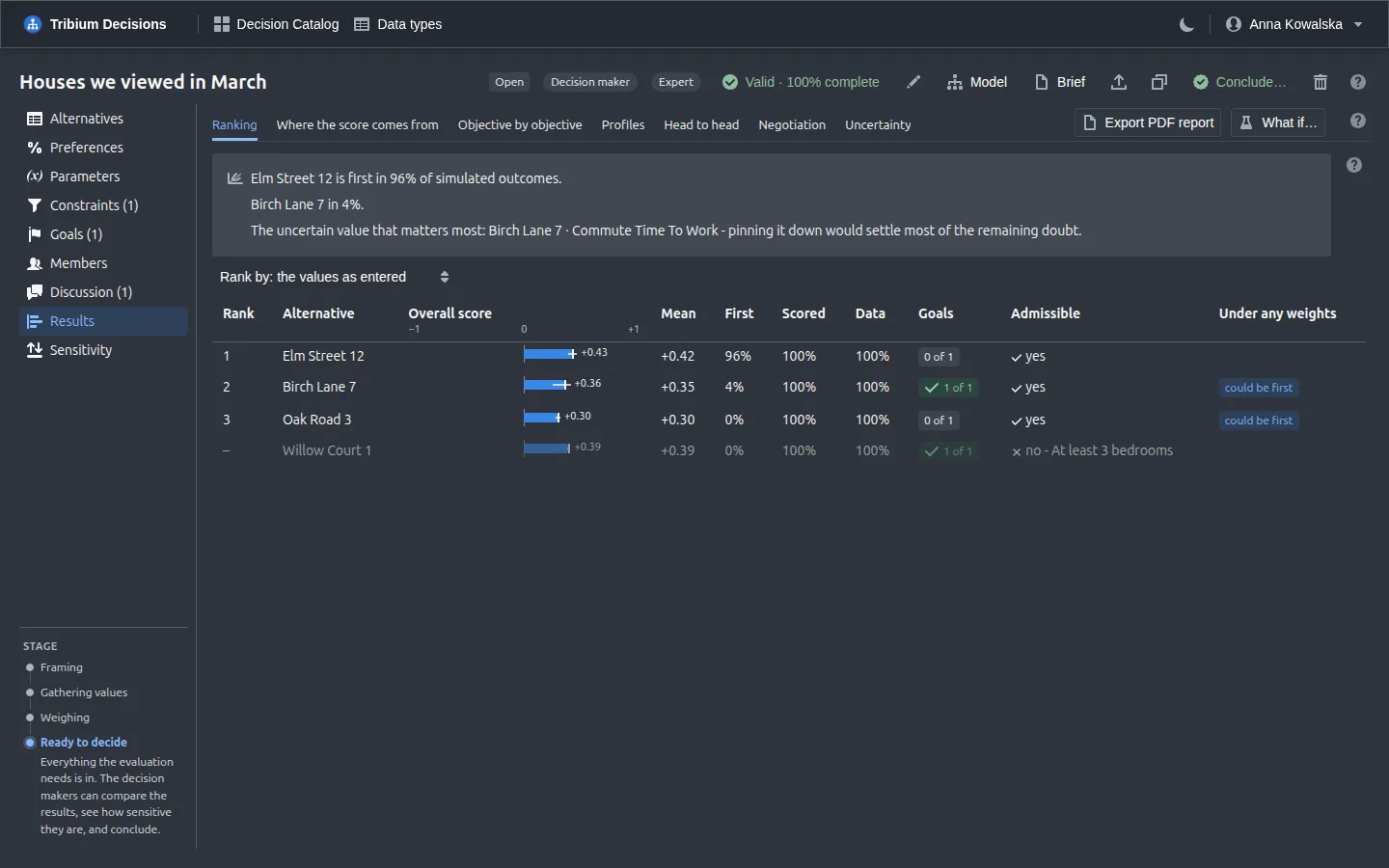
The problem page in the dark theme, for those who prefer it:
15. For account administrators
Who is a modeller
Models and data types are shared by the whole account, so changing them is a permission, not a role in a problem. Account administrators are modellers — the person who registered the account is one. An account administrator makes others modellers, or administrators, with the Account button beside their name: on its Users tab, tick Modeller for a person, or Make administrator…; Invite user… brings someone new into the account. For everyone else, the model editor and the Data types dialog open read-only, and the + and import buttons of the models column are not shown.
Every problem of the account
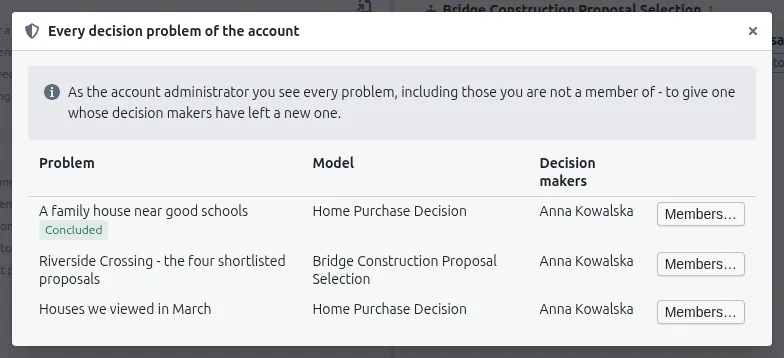
A problem is visible to its members only. If every decision maker of a problem has left the account, nobody can manage it any more. Every problem of the account… at the bottom of the problems column, shown to account administrators only, lists every problem of the account with its members and lets you set the members of any of them — to give a stranded problem a decision maker again.
Data types
The shared data types are part of modelling, and change how every model that uses them validates and scores (6.9). Keep them few and well named; a type that models use cannot be deleted.
16. Development mode and the sample generators
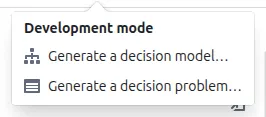
On a practice installation — one where the operator has switched development mode on — the navigation bar has a Development menu with a DEV tag:
-
Generate a decision model… makes a sample model to measure: as many groups and objectives as you choose, of the kinds and with the curves you tick, from a vocabulary of plausible criteria — a price, a rating, a lead time, a certification — with one or two levels in a group, functions, parameters and descriptive inputs if you want them, and optionally under one overall objective. The line at the bottom previews what will be made and checks it; New seed makes a different model with the same settings; Generate and open adds it to the account as an import would. Only modellers can.
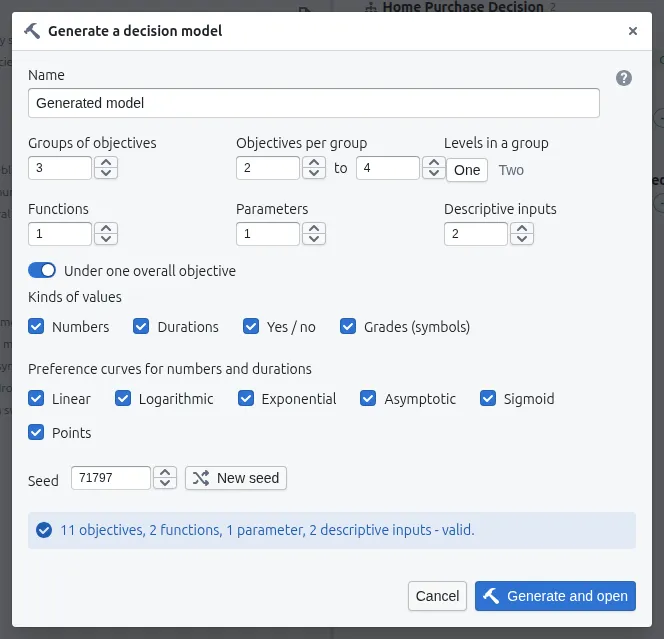
-
Generate a decision problem… fills in a problem for any model of the account: every alternative gets a strength, and each value is placed where the objective’s own curve puts that strength, so every value lies in the range the curves were designed for. You choose how many alternatives, whether they have real-sounding names, and how many constraints and goals. Close makes alternatives of about equal strength, clear makes one stand out, mixed anything between. A share of the values can be made uncertain or left missing; a constraint excludes the weakest on one measure; a goal is met by about half. It is created with you as its decision maker and expert.
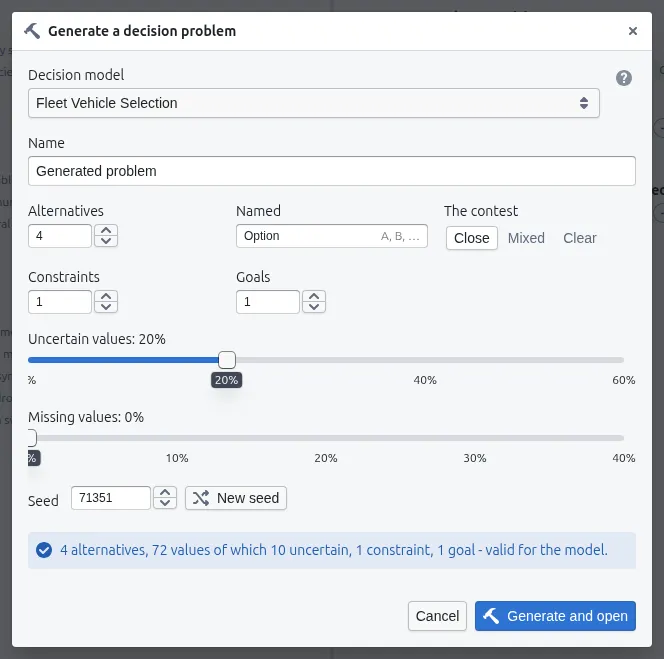
Both save through the ordinary import route with your permissions, so they grant nothing new. Development mode is never on in production.
17. When something looks wrong
| What you see | What it means and what to do |
|---|---|
| The catalog is empty | No models yet. Create one, or import a model file — if the + and import buttons are missing, you are not a modeller: ask an account administrator. |
| A model opens read-only | You are not a modeller. Everyone can read models; only modellers change them. |
| A problem you know exists is not in the catalog | You are not a member of it, or it is archived — tick Archived. Ask one of its decision makers to add you; an account administrator can do it from Every problem of the account…. |
| “The decision problem could not be opened” | It no longer exists, or you are no longer one of its members. |
| A cell is tinted | A value the evaluation needs is missing. An expert enters it; the column header’s percentage and the stage line say how much is still missing. |
| A cell is red | The value is not valid for its data type — usually the model changed under it (a symbol removed, a sign narrowed). Enter a valid value; the validation list names every such cell. |
| Scored below 100% in the Ranking | Part of the score is a placeholder 0 for values not yet entered. The Data sub-tab of Sensitivity says whether the missing values could still change the winner. |
| An alternative has no rank and is greyed | A constraint excludes it; hover for which. The Constraints tab’s switch shows the ranking without that constraint. |
| “not all known” under Admissible | A constraint’s value is missing for that alternative; it stays ranked but flagged until the value is in. |
| The stage line says Framing | Fewer than two alternatives, or errors in the model or the problem. Click the validation badge for the list. |
| The stage line says Weighing | Decision makers with their own weights have not all set them, or a blind round is open. |
| Conclude in the conclude dialog is disabled | The dialog says why: errors (it lists them), an open blind round, warnings not yet acknowledged, or no alternative chosen. |
| A notice says someone else saved the model or the section | Two people edited the same thing. Choose Reload theirs / Take theirs to see their version, or Keep mine to save yours over it. |
| A notice says the model changed | A modeller changed the model since you last looked; the notice lists what. Read it and press Got it; check the results again. |
| own curve / own weight on an objective in the results | This problem overrides the model there; two problems on one model may score the same value differently. The Preferences tab shows the override beside the model’s default, with a reset. |
| A function shows Invalid, Circular or Mixed | Its expression has a syntax error, depends on itself through another function, or gives a number in one branch and text in the other. Open it; the form points at the problem. |
| No uncertainty sub-tab in Results | No value is uncertain. Give a range for one (405000..445000) and it appears. |
| The simulation’s figures changed after an edit | They are meant to: the draws are the same for the same problem, and a changed value is re-drawn. |
| Whose weights or The best set is missing | Whose weights appears only when the problem has each decision maker’s own weights, a saved scenario, or a blind weighting round; The best set only when it chooses several within a budget. |
| A read-only link no longer opens | It expired or was withdrawn. A decision maker makes a new one from the Brief. |
| You are suddenly on the sign-in page | Your session expired, or a page you opened is not permitted to your role. Sign in again; if it repeats on one page, tell your administrator. |
| Everything answers “The account service is unavailable” | The Accounts application could not be reached, so Decisions cannot tell whose account you are and refuses rather than guesses. Tell your administrator. |
Appendix A — The methods, explained
Scores and the weighted average. Every terminal objective’s value goes through its preference function and becomes a score s between −1 and +1. A compound objective with children of weights w₁ … wₙ and scores s₁ … sₙ scores (w₁s₁ + … + wₙsₙ) / (w₁ + … + wₙ). Doubling every weight under one parent therefore changes nothing; only the ratios matter. The overall score is the same average at the top of the tree. A missing value scores 0, “no effect”, so that every alternative is averaged over the same weights.
Shares and contributions. An objective’s share is its weight divided by its siblings’ total, multiplied by its parent’s share; the top of the tree has share 1. An objective’s contribution is its score times its share, and the overall score is exactly the sum of the terminal objectives’ contributions — which is why Where the score comes from and Head to head add up.
Preference functions. Linear interpolates between two points and holds the end values beyond them. Logarithmic, exponential and asymptotic are the familiar curves fitted to a span and its scores. Sigmoid is 1 / (1 + e^(−k(x − m))) stretched between the two scores, with midpoint m and steepness k. Points interpolate linearly between the given points for numbers and dates, and look the value up exactly for symbols, yes/no and text. Every result is clamped to −1 … +1.
Rank-order centroid. For n objectives in order of importance, the k-th gets (1/n) × (1/k + 1/(k+1) + … + 1/n). For three: 61%, 28%, 11%. It is the average of every set of weights consistent with the order — the best guess the order alone allows.
Swing weights. For each objective, the swing from its worst to its best among the alternatives on the table moves its score by some amount Δ. You say what each swing is worth (the one you would most like to make is 100). The weight is the worth divided by Δ, so an objective on which the alternatives are close together, but whose small difference you care about, still gets the weight it needs.
Pairwise comparison (the Analytic Hierarchy Process). Each pair is compared on the 1–9 scale; the answers fill a matrix, and the weights are its principal eigenvector — the weights that fit all the answers best. The consistency ratio compares how far the matrix is from a perfectly consistent one with what random answers would give; below 0.10 the answers are considered coherent. The same method scores judged alternatives in the Pairwise judgement.
Under any weights. The overall score is a weighted sum of the objectives’ scores, and any set of shares can be had by some weights. So for each alternative the application finds the weighting most favourable to it: if even that does not put it first, it is never first; if another alternative is at least as good on every objective and better on one, it is dominated — no weights will help it.
Sensitivity thresholds. Because the overall score is linear in each objective’s share, and the share moves steadily with its weight while the siblings hold, the weight at which two alternatives’ scores cross is calculated exactly. For a value, a curve setting or a parameter, the whole problem is re-evaluated at other values and the nearest crossing is searched for. Every weight at once multiplies each weight by a random factor within the chosen spread, 2 000 times, from a fixed seed.
The Monte Carlo simulation. Each uncertain value is drawn from its distribution, with Latin hypercube sampling — the draws are spread evenly over the distribution rather than left to chance, so 2 000 draws say as much as many more random ones — and the whole evaluation is run on the drawn values. The share of outcomes in which an alternative comes first is its First; the 5th and 95th percentiles of its scores are the span drawn over its bar. An uncertain parameter is drawn once per outcome and holds for every alternative together.
Drivers. For each uncertain value, how strongly the leader’s lead over its best rival in each outcome moves with it across the outcomes — a rank (Spearman) correlation, so to the right means “the higher the value, the safer the lead”.
Value of information. Deciding now, you pick the alternative best on average over the outcomes. Knowing one value exactly, you could pick the best for that value — sometimes a different alternative. The average gain, over the outcomes, is what knowing it is worth, on the overall-score scale; knowing every value is worth the most any research could add. It is estimated from the simulation’s draws, with the part that noise alone would give taken off.
The best set. Among all sets of admissible alternatives whose costs fit the budget and whose size is within the allowed number of choices, the one with the greatest total score is found by an exact search (branch and bound, a knapsack), not greedily; on a very large problem it stops at the best found, marked not proven.
Appendix B — Quick reference
The expression language
| Arithmetic | + - * / % ^, and a leading - |
| Comparison | == != < <= > >= |
| Logic | && || !, test ? then : else, if(test, then, else) |
| Numbers | min(a, b, …) max(a, b, …) abs(x) round(x, n) floor(x) ceil(x) sqrt(x) ln(x) log10(x) exp(x) pow(x, y) clamp(x, lo, hi) sum(…) avg(…) |
| Dates | daysBetween(a, b) — days from a to b; daysUntil(d), daysSince(d) — from the problem’s reference date |
| Literals | numbers (2e3), true, false, "text" or 'text' (to compare with symbols and text) |
| Names | the variable names of inputs, parameters and functions; case-sensitive |
| Missing | a missing value usually makes the result missing (not false && x, true || x, or a branch not taken); so do a division by zero, the root of a negative, the log of a value ≤ 0, mixed kinds |
Quick entry in the grid
| Typed | Meaning |
|---|---|
425000 |
A single value, without spaces or unit — the unit is shown beside the field. (A paste or import also takes 425 000, 425,000, $425,000.) |
405000..445000 |
A range: anywhere between, all equally likely. Numbers, durations and dates. |
405000..425000..445000 |
Lowest, most likely, highest (a 3-point estimate). |
| Enter / Escape | Save the value / give up the edit. |
| Yes/no, symbols | Chosen from a list, not typed. (A paste or import takes yes, no, y, n, 1, 0, x, ✓, -, ✗, true, false, the type’s labels, a symbol’s name.) |
The data types
Numeric (a number with a unit, a sign rule, decimals entered and shown, continuous or not) · Binary (yes/no, with labels) · Text (with a case) · Interval (a duration in a unit) · Instant (a date, at a precision) · Symbolic (one of a list of symbols).
Who may do what
| Modeller | Decision maker | Expert | Observer | |
|---|---|---|---|---|
| Read models and data types | ✓ | ✓ | ✓ | ✓ |
| Create, change, import, delete models and data types | ✓ | |||
| Create a problem from a model | ✓ | ✓ | ✓ | ✓ |
| Name, describe, date a problem; its members | ✓ | |||
| Add, rename, delete alternatives | ✓ | |||
| Delete an open problem | ✓ | |||
| Enter values, sources, estimates; judge | ✓ | |||
| Weights, curves, parameters, constraints, goals | ✓ | |||
| Own weights; open and close a blind round; reconcile estimates | ✓ | |||
| Read results, sensitivity, the brief; discuss | ✓ | ✓ | ✓ | |
| Keep a what-if to the problem; save and delete scenarios | ✓ | |||
| Conclude; archive; share the brief by a link | ✓ |
The roles are per problem, and one person can hold several. The modeller role is for the account; account administrators hold it.
Tribium Decisions — User Manual. Written against the application as of October 2026. The in-app help (the ? on every page) is kept in step with the application; where this manual and the help differ, the help is newer.