 Tasks
Tasks Decisions
Tribium Tasks — User Manual
A guide for someone who has never used Tasks, and has never run a project with a tool like it.
Tasks keeps the work of a project in one tree of tasks and groups, and shows that same tree as a board, a dashboard, a schedule, a strategy map, and as short lists of what is yours today. This manual explains every page, every button and every tag, in plain words. Where a term from project management is needed, it is explained the first time it appears, and again in the glossary in Chapter 2.
The screenshots in this manual were taken on a practice installation with made-up projects produced by the application’s own sample generator: a “Customer portal” software project, a kitchen renovation, a conference and a marketing campaign. Their tasks, names and dates are illustrations, not a record of anything that happened.
Contents
- What Tasks is, and what it is not
- The words you will meet
- How the pieces fit together
- Getting started
- Projects and folders
- The task tree
- A task, tab by tab
- Dependencies — what waits for what
- Iterations
- The Board
- The Dashboard
- The Schedule and the critical path
- Your own lists — Focus, Assigned to me, Scheduled
- Stuck tasks
- Task types and workflows
- Strategies — objectives, goals and the tasks that achieve them
- Resources, the working week and workload
- Costs
- Comments, images, files and history
- Export and import
- Development mode and the sample projects
- When something looks wrong
- Appendix A — Every tag on a task row
- Appendix B — Keyboard shortcuts and the defaults
1. What Tasks is, and what it is not
What it is
Tasks is built for a team — or one person — running work that is planned, assigned and costed: a software release, a renovation, a conference, a campaign. It rests on one idea: there is one tree of tasks per project, and everything else is a view of it.
- The tree is where the work is written down: groups for the parts of the project, tasks inside them, subtasks where a task is too big for one line.
- The board shows the same tasks as cards in columns, one column per stage of the work.
- The dashboard measures them: how much is done, how fast work flows, what is overdue, what is stuck.
- The schedule follows the links between tasks and their estimates to say when the linked work can finish, and which tasks decide that.
- The strategy map ties tasks to goals and goals to the directions the project is heading in, so priorities are argued once.
- Focus, Assigned to me and Scheduled are short, personal lists cut across every project: what you are paying attention to, what is yours, what is due to start.
- Resources, the working week, workload and costs say who and what the work uses, when they are free, who is over-booked, and what it all costs as it runs.
Every change to a task is recorded — who changed what, from what, and when — and several people can work in the same project at once: the tree on your screen is refreshed from the server every few seconds, so what you see is the current picture, not last week’s status report.
What it is not
- Not a personal to-do list. It can hold one, but its pages are about projects, teams, estimates and dates. A task that needs none of those still works, but the dashboard and the schedule will have little to say about it.
- Not a chat tool. Comments live on the task they are about, and a task has one conversation. There are no channels and no direct messages.
- Not a time tracker or a payroll. A task records an estimate and an actual; a resource records a rate. The Costs page multiplies them. Nobody clocks in.
- Not a Gantt chart you draw by hand. The schedule is computed from dependencies, estimates and dates. You cannot drag a bar; you change the task, and the schedule follows.
- Not a place to write code or formulas. Everything is set with menus, fields and switches.
2. The words you will meet
These are the terms used across the application. Each is explained again where it is used.
| Term | Plain meaning |
|---|---|
| Workspace | Everything your account holds in Tasks: the projects, their folders, the task types and resources shared between them. One account, one workspace. |
| Project | A body of work with a name: its tasks, groups, iterations and strategy. Projects sit in folders, which can hold other folders. |
| Task | One piece of work: a name, a description, who has it, an estimate, dates, what it waits for. It is either to do, in progress or done — or, with a type, in one of that type’s workflow states. |
| Group | A heading in the tree that gathers related tasks: a feature, a phase, a room. A group’s progress is its tasks’. Groups can hold groups. |
| Subtask | A task inside a group. Tasks does not nest tasks under tasks; a task that needs parts is converted to a group and the parts become its tasks. |
| Slice | What the tab strip above the tree shows: all tasks, the ones in no iteration, or one iteration. The Board, Dashboard and Schedule show the same slice. |
| Iteration | A span of the project’s time that groups work: a sprint, a phase, a stage. A task belongs to at most one. The active iteration is the one being worked on now. |
| Dependency | A link saying one task waits for another: it cannot be started or finished until the other is done. A waiting task shows a padlock. |
| Blocks | The same link seen from the other end: a task blocks the tasks that wait for it. |
| Chain | Several tasks linked in order, each waiting for the one before it. |
| Stuck | A task that cannot move forward because of something outside the plan — a supplier, a decision, a missing permission. Different from waiting, which is inside the plan. |
| Priority | Seven levels from Not important (−3) through Normal (0) to First priority (+3). It orders tasks among their siblings and colours the circle at the head of the row. |
| Focus | Your own short list of the tasks you are paying attention to now, from every project. Nobody else sees it. |
| Estimate | How much work a task is. It means either effort (what the work would take one resource, so several finish it sooner) or duration (how long it lasts, whoever is on it). Written as a number and a unit: 6h, 2d. |
| Actual | What the task really took, recorded when it is done. |
| Working day | What a d in an estimate means: the account’s working-day length, 8 hours unless you change it. |
| Scheduled for | The day work on a task should start. From that day the task is on the Scheduled page. |
| Finish no later than | A task’s hard deadline. Past it, the task is overdue. |
| Optional | A task kept for reconsideration and left out of progress figures. |
| Low energy, Under 10 minutes | Two flags that say what a task asks of whoever picks it up, so the next thing to do can be chosen by what is left in the day. |
| Task key | A short id such as CP-12, given to every task of a project once the project has a key prefix. It can be quoted anywhere. |
| Task type | A kind of task — Bug, Feature, Improvement — with a workflow of its own: the states its tasks go through and the moves allowed between them. |
| Workflow state | One stage in a type’s workflow. Every state is one of three categories — to do, in progress or done — which is how the board, the dashboard and progress count it. |
| Critical path | The longest chain of linked, estimated work in a slice. Any delay on it delays the finish. A task not on it has float (slack): how much it can slip without moving the end. |
| Strategy | A set of goals, optionally along objectives. A project has a strategy of its own; a cross-project strategy spans every project of the account. |
| Objective | A direction — “make onboarding painless” — that is never finished. Goals are the concrete points along the way. |
| Goal | Something concrete to achieve. A goal is achieved when all its tasks are done, and never before the goals it depends on. |
| Means objective | An objective that serves another: “fix family problems” as a way to “a better personal life”. |
| Resource | Something the work uses: a person, equipment, a facility, a service, a consumable. Everyone in the account is a resource already. |
| Allocation | A resource’s share of a task — half of it, say — as opposed to a fixed number of hours. |
| Rate | What a resource costs per hour, per use, or for idle hours, from a given date. |
| Account administrator | The person who manages the account’s subscription and users, in Tribium Accounts, where the account is kept. They also see Costs. |
| BASIC, PREMIUM | The two subscription levels. PREMIUM adds assigning a group’s tasks to an iteration in one go, the release-notes document, and export/import. The rest is for everyone. |
3. How the pieces fit together
One tree, many views
Everything in a project is one flat collection of tasks and groups, arranged as a tree. The views do not copy it; they look at it. Change a task’s state on the board and the tree, the dashboard and the schedule say so at once — and so does the screen of anyone else who has the project open.
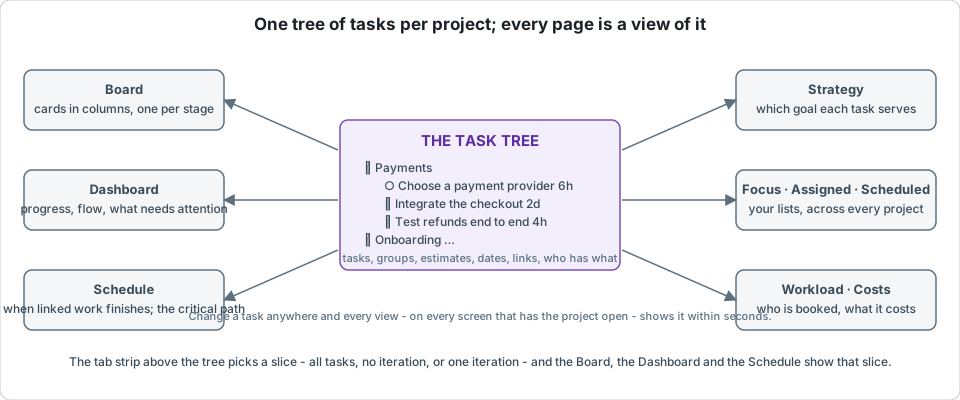
Once a project has iterations, the tab strip above the tree chooses a slice — all tasks, those in no iteration, or one iteration — and the Board, the Dashboard and the Schedule show the slice you chose, so an iteration’s dashboard and the whole project’s are the same page with a different tab.
What a task can be
A task with no type is either to do, in progress or done. Two things can hold it up: it may be waiting for other tasks (a dependency, inside the plan), or it may be stuck on something outside the plan. A finished task can be reopened; work no longer needed is archived: it leaves the views but can be restored. Only archived work can be deleted, permanently, from the archive. On a practice installation with development mode on, whole projects can also be purged.
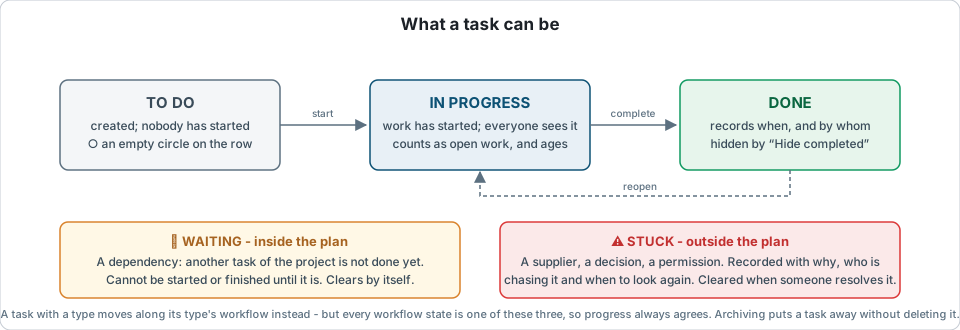
A task with a type moves along its type’s workflow instead — Open → In progress → In review → Done, say — but every workflow state still belongs to one of the three categories, so everything that counts progress agrees.
The parts behind the pages
You do not need to know how Tasks is built to use it, but a few facts explain things you will see:
- The Tasks server keeps every project and runs almost nothing by itself: apart from a nightly tidy-up that takes users who have left the account off the resource lists, there are no jobs and no overnight recalculation. What you see is computed from the tasks as they are now, plus their recorded history.
- Your browser polls the server every five seconds for what changed, and merges it into the tree on your screen. A Syncing tag shows in the top bar while your workspace first loads, and an Offline tag (point at it for the reason) when the server cannot be reached; when neither shows, everything is current.
- Tribium Access and Tribium Accounts are the services behind your sign-in, your password and your account’s subscription and users. You never open them yourself: they answer the sign-in page, the menu under your name and the Account button.
4. Getting started
Signing in, or creating an account
Tasks is a web application: you open it in a browser. If your organisation has an account already, its administrator invites you and you receive an activation email with a link; after activating, you sign in with your login (usually your email address) and your password. If not, Create an account on the sign-in page registers one, with you as its first administrator; an activation email follows, and its link brings you back here. An administrator adds everyone else from the Account button.
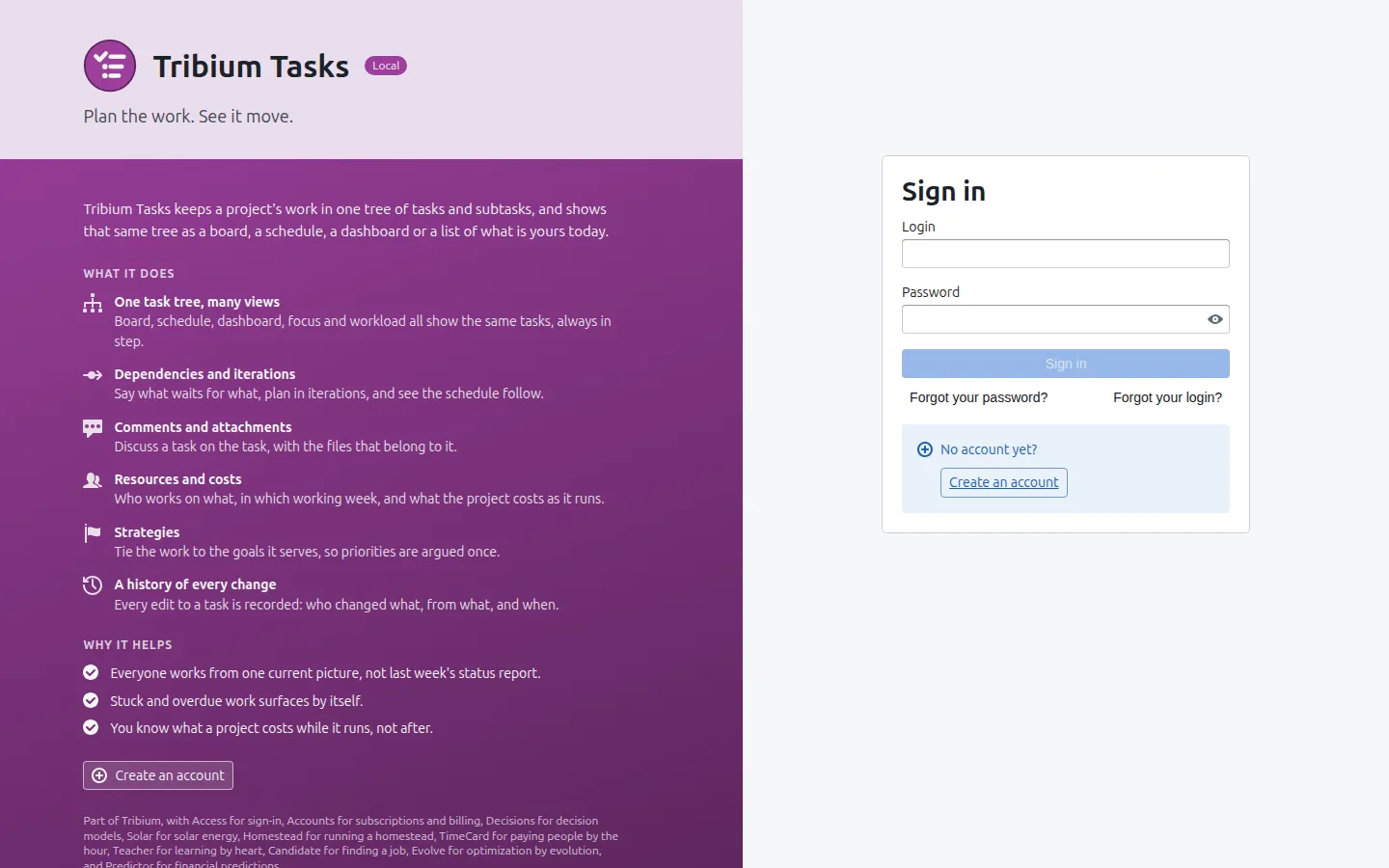
The left side of the sign-in page describes the application; the form on the right is the sign-in itself. “Forgot your password?” and “Forgot your login?” send you an email.
The window
Once signed in, every page has the same frame: a bar across the top with the application’s pages, and the page itself below.

From left to right:
| Item | What it does |
|---|---|
| Tribium Tasks (the logo and name) | Opens the About dialog: which version is running, when it was built, in which environment, and a link to the user manual. |
| An environment tag (LOC, DEV, INT) | Beside the name on any installation but production, so a practice installation is never mistaken for the real one. |
| Projects | The workspace: the project list on the left, the open project on the right. The first page after sign-in. Chapter 5. |
| Assigned to me | Open tasks assigned to you, from every project. Chapter 13. |
| Focus | The tasks you are paying attention to now. Chapter 13. |
| Stuck | Tasks held up by something outside the plan, and what each one holds up. Chapter 14. |
| Scheduled | Open tasks whose start date has come. Chapter 13. |
| Strategies | Directions and goals that reach across projects. Chapter 16. |
| Task types | The kinds of task in the account, each with its workflow. Chapter 15. |
| Resources | People, equipment, facilities, services and consumables; the working week; the workload. Chapter 17. |
| Costs | What the work costs. Shown only to those allowed to see money. Chapter 18. |
| Development (with a DEV tag) | Only on a practice installation with development mode on. Chapter 21. |
| A red N stuck badge | Stuck tasks escalated to you, or yours whose review date has passed; click it to go to the Stuck page. |
| An amber N data issues tag | Some stored records carry fields this version does not know; point at it for which (Chapter 22). |
| The Offline or Syncing tag | The server cannot be reached, or the workspace is still loading. |
| The theme icon (a flash, or a moon) | Light or dark theme. |
| Account | For account administrators only: the account, its usage, statements and users. |
| Your name | The menu about you: email, phone, password, roles, log out. |
Every page explains itself: the “?” button
At the top right of every page, every view and every dialog there is a small round ? button. Press it and an explanation opens over the page in four parts: what it is for, how it works, how to use it, and — where there is something to read — how to read it. It closes when you click anywhere else or press Escape. This manual follows the same structure; when in doubt on a page, the ? is the quickest help.
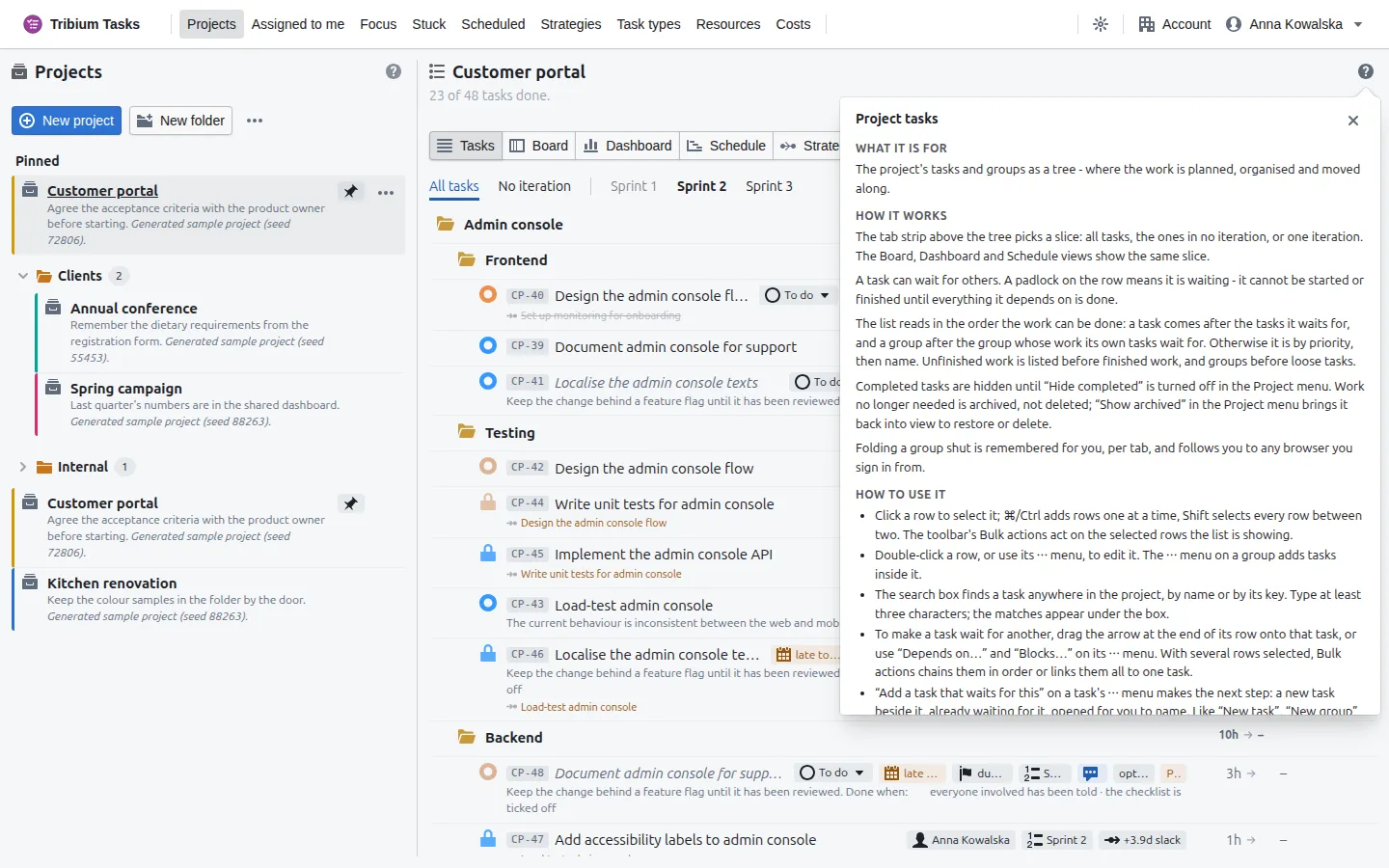
Most buttons, fields and tags also have a tooltip: hold the mouse over one for a moment and a short explanation appears.
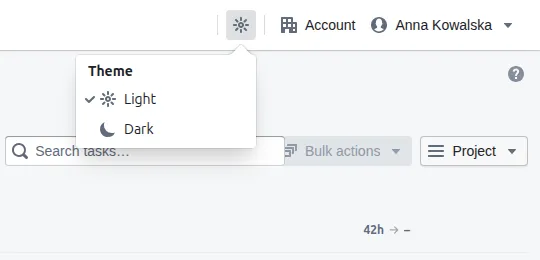
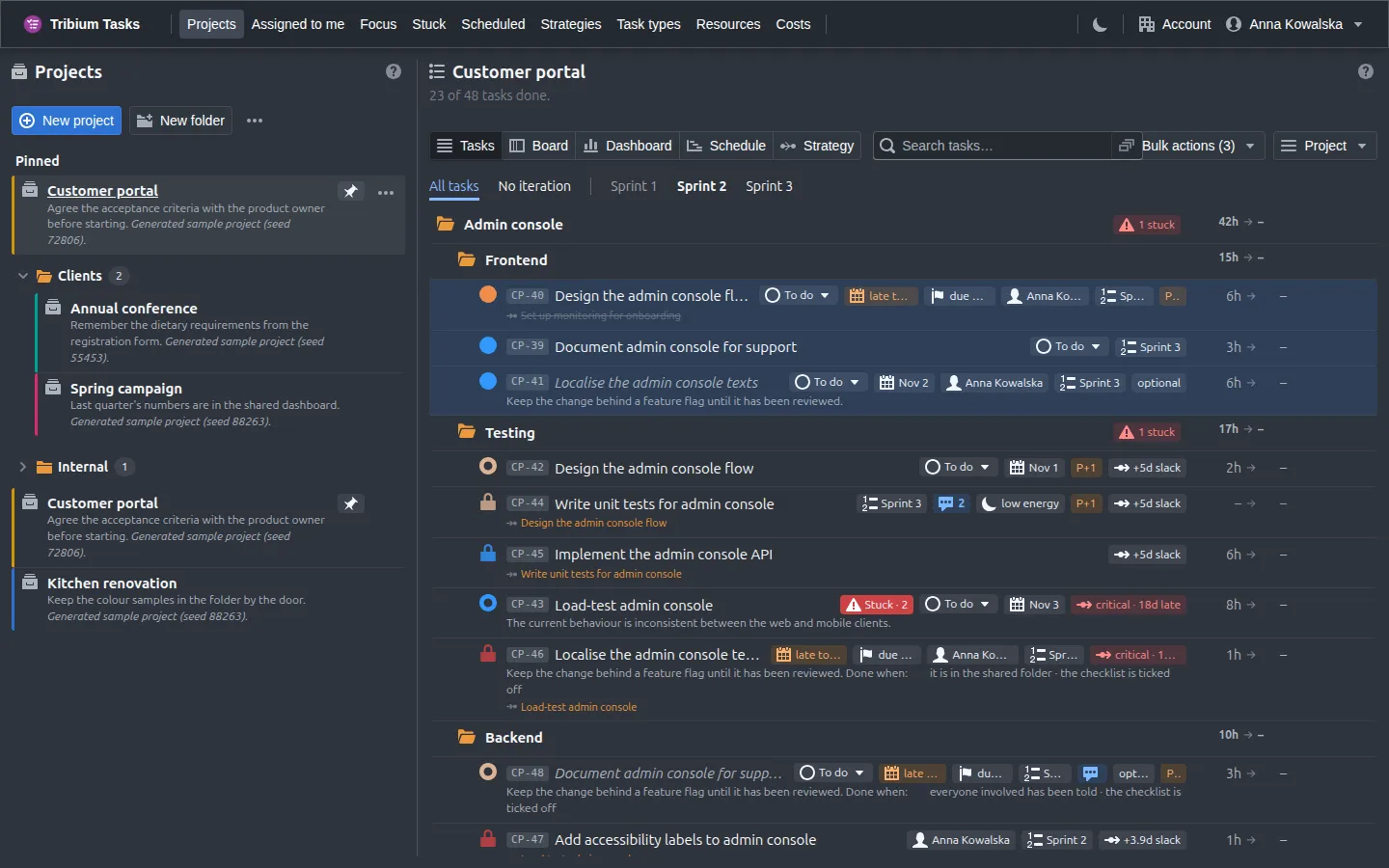
The theme
The theme icon, left of the Account button (or of your name), chooses Light or Dark; light is the default. Tasks saves the choice on your user record, so it follows you to any browser you sign in from; if that save fails, the menu says Not saved to your profile.
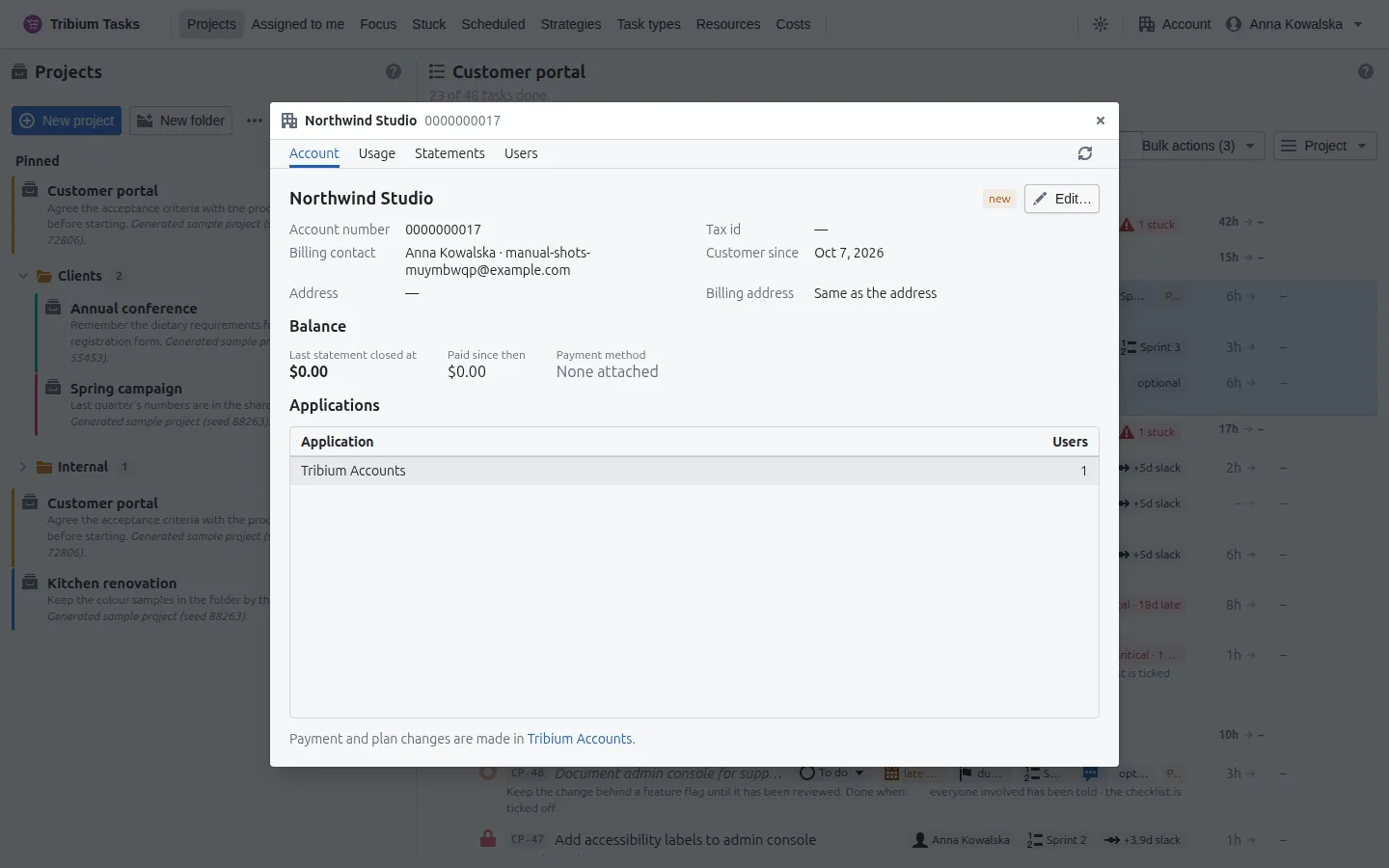
The Account button
For account administrators only, an Account button sits beside your name: the account’s details, what Tasks is used for and what it costs, the statements, and who uses Tasks. It is the Accounts application’s panel, shown here so that money is handled in one place. Payment and plan changes are not made in Tasks: ask Tribium.
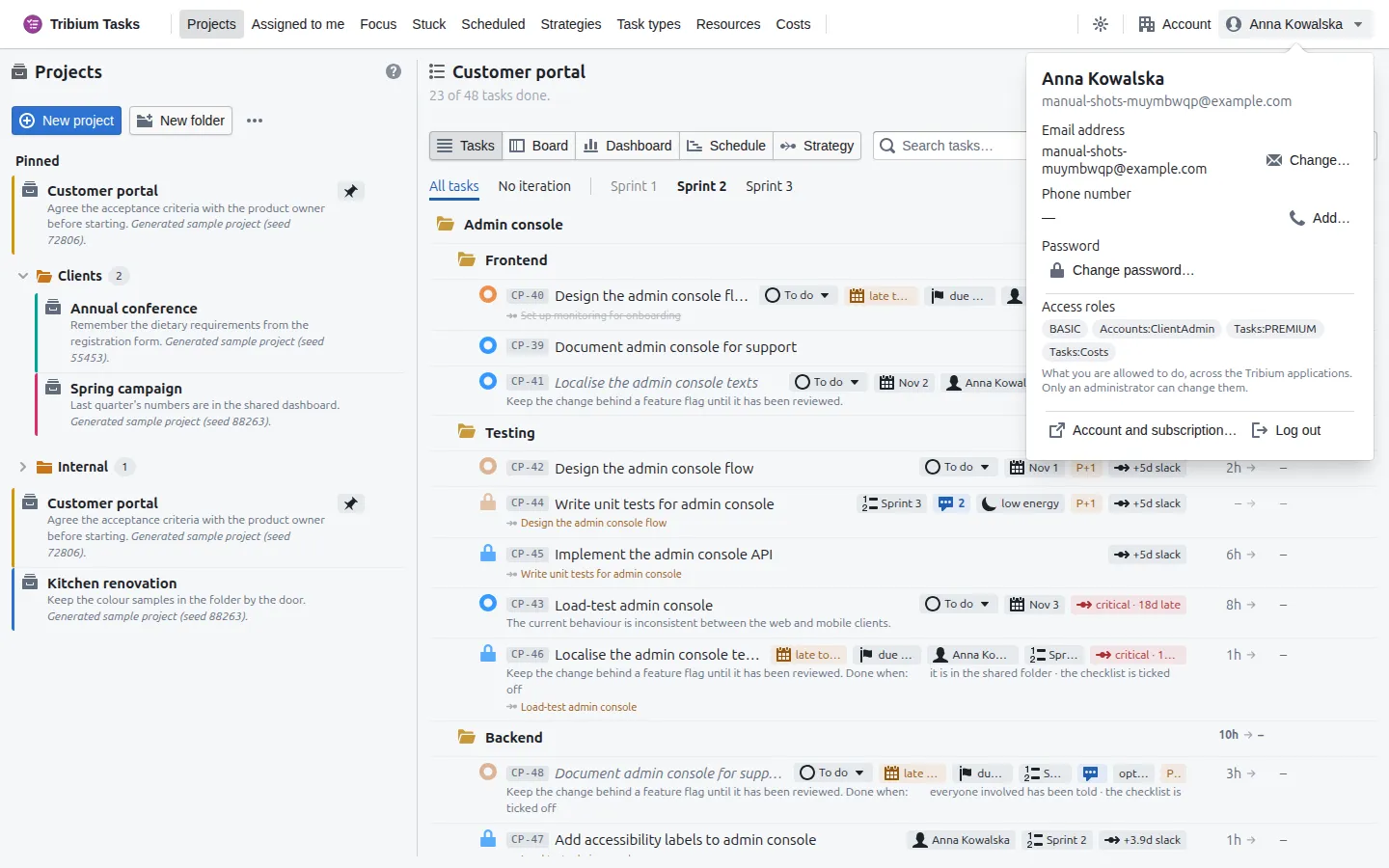
The menu under your name
Click your name at the top right to see who you are signed in as, change your email address or phone number, change your password, see your access roles (what you are allowed to do — only an administrator can change them) and log out.
The About dialog
Clicking the logo or the name “Tribium Tasks” opens a dialog with the version, the build’s commit and branch, when it was built, and the environment, plus a link to this manual. Copy details puts them all on the clipboard — paste them into a problem report.
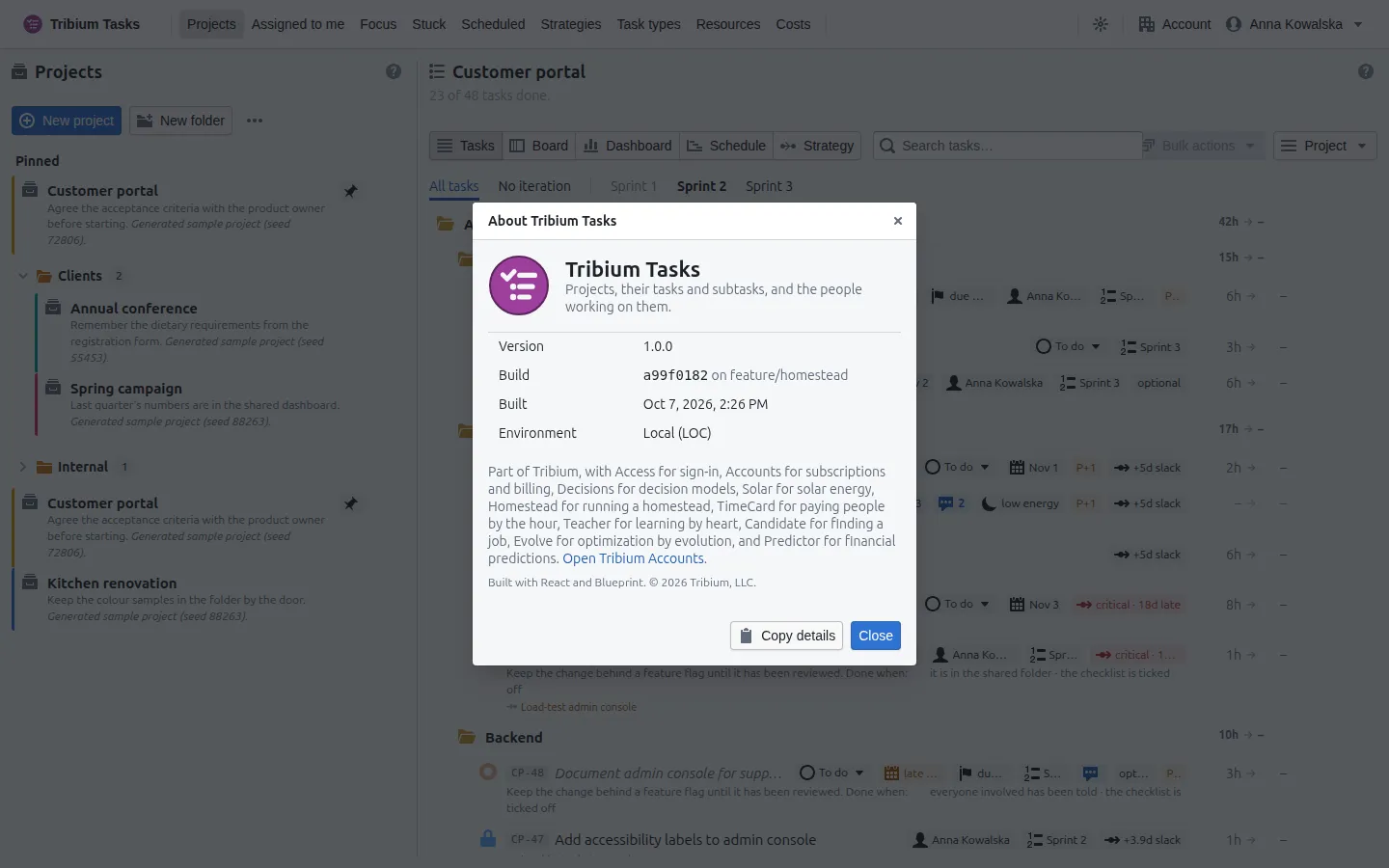
Your first visit
A new workspace has no projects: the Projects page says so and offers New project. The quickest way to a working project is:
- New project — give it a name. It appears in the project list; click it to open it on the right.
- Project ▸ Add from list… — paste a plan, one task per line; indent lines under another to make that one a group.
- Open a task (click its name) and give it an estimate; drag the arrow at the end of a row onto the task it must wait for.
- Look at the Board, the Dashboard and the Schedule of what you just made.
The next chapters walk through exactly those steps, and everything around them.
5. Projects and folders
The workspace
The Projects page is a split screen: the project list on the left, the open project on the right. Click a project to open it beside the list; drag the divider to give either side more room — the divider stays where you put it in this browser, and double-clicking it puts it back. The project you were in, the iteration tab you had chosen, the rows you had selected and how far you had scrolled are all kept while you glance at another page and come back.
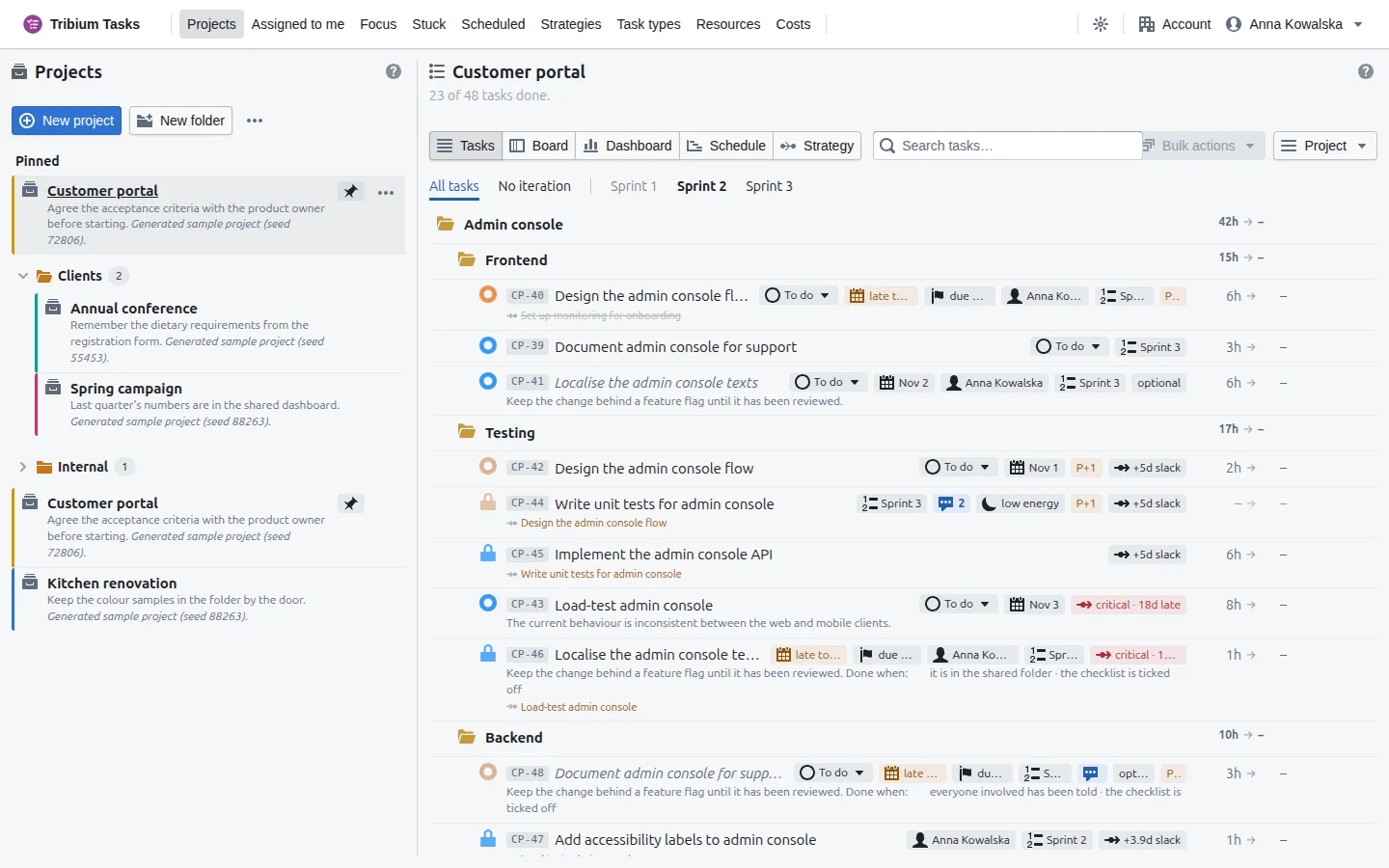
The project list
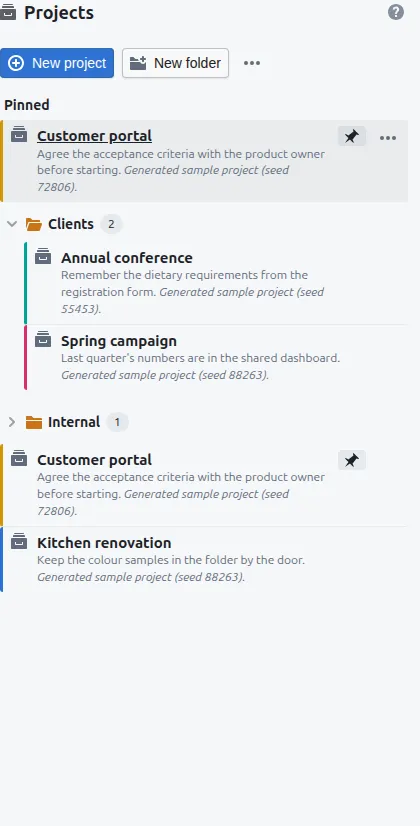
Projects sit in folders, which can hold other folders — by client, by team, by year. A folder’s row says how many projects it holds; click it to fold or unfold it, and the fold is remembered for you. Projects you pin are listed first, under Pinned, and still in their own folder; pins are yours alone. Each project’s row shows its name, the first lines of its description, and a coloured bar in the project’s own colour. An archived project is kept, read-only, in an Archived section at the foot of the list (folded, with a count), and its tasks leave Focus, Assigned to me and Scheduled. Archiving offers Undo for a few seconds; an archived project, opened, says so in a banner with Restore project.
The toolbar:
- New project asks for a name and creates the project at the top level, listed below the folders; a folder’s ⋯ ▸ New project here creates one inside that folder. Everything else — colour, key prefix, default task type — is set afterwards in its properties.
- New folder asks for a name and, if it helps, a description of what belongs in it.
- The ⋯ menu beside them is the workspace’s (below): Import from file… brings projects in from a file exported from Tasks, and Export all projects writes every project and the folder tree to one file (Chapter 20). Both are PREMIUM features and are not offered otherwise.
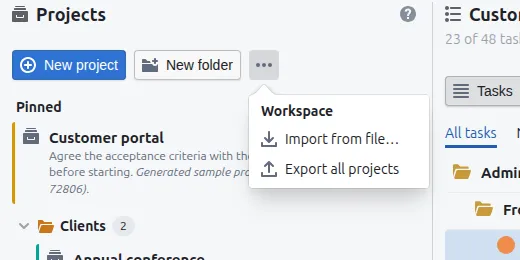
A project row’s ⋯ menu: Edit project… (its properties, below), Move to folder, Export to file (PREMIUM), Pin to top / Unpin from top, and Archive project…. An archived project’s menu offers export, Restore project and Delete permanently…. A folder’s ⋯ menu: Edit folder… (its name and description, shown under its name while it is unfolded), New project here, New folder inside, Move to folder and Delete folder. A folder can be deleted only once every project in it, counting its sub-folders, is archived or moved out; the archived ones are deleted with it.
Project properties
Project ▸ Project details… on the open project, or Edit project… on its row, opens the properties.
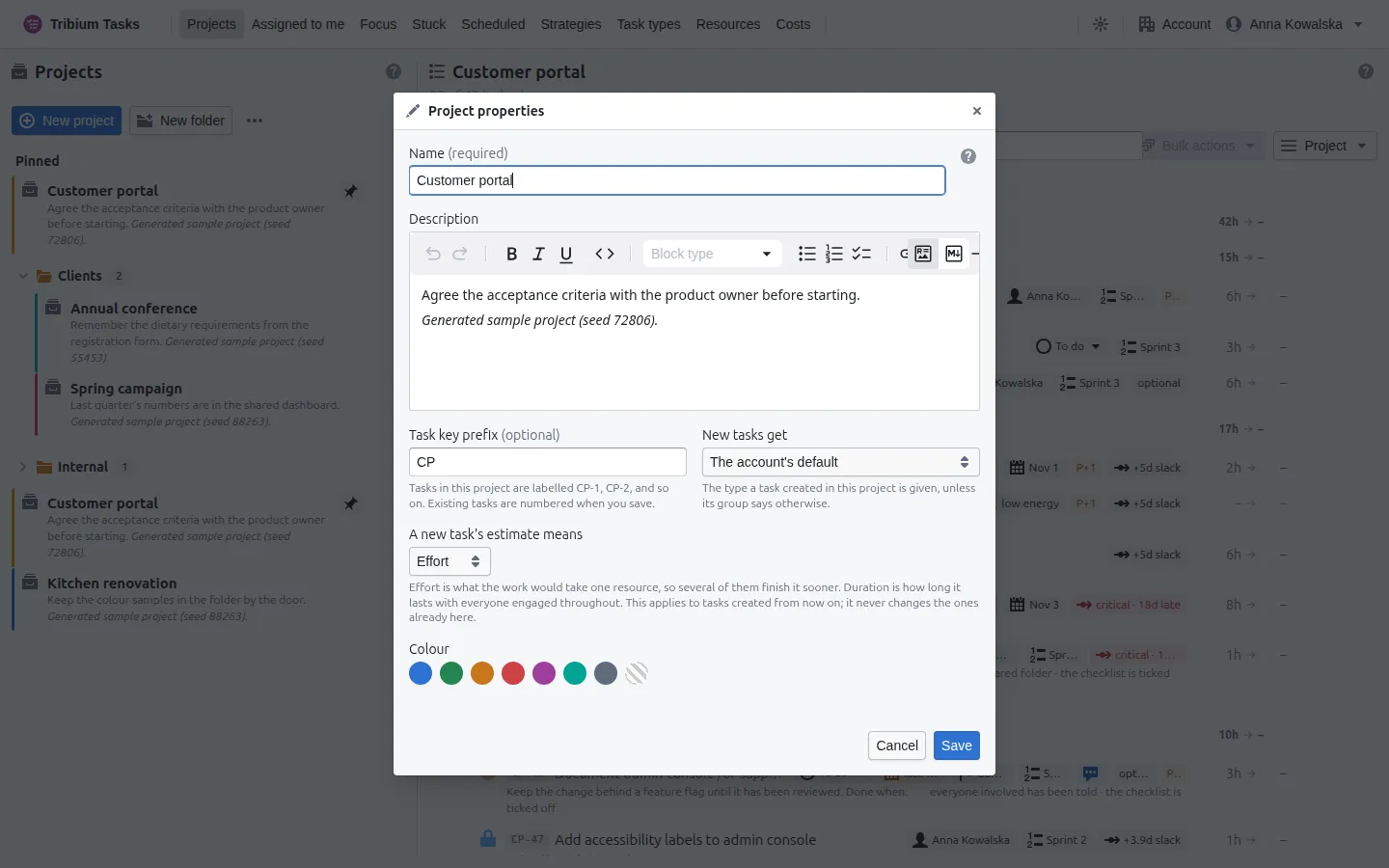
| Field | Meaning |
|---|---|
| Name, Description | The description is formatted text; its first lines show on the project’s row. |
| Task key prefix | Short capital letters such as CP (letters only; lower case is turned to capitals). With one, every task of the project gets a short id — CP-1, CP-2, … — that you can quote in a chat, a commit or a document; groups get none. Changing the prefix relabels every task at once; the numbers stay. Once a prefix is set, the Task IDs switch in the Project menu shows or hides them. |
| New tasks get | The task type a new task in this project is given, unless its group says otherwise — or The account’s default (Chapter 15). |
| A new task’s estimate means | Effort or duration, for tasks created from now on — it never changes the ones already there. Chapter 7 explains the difference. |
| Colour | The bar on the project’s row, or No colour. |
The open project
The right side shows the project’s name, a one-line progress figure (“23 of 48 tasks done”), and a row of controls:
- Tasks · Board · Dashboard · Schedule · Strategy — the five views of the project. The next chapters take them one by one.
- Search tasks… finds a task or a group anywhere in the project, by name or by its key. Type at least three characters; the matches appear under the box, and choosing one opens it.
- Bulk actions acts on the rows you have selected (Chapter 6).
- Project is the project’s own menu, below.
Under the controls, once the project has iterations, the tab strip — All tasks, No iteration, then one tab per iteration that is not hidden — picks the slice every view but Strategy shows (Chapter 9).
The Project menu
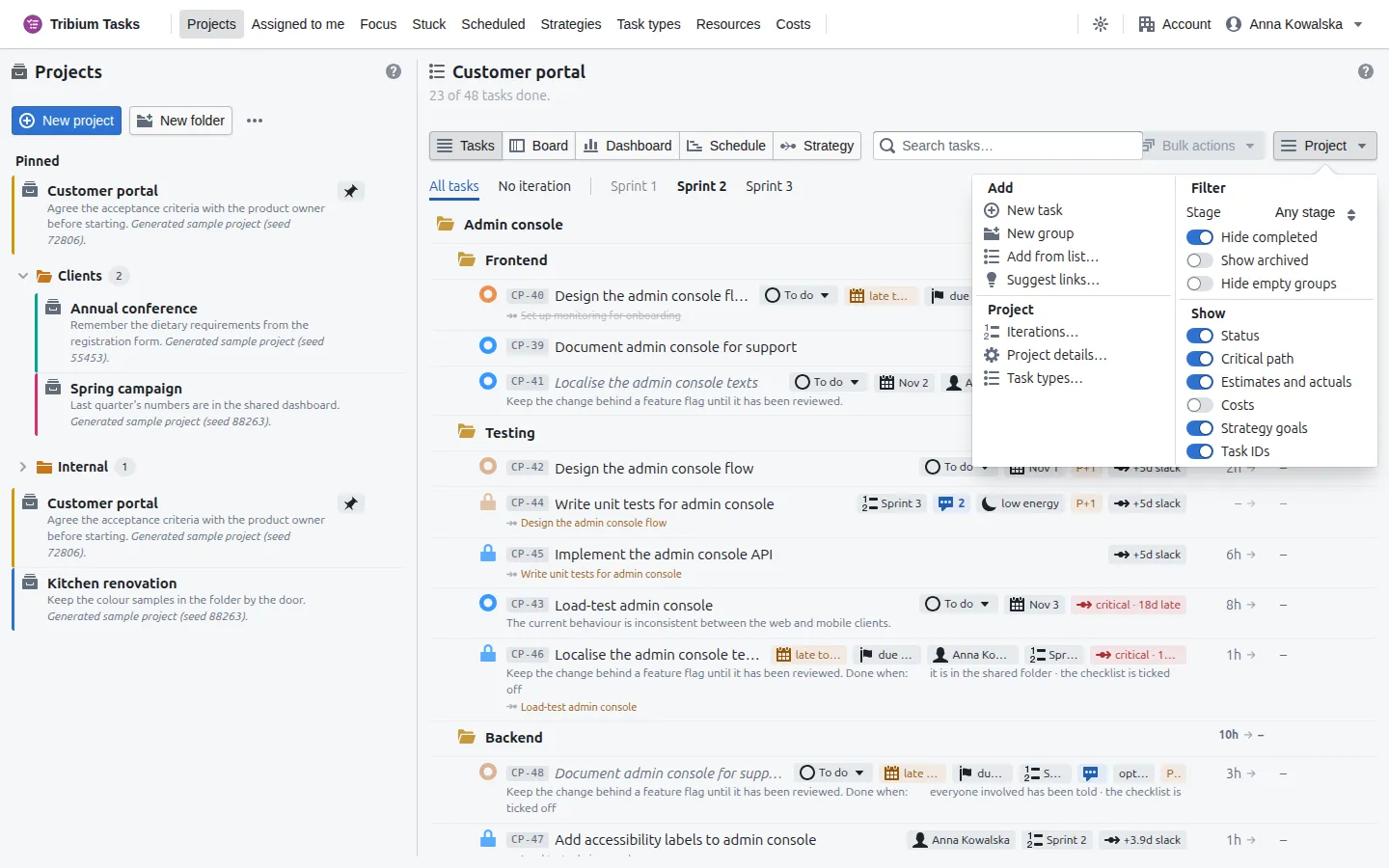
| Section | Items |
|---|---|
| Add | New task and New group add a row at the top level of the tree, opened for you to name. Add from list… turns a plan written somewhere else into tasks in one paste (Chapter 6). Suggest links… finds dependencies the project’s own text implies (Chapter 8). |
| Project | Iterations… manages the project’s iterations. Project details… opens the properties. Task types… manages types that exist in this project only. |
| Filter | Hide completed (on by default) keeps finished tasks out of the tree. Show archived brings archived work back into view, to restore or delete. Hide empty groups hides a group with nothing to show. Then Type (when the project has types), State within the chosen type, and Stage (to do, in progress, done). While one of those three is set, a Filtered button in the toolbar clears them; the switches stay as they are. |
| Show | Switches for what a row shows beside its name: Status (the clickable state tag), Critical path (slack tags), Estimates and actuals, Costs (for those who may see money), Strategy goals, and Task IDs. |
New task and New group open the new row’s dialog, and nothing is written until you Save — Cancel leaves the tree as it was. A new task is put in the iteration whose tab is open. Add from list… writes when you press Create, and Suggest links… writes each link you Accept. The Filter and Show switches are remembered in this browser.
6. The task tree
Reading the tree
What it is for. The tree is the project’s tasks and groups — where the work is planned, organised and moved along. Everything the other views show comes from here.
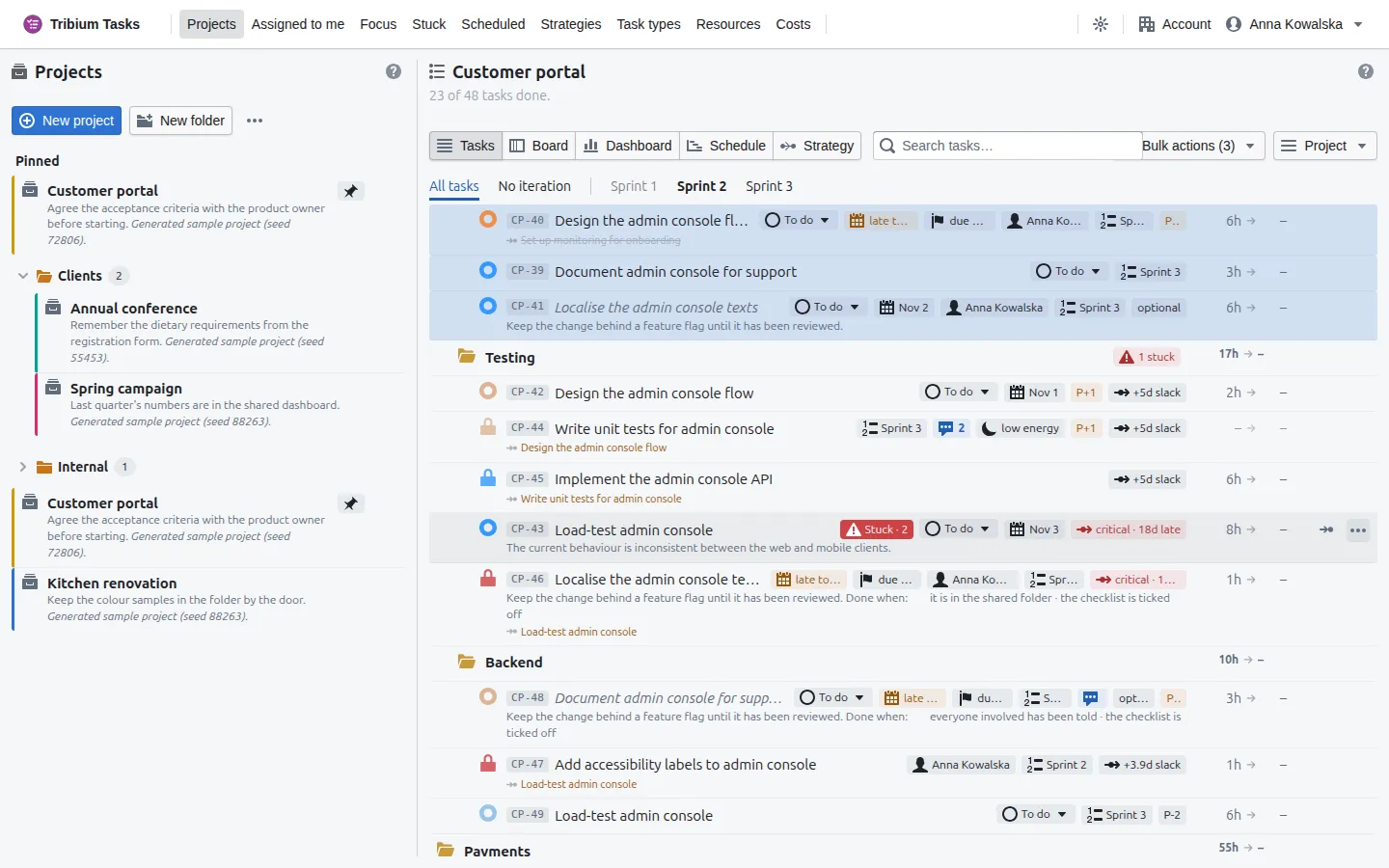
How it is ordered. The list reads in the order the work can be done: a task comes after the tasks it waits for, and a group after the group whose work its own tasks wait for. Otherwise it is by priority, then name. Unfinished work is listed before finished work, and groups before loose tasks. You do not drag rows into an order; you say what waits for what, and the order follows.
A group’s row has a folder icon, its name, how many of its tasks are stuck (if any), and — when Estimates and actuals is on — the sum of its tasks’ estimates and actuals at the right edge. Click the folder to fold the group shut; the fold is remembered for you, per tab, and follows you to any browser you sign in from.
A task’s row starts with a circle, coloured by priority and filled when the task is
in your focus — click it to put the task in your focus or take it out. A padlock in its
place means the task is waiting for other tasks; a red padlock means that what it waits for
is stuck. Then the task’s key (CP-44), its name (click it to open), and a strip of tags
saying what is true of the row: its state, its dates, who has it, its iteration, its goal, how
many comments it has, and more — every tag is listed in
Appendix A. Under the name, in small print: the first
line of the description, and the tasks this one waits for.
At the right edge, when Estimates and actuals is on: the estimate, an arrow, the actual —
6h → – for a task estimated at six hours and not yet finished. Click the figures to change
them without opening the task. Just before the ⋯ button is a small arrow icon, the link
handle: drag it onto another task to make this one wait for it (Chapter 8).
Completed tasks are hidden while Hide completed is on in the Project menu, which it is unless you turn it off; if every task in view is done, the page says so. Work no longer needed is archived, not deleted; Show archived brings it back into view to restore or delete.
Adding work
- Project ▸ New task or New group adds a row at the top level; a group’s ⋯ ▸ Add task here or Add subgroup adds inside it. The new row opens at once for you to name it; nothing exists until you Save.
- Add a task that waits for this, on a task’s ⋯ menu, makes the next step: a new task beside it, already waiting for it, opened for you to name.
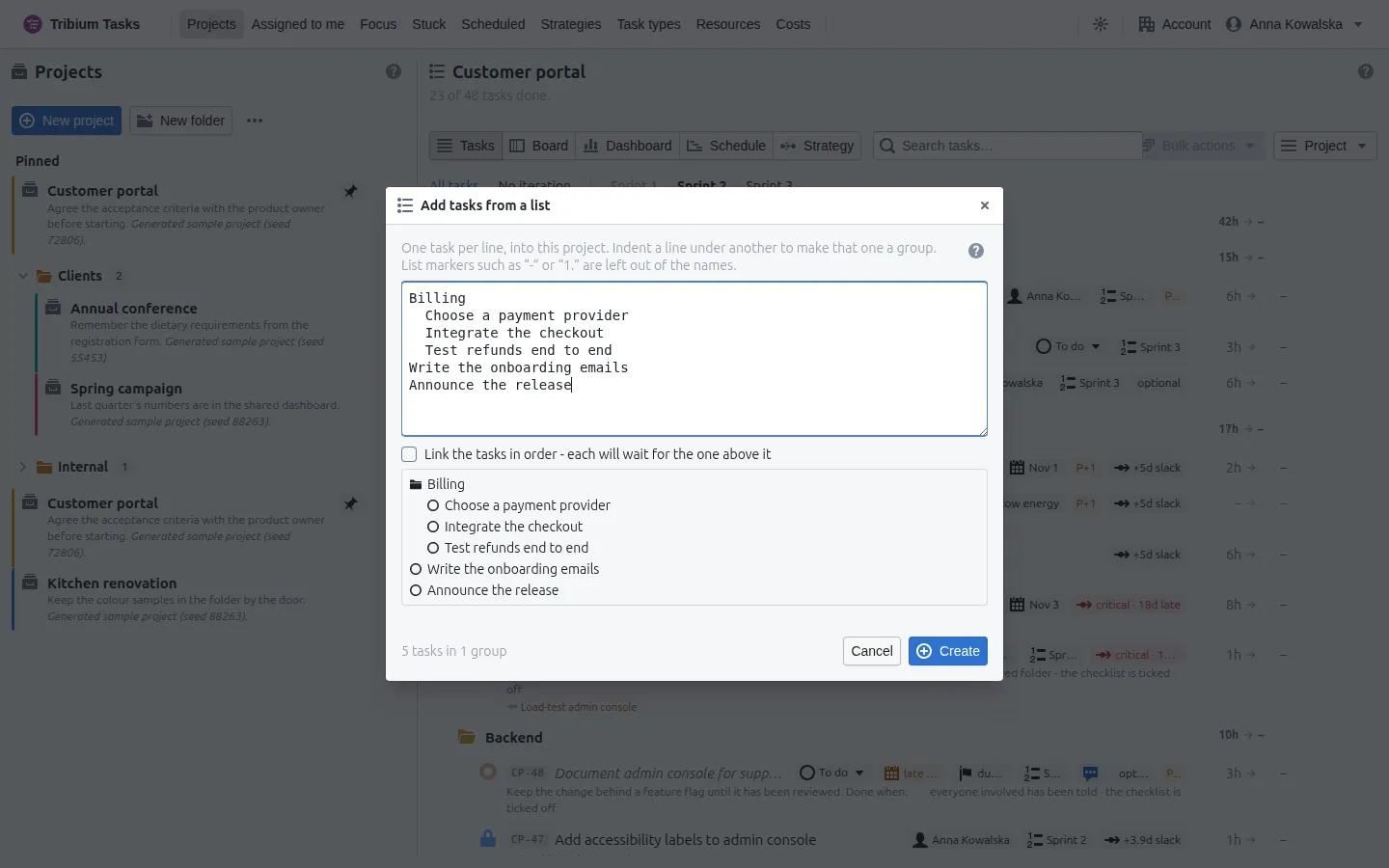
- Add from list… on the Project menu, or Add tasks from a list… on a group’s ⋯ menu to
add inside it, takes a plan written somewhere else — a document, a chat — one task per line.
Indent a line to put it under the line above, which becomes a group; list markers such as
-or1.are dropped. What will be created is shown as you type, Link the tasks in order makes each wait for the one above it, and nothing is written until Create.
- Convert to group, on a task’s ⋯ menu, turns a task that needs parts into a group; the parts are then added inside it.
- Duplicate copies a task; Duplicate as template, on a group, copies the group and its tasks keeping the dependencies between them — a checklist you run every release, say.
A task’s ⋯ menu
Every row has a ⋯ button at its right end (it appears when the mouse is over the row); clicking a task’s name opens it for editing.
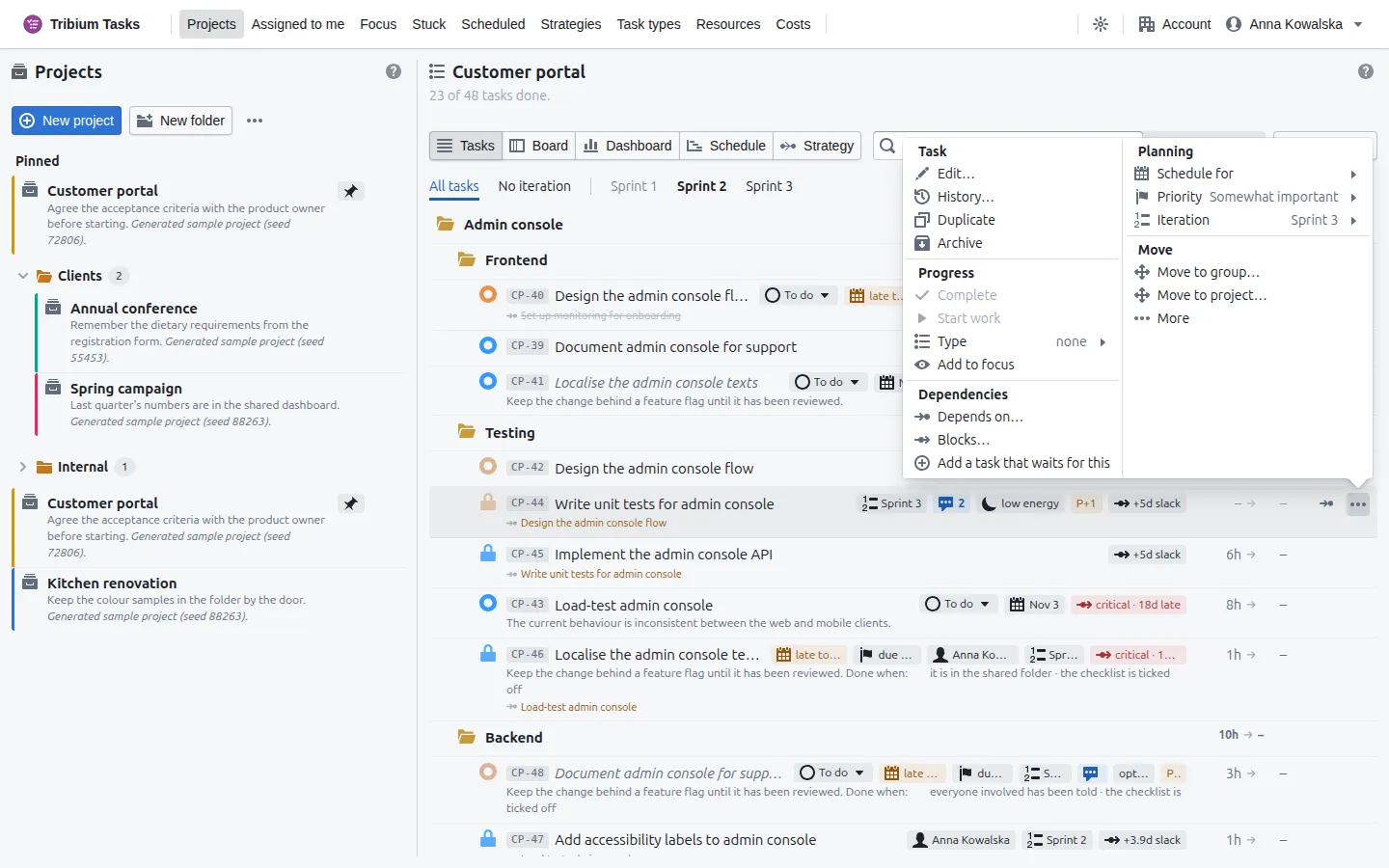
| Section | Items |
|---|---|
| Task | Edit…, History… (every change ever made to it), Duplicate, Archive. A stuck task says so here, with Stuck - update or resolve…. |
| Progress | Complete or Reopen; for a task with no type, Start work or Back to to do; for a typed task, Move to one of the states its workflow allows from here. Type (once the account or project has types) sets or clears the task’s type, and Add to focus / Remove from focus puts it on your Focus page or takes it off. |
| Dependencies | Depends on… chooses the tasks this one waits for; Blocks… the tasks that wait for it; Add a task that waits for this makes the next step. |
| Planning | Schedule for (today, tomorrow, the weekend, next week or next month, or clear it), Priority (seven levels), Iteration (one of the project’s open iterations, or none), and one entry per strategy, named after it, to choose the goal the task serves there. |
| Move | Move to group… elsewhere in this project, or Move to project…. A task keeps its links, comments and everything else when it moves within the project; a move to another project drops the links to tasks left behind, because a dependency cannot cross projects. |
| More | Opens in place to show Duplicate of…, which marks this task as the same work as another (below); Mark as stuck…; and Convert to group. |
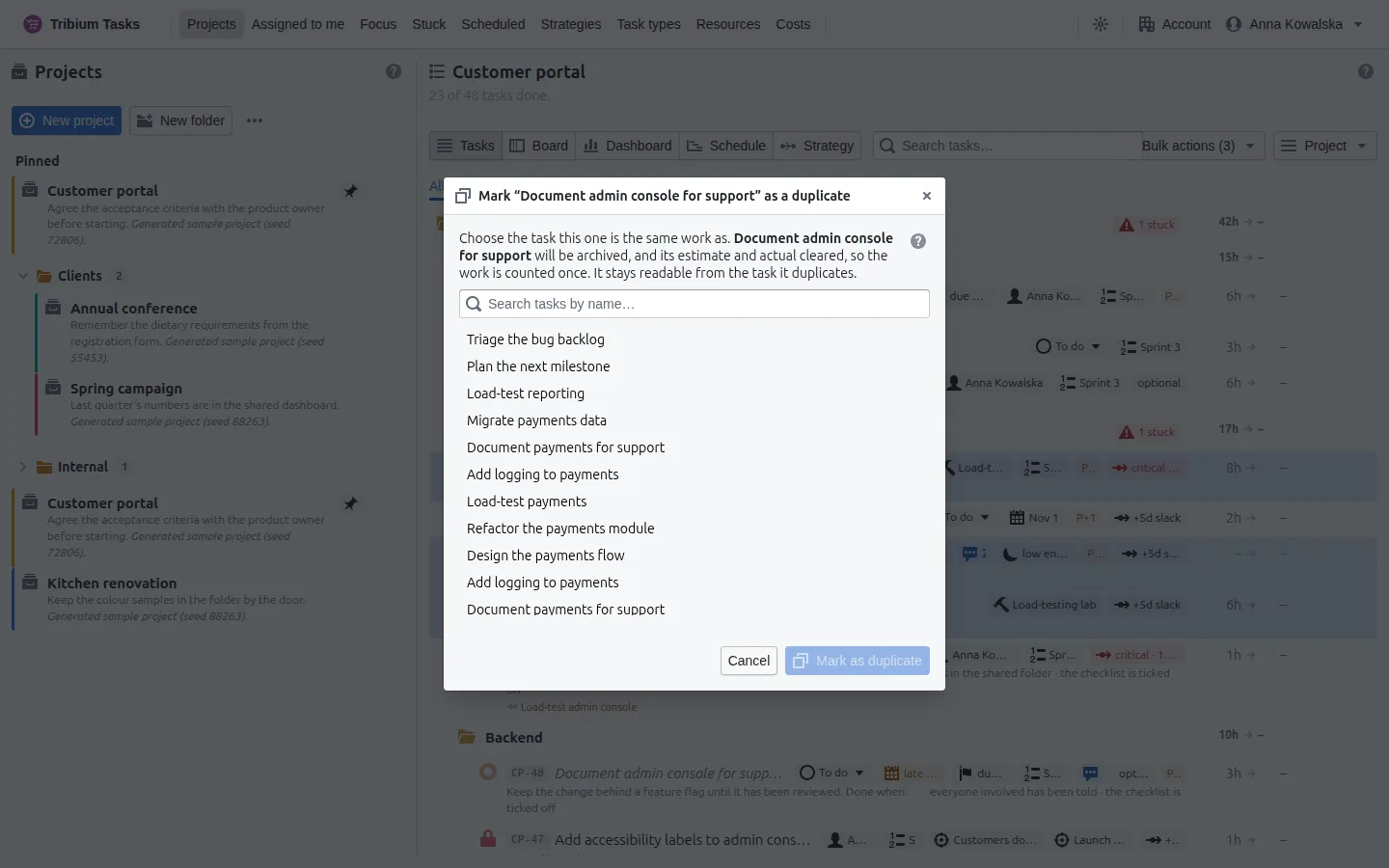
Duplicate of… says that this task is the same work as another, so it is counted once: the duplicate is archived and its estimate and actual are cleared, and it keeps a link to the task it duplicates. Only live tasks of the same project are offered — never a group or another duplicate. Not a duplicate on the archived task’s menu undoes it.
A group’s menu is shorter: Edit…, Add task here, Add subgroup, Add tasks from a list…, Duplicate as template, the two moves, Assign all tasks to iteration or Assign unassigned tasks to iteration (completed tasks stay where they are), and Archive group.
Selecting rows and Bulk actions
Click a row to select it; ⌘/Ctrl-click adds rows one at a time, Shift-click selects every row between two. The toolbar’s Bulk actions then acts on the selected rows the list is showing.
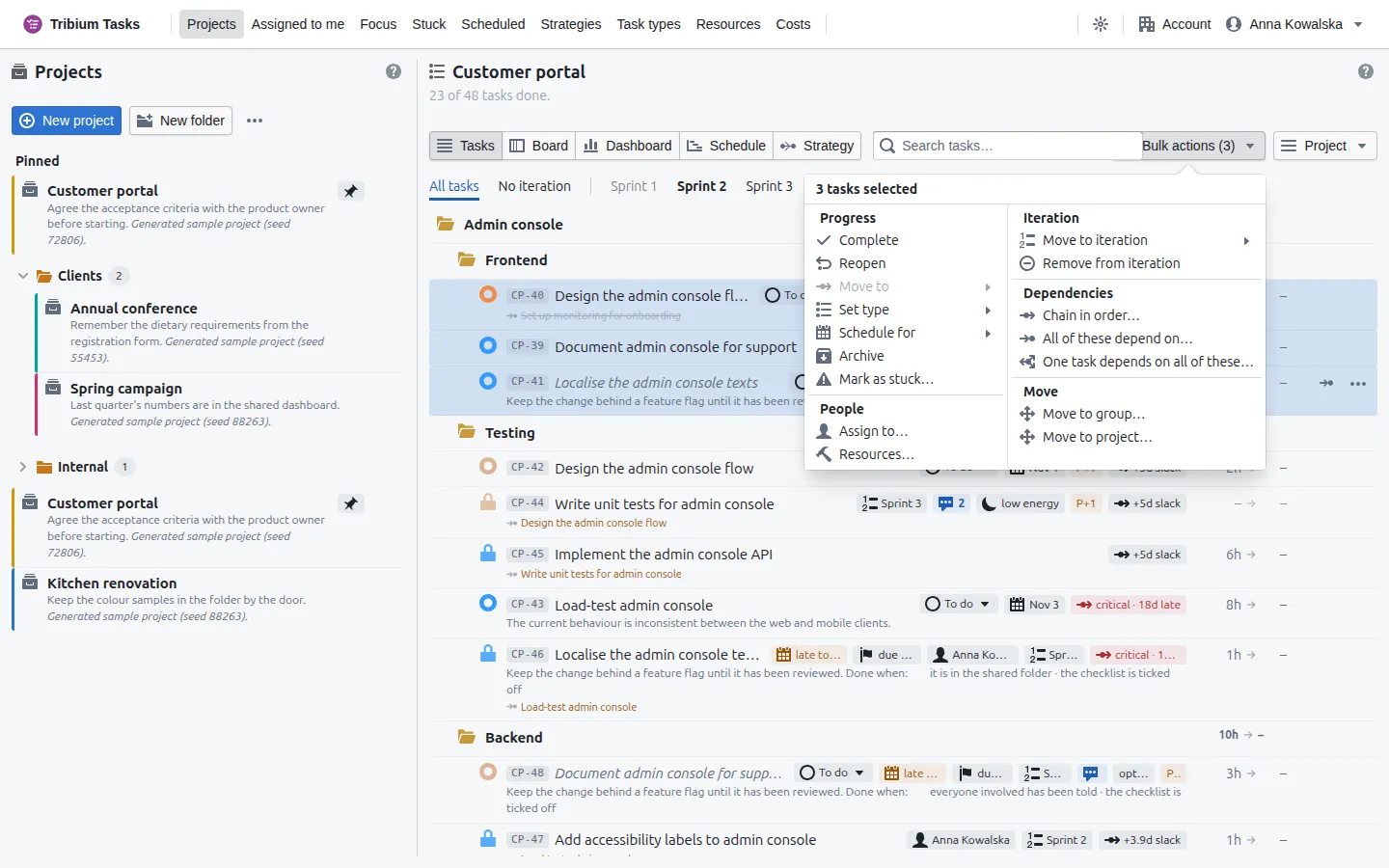
| Section | Items |
|---|---|
| Progress | Complete, Reopen, Move to a workflow state (when the selected tasks share a type), Set type, Schedule for. |
| Archive, and Mark as stuck… with one reason for all. | |
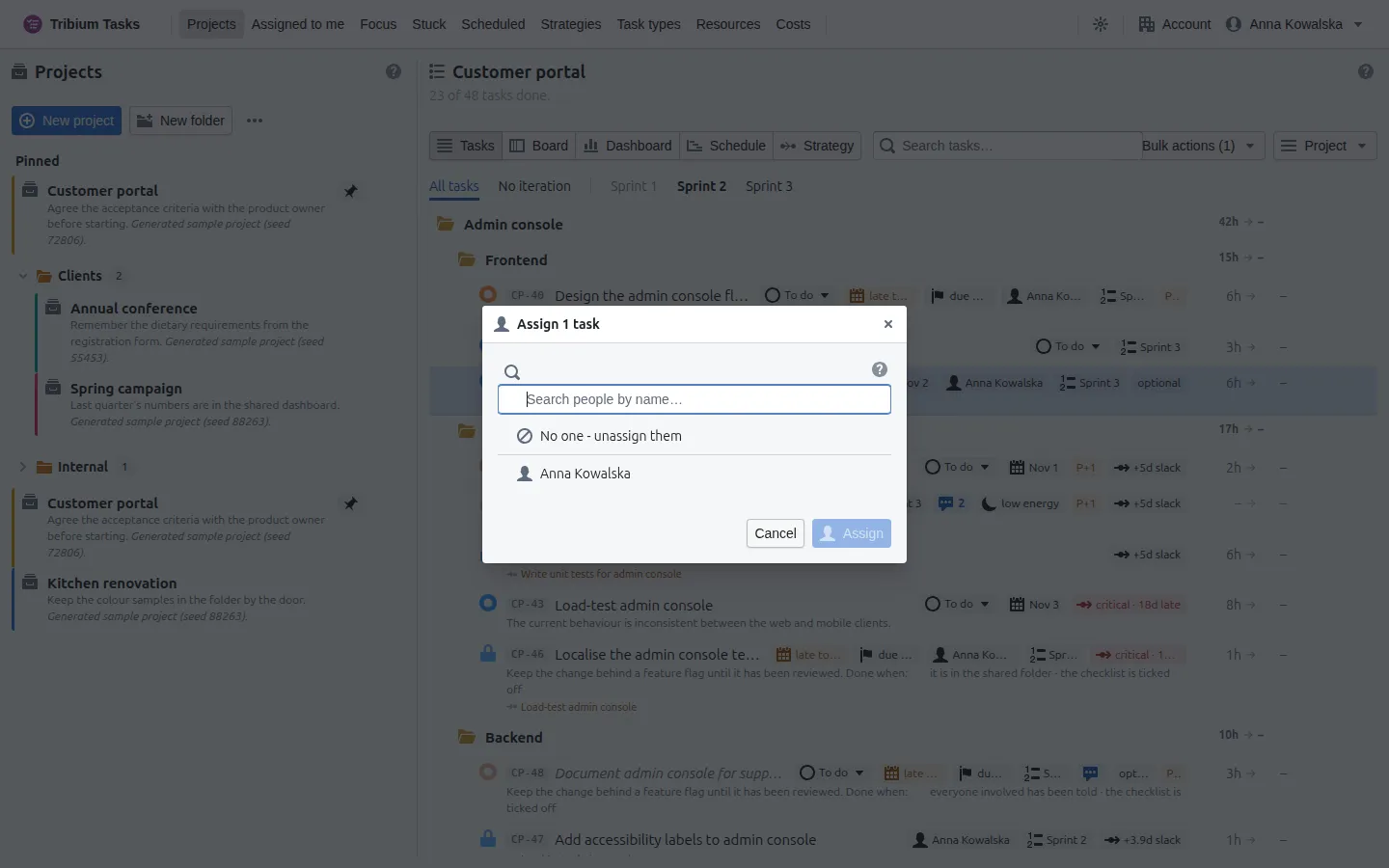
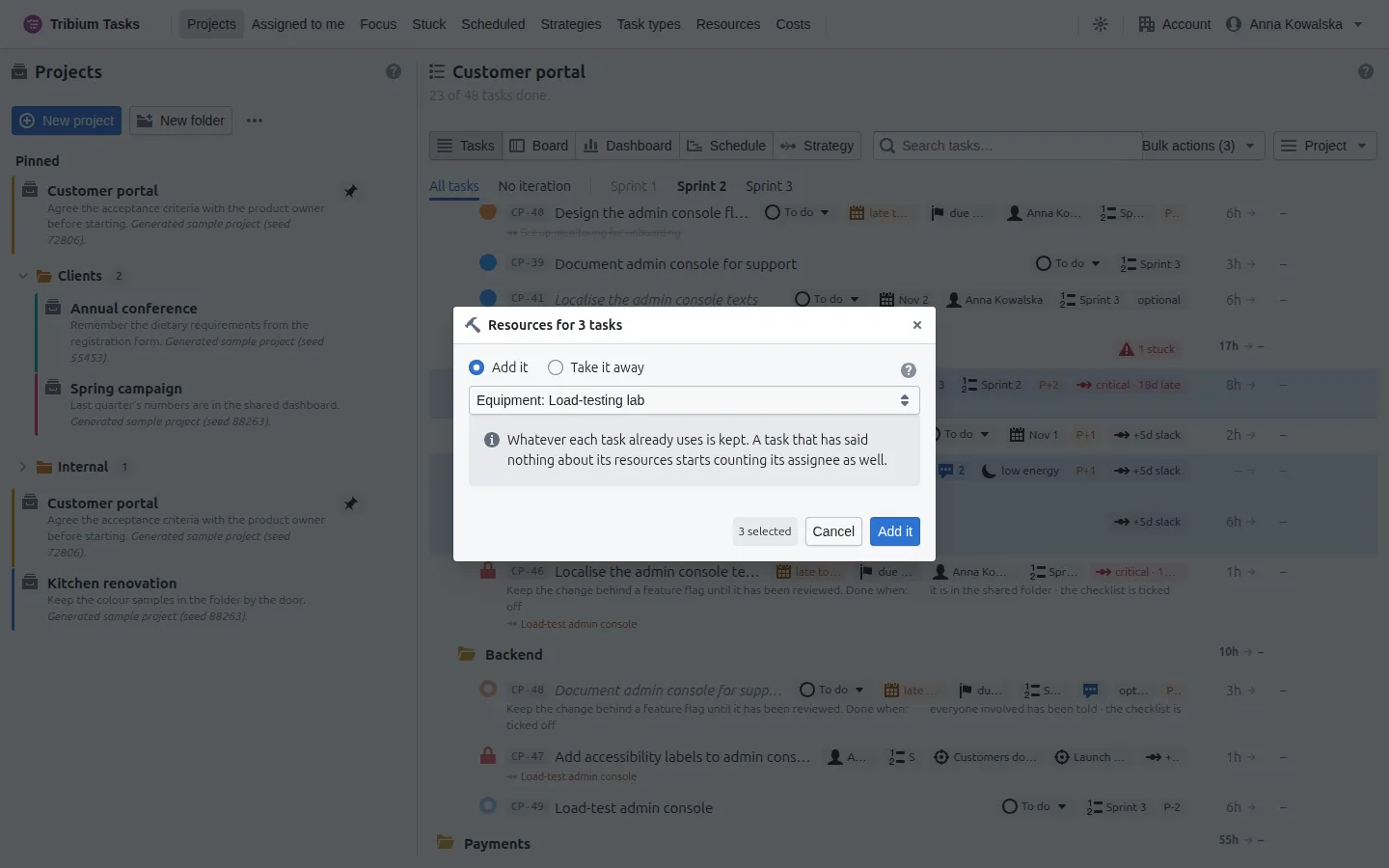
| People | Assign to… one person — a task has one assignee, and assigning replaces whoever had it. Resources… gives the tasks a resource, or takes one away (Chapter 17); whatever else each task uses stays as it is. |
| Iteration | Move to iteration, Remove from iteration. |
| Dependencies | Chain in order… makes each wait for the one before it; All of these depend on… makes every selected task wait for the tasks you pick; One task depends on all of these… makes the tasks you pick wait for every selected one. Select a single group to do the same with the tasks inside it (Chapter 8). |
| Move | Move to group…, Move to project…. |
When the selection is all archived work, the menu offers only Restore and Delete permanently…; when archived and working rows are mixed, it offers to archive the working ones or restore the archived ones.
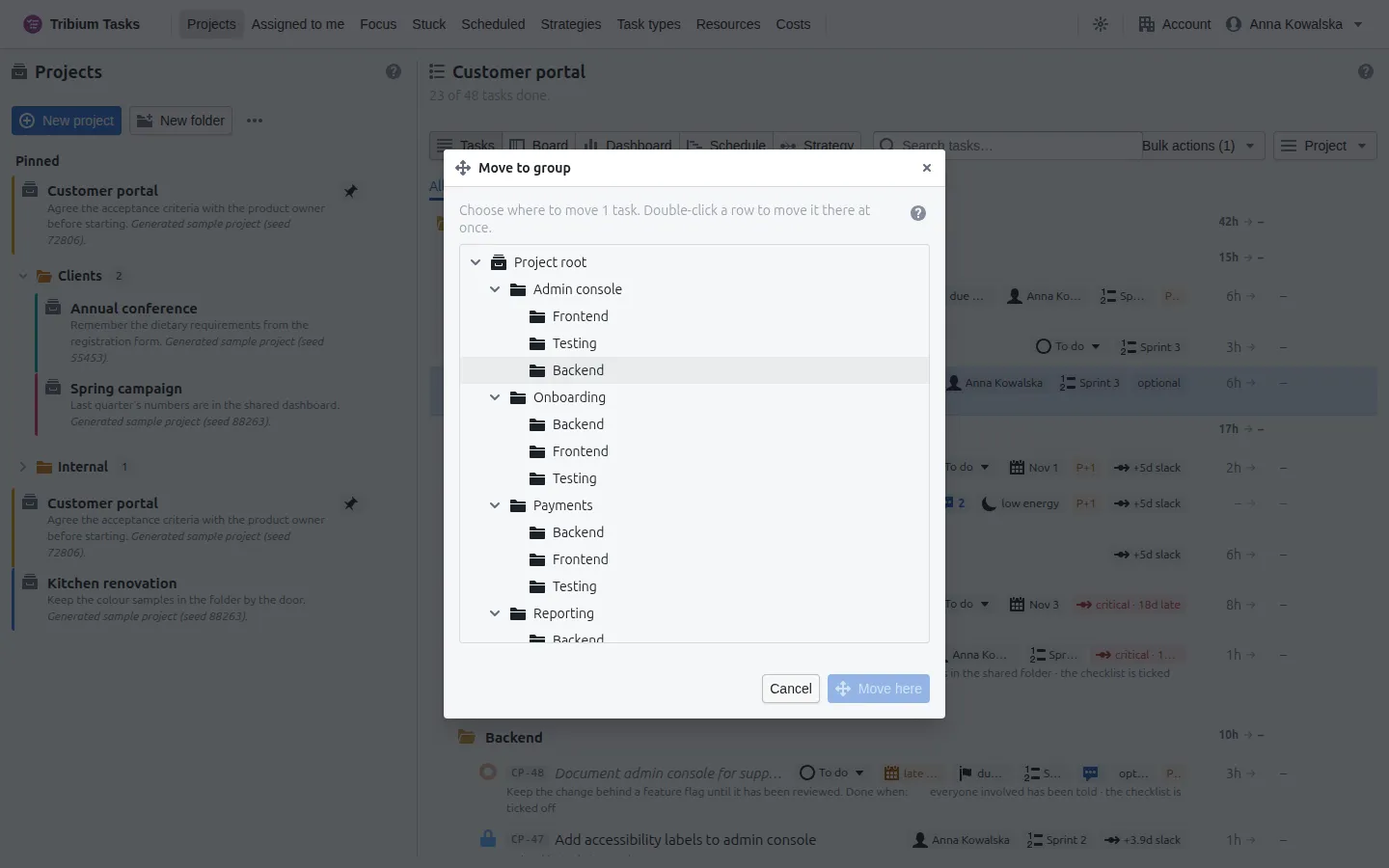
On the keyboard, with rows selected: d chooses what they wait for, b what waits for them, c chains them. Press ? anywhere to list every shortcut.
Search
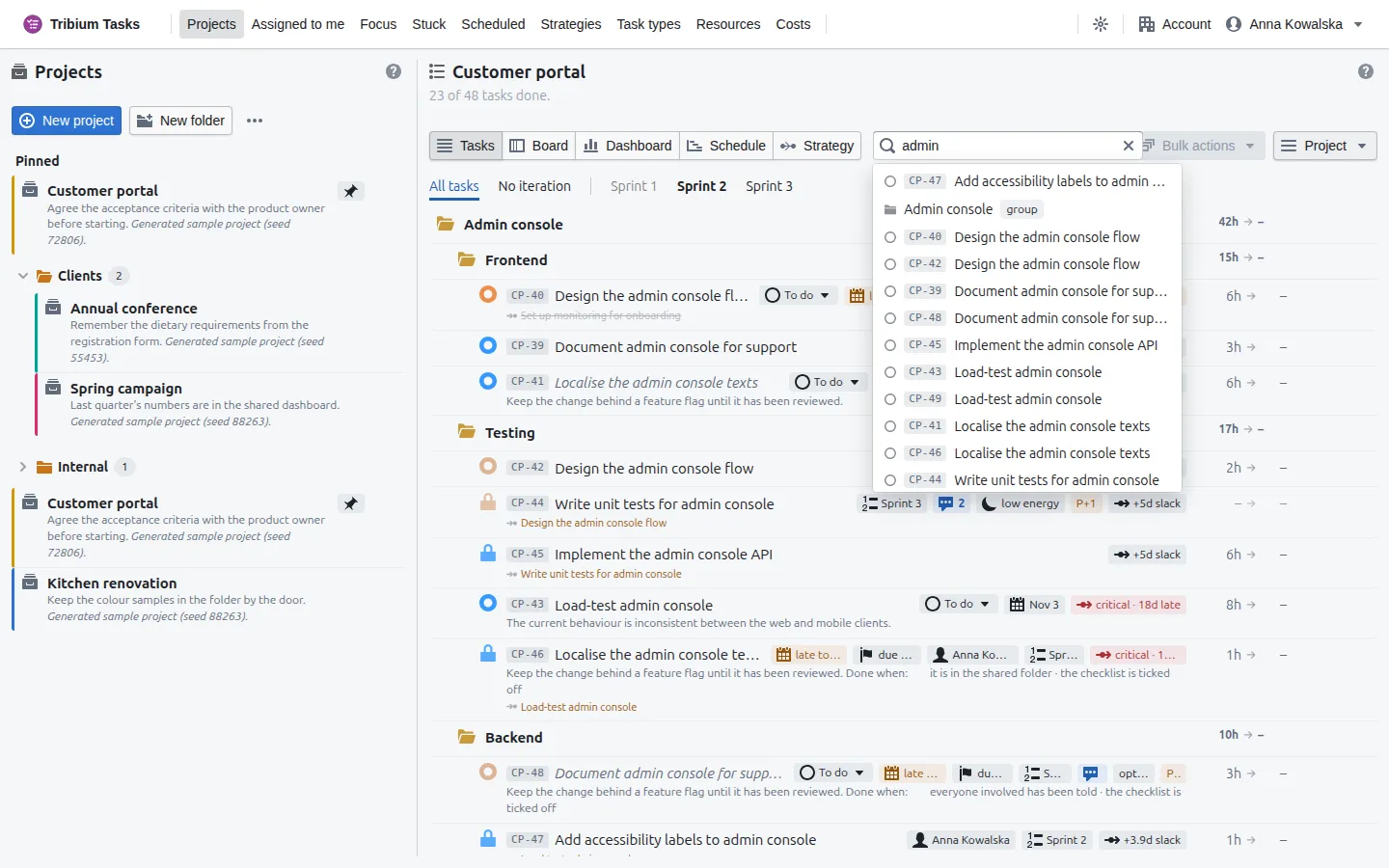
Type three or more characters of a name or a key into Search tasks…; the matches — tasks and groups — appear under the box with the group each one sits in, finished ones last, and choosing one (with the mouse, or the arrow keys and Enter) opens it. Archived work is not searched.
Links to a task
The Link button at the foot of a task’s dialog shows the URL that reopens exactly that task — its project’s page with the task’s dialog open — with a Copy button (if the browser refuses to copy, select it and press Ctrl+C). Paste it into a chat or a document. A link opened while signed out lands on the sign-in page and then on the task.
7. A task, tab by tab
Click a task’s name, choose Edit… on its menu, or pick it from the search, and its dialog opens: the name across the top, then a row of tabs. Changes are kept when you press Save (Cancel leaves the task as it was) — except where a tab says otherwise: comments, images, files, resources, the estimate is switch, workflow moves and marking it stuck are made at once.
The ? at the end of the tab strip explains the open tab; the buttons at the foot are History…, Link and Mark as stuck… (not on a finished task or one already stuck), and Duplicates (n) on a task that others duplicate. A task not saved yet has no Attachments or Comments tab, and its images, files and resources can be added once it is saved.
General
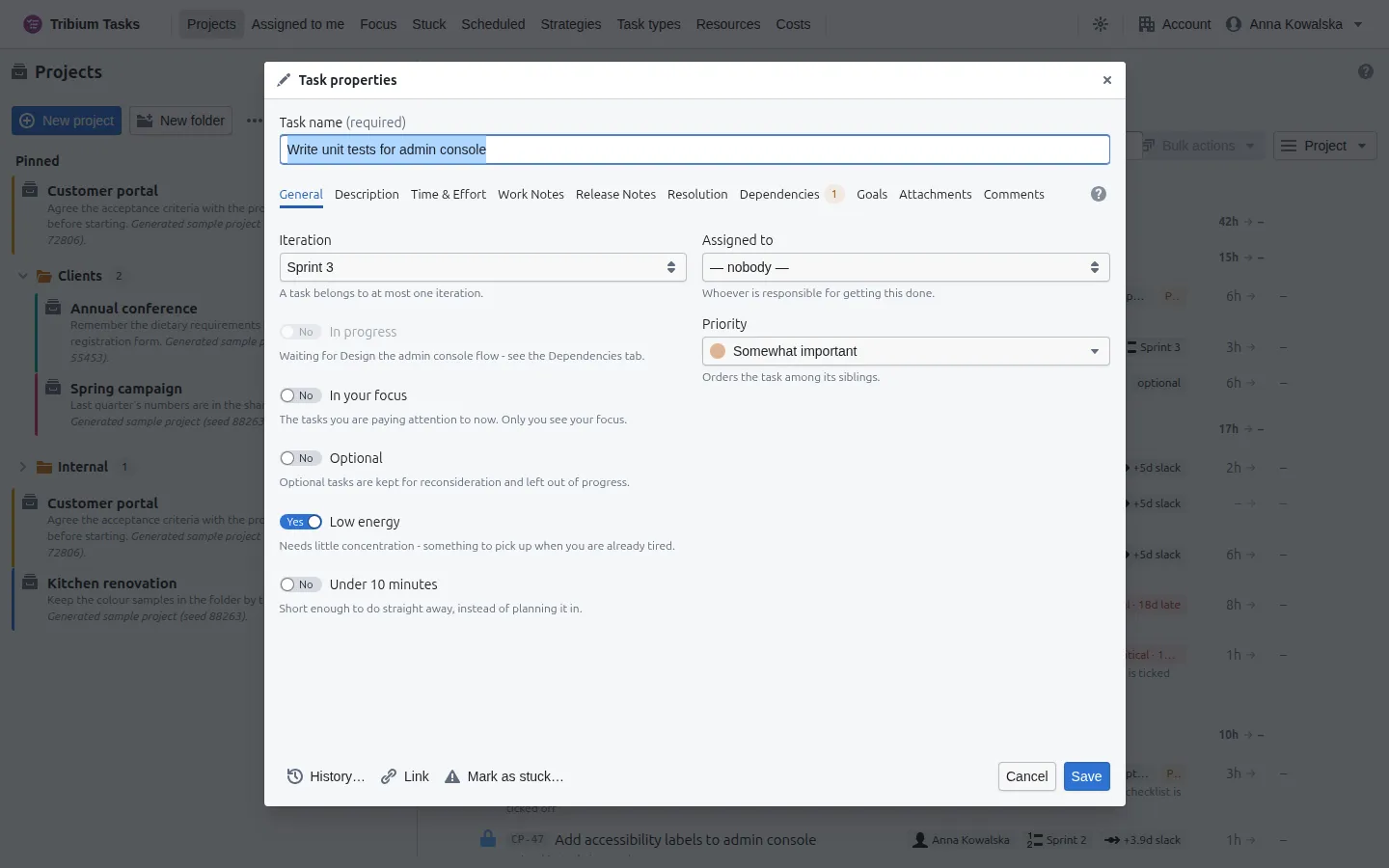
| Field | Meaning |
|---|---|
| Iteration | The one iteration the task belongs to, or none. Only open iterations are offered; the active one says so. |
| In progress | Work on the task has started; everyone sees it. (A task with a type has its workflow instead — see Resolution.) A waiting task cannot be started; the switch says what it waits for. |
| In your focus | Puts the task on your Focus page. Only you see your focus. |
| Optional | Kept for reconsideration and left out of progress figures. |
| Low energy | Needs little concentration — something to pick up when you are already tired. |
| Under 10 minutes | Short enough to do straight away instead of planning it in. |
| Type | The task’s type, which decides its workflow (Chapter 15). Shown once the account or the project has types. |
| Assigned to | Whoever is responsible for getting it done. One person; the task appears on their Assigned to me page. |
| Priority | Seven levels, from Not important to First priority. Orders the task among its siblings and colours its circle. |
Description
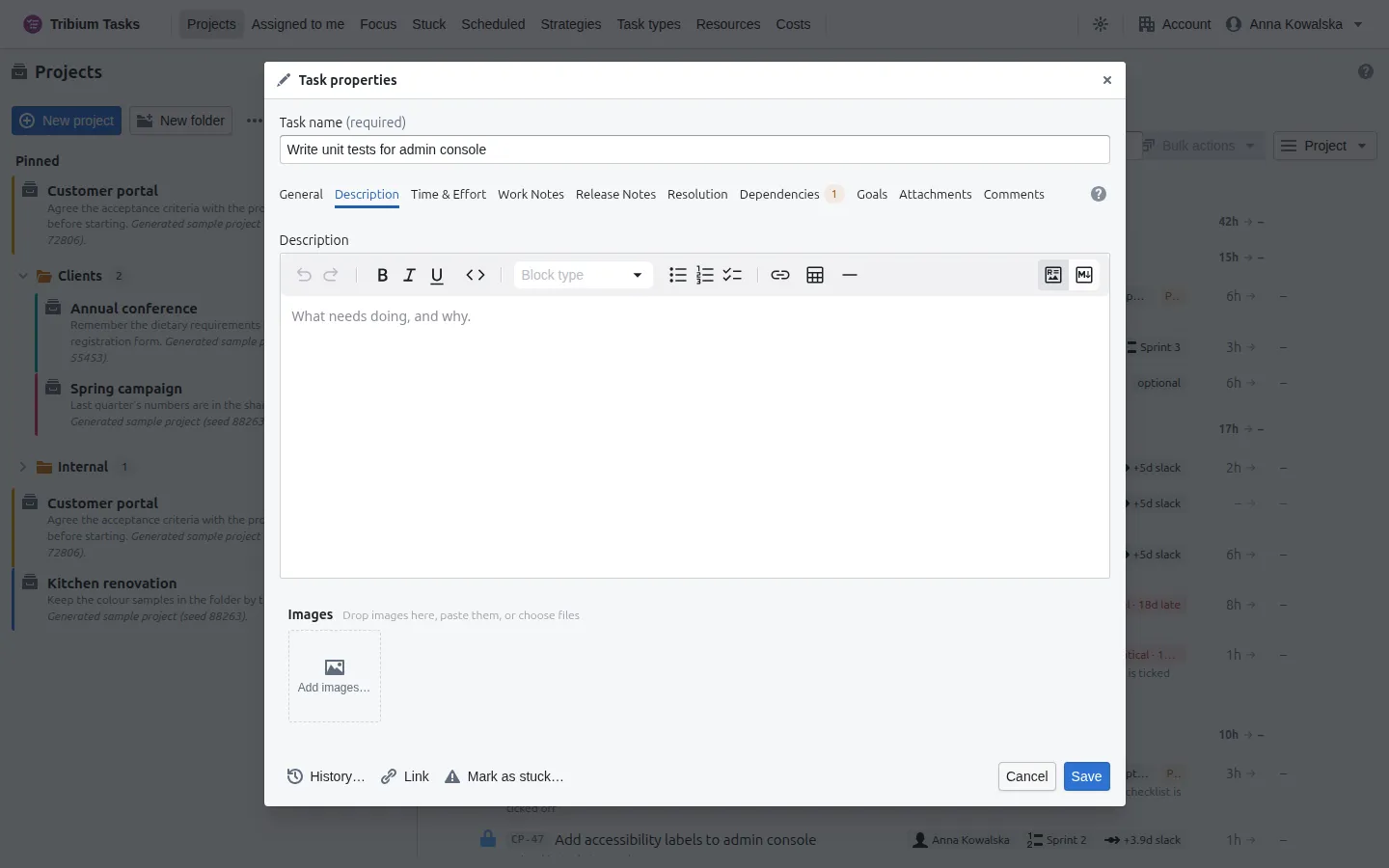
What the task is about — the details whoever does it will need. Formatted text: headings, lists, links, tables, code; the toolbar formats the selection, and Source mode shows the Markdown behind it. A finished task opens on this tab.
Under the text, the task’s images: drop them anywhere on the tab, paste them, or press Add images…. They are kept at once, not on Save, and are shown as thumbnails; click one to see it large, and step through all of them with the arrow keys. An image is a PNG, JPEG, GIF or WebP of up to 15 MB, and a task holds up to 100.
Time & Effort
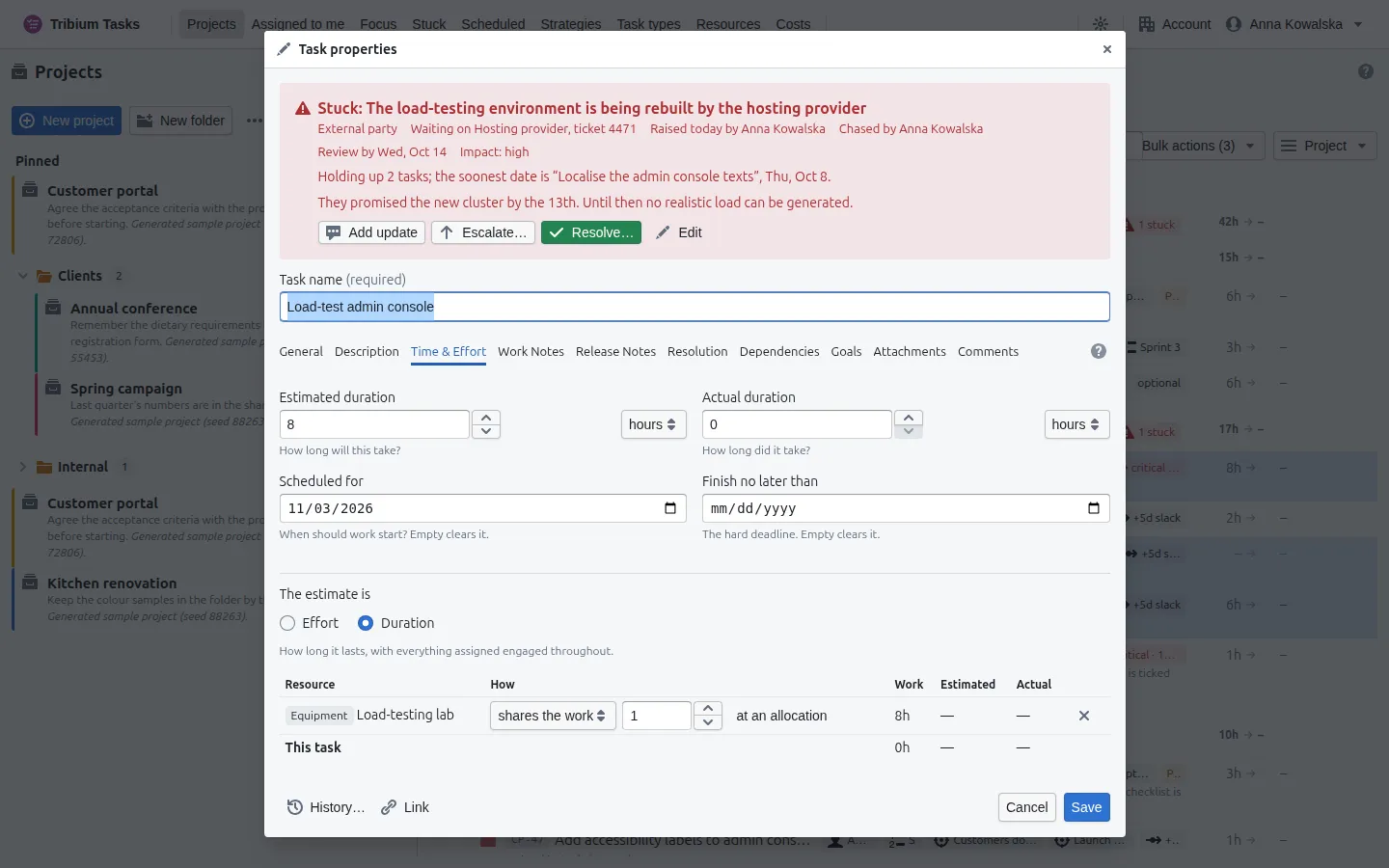
| Field | Meaning |
|---|---|
| Estimated effort / Estimated duration | How much work the task is: a number and a unit, hours or days. A d is one working day of the account’s working week — 8 hours unless changed (Chapter 17). |
| Actual duration | What it really took, filled in when the task is done. |
| Scheduled for | When work should start. From that day the task is on the Scheduled page; before it, the schedule holds the task to that start. |
| Finish no later than | The hard deadline. Past it the row says overdue, in red. |
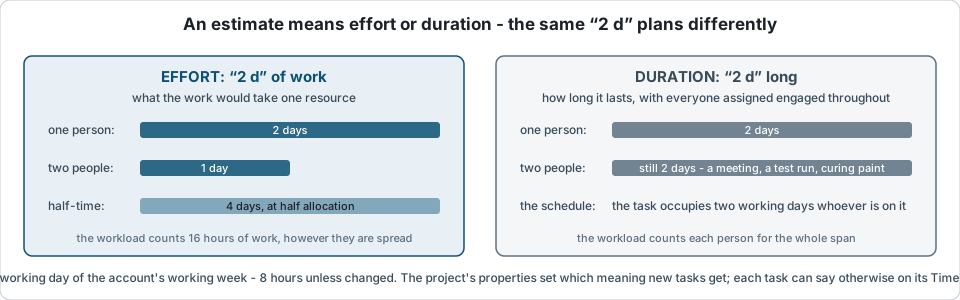
| The estimate is | Effort — what the work would take one resource, so two finish it in half the time — or Duration — how long it lasts with everyone assigned engaged throughout, however many they are. The project’s properties set the default for new tasks (the diagram below). |
| Resources | Who and what the task uses: people, equipment, facilities, consumables. Add one with its allocation (a share of the task — half, say), or fixed hours, or — for a consumable — a quantity in its unit. With no resources given, the task counts as its assignee’s, at full allocation. |
Work Notes
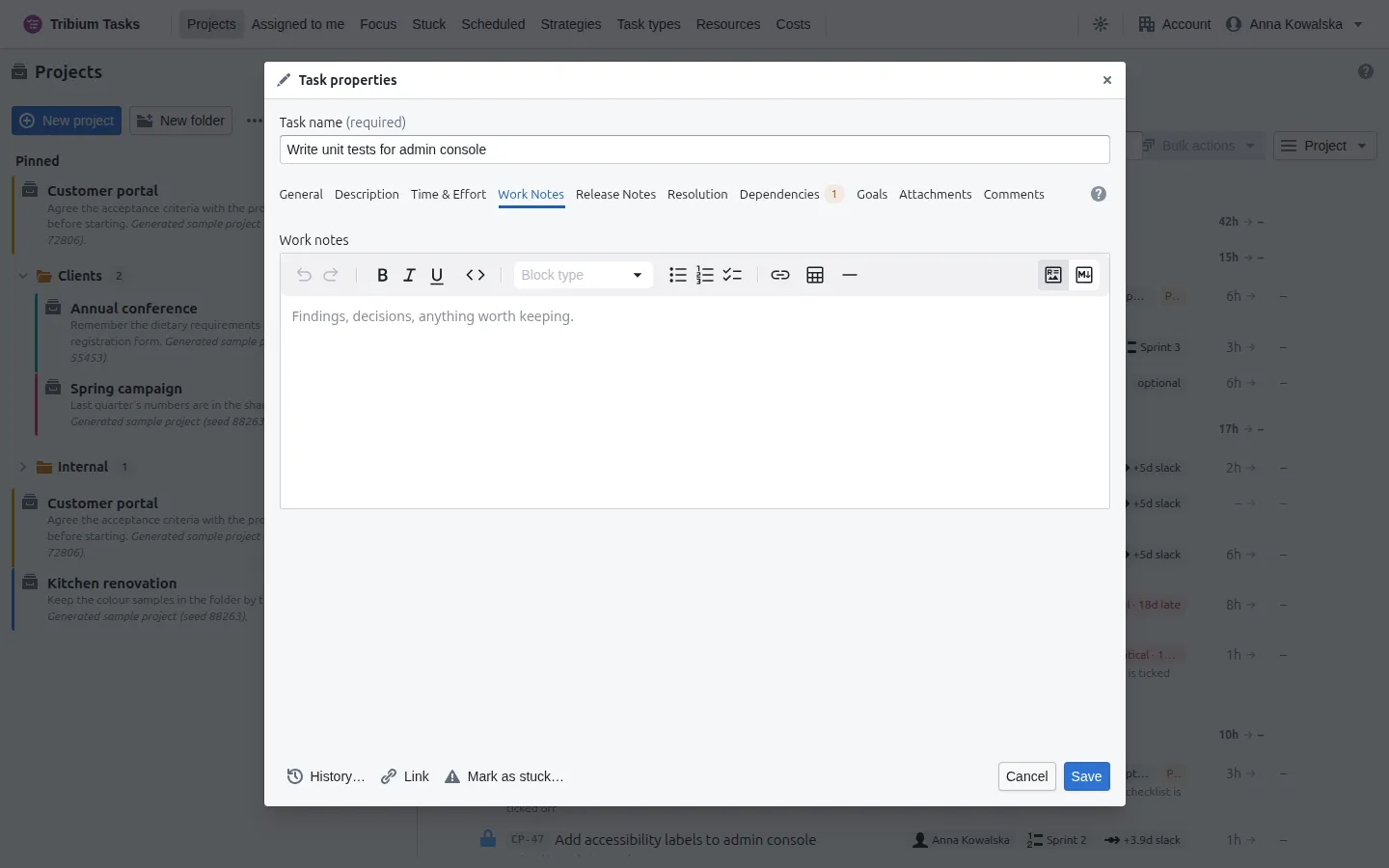
Findings, decisions and anything worth keeping while the task is worked on. Unlike comments, notes are one document, edited in place, for the people doing the work. A row with notes carries a small notebook tag.
Release Notes
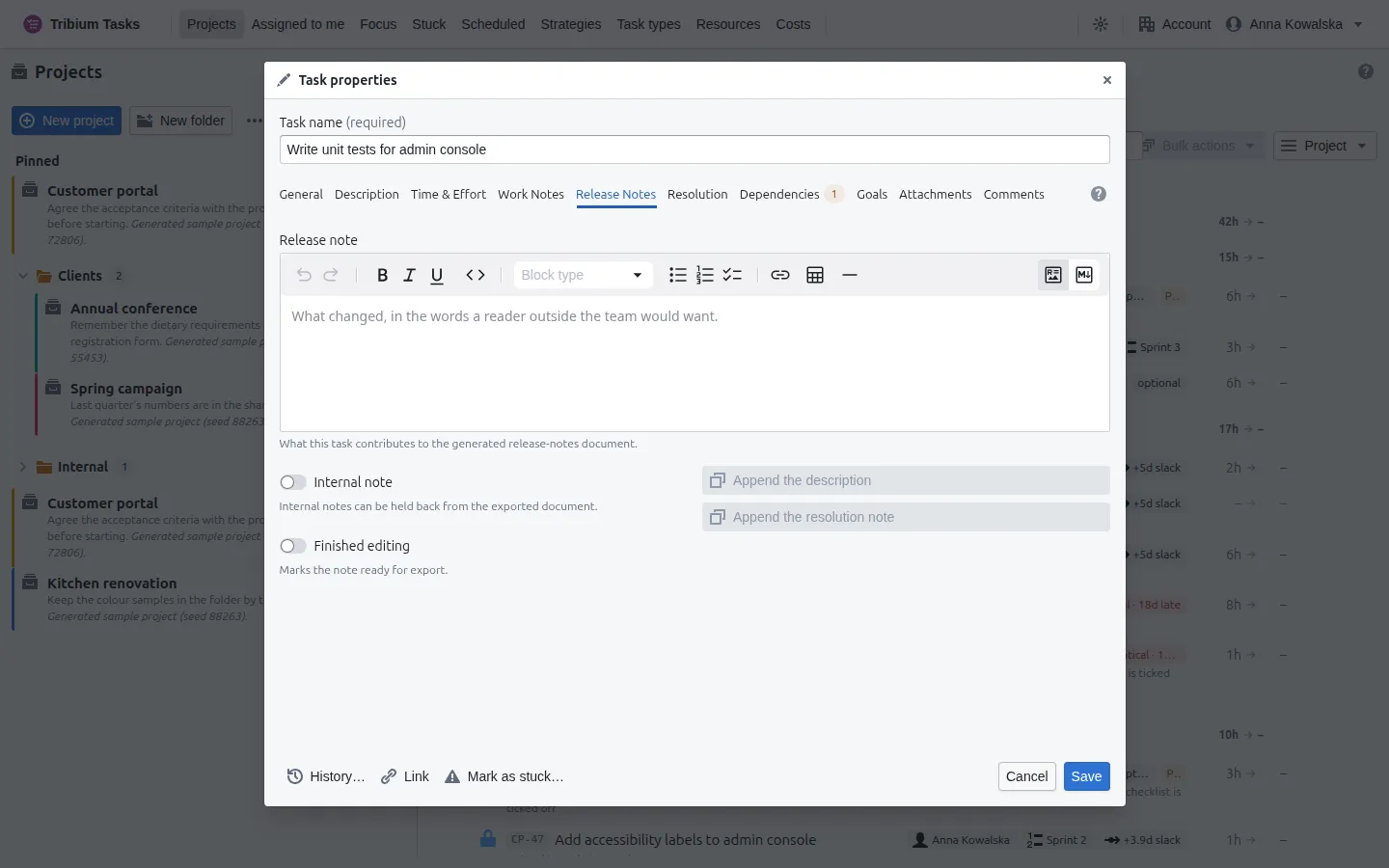
What this task contributes to a release-notes document: a sentence or two in the words a reader outside the team would want. Append the description and Append the resolution note start the note from text the task already has. Internal note holds it back from the exported document; Finished editing marks it ready. Anyone can write the note; producing the release-notes document from the notes is a PREMIUM feature.
Resolution
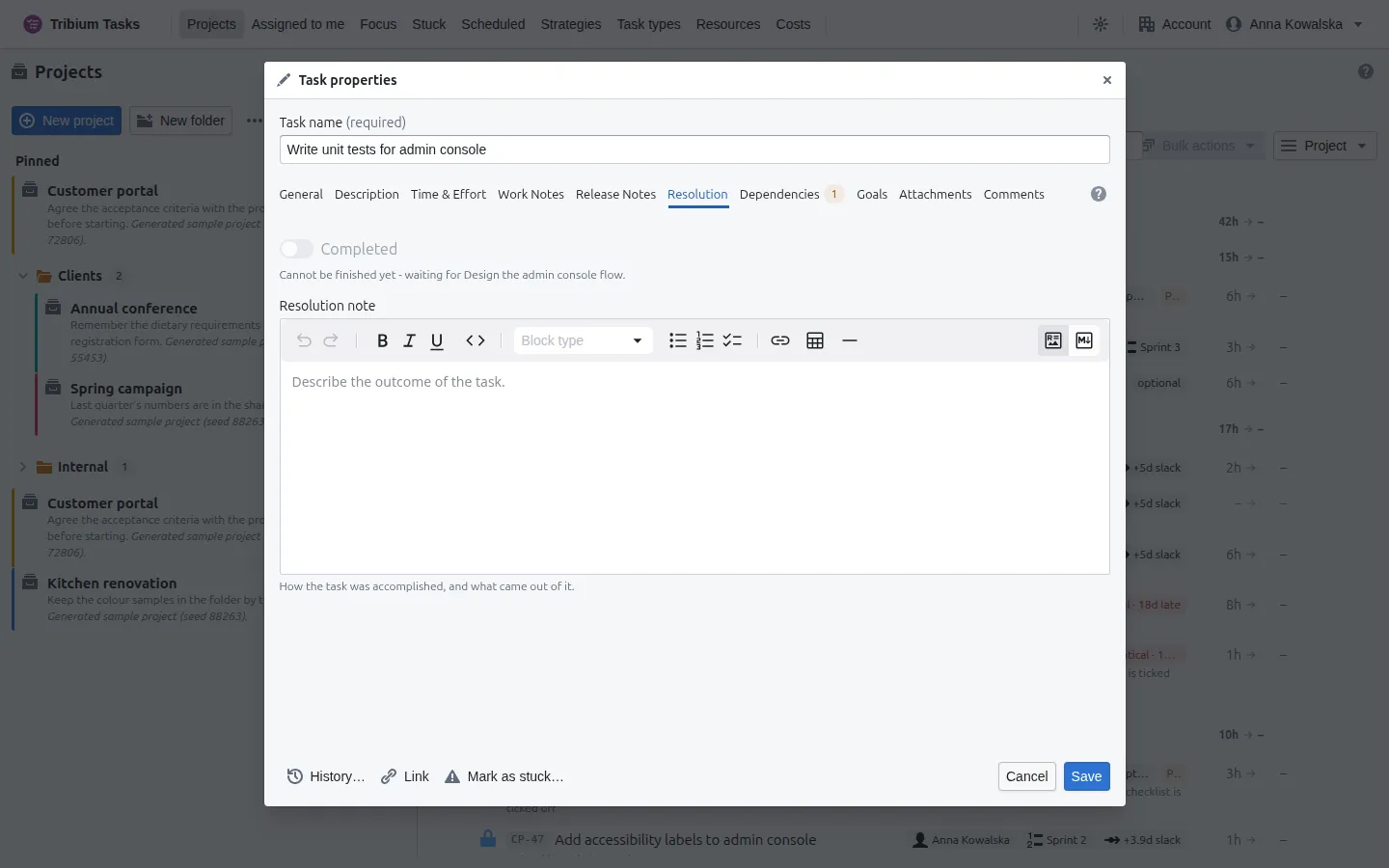
For a task with no type, the Completed switch finishes it, recording when and by whom. A task with a type shows Where it is — its workflow state — and Move it on: the moves its workflow allows from here, each made at once rather than on Save (a move backwards reads Retract to …). The Resolution note says how the task was accomplished and what came out of it; on a typed task it shows once the task is in a done state.
A task that waits for unfinished work cannot be finished until that work is done. A task that is stuck cannot be finished either: finishing it asks how the impediment was resolved, and records the resolution with it.
Dependencies
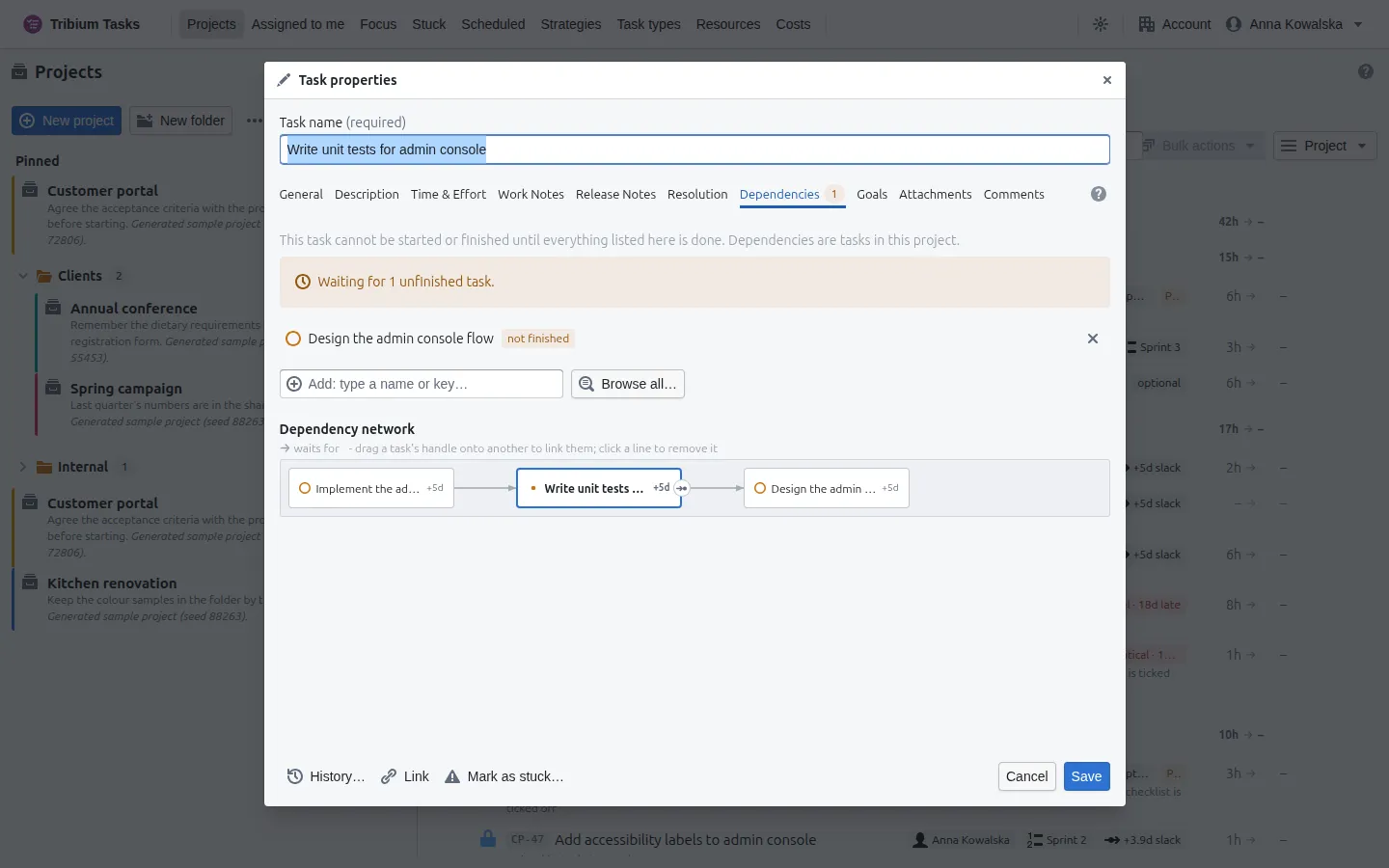
The tasks this one waits for, each with a cross to stop waiting for it. To add one, type a name or key in the Add box, or press Browse all…. Adding and removing these waits for Save. Under them, the dependency network: everything linked to this task, both ways, drawn as a graph — the task itself, what it waits for to the right, what waits for it to the left, finished tasks greyed, and the slack of each when a schedule exists. Click a task in the network to open it; click a link to remove it. Chapter 8 is about dependencies.
Goals
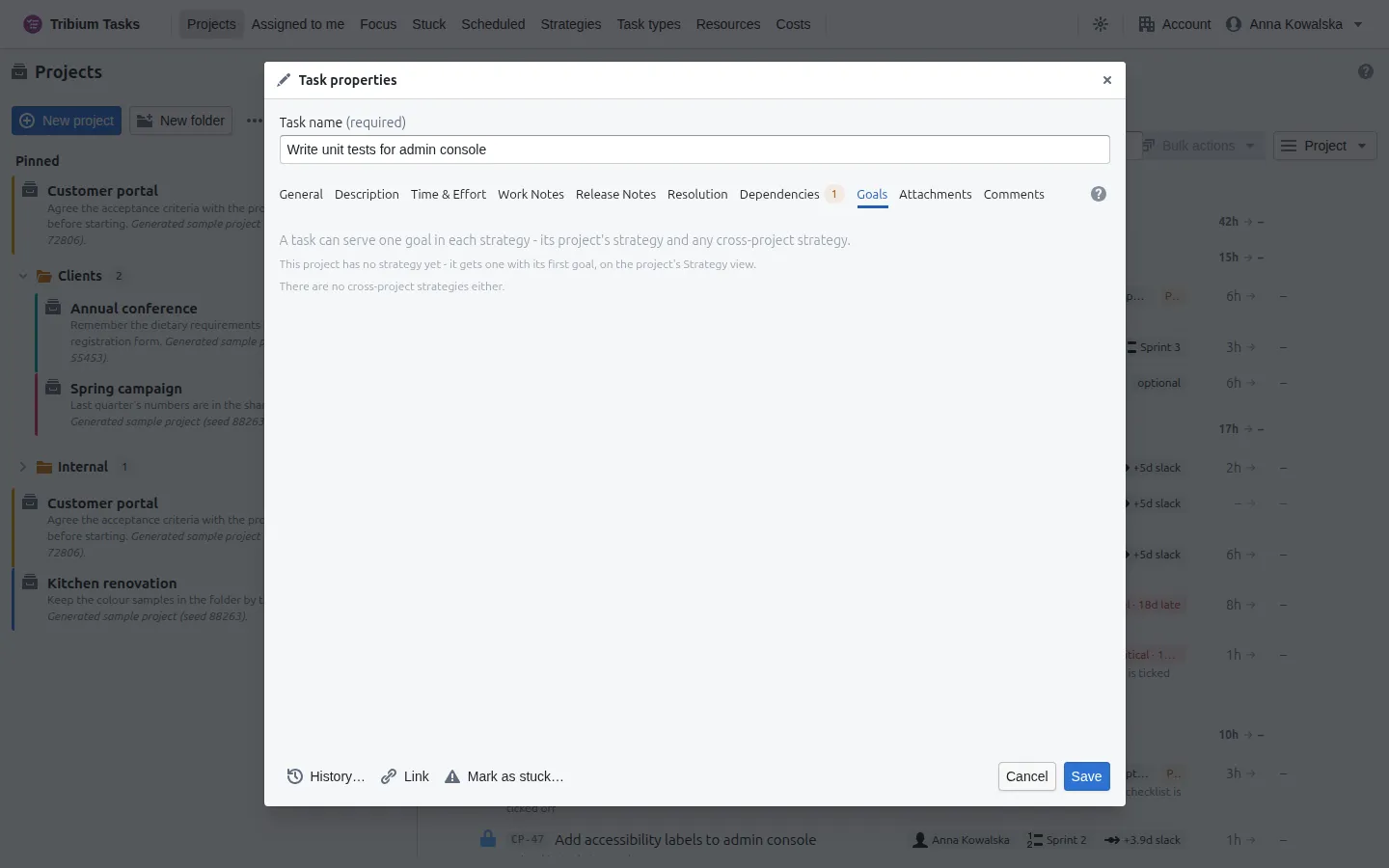
Which strategy goal the task helps to achieve — one in its project’s strategy, and one in each cross-project strategy, each listed under the objective it serves. Goals themselves are made in the project’s Strategy view or on the Strategies page (Chapter 16).
Attachments
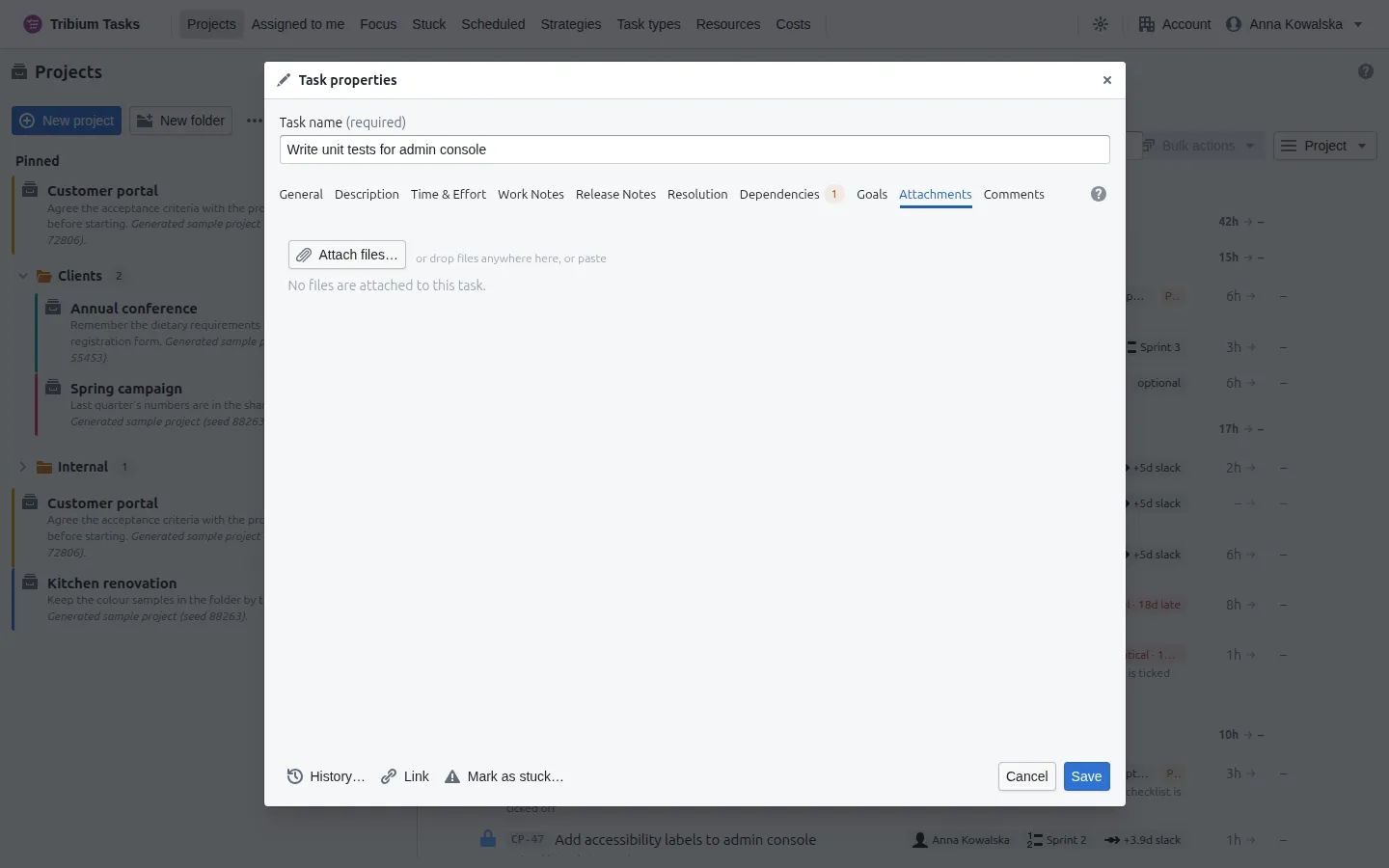
Files that belong with the task — specifications, spreadsheets, exports. Attach files…, drop files anywhere on the tab, or paste them; each is a download link, oldest first, with a delete button. Files are added at once, not on Save; a file may be up to 25 MB, and a task holds up to 50. Deleting one removes it for everyone, with no undo.
Comments
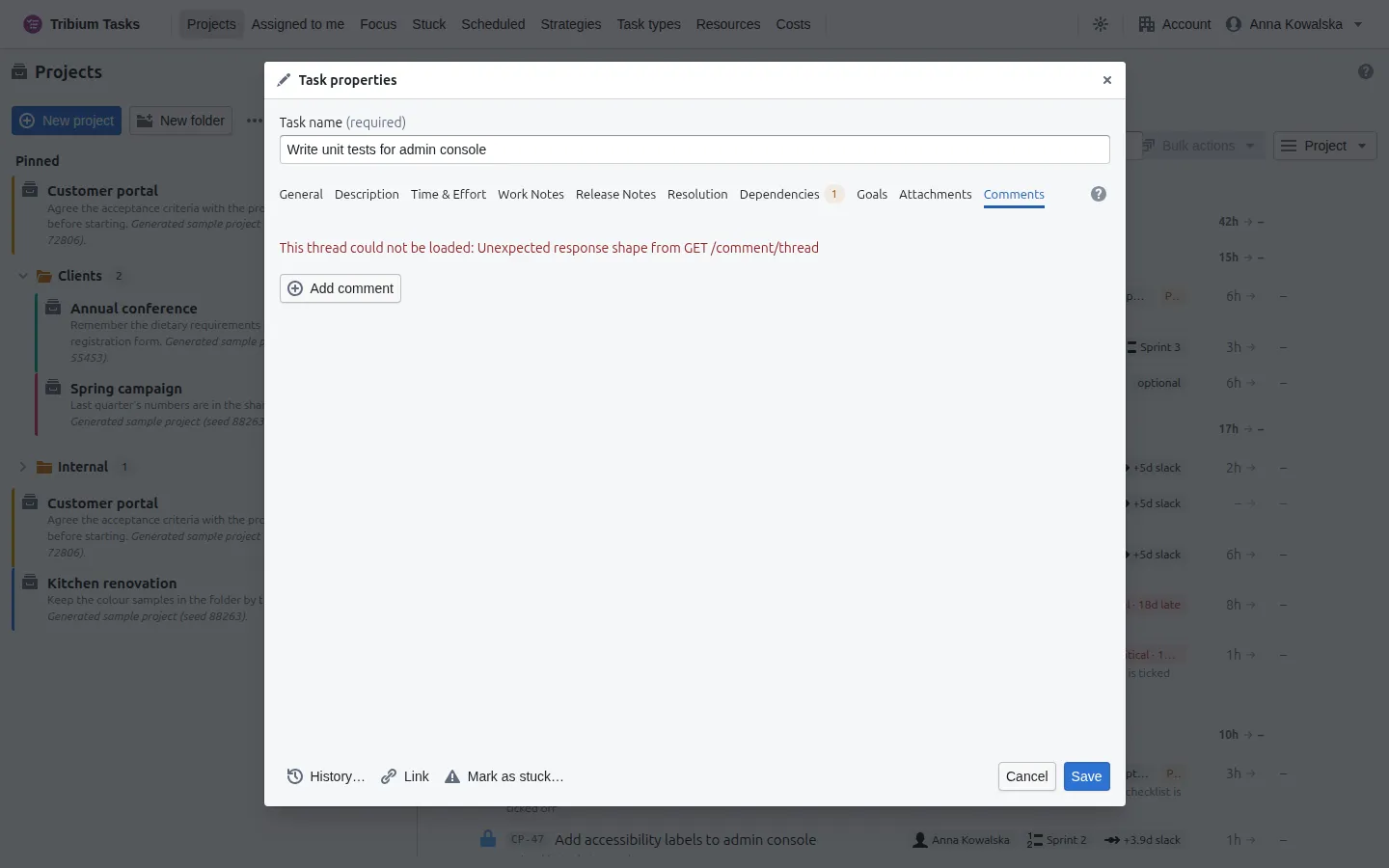
The conversation about the task, shared with everyone who can see it. Add comment posts at once; Reply answers a comment in place; you can edit or delete your own. The task’s row shows how many comments there are, highlighted while there is something you have not read.
The group dialog
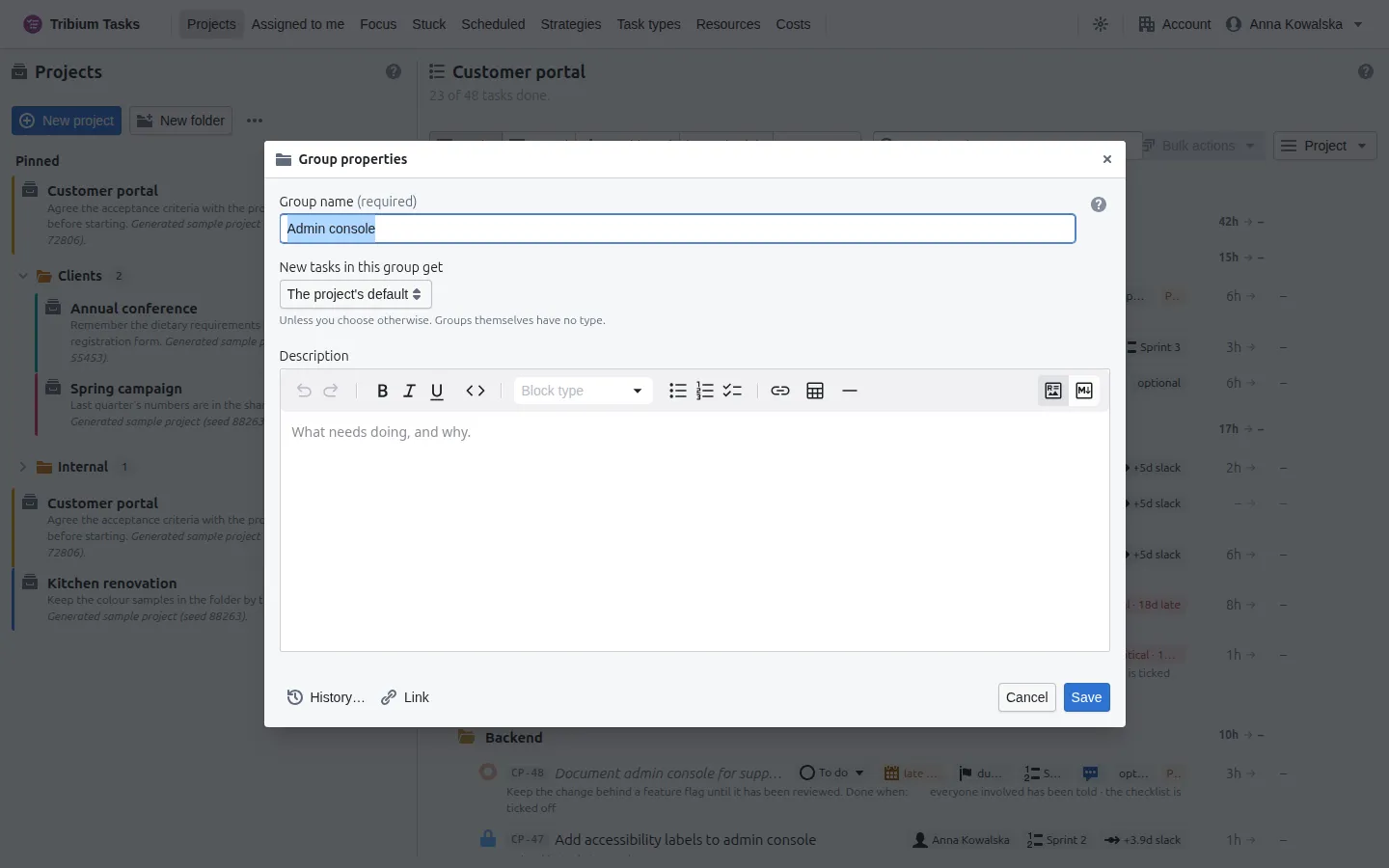
A group has no tabs: its name, a description, and New tasks in this group get — the type tasks created in it are given, overriding the project’s default. Groups themselves have no type and no estimate; their figures are their tasks’.
8. Dependencies — what waits for what
What a dependency is
A dependency says that one task waits for another: it cannot be started or finished until the other is done. The same link, seen from the other end, says the other task blocks it. Dependencies are the backbone of three things: the order of the tree (a task is listed after what it waits for), the padlock on a row, and the Schedule — without links there is nothing to schedule.
Some rules:
- Dependencies link tasks of the same project. Moving a task to another project drops its links.
- Only tasks are linked, never groups.
- A link that would close a loop — A waits for B, B waits for A — is refused wherever you try to make it; the picker greys such a task out and says why.
- A task already in progress cannot be given an unfinished task to wait for — move it back to to do first.
- While any task it waits for is unfinished, a task is waiting: its circle becomes a padlock, it cannot be started, and it cannot be completed. The padlock turns red when what it waits for is stuck (Chapter 14).
- A finished task may still be waited for; the link stays, and the waiting task is simply free. Links to archived or finished tasks are kept for the record; an archived task no longer holds anything up, and archived work cannot be linked or unlinked.
Making one
From the quickest to the most deliberate:
- Drag the link handle. Every task row has a small arrow icon just before its ⋯ button. Drag it onto the task this one must wait for. While you drag, the task under the pointer says whether the drop is accepted, and why not if it is not: a link already there, a loop, or a task in progress that cannot start waiting for unfinished work. Drop on a group to choose which of its tasks to wait for. The link is made at once, and the page offers to undo it.
- Depends on… on a task’s ⋯ menu opens the picker: filter by name, tick every task it waits for, and add them. Blocks… is the same picker from the other end. On a task’s Dependencies tab, the Add box finds a task by name or key from three characters.
- Add a task that waits for this makes the next step in one move: a new task beside the current one, already waiting for it, opened for you to name.
- Bulk actions, with several rows selected: Chain in order… makes each wait for the one before it; All of these depend on… links every selected task to the tasks you pick; One task depends on all of these… does the reverse. Keyboard: d, b, c. When many links would be made, they are shown first for you to check; either way the page offers to undo them.
- Project ▸ Suggest links… reads the project’s own words and proposes links.
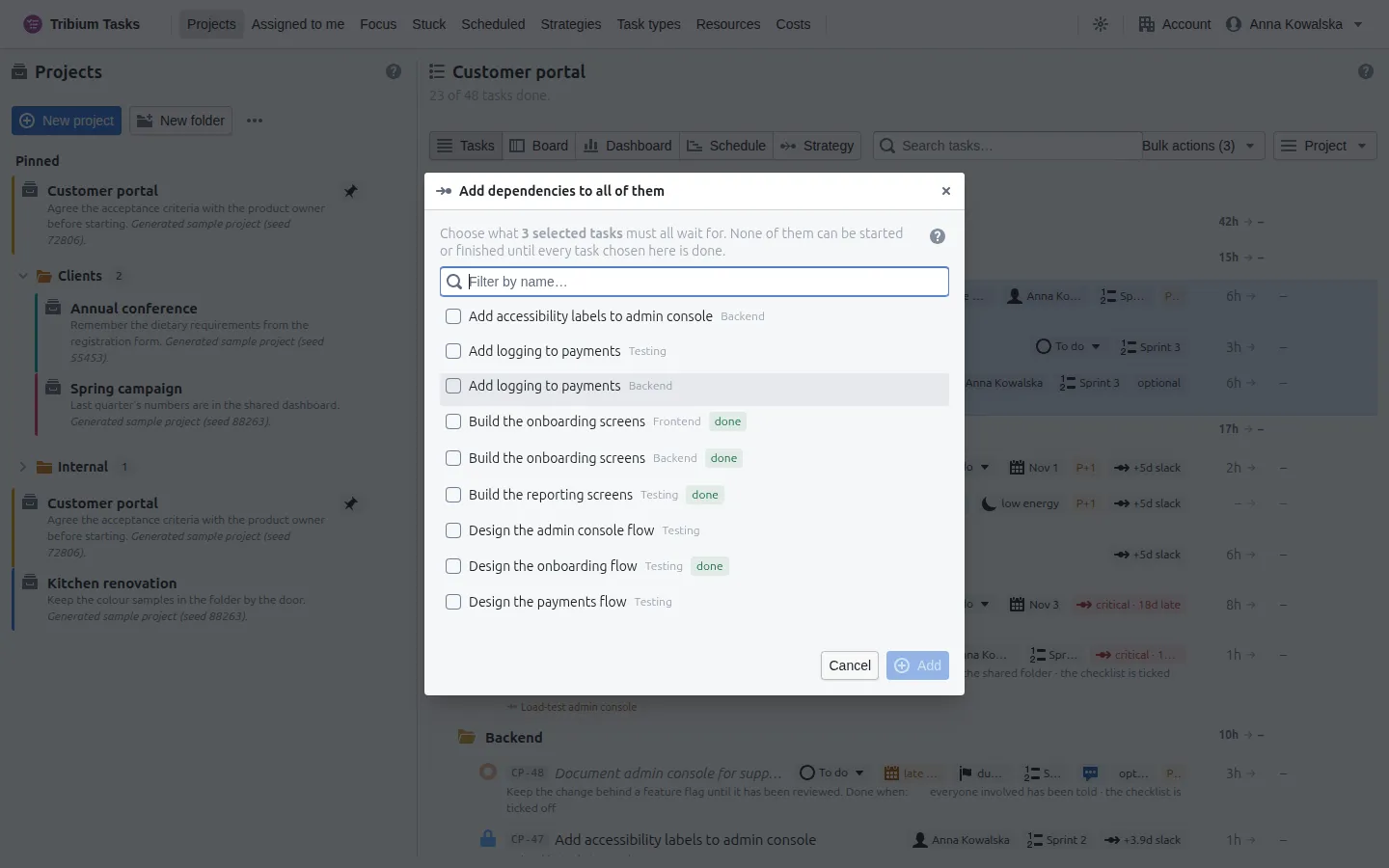
The picker offers only tasks of the same project and shows the group each one sits in — to tell similar names apart; the filter matches the group’s name too. A task whose link would close a loop, or would leave a task in progress waiting, is greyed out and says why, and the tasks already linked show as ticked.
Chaining
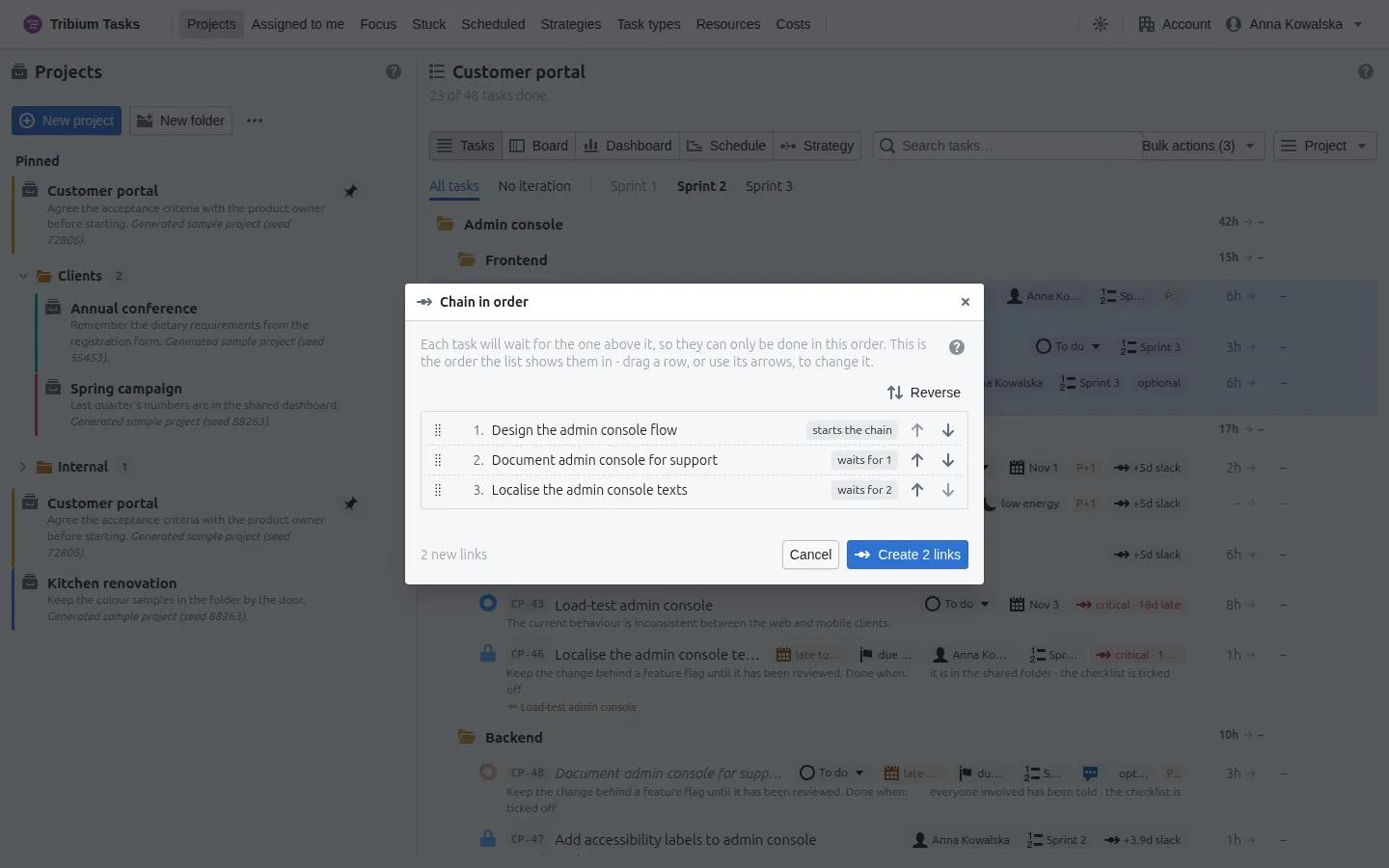
Put the tasks in the order they will be done — drag them, use a row’s arrows, or Reverse the list — and every link is shown before anything is made: new, already there, or would close a loop, which holds the button back until the order is changed. After the links are made, the page offers to undo them.
Suggested links
Three rules, all reading what someone wrote:
- Numbered siblings — “1. …”, “2. …” in one group — each wait for the previous number.
- A name starting “After …”, “Once …” or “Then …” that names another task waits for it.
- A description quoting another task’s key (“see API-12”) — the weakest rule, as a mention is not always an order, and it is tagged as such.
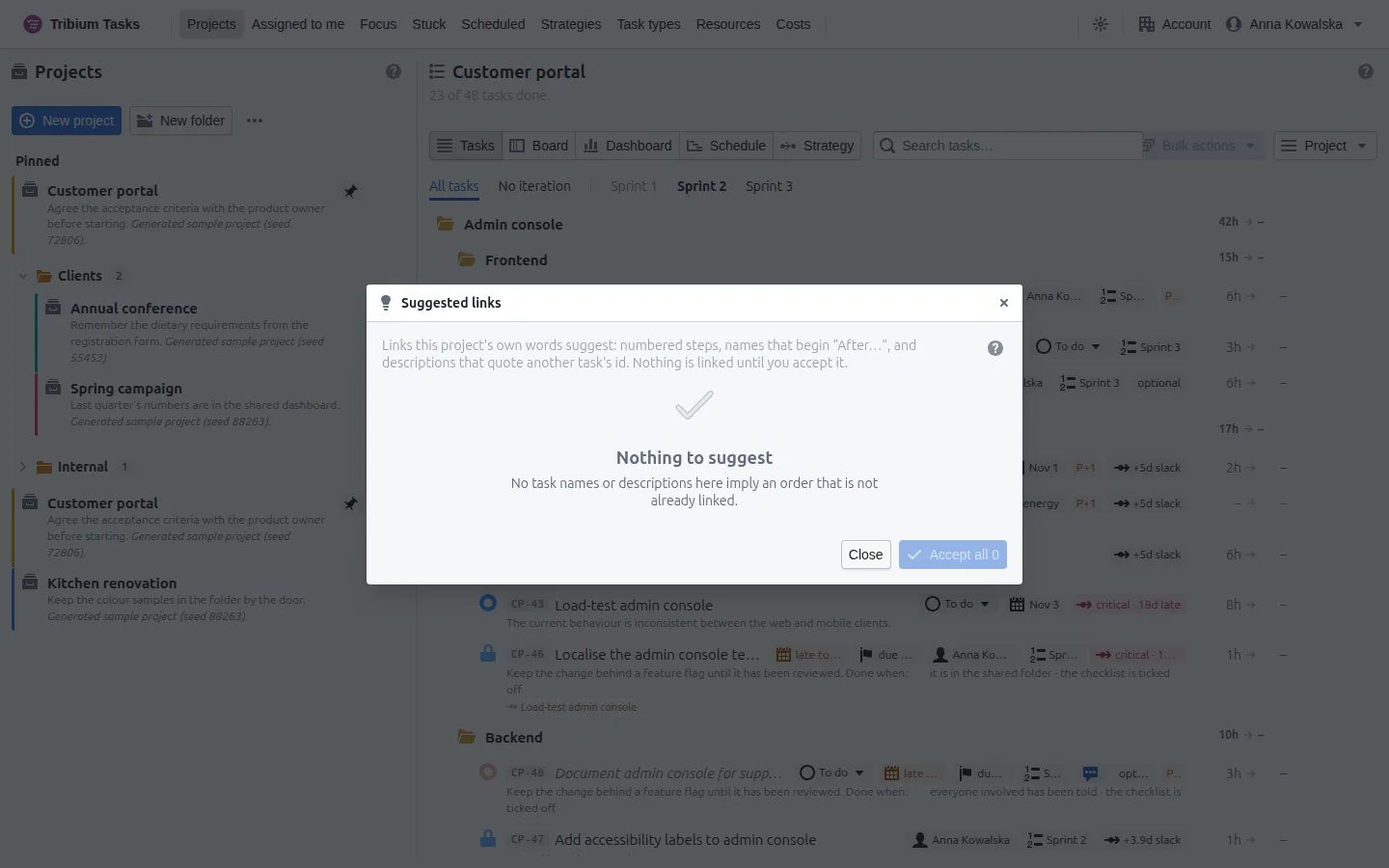
Nothing is applied until you Accept it; a dismissal lasts as long as the page.
Reading the network
A task’s Dependencies tab lists what it waits for and draws its network: the task in the middle, what it waits for to the right, what waits for it to the left, as far as the links reach. Finished tasks are greyed. Where a schedule exists, each task carries its slack — or critical. Click a task to open it; click a link to Remove this link, or Keep it; drag one task’s handle onto another to link them. Links drawn or removed here between two other tasks are made at once.
9. Iterations
What an iteration is
An iteration is a span of the project’s time that groups its work: a sprint, a phase, a stage. A task belongs to at most one. Iterations are optional — a project without them is simply one slice — but with them every view can be read for one iteration at a time.
Three flags:
- Active — the iteration being worked on now. Its tab is in bold, and the task dialog’s Iteration field marks it (active).
- Closed — finished. An iteration can be closed only once every task in it is done; closing clears active and hides it. The ⋯ and Bulk menus offer no closed iteration.
- Hidden — left out of the tab strip and the ⋯ and Bulk menus, without being closed.
The task dialog’s own Iteration field still lists closed and hidden iterations, marked so. An active iteration cannot be hidden, and a closed one cannot be made active.
The tab strip
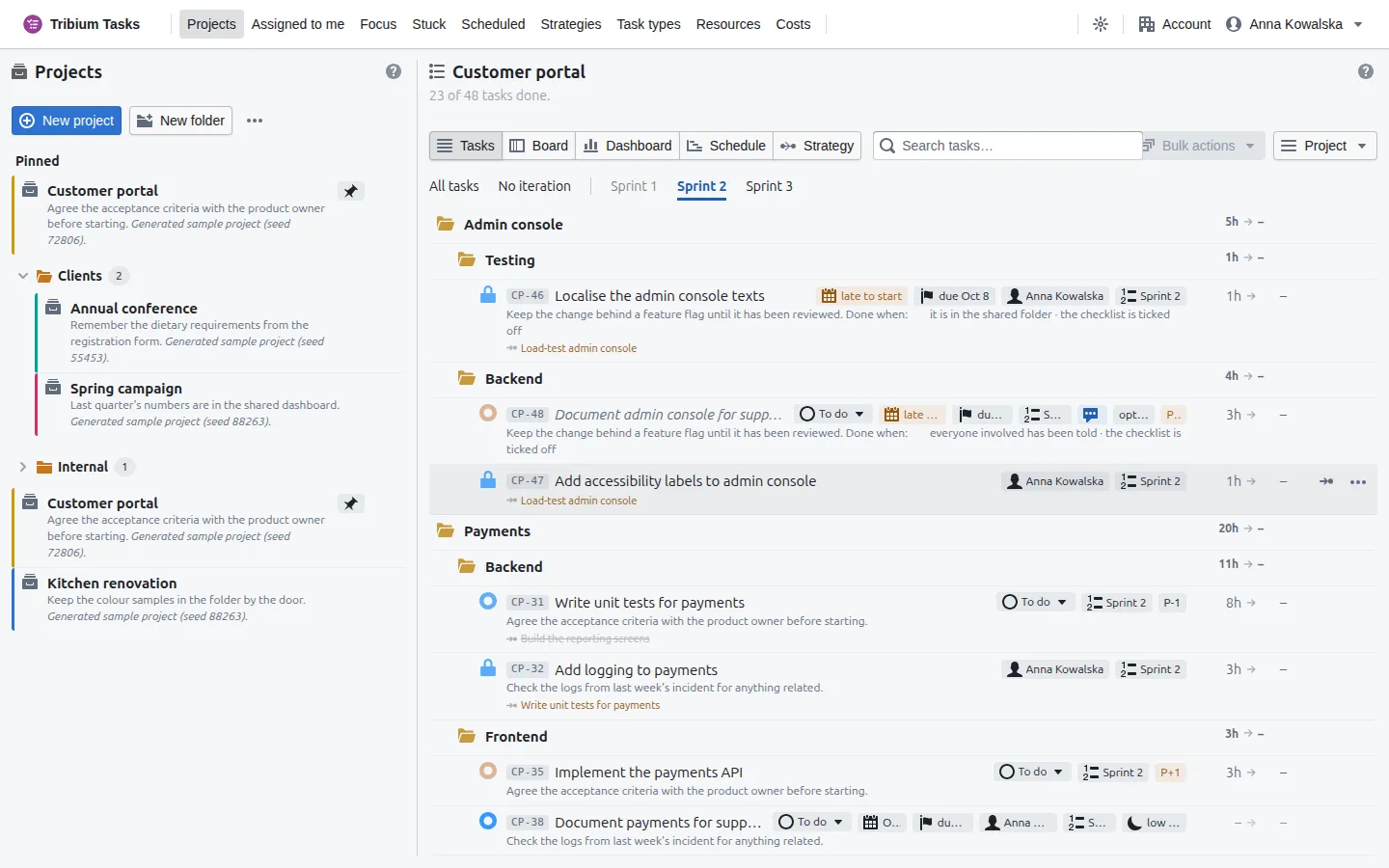
Above the tree, once the project has iterations: All tasks (where it opens), No iteration, then one tab per iteration that is not hidden, the active one in bold. The Board, the Dashboard and the Schedule show the tab you chose. Point at an iteration’s tab for its status, dates and description; time gone against work done is on the Dashboard. Once every task in it is done, a bar under the strip offers to Close iteration.
Managing iterations
Project ▸ Iterations… lists the project’s iterations with their dates, state and progress. The Hidden and Closed buttons show those too, and a finished iteration’s row offers Close.
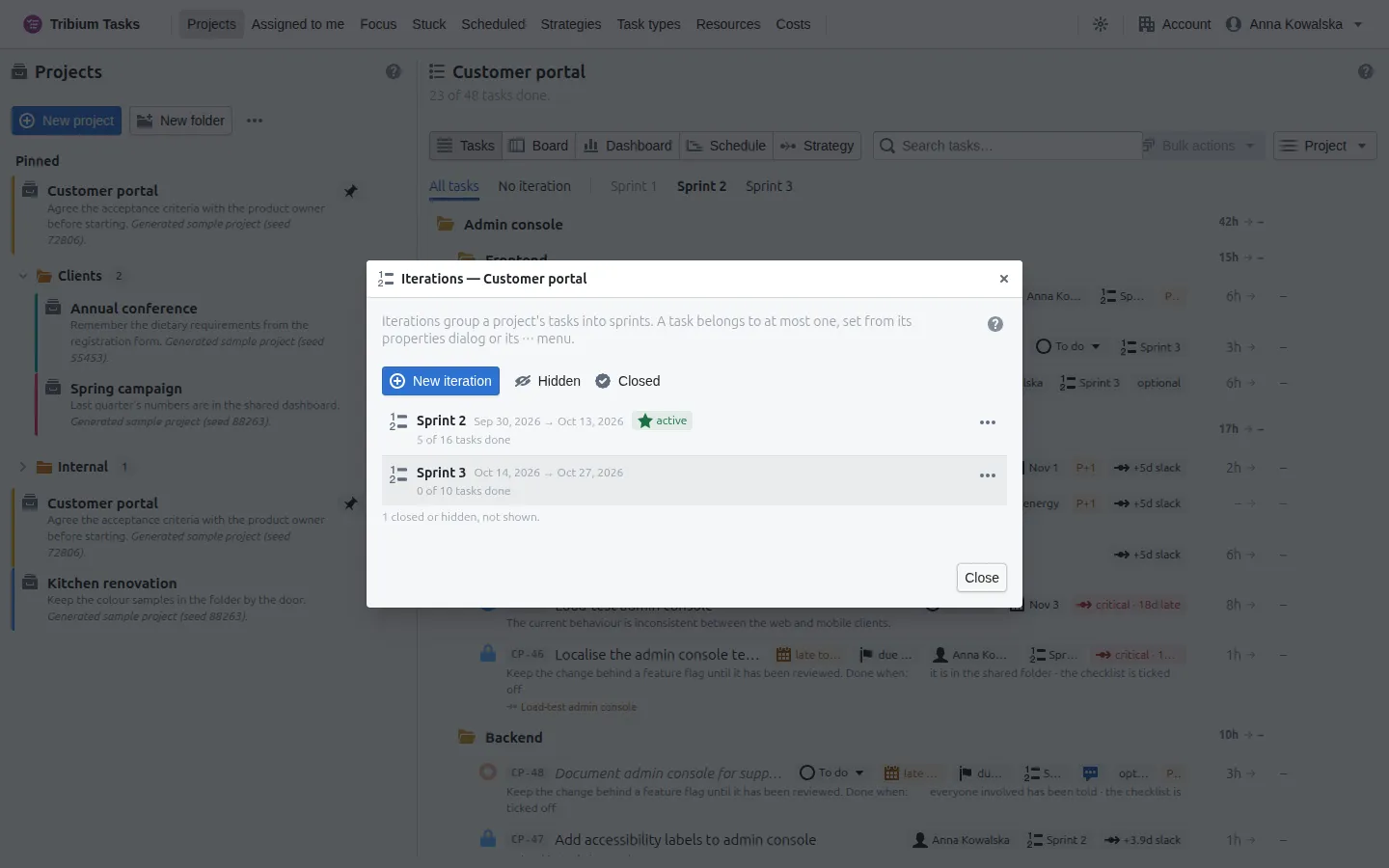
New iteration or Edit… opens an iteration: its name; on a General tab an optional time frame — Give this iteration a start and end date (dates order the iterations and let the dashboard measure time elapsed against work done), the three flags; and on a Description tab what the iteration is meant to deliver. Delete takes the iteration off its tasks — the tasks themselves stay.
Putting work into an iteration
- A task’s Iteration field on its General tab, or Iteration on its ⋯ menu.
- Bulk actions ▸ Move to iteration for several tasks at once.
- A group’s ⋯ menu: Assign all tasks to iteration or Assign unassigned tasks to iteration — completed tasks stay where they are. Both are PREMIUM features.
10. The Board
What it is for. The project’s tasks as cards in columns, one column per stage of the work — to see and move work along at a glance.
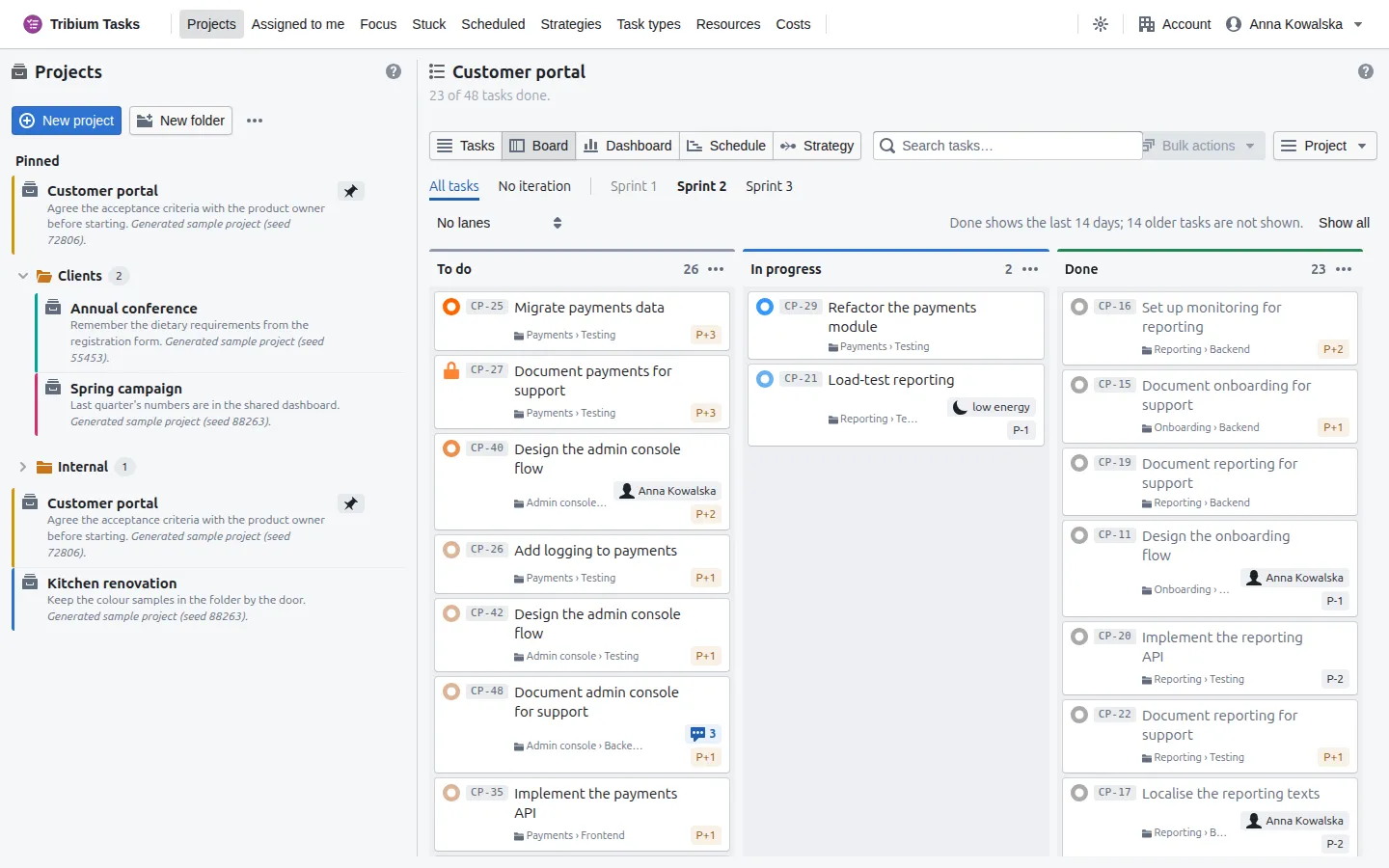
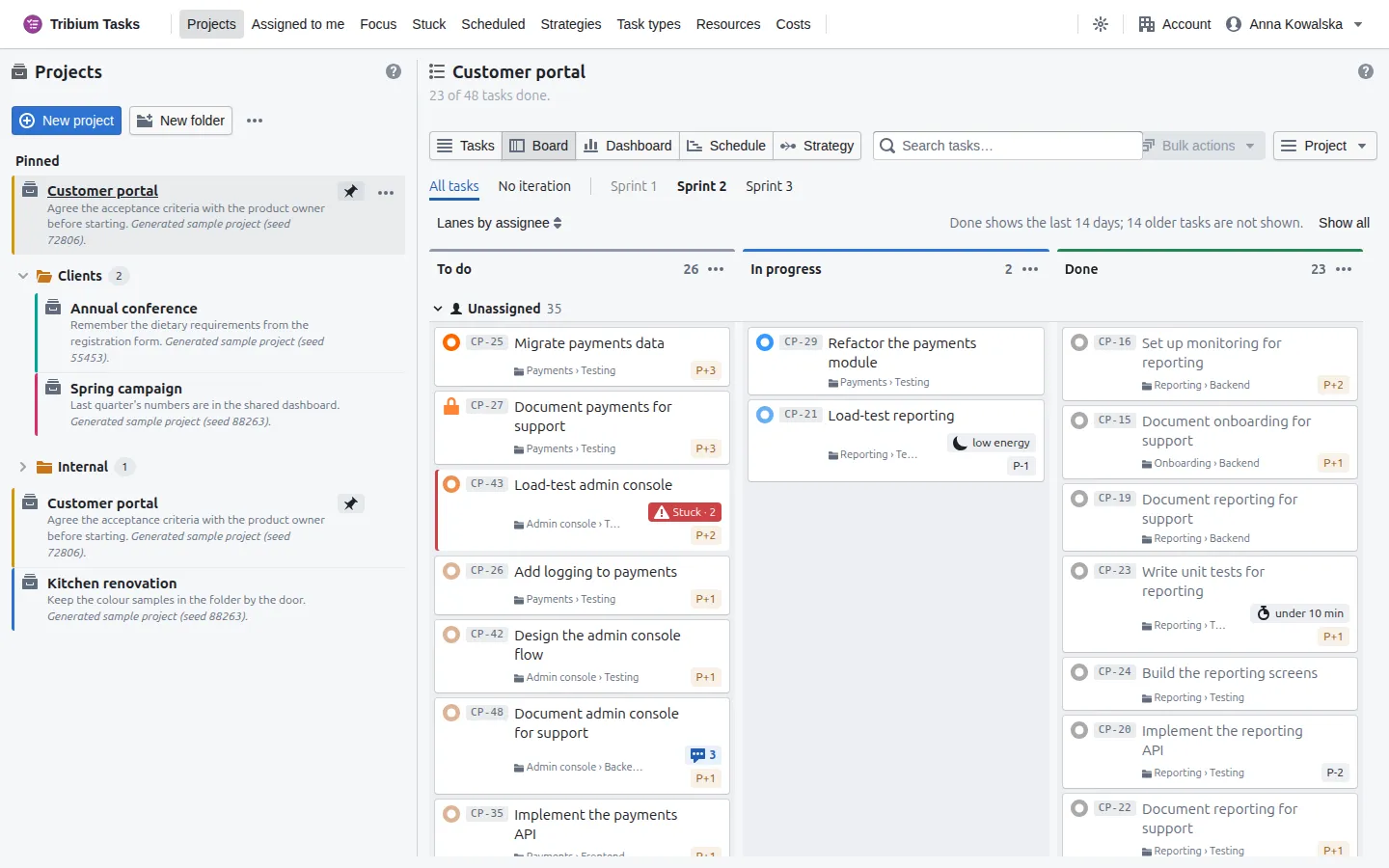
How it works. It shows the slice chosen on the tab strip. The columns are the plain stages — To do, In progress, Done — unless the Project menu’s filter picks one type: then they are that type’s workflow states, grouped under the three stages. On All tasks and No iteration the Done column shows the last 14 days (Show all brings the older ones back); an iteration’s board shows all its done work. Each column’s header counts its cards — count / limit when it has a limit.
A card shows the task’s circle (priority and focus, or a padlock), its key, type and name, the group it sits in, who has it, its priority tag (when not Normal), its comment count and the low-energy and under-ten-minutes flags. A stuck task has a red edge and a Stuck tag.
What you can do.
- Drag a card to another column to move the task on. A waiting task cannot be dragged into In progress or Done; the drop is refused and says why. When more than one workflow move leads to the column, the board asks which.
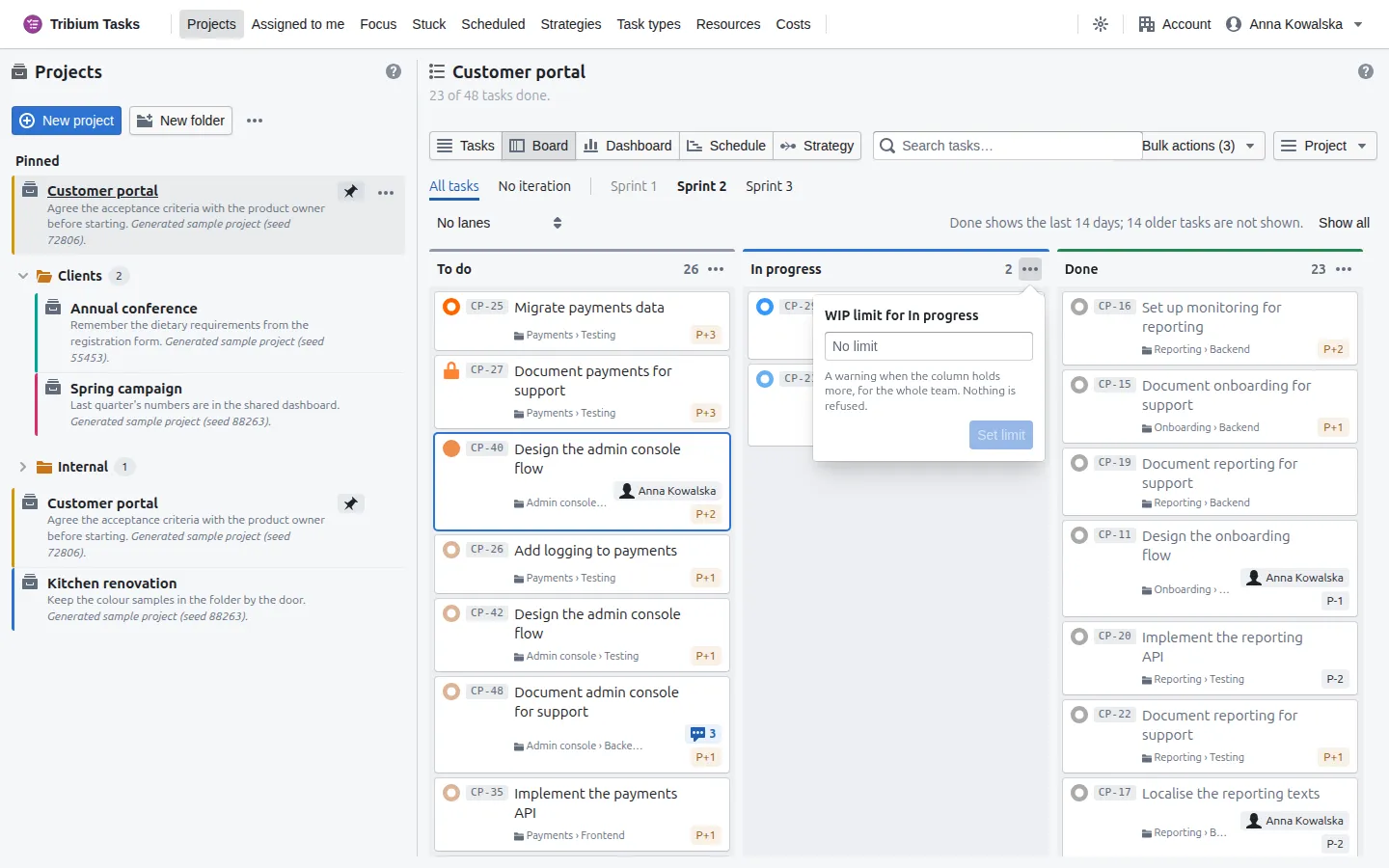
- Lanes (the selector at the top left: No lanes, Lanes by assignee, Lanes by group) split the columns into rows. Drag a card to another assignee’s lane to give it to them; a task’s group is changed from the tree, and the board refuses that drop. A lane folds with its chevron, and the choice of lanes is remembered on this device.
- Click a card to select it, and its name to open the task; its ⋯ menu offers the same commands as a row in the tree.
- A column’s ⋯ menu sets (Set limit) or clears (Clear limit) a WIP limit — how much work may sit in it at once. The limit is advice: the column is marked when it is exceeded, nothing is refused.
11. The Dashboard
What it is for. How the work in the chosen slice is going — progress, flow, what needs attention and what has changed.
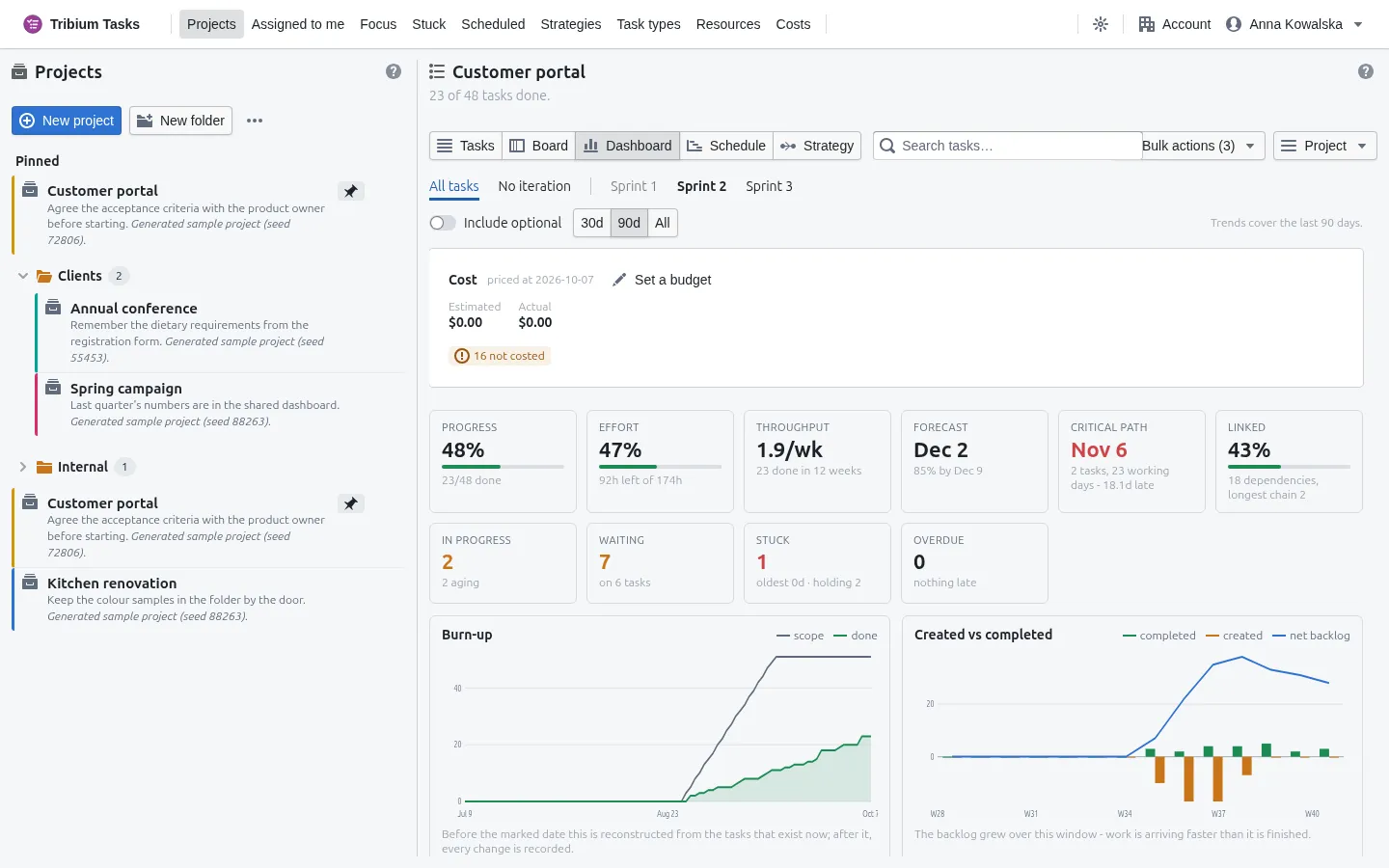
How it works. It measures the slice picked on the tab strip, so an iteration’s dashboard and the whole project’s are the same page with a different tab. Everything comes from the tasks as they are now, plus their recorded history for the panels about change. Optional tasks are left out of progress unless Include optional is on (it is off to start with). The 30d · 90d · All buttons choose the window the trend charts cover — 90 days to start with.
The figures
| Tile | What it says |
|---|---|
| Progress | Tasks done out of all the slice’s tasks, and the share. |
| Effort | Estimated hours done out of estimated hours in all — a progress figure weighted by size — and what is left; it warns when little of what is left is estimated. |
| Throughput | Tasks finished per week, averaged over up to twelve weeks of the chosen window. |
| Forecast | When the remaining work would be finished at that rate; the smaller print gives the 85 %-confidence date. It needs about five weeks of completions. |
| Critical path | When the linked, estimated work finishes, and how many tasks and working days the path is; red, with how late, when it misses the Schedule’s target, the iteration’s end or the latest deadline. Struck through when much of the path has no estimate (Chapter 12). |
| Linked | The share of open tasks that take part in a dependency, how many links there are, and the longest chain. |
| In progress | Open tasks under way, and how many have been under way long enough to be aging — longer than 85 % of finished work took. |
| Waiting | Tasks held by a dependency, and how many tasks they wait on. |
| Stuck | Tasks stuck on something outside the plan, the oldest, and how many tasks they hold up. |
| Overdue | Tasks past their deadline. |
Click a figure that stands for tasks — Critical path, Linked, In progress, Waiting, Stuck, Overdue — and the tasks are listed under it; click one to open it. For those who may see money, a Cost card at the top gives the whole project’s estimated and actual cost, whichever tab is chosen, and — for those allowed — Set a budget; tasks with resources but no rate are counted as not costed (Chapter 18).
When an iteration is chosen, a ribbon gives its name, its dates and how many days are left (or over); with both dates it shows time elapsed against work done: the share of the iteration’s time gone beside the share of its work done. If the first is well ahead of the second, the iteration is behind.
The charts
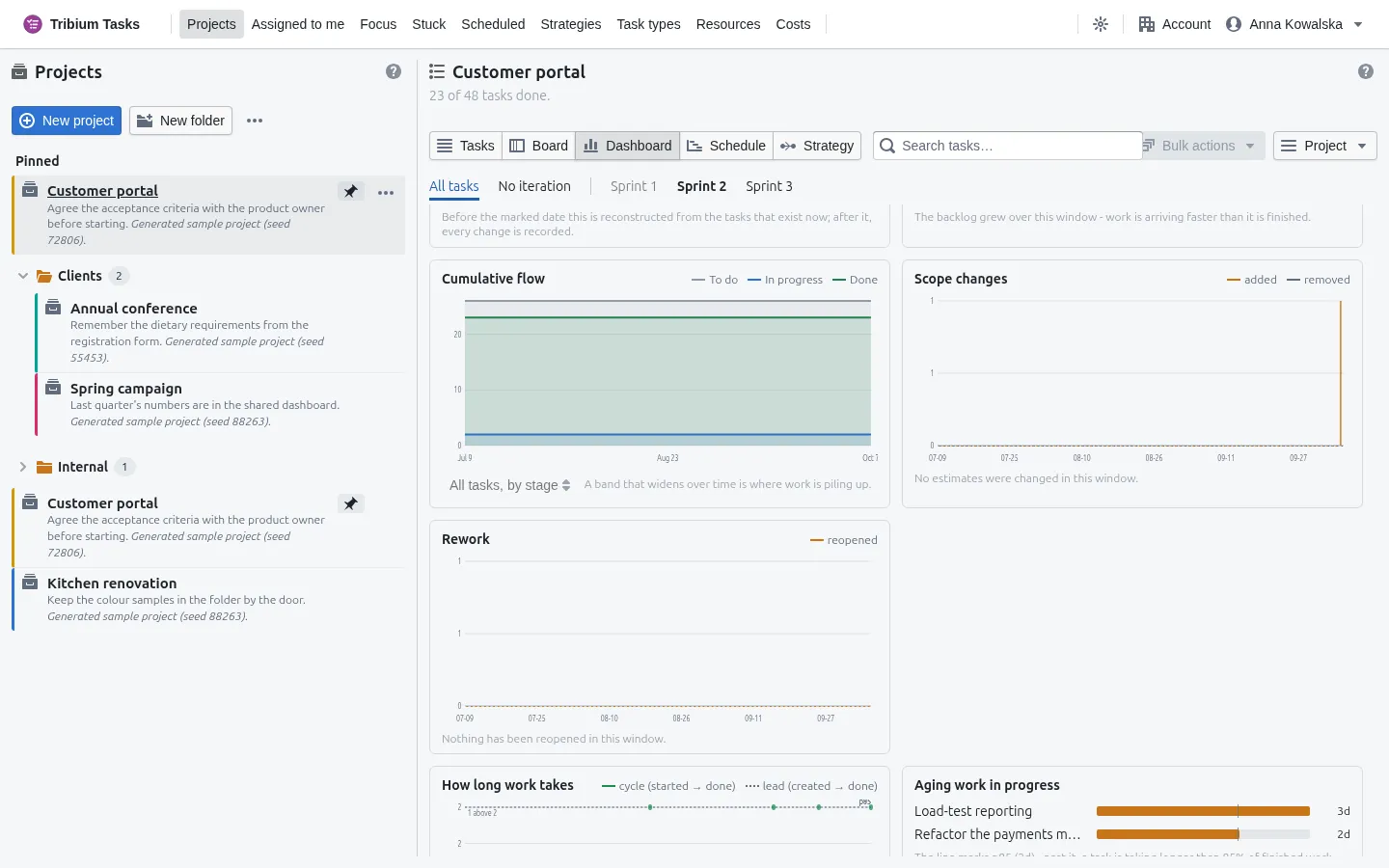
- Burn-up — the total scope and the work done, day by day. The two lines meet when the work is finished; a scope line that keeps climbing is work being added. For an iteration with dates, a dashed ideal line shows where done should be.
- Created vs completed — tasks created and tasks finished per week, with the net backlog. A backlog that grows means work arrives faster than it is finished.
- Cumulative flow — how much sits in each stage over time; its selector shows one type’s workflow states instead. A widening band is a queue building up in that stage.
- How long work takes — how many days tasks took from start to finish, or from creation for tasks never put in progress, with the 50 %, 85 % and 95 % lines.
- Aging work in progress — open work that is getting old, longest first.
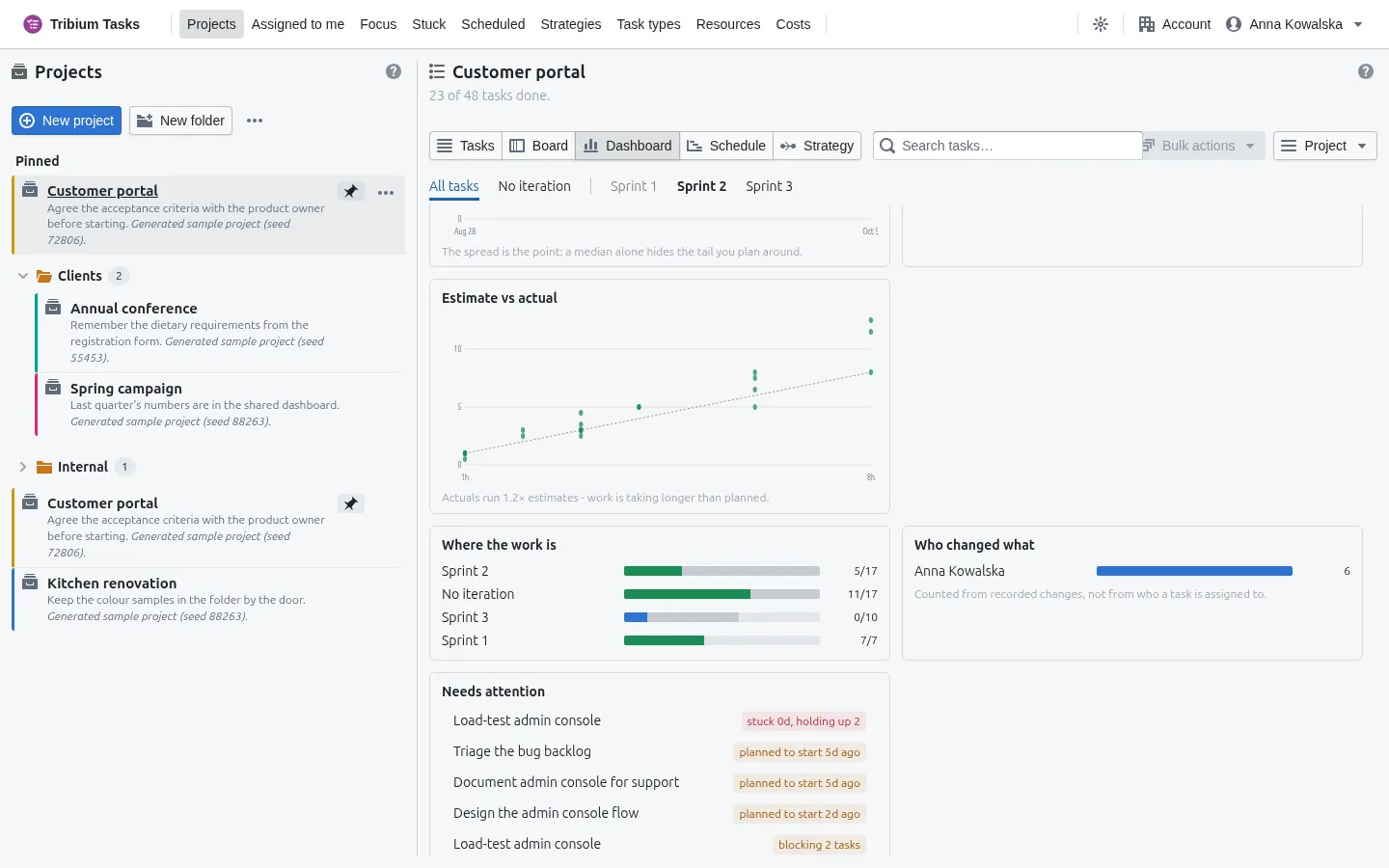
- Estimate vs actual — for finished tasks that record both, how far the estimates were off, and in which direction. Shown once ten tasks record both.
- Rework — tasks reopened after being done.
- Scope changes — tasks added to, and removed from, the slice over the window.
- Who changed what — edits per person over the window, from the recorded history.
- Where the work is — done, in progress and left: by iteration across the whole project, by group inside an iteration or No iteration. Hidden when there is only one.
- Needs attention — the tasks worth looking at now: stuck, overdue, late to start, blocking more than one task, aging.
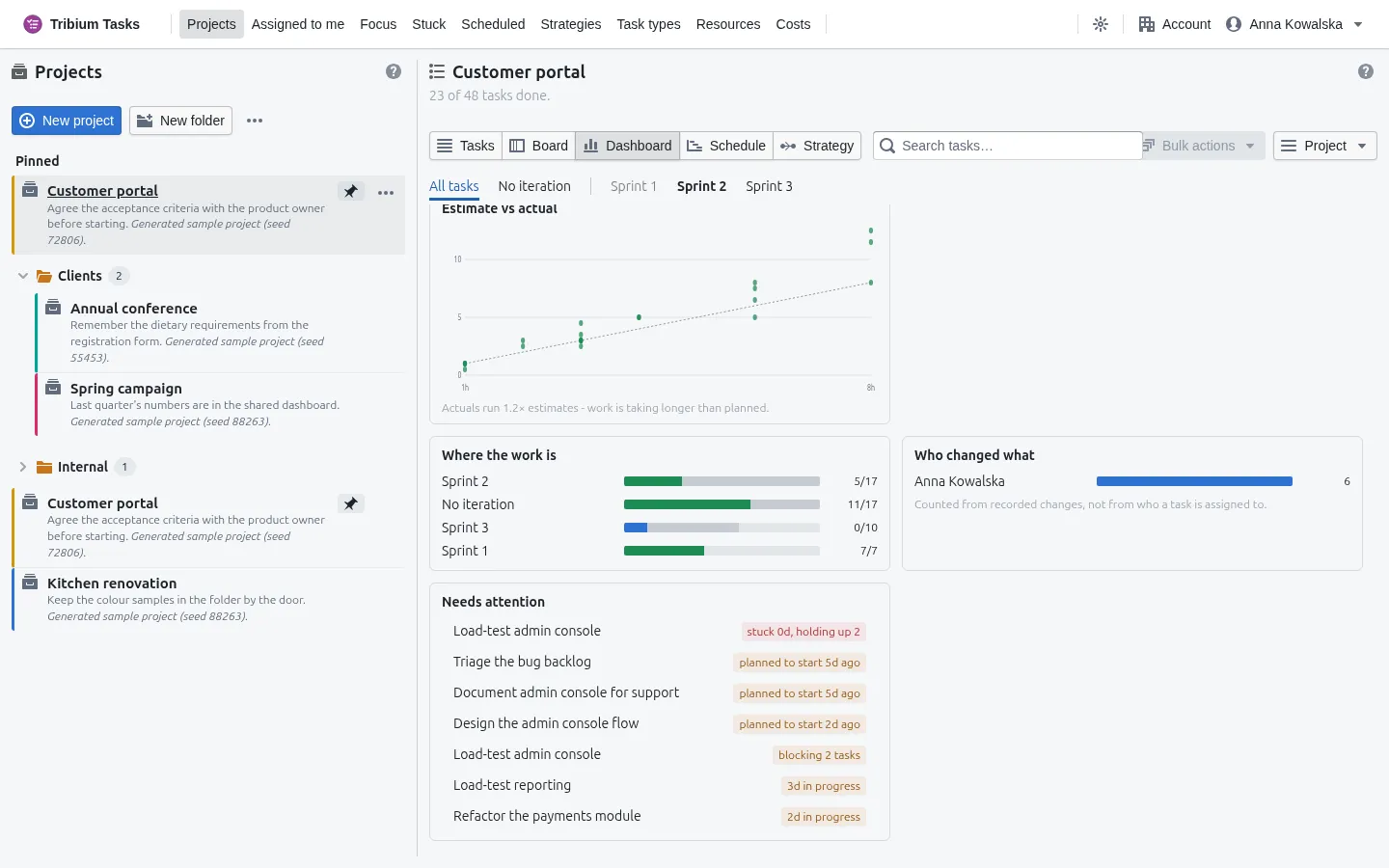
Before the date marked on the Burn-up, history is reconstructed from the tasks that exist now; after it, every change was recorded. Cumulative flow, Rework, Scope changes and Who changed what wait until some history has been recorded.
12. The Schedule and the critical path
Why a schedule, and what “critical” means
Give tasks estimates and say what waits for what, and the finish date of the linked work is no longer an opinion: it follows. A task starts when everything it waits for is done, and lasts as long as its estimate says. The longest chain through the links is the critical path: any delay on it delays the finish. A task not on it has float (slack) — how much it can slip without moving the end.
The Schedule view computes exactly that for the chosen slice, in working days of the account’s working week (Chapter 17) — never calendar days.
Reading it
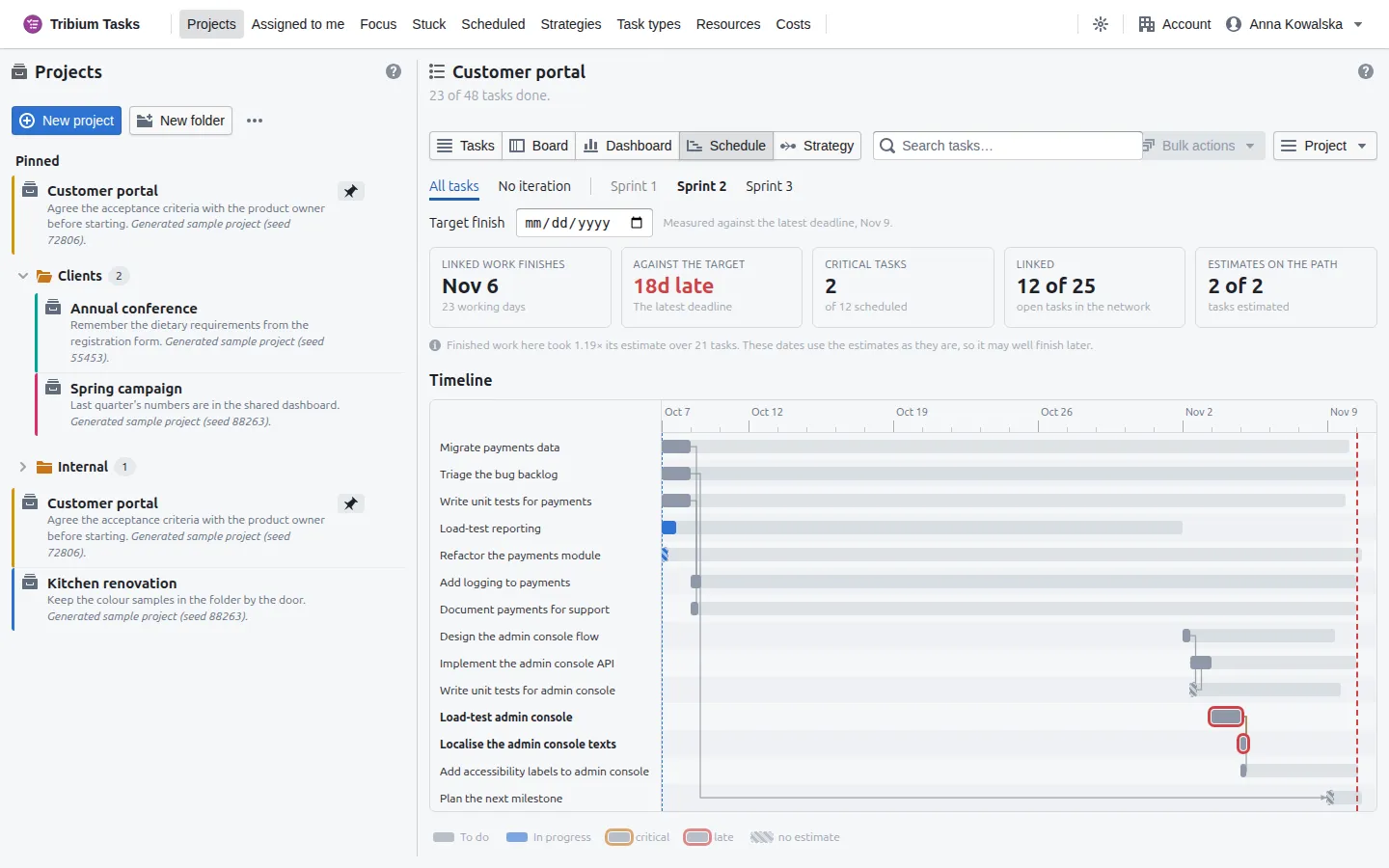
| Figure | Meaning |
|---|---|
| Linked work finishes | The earliest day the whole network can be done, and how many working days away that is. |
| Against the target | How much slack there is against the Target finish you set at the top (kept per tab, on this device) — or else the iteration’s end, or else the latest deadline in the slice. Red and late when the finish is past it. With none of these it reads Float, and nothing is late. |
| Critical tasks | How many tasks are on the critical path, out of all scheduled. |
| Linked | How many open tasks take part in the network. Tasks with no links are not scheduled. Without at least three tasks linked one after another, the page says there is not enough linked work and shows no figures. |
| Estimates on the path | How many critical tasks have an estimate. A critical task without one is scheduled as if it took no time, which is the most optimistic reading there is; when over a third of the path has none, the finish date is struck through. |
Once five finished tasks record both an estimate and an actual, a line under the figures says how finished work in this project compared with its estimates (“took 1.19× its estimate over 21 tasks”). It is shown beside the dates, never applied to them: the schedule uses the estimates as they are, so a project that habitually overruns may well finish later than shown.
The timeline draws each task from its earliest start, in To do grey or In progress blue; critical tasks have an amber outline, late ones a red one, and a task with no estimate is hatched. A pale extension after a bar is how far it can slip. Lines join each task to what waits for it; the blue line is today, and the dashed red line is the target, the iteration’s end or the deadline.
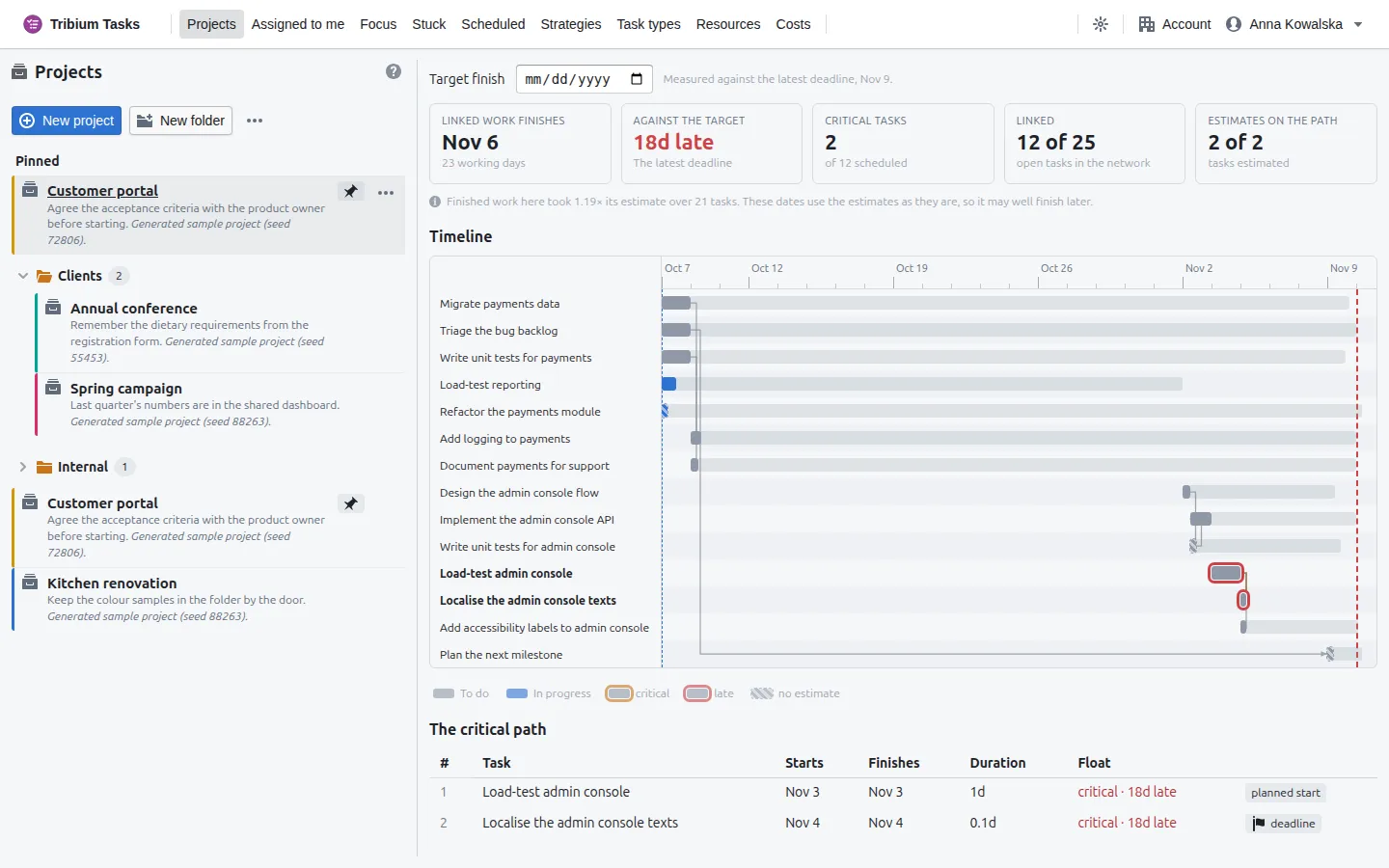
The critical path table lists the critical tasks in order with their starts, finishes, durations and float, and the tasks held to their own dates carry a tag: planned start (its Scheduled for is later than the links would allow) or deadline (its own Finish no later than sets how late it may finish); over estimate marks a task under way that has already used up its estimate. Other chains just as critical fold out below it. To make this schedule better lists what is wrong: critical tasks with no estimate, tasks past their estimate and still under way, work waiting on unfinished tasks outside this tab, links to tasks that no longer exist, loops, and estimates in units other than hours or days. The schedule sharpens as you work through it.
When Critical path is switched on in the Project menu’s Show section, each row of the
tree carries a slack tag too (+5d slack; critical in amber; critical · 2d late in red),
and so do the Focus, Assigned to me and Scheduled lists, so the schedule can be read without
leaving the tree.
13. Your own lists — Focus, Assigned to me, Scheduled
Three pages in the top bar cut across every project of the workspace and show a flat list of tasks, each with its project. Click a task’s name to open it; its project’s button takes you to the project. Tasks of archived projects are left out of all three.
Focus
What it is for. The tasks you are paying attention to now — a short list to work from.
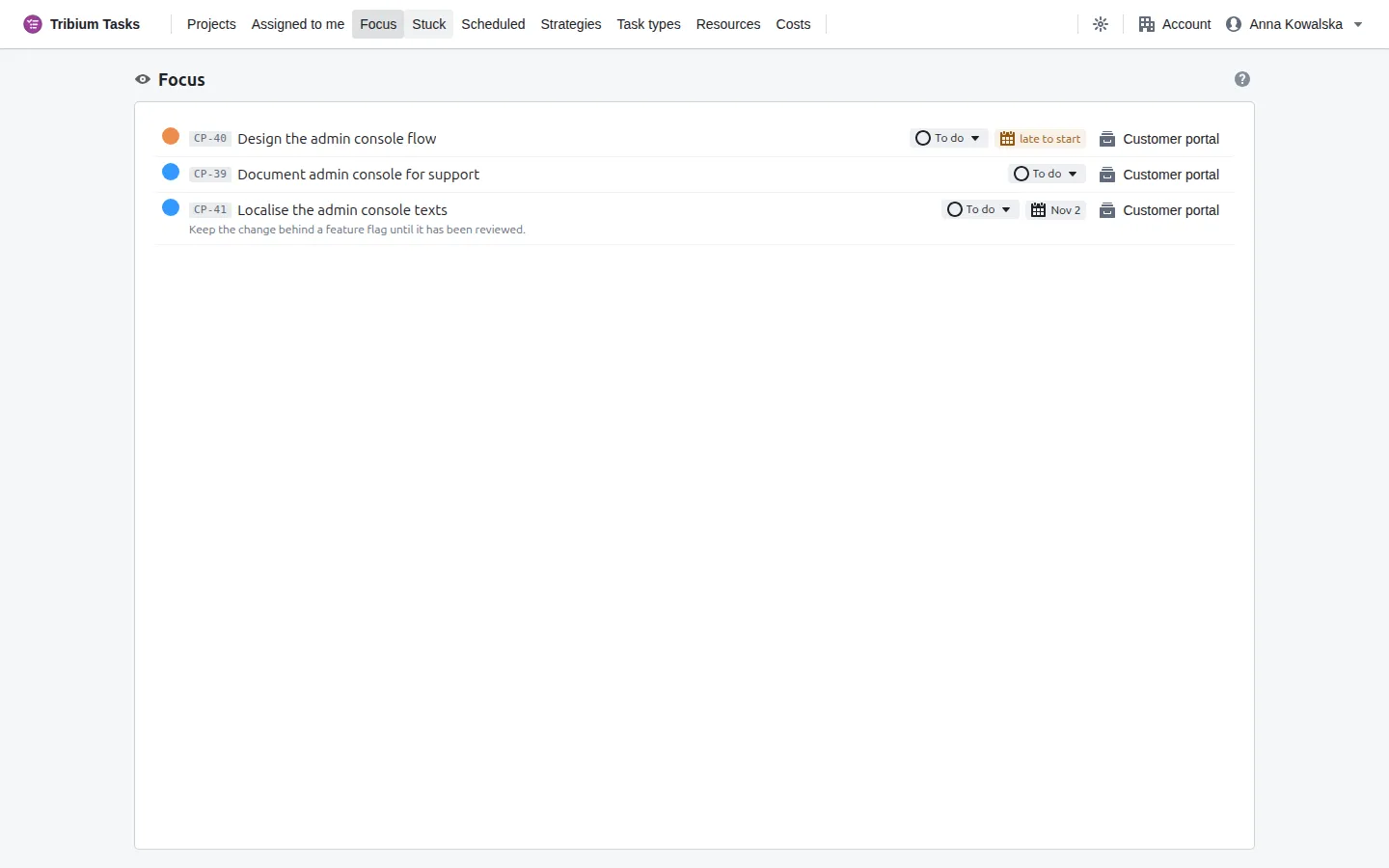
Focus is personal: only you see yours. Click the circle at the head of a task — here or in any project’s tree — to add the task to your focus or take it away; the circle is filled while the task is in focus. A task stays in focus until you take it out or it is finished or archived. The In your focus switch on a task’s General tab does the same.
Assigned to me
What it is for. Open tasks assigned to you, from every project.
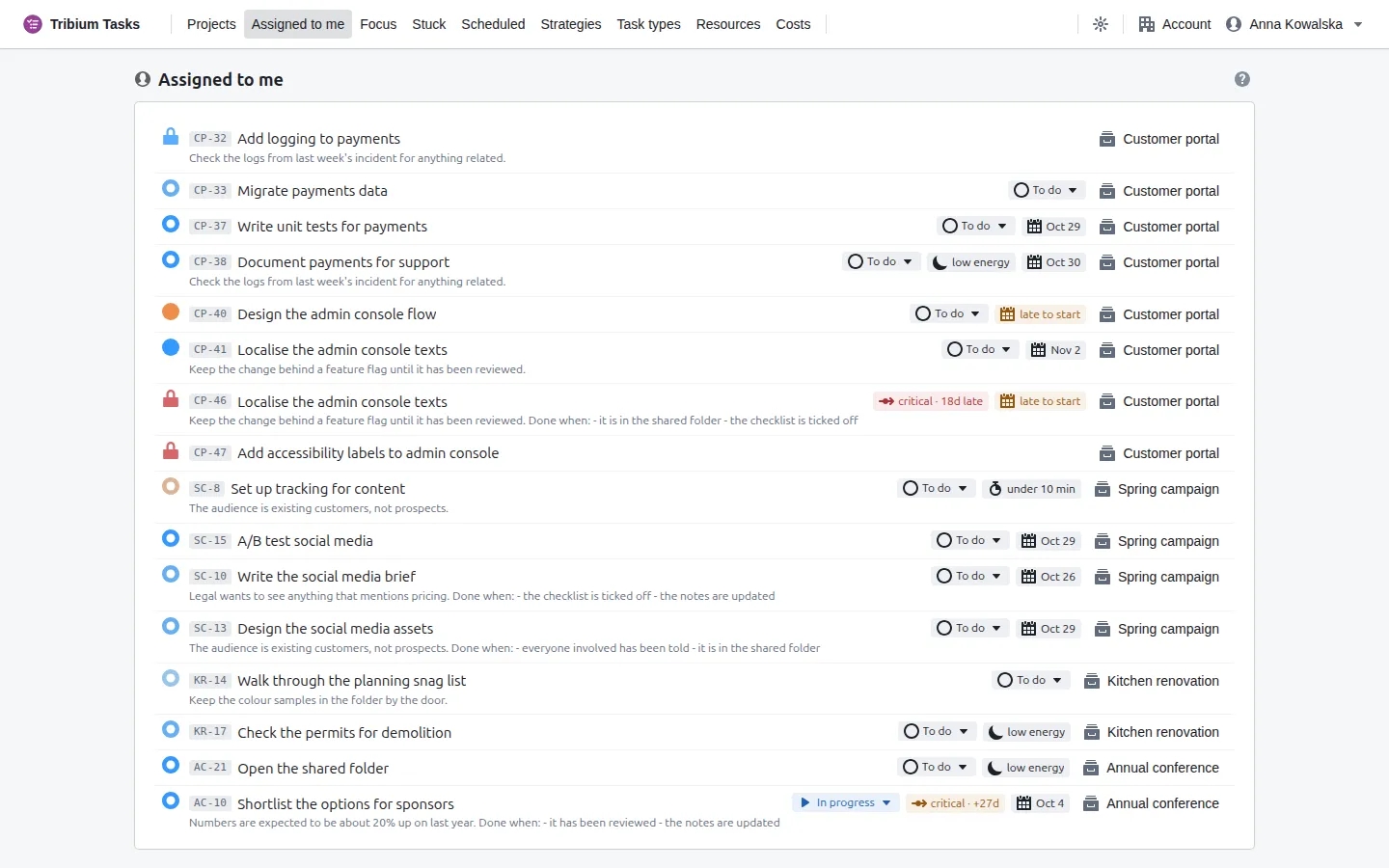
A task’s assignee is set in its dialog under Assigned to, or for several at once with Bulk actions ▸ Assign to…. Completed tasks drop off this list; the project’s own tree still shows them.
Scheduled
What it is for. Open tasks scheduled for today or earlier, from every project — what is due to be started now.
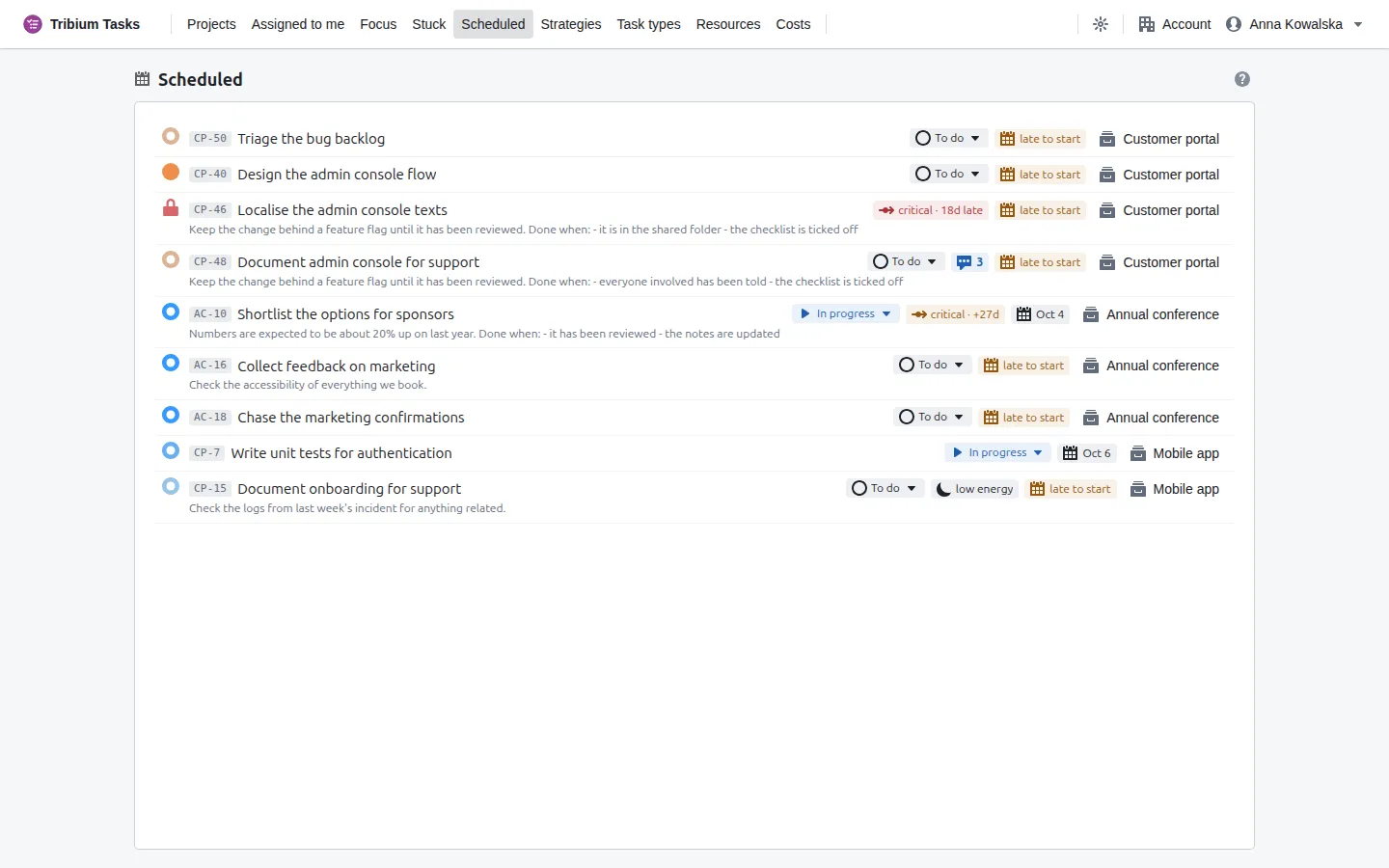
A task appears here once its Scheduled for date has come, and leaves when it is completed or its date is moved on. A task whose date has passed without the work starting is tagged late to start in amber, here and in its tree.
14. Stuck tasks
Waiting and stuck are different things
A waiting task is held by the plan itself: another task must finish first, and when it does the padlock opens by itself. A stuck task is held by something outside the plan — a supplier that has not delivered, a decision nobody has made, an account nobody has granted, a missing piece of information, a person or a machine that is not available, a technical problem. Nothing in the project will clear it; somebody has to act. Tasks records who, on what, and when to look again.
Marking a task stuck
Mark as stuck… on a task’s ⋯ menu (under More), at the foot of its dialog, or in Bulk actions for several tasks with one reason.
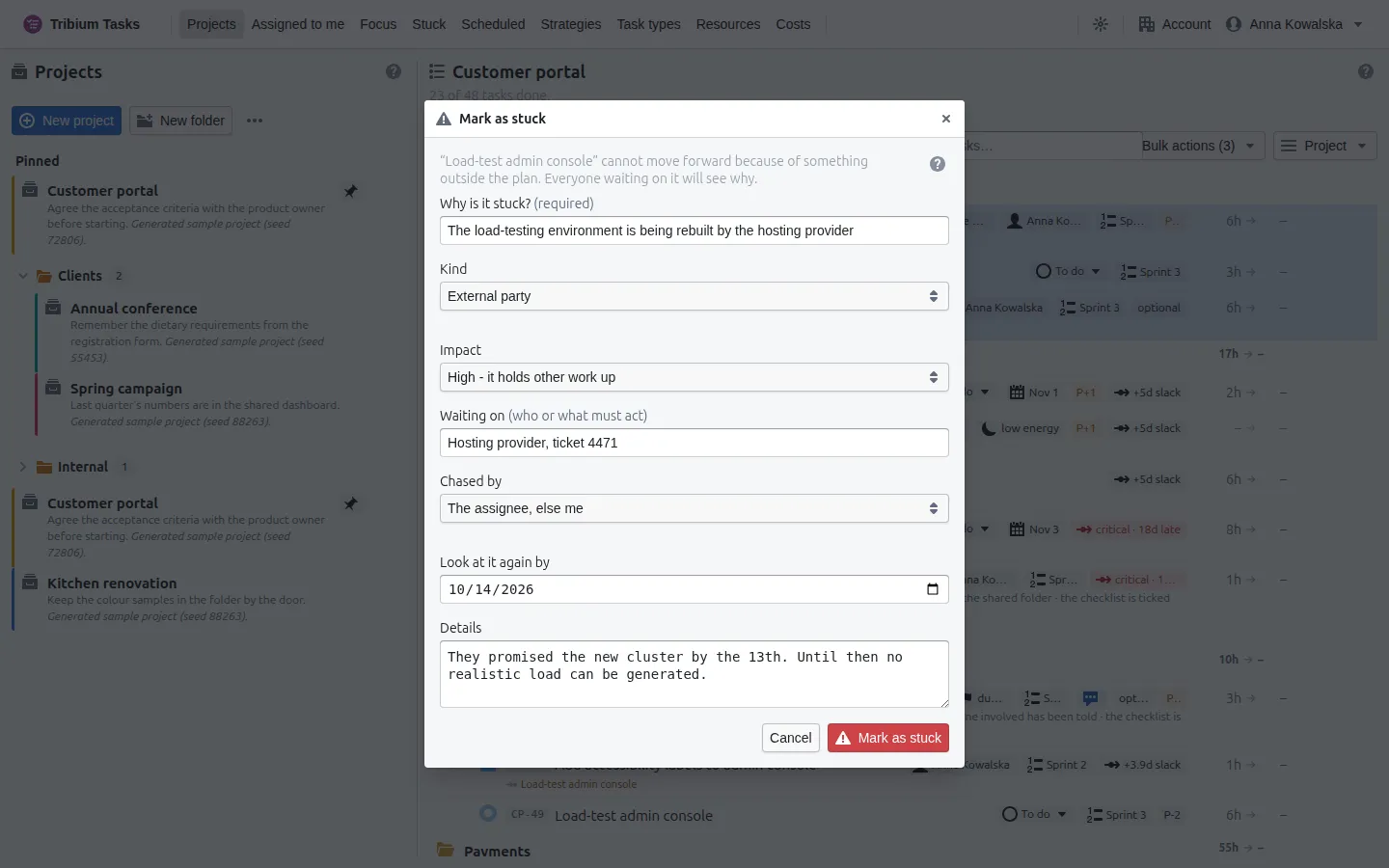
| Field | Meaning |
|---|---|
| Why is it stuck? | One line everyone will read, on the row and on the Stuck page. Required. |
| Kind | External party (to start with), Decision pending, Access or permission, Missing information, People or equipment, Technical problem, or Other. |
| Impact | Low — little else waits for it; High — it holds other work up; Critical — a deadline or a goal is at risk. High to start with when the task holds others up, else Low. |
| Waiting on | Who or what must act — “DigiCert support, case 0123”. |
| Chased by | The person on your side who is following it up — the assignee to start with, else you. |
| Look at it again by | When to review it — three days ahead to start with. Past that date the task is overdue for attention. |
| Details | Anything longer. |
What a stuck task looks like
The row carries a red Stuck tag with how long it has been stuck and how many tasks it holds up (point at it for the reason, and who is chasing it); the tasks that wait for it show a red padlock; a group says how many of its tasks are stuck; the Dashboard counts it; and a red N stuck badge appears in the top bar when one is escalated to you, or yours is past its review date. The task’s dialog opens with a banner at the top:
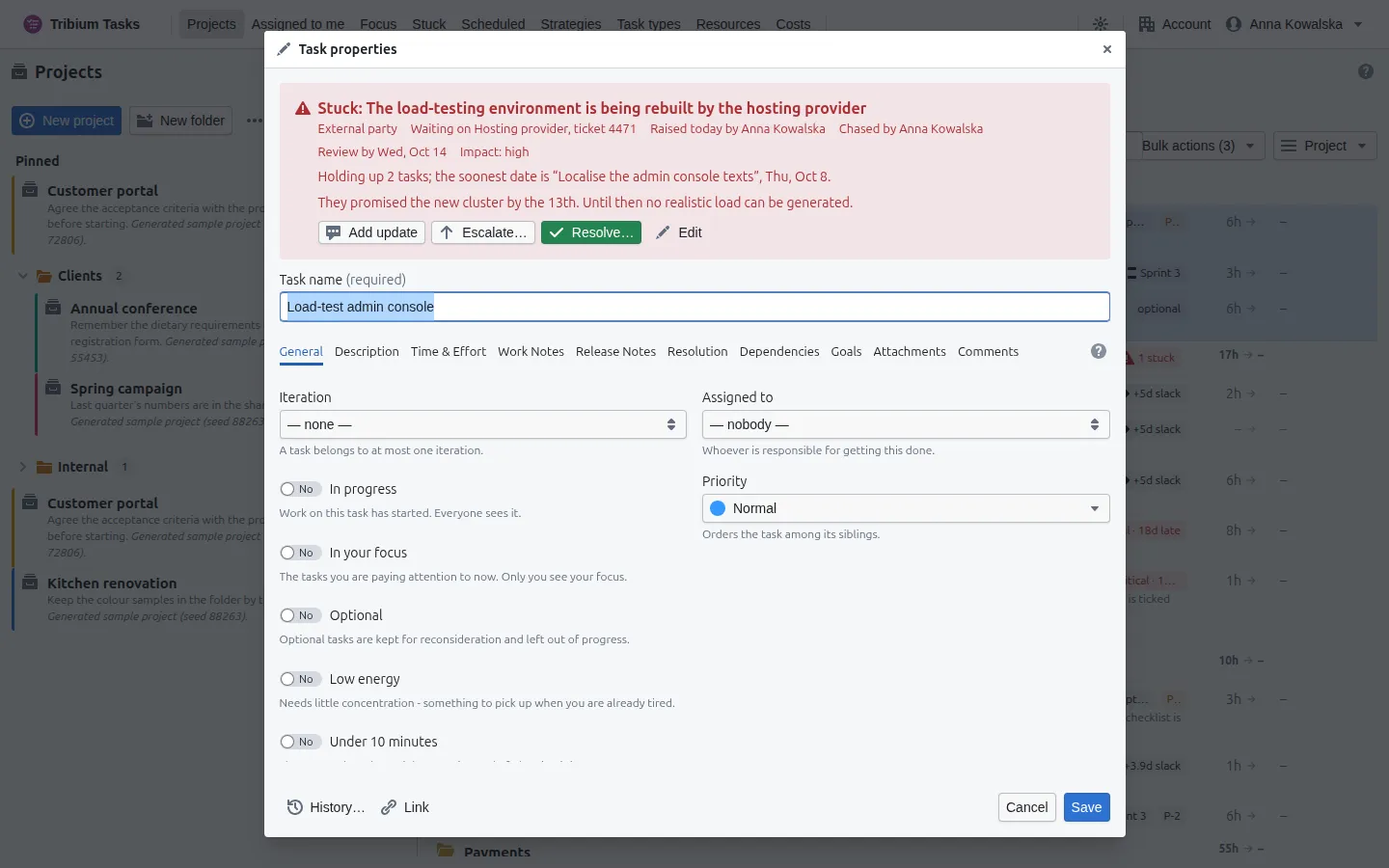
From the banner: Add update writes a line to the impediment’s log; Escalate… hands it to someone who can unstick it, with a note; Resolve… clears it, recording how; Edit changes the fields; History shows the log. These are kept at once, whether or not the task’s dialog is then saved. A stuck task cannot be finished until it is resolved — finishing it asks how it was resolved, and records that with the task.
The Stuck page
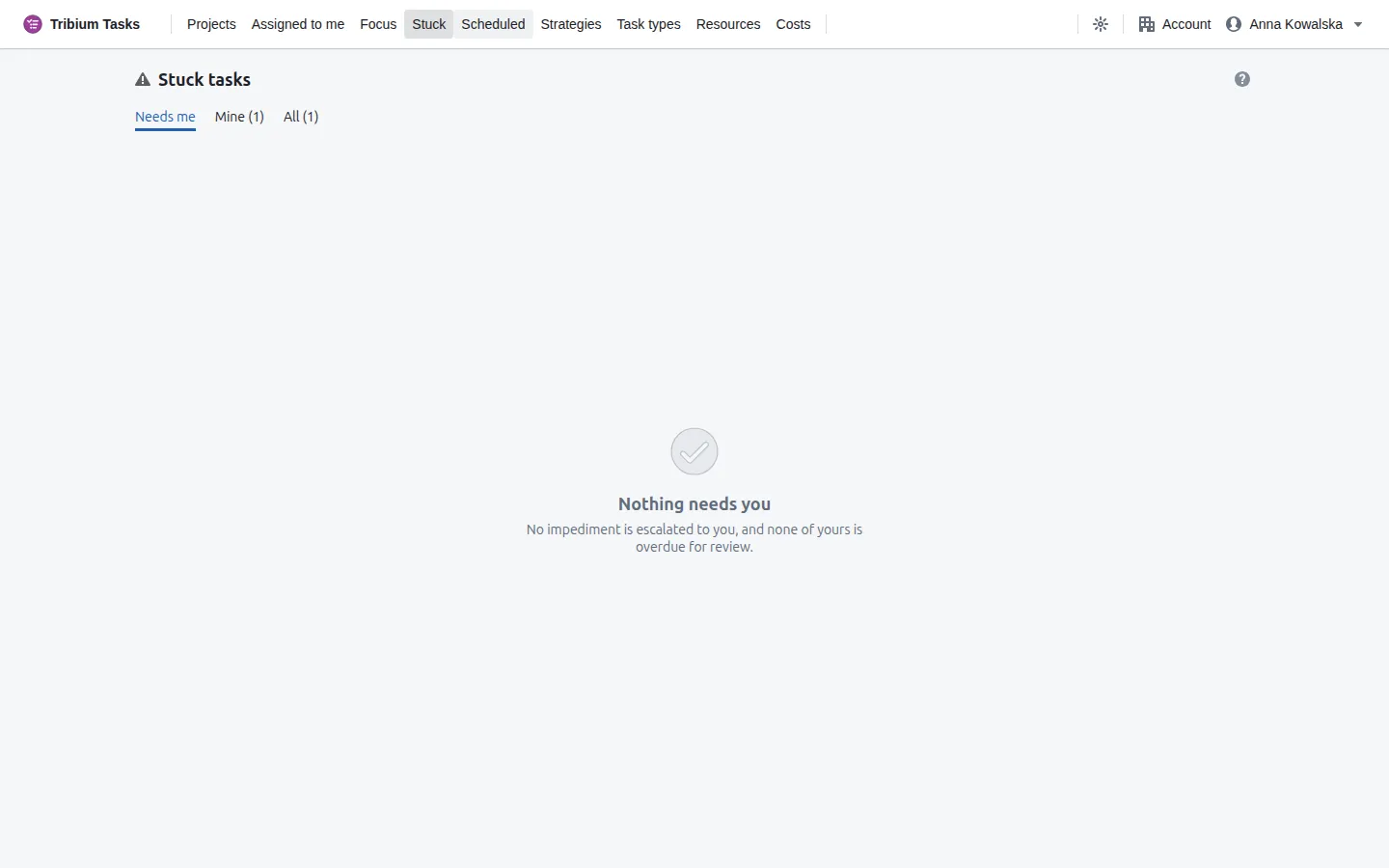
Three tabs, each with its count: Needs me — escalated to you, or yours and past its review date; Mine — everything you hold (you chase it, or it was escalated to you); All — everything stuck in the account. Each row: the task and its project, why it is stuck (with a red critical tag on a critical one), who holds it, the review date (red when past), how many tasks it holds up, and its age. Overdue reviews come first, then by impact, by how much it holds up, and the oldest. Click a task to open it.
15. Task types and workflows
Why types
A task with no type has the plain lifecycle: to do, in progress, done. That is enough for most work. A task type — Bug, Feature, Improvement, Change request — gives its tasks a workflow of their own: the states they go through and the moves allowed between them. Open → In progress → In review → Done, with Rework back from review, say.
Every state belongs to one of three categories — to do, in progress or done — which is how the board, the dashboard and progress count a task in it. So a typed task and a plain one still add up in the same figures.
The Task types page
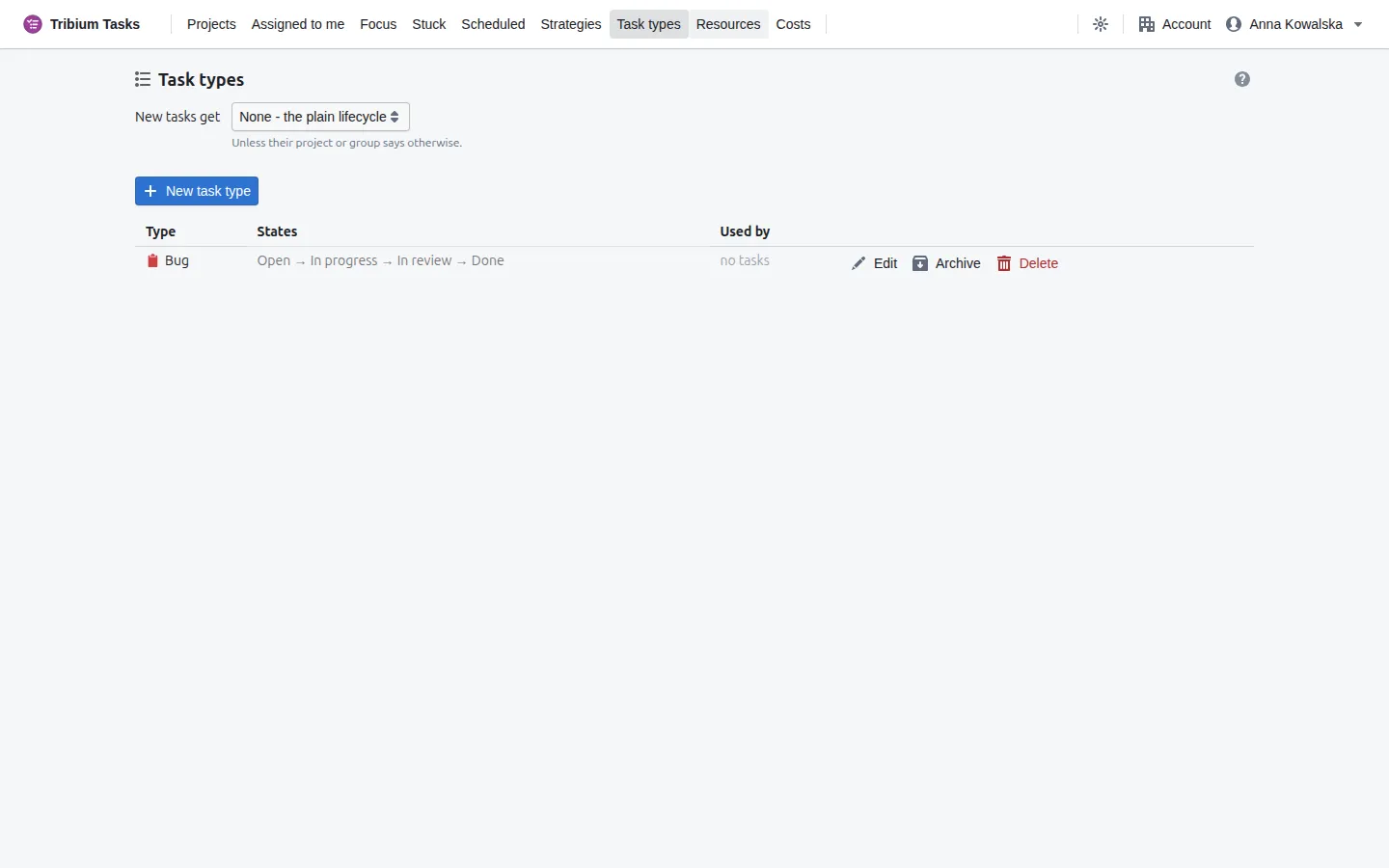
New tasks get at the top is the account’s default type for new tasks, unless their project or group says otherwise. The table shows each type’s states in order and how many tasks use it. New task type creates one; Edit changes it. Archive stops offering a type for new tasks and leaves its tasks alone; Restore brings it back. Delete on a type that tasks use puts those tasks back on the plain lifecycle, or offers Archive instead. Types made here can be used in every project. A project can also have types of its own, made from Project ▸ Task types…; those exist only there, beside the account’s types, and that dialog keeps each change at once — it has no Save.
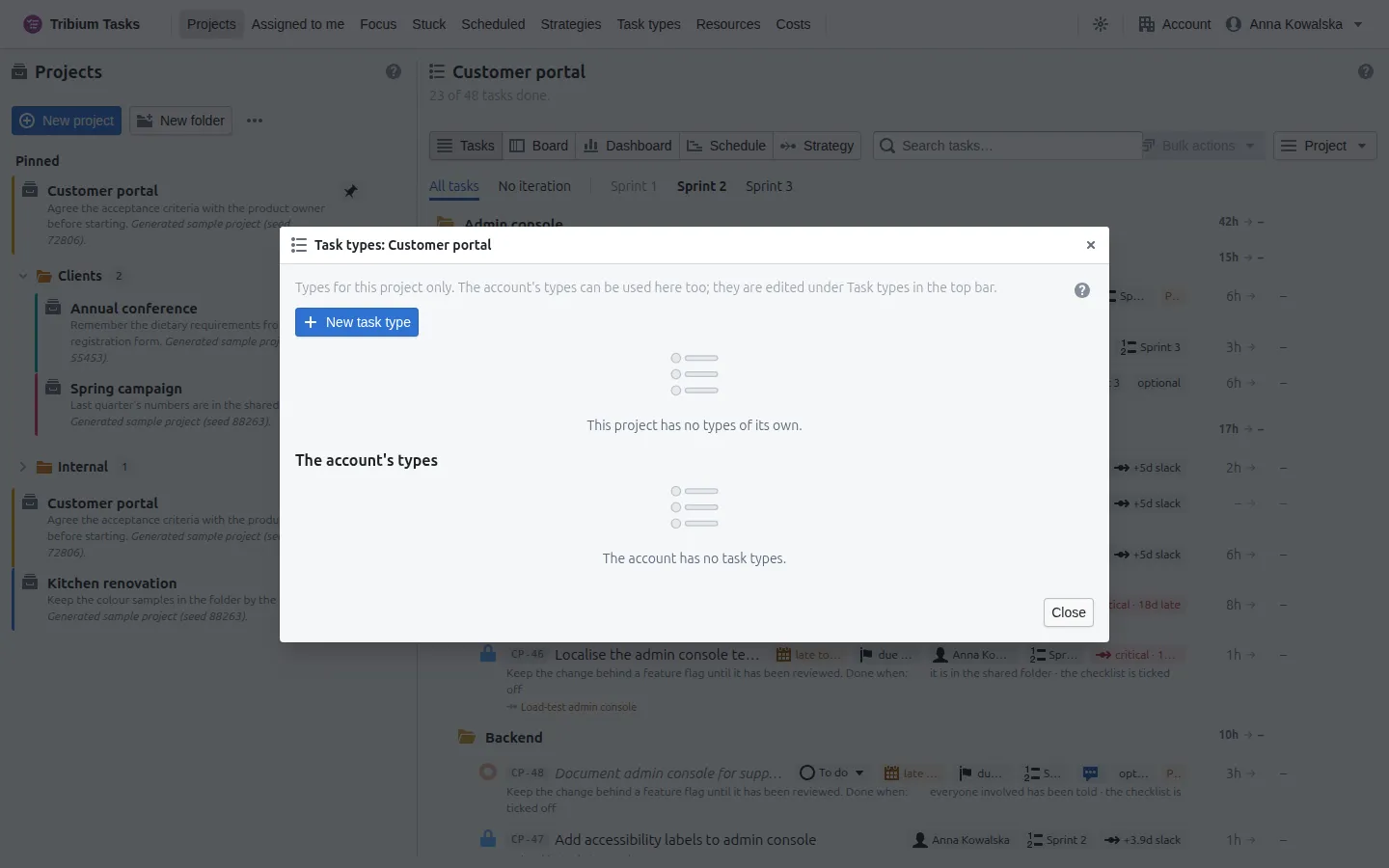
A type’s General tab
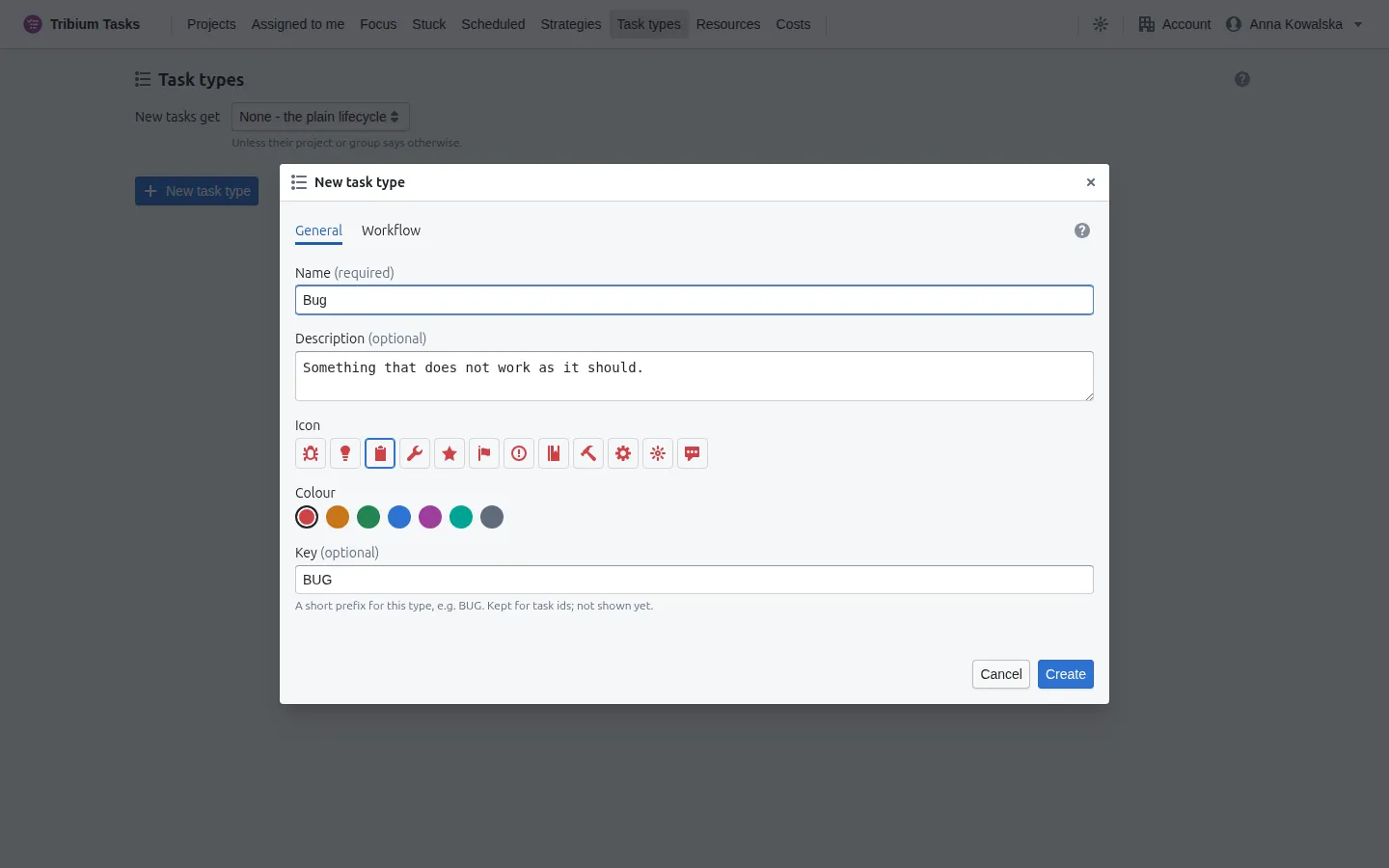
Its name, a description, an icon and a colour — which mark its tasks everywhere
they appear — and a short key such as BUG, kept for task ids (not shown anywhere yet).
A type’s Workflow tab
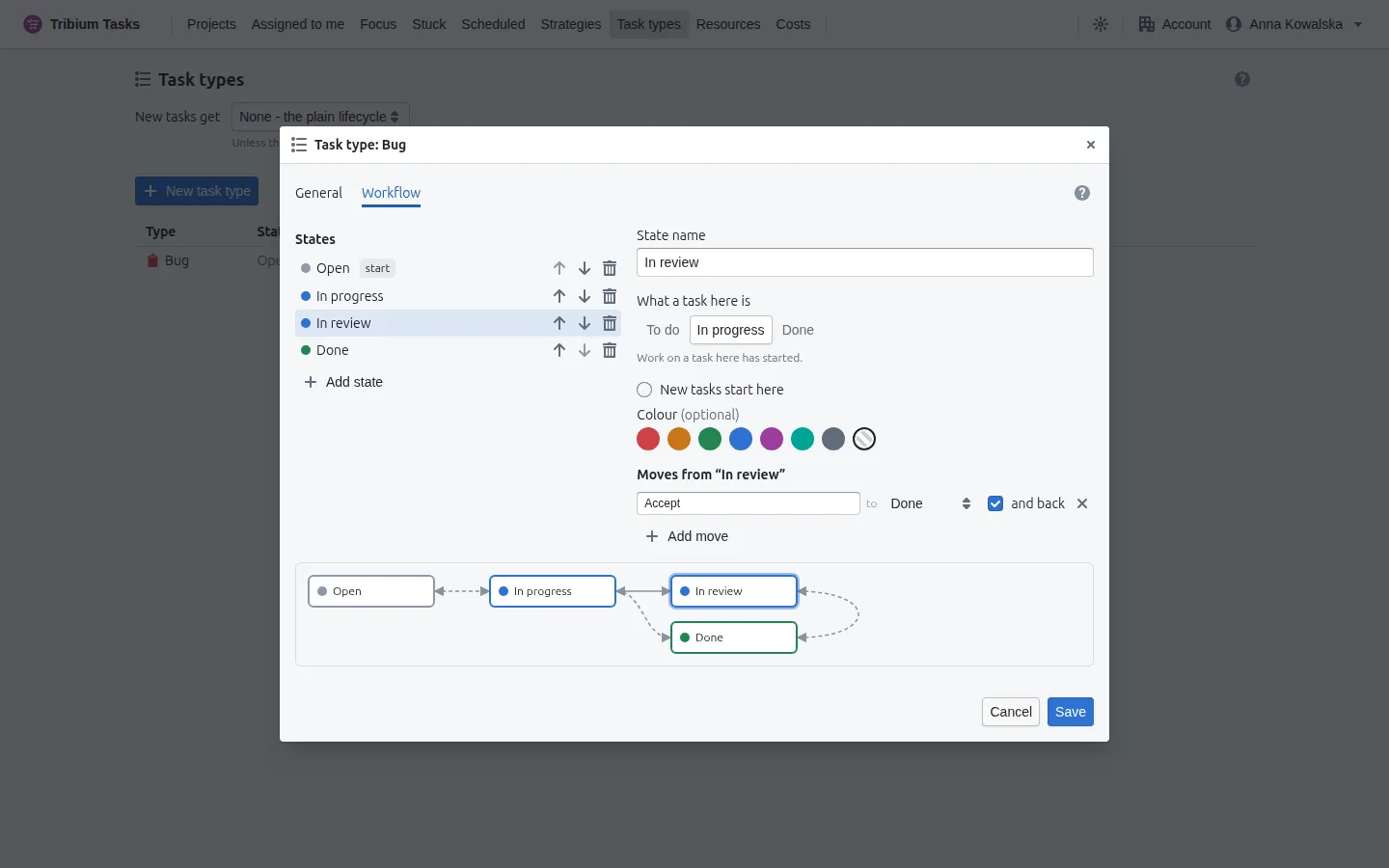
On the left, the states in order; one is where new tasks start. Select a state to edit it: its name, what a task here is (the category), and its colour. Under it, the moves from this state: each has a name (“Send to review”), a target state, and and back, which allows the reverse move too. The arrows beside a state reorder the states, and menus list them in that order. The diagram at the bottom draws the whole workflow.
A workflow that does not hold together — no start or two starts, a start that is already done, no done state at all, a state nothing can reach, a move to nowhere — cannot be saved, and the tab says what is wrong. A state with no way out is only warned about. Removing a state that tasks are in asks, when you save, where those tasks should go (Move tasks and save); the old state’s name stays in their history.
Using a type
- A task’s Type field on its General tab, Type on its ⋯ menu, or Bulk actions ▸ Set type.
- New tasks get in a project’s properties and a group’s New tasks in this group get choose the type new tasks are given.
- A typed task’s row shows its type’s icon and colour and, with Status on, a state tag; click the tag to move the task on along its workflow. Its dialog’s Resolution tab shows Where it is and Move it on. When the filter picks one type, the Board lays its tasks out by that type’s states.
- The Project menu’s Filter section can filter the tree by type and by stage, and — once one type is chosen — by its state. Filtered in the toolbar clears every filter.
16. Strategies — objectives, goals and the tasks that achieve them
Three layers
Tasks say how. A strategy adds the what and the why above them, in three layers:
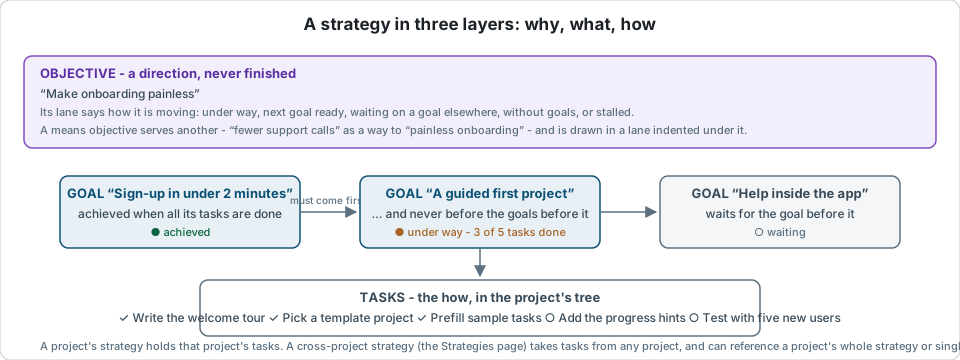
- An objective is a direction — “make onboarding painless”, “more time for myself” — and is never finished. If its name has a number or a deadline in it, it is probably a goal.
- A goal is concrete: it is reached at a point you can name, and it is achieved when all its tasks are done — but never before the goals it depends on. Goals are laid out left to right in the order they must be achieved, with an arrow from each goal to the goals that wait on it.
- Tasks achieve goals. A task serves at most one goal in each strategy.
An objective can be a means to another — “fix family problems” and “explore outdoor activities” as ways to “a better personal life” — and is then drawn in a lane indented under the objective it serves, whose progress is read over its active means’ goals too. An objective can be paused (kept, without nagging) or retired (kept with its goals, for the record; retiring it retires its means). Resume brings it back — resuming does not resume its means. Retired lanes are hidden unless Show retired is on.
Each objective is a lane, with its goals in it; goals on no objective have a lane of their own, headed Not tied to an objective — each worth a second look. A lane says how its objective is moving: under way, the next goal ready to start, waiting on a goal elsewhere, without goals, or stalled — every goal reached and none set next, which is the moment to set the next goal or retire the objective. A paused or retired objective’s lane shows no status.
A goal with no tasks is never achieved: give it at least one. Archived tasks do not count.
A project’s strategy
The Strategy view of a project is its own strategy: its objectives and goals, and which of its tasks achieve each goal.
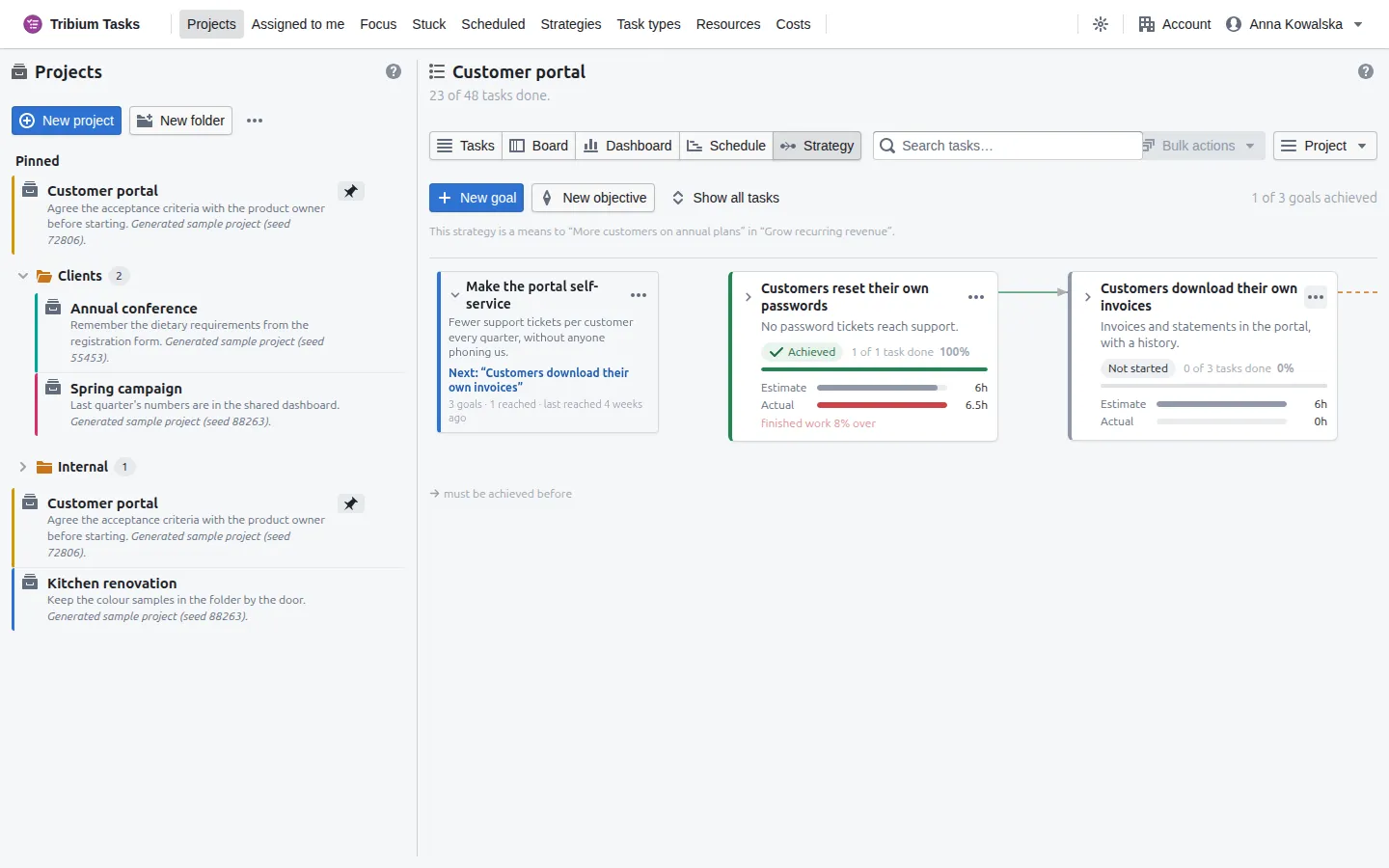
It starts empty, with Start with a direction (an objective) or Start with a goal; the strategy is created with its first one. Then:
- New objective and New goal add to the strategy. An objective’s ⋯ menu adds a goal on its path or a means objective under it, edits, pauses, retires, reorders or deletes it (deleting leaves its goals on no path, and its means objectives become means to the objective above it, or directions of their own). A goal’s ⋯ menu edits it, chooses its tasks, moves it to another objective, or deletes it (its tasks are untouched; goals that waited on it stop waiting).
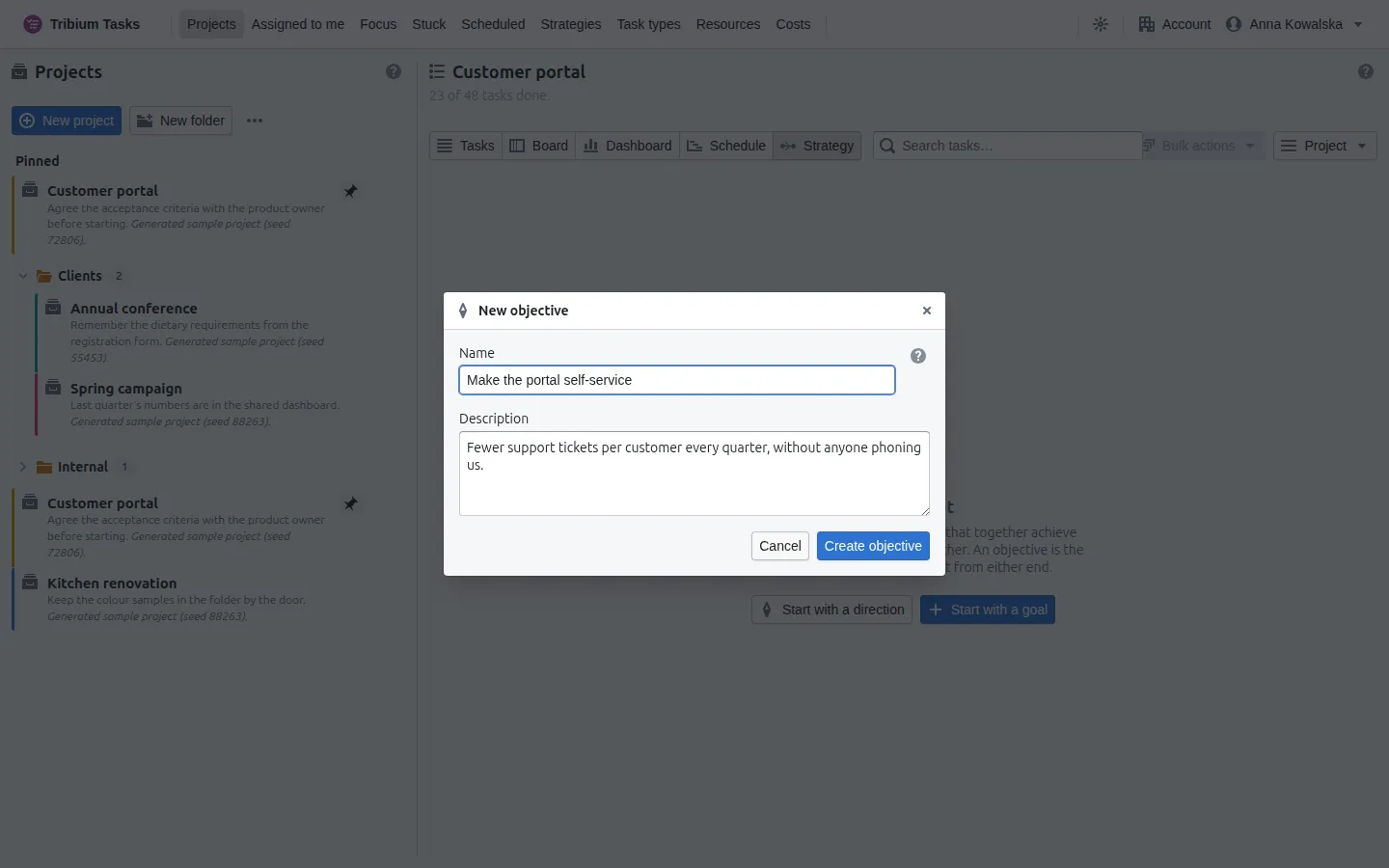
- The objective dialog: a name — often with “more”, “fewer” or “better” in it — a description of what would tell you that you are moving, A means to (the objective it serves, or none — offered once there is another objective), and, once it exists, its state: active, paused or retired. The dialog warns when a name reads like a goal.
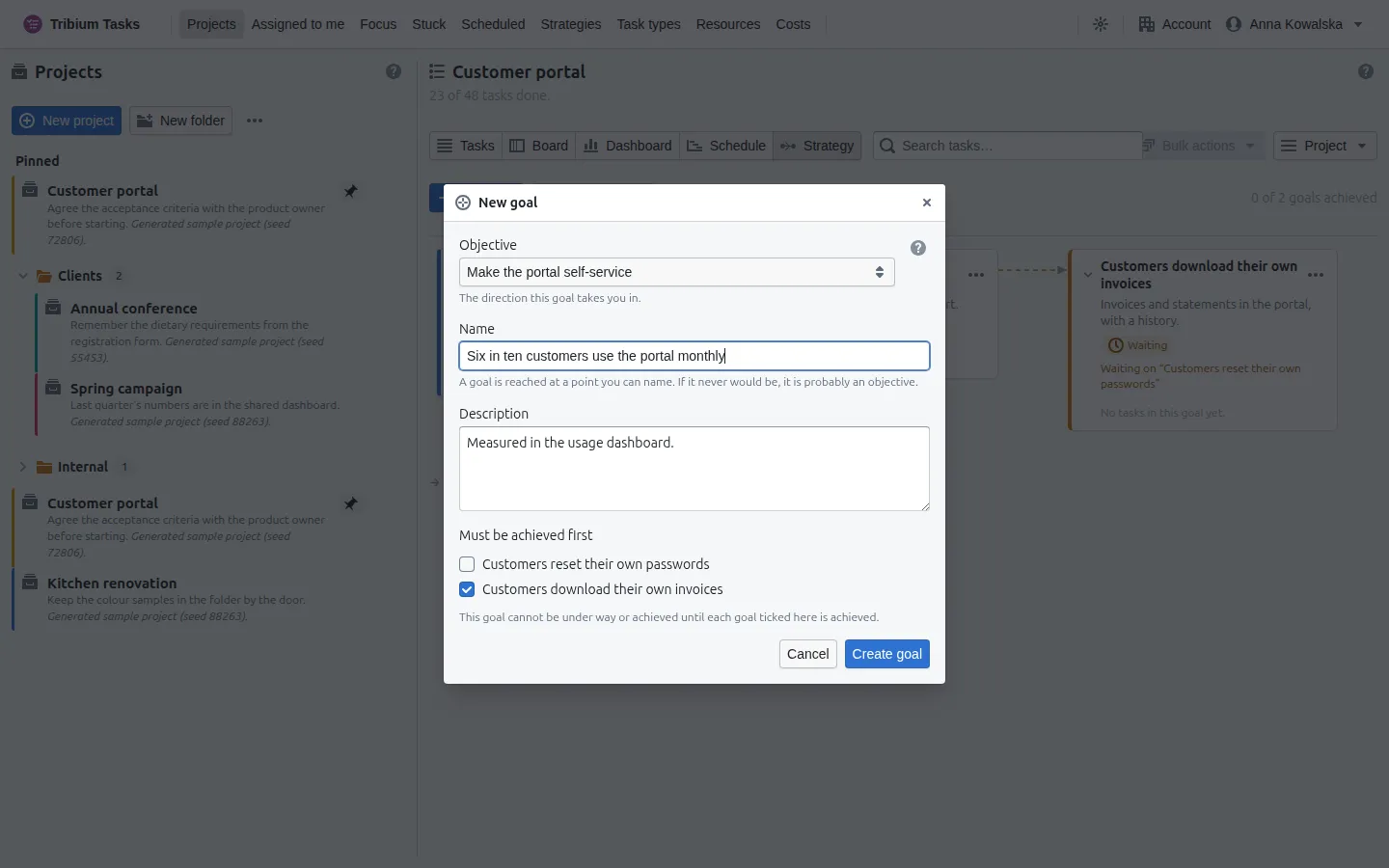
- The goal dialog: its objective, its name and description, and Must be achieved first — the goals before it. A goal that would close a ring is disabled, and says why.
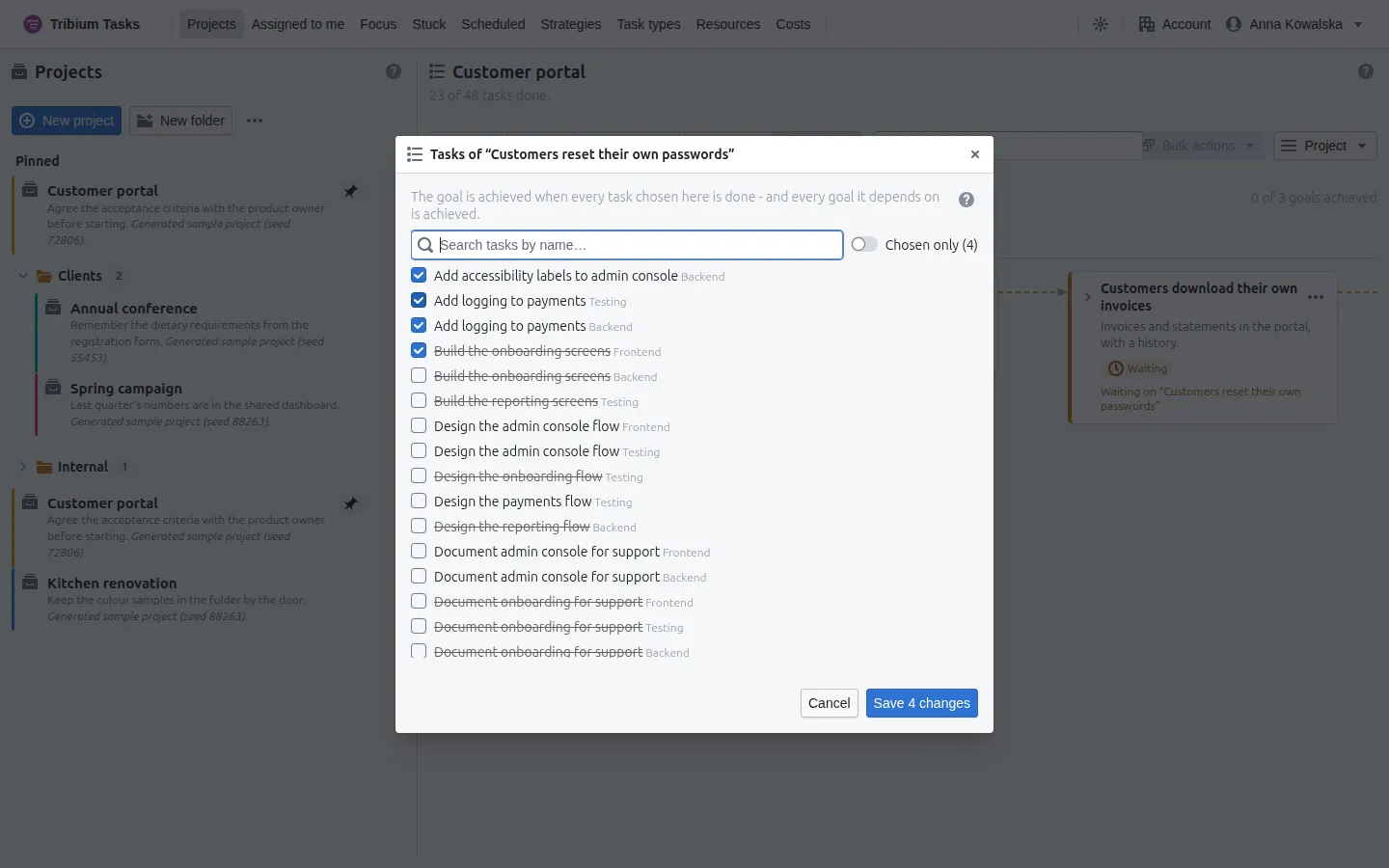
- Choose tasks… opens the project’s tasks: filter by name, tick, save; Chosen only narrows the list to the ticked ones. A task serves one goal per strategy, so choosing it here takes it from another goal of the same strategy. A task can also be linked from the other side, on its Goals tab.
- The chevrons fold a lane or show a goal’s tasks; Show all tasks opens every goal at once. A goal card shows its state, how many of its tasks are done, estimate against actual summed over them, and what it is waiting on.
With Strategy goals switched on in the Project menu, each row of the tree carries the goal it serves.
Cross-project strategies — the Strategies page
What it is for. Directions and goals that reach across your projects — to plan and follow work that no single project holds.
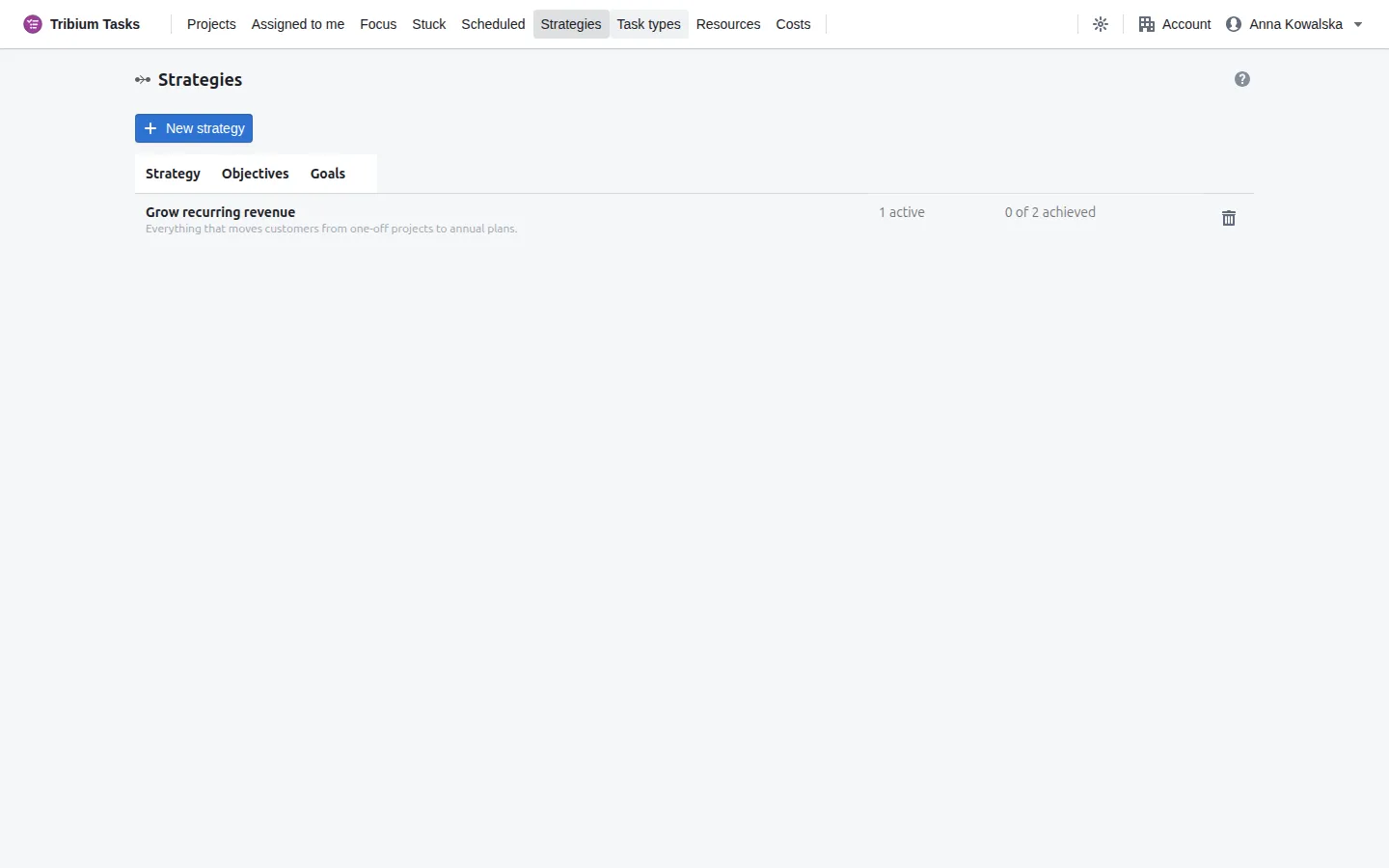
New strategy asks for a name and a description; the table lists each strategy with its active objectives (flagged when one is stalled or has no goals) and how many of its goals are achieved. Click one to open it. On a strategy’s page, Rename… and Delete strategy; deleting it removes its objectives and goals, never the tasks.
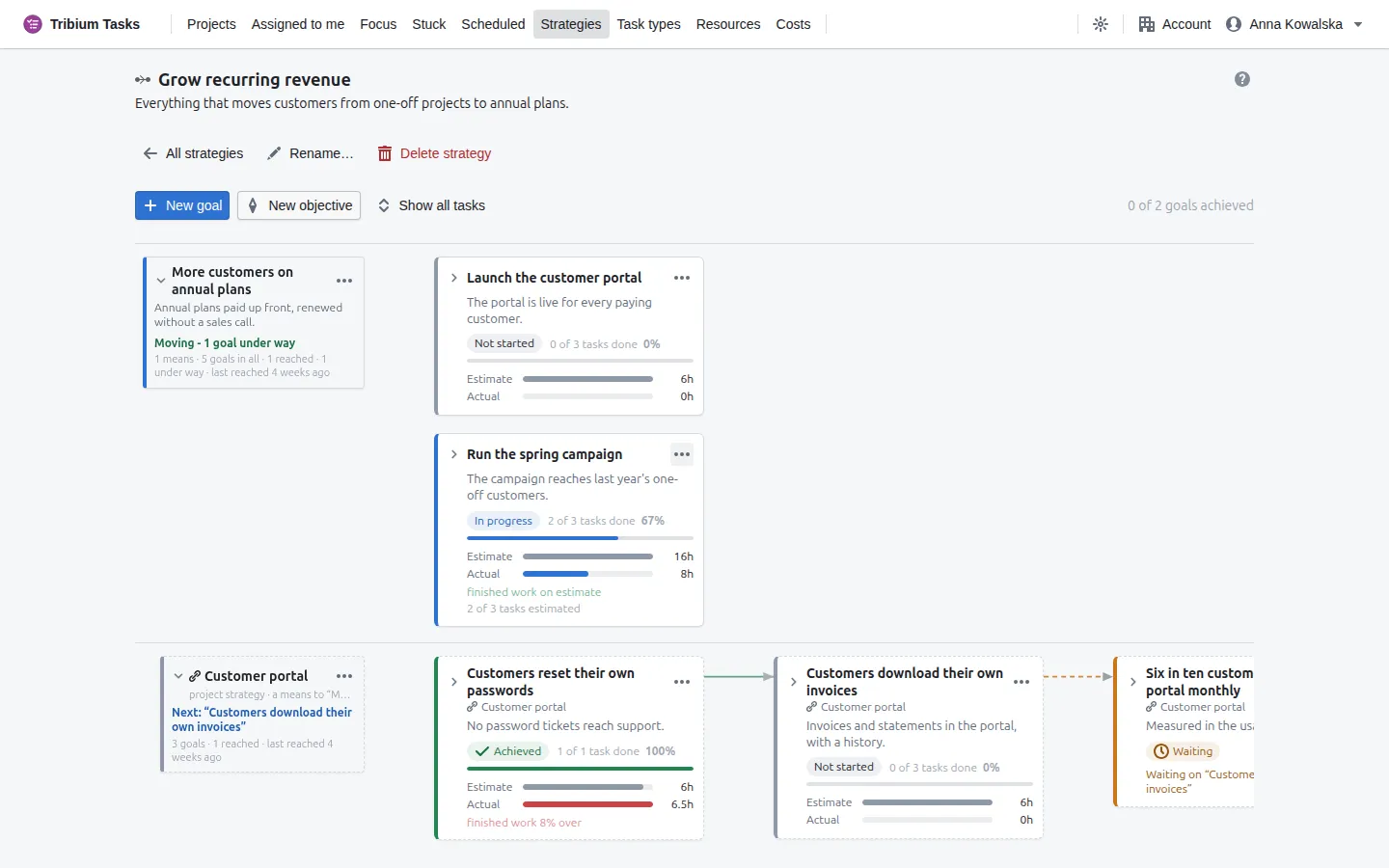
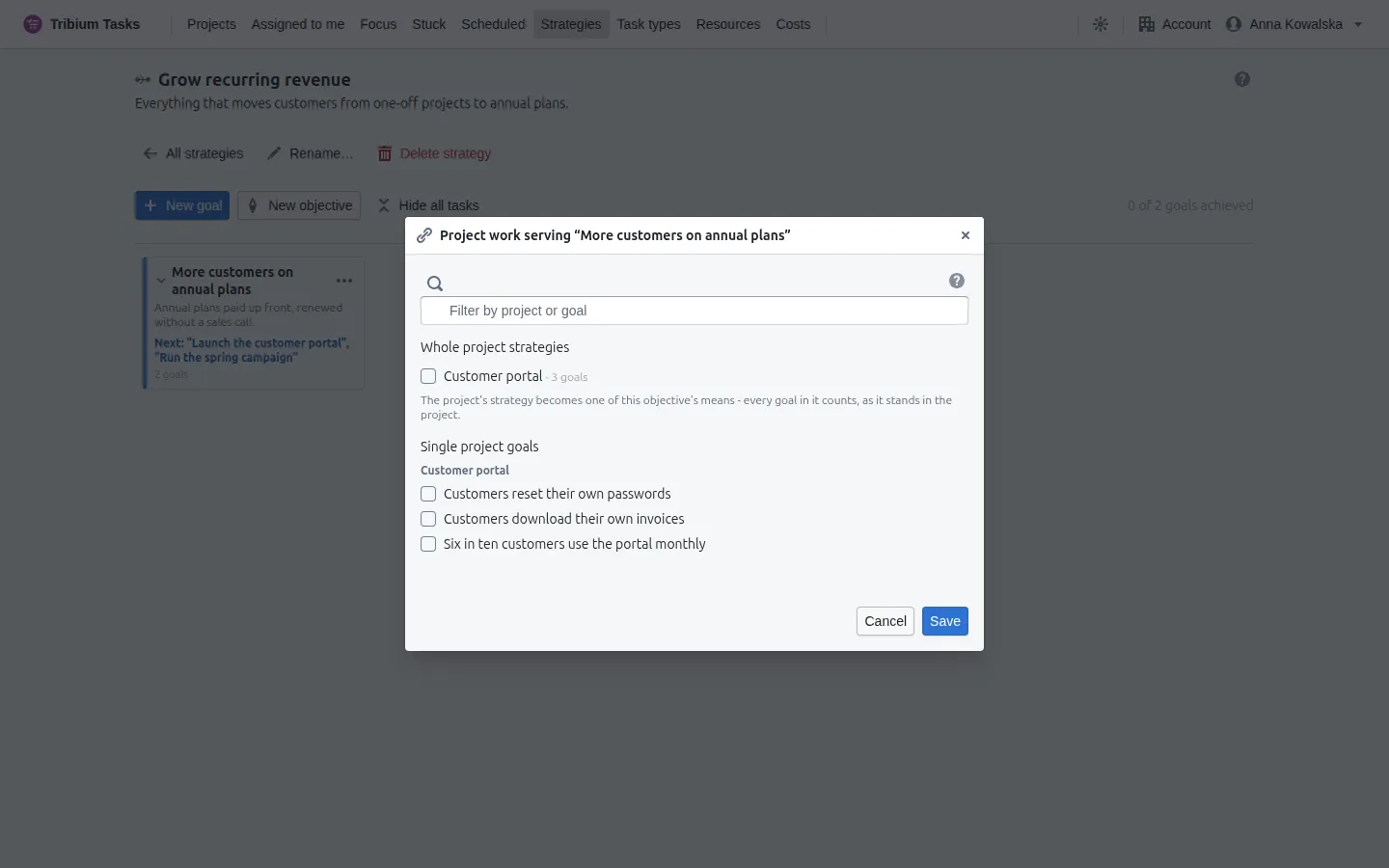
A cross-project strategy works like a project’s, with two differences. Its goals take tasks from any project — the task picker starts with a project selector. And an objective can reference project work: a project’s whole strategy becomes one of the objective’s means, drawn in a lane under it, or single project goals are drawn in the objective’s own lane. Referenced work stays its project’s — it is edited, given tasks and finished there, and keeps the status it has there — but it counts toward how the objective is moving. A project’s strategy or goal serves one objective of a cross-project strategy, so referencing it again moves it. Its ⋯ menu opens it in its project, moves it to another Objective, or Stop referencing it, which changes nothing in the project. The project’s own Strategy view says which cross-project objectives its work serves.
17. Resources, the working week and workload
What a resource is
A resource is something the work uses: a person, equipment, a facility, a service, a consumable, or other. Everyone in the account is a resource already — nobody has to be created — and a calendar says when each one is free. A task is given resources on its Time & Effort tab, each with its share of the work; with none given, the task counts as its assignee’s, at full allocation (a task whose resources were all taken off deliberately uses nobody).
Resources exist at two levels. One defined for the account can be used by every project; one defined in a project exists only there — and can be promoted to the account later without losing what it is assigned to.
The Resources page
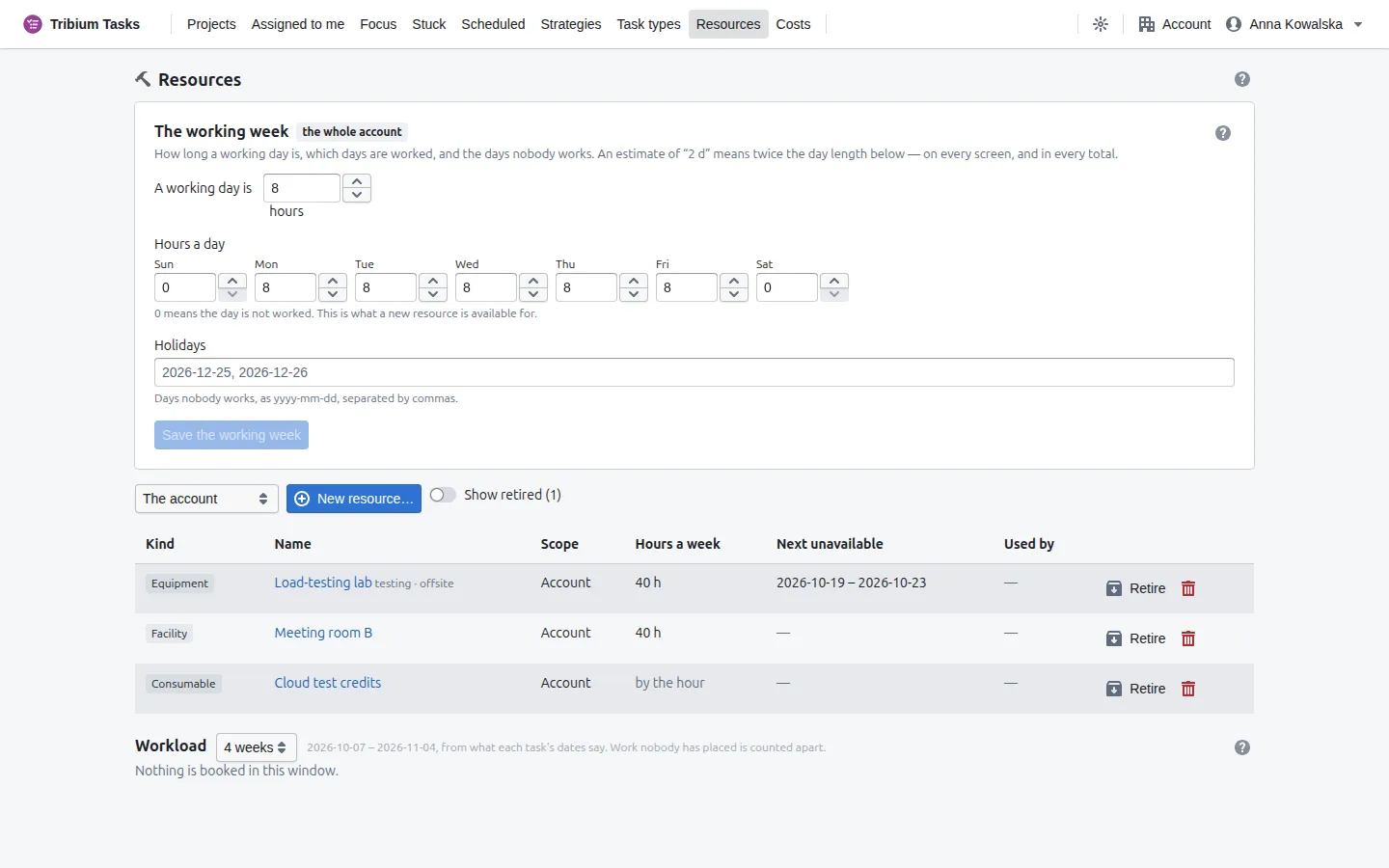
The table: each resource’s kind, name, scope (Account, or This project), hours a
week from its calendar, when it is next unavailable, and how many tasks use it. The
selector at the top chooses the scope to list; New resource… adds one; click a row to open
it; Promote moves a project’s resource up to the account. A consumable shows by the
A resource’s dialog
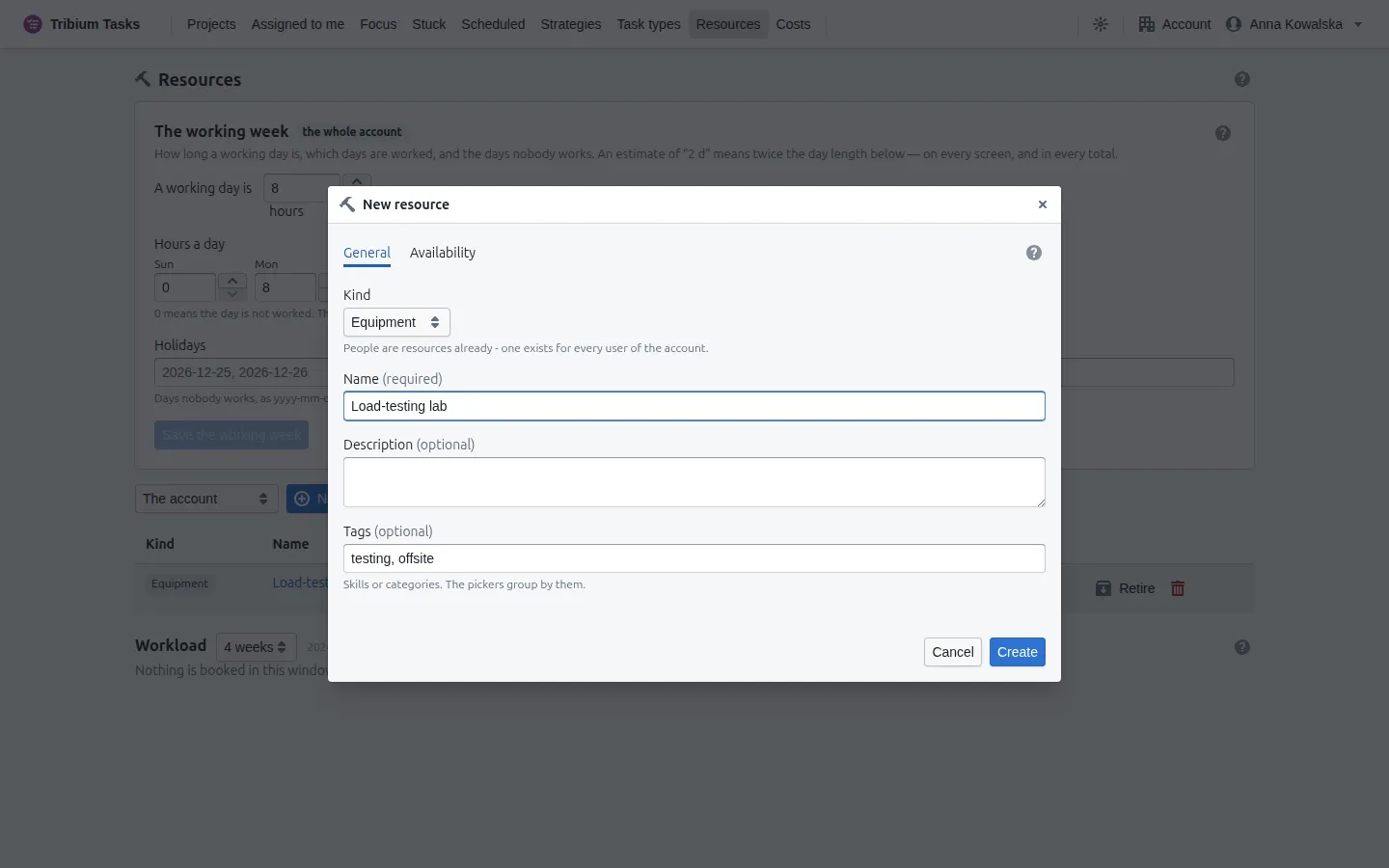
General — its kind, chosen when it is made and fixed after (a consumable is counted in its unit — litre, seat, piece — and has no calendar), its name, a description, and tags (skills or categories; the pickers group by them). People come from the account’s users and are never created here.
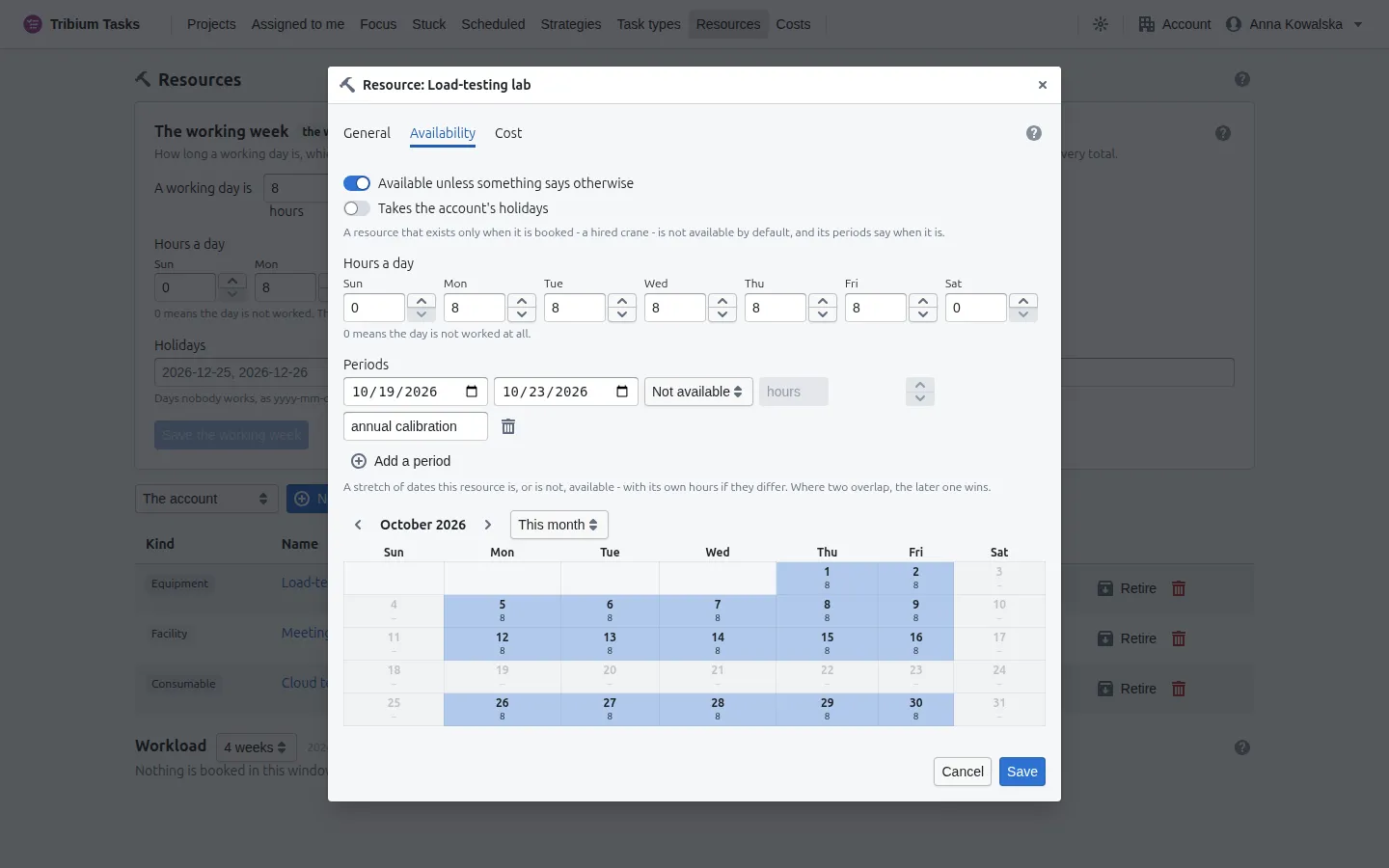
Availability — what the workload and the schedule count on. Available unless something says otherwise and Takes the account’s holidays set the rule; the hours a day for each weekday set the weekly pattern (0 means the day is not worked); periods — a holiday, a hire, a calibration — say when the resource is or is not available, with their own hours if they differ. Where two periods overlap, the later one wins, and the dialog says so. The month preview shades each day by the hours the workload and the cost reports will use. A resource that exists only when booked — a hired machine, say — has Available unless something says otherwise turned off, and a period for each booking. A consumable has no Availability tab.
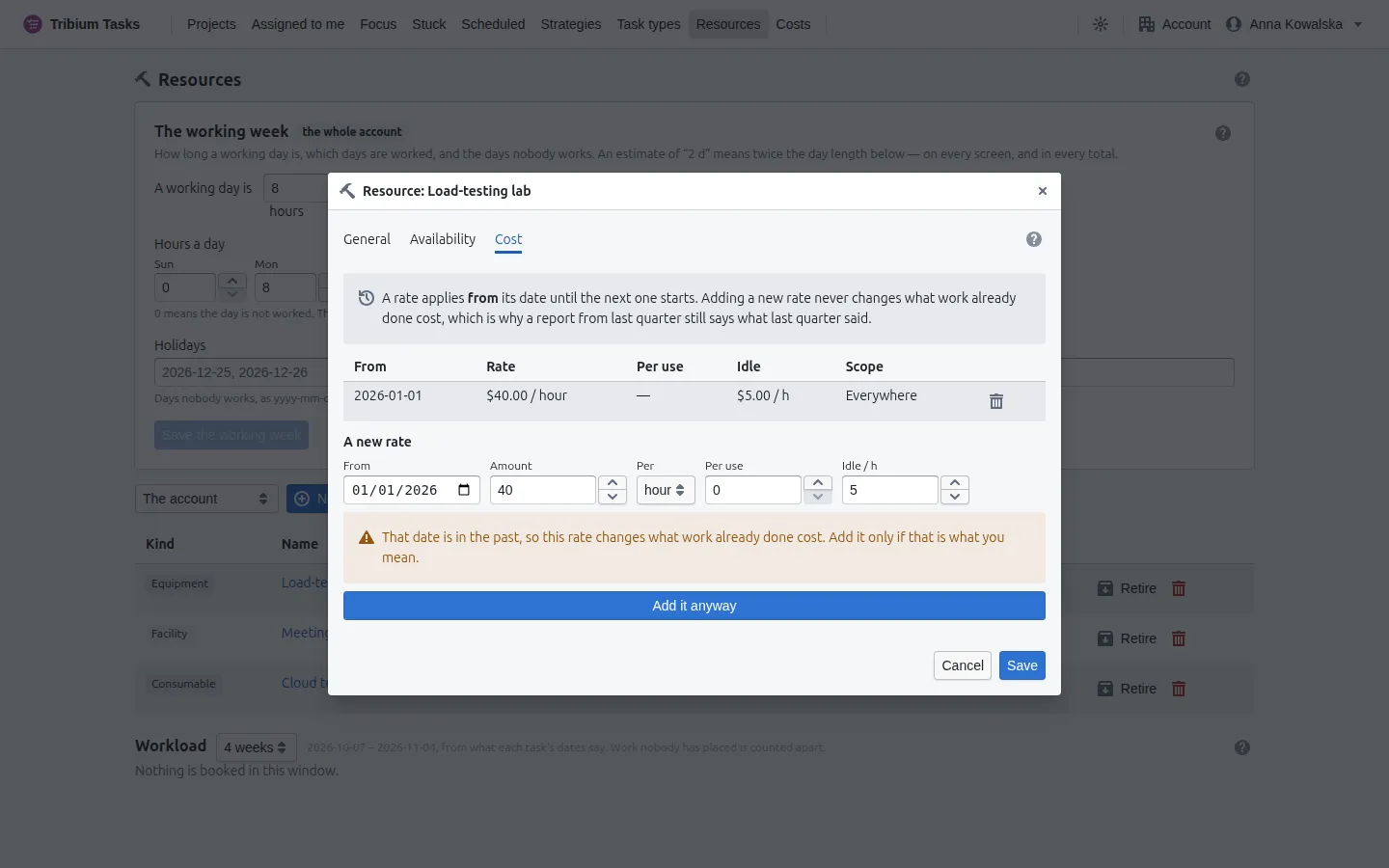
Cost — shown only to those who may see money, once the resource is saved. A resource has a history of rates, each applying from its date until the next, so a new rate never rewrites what past work cost. A rate is per hour or per day (per unit for a consumable), and may add a per use amount and, for anything but a person or a consumable, an idle rate per hour the resource is available and not assigned. On a project’s own resource, Only inside this project confines a rate to that project. A rate dated in the past changes what work already done cost, so the dialog says so and asks you to add it anyway. Until a resource has a rate, its work is not costed — never counted as free. Without permission to change rates, they are shown read-only.
The working week
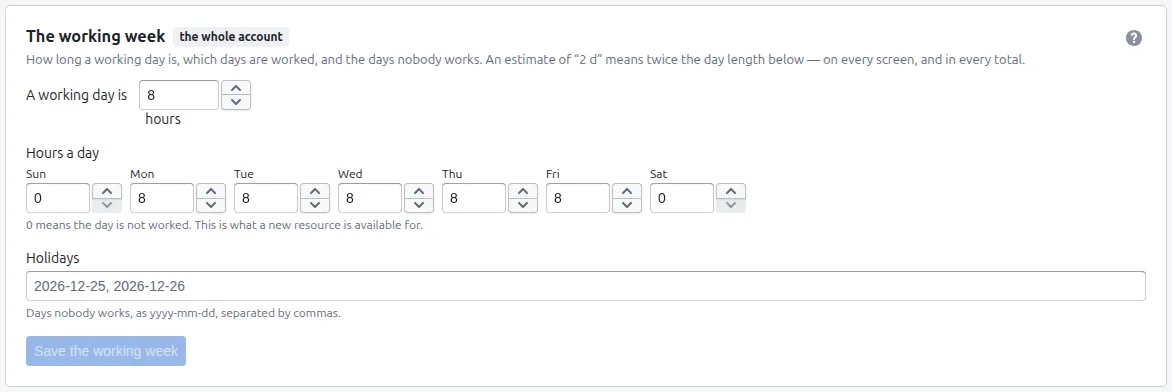
A card on the Resources page, for the whole account: how long a working day is (what a
d in every estimate means — “2 d” is twice it, on every screen and in every total, so
changing it changes what every day-estimate is worth), the hours a day of each weekday
(what a new resource is available for), and the holidays nobody works. A resource’s own
calendar can override both. Holidays are typed as dates (2026-12-25), separated by commas;
Save the working week keeps the changes.
Workload
What it is for. Who is booked for how much, day by day — to see who is over-allocated, and when. It sits on the Resources page, under the list, and follows its scope selector.
How it works. It counts only work that is placed: a task with a scheduled date, an iteration with dates, or a deadline to work back from, spread over the days it covers, against each resource’s availability; finished work is placed ending on the day it was finished. Work nobody has placed is counted apart — N assignments are not on the calendar — never spread over the next few days to make the picture look complete. Choose a horizon of 2, 4 or 8 weeks (4 to start with); each row gives the hours booked, the hours available, the load, and how many days are over-allocated — a day over the resource’s available hours; point at the count for the days. No money is shown here — that is the Costs page.
18. Costs
Who sees it. Costs are not for everyone: rates are what colleagues are paid. The Costs page, the Cost tab of a resource, the Costs switch in the Project menu and the Dashboard’s cost card appear only for account administrators, and for anyone an account administrator has given the Costs role (on the Users tab of the Account panel).
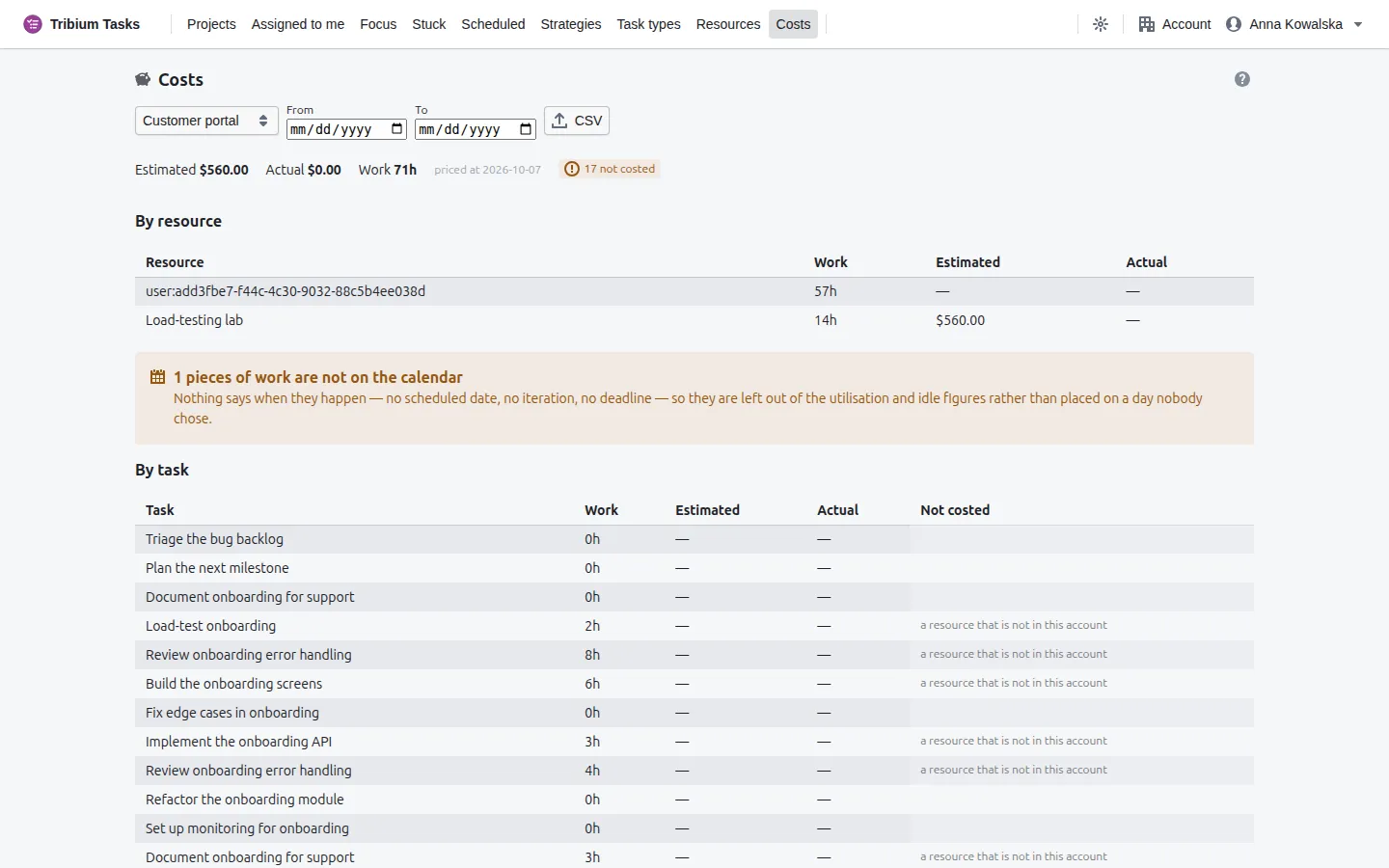
What it is for. What the work costs, from the resources assigned to it and the rates in force. Choose the project and, if you like, a period (From and To); CSV downloads the by-task table.
How it works. Every task’s estimate and actual are turned into hours per resource (by its allocation or fixed hours, or its quantity for a consumable), and priced at that resource’s rate in force. Amounts are rounded once per assignment, so every total is the sum of the rows beneath it. Estimates are priced at the end of the period (today, when no end is set — the page says which day), so running the same report for a closed period twice gives the same answer; a finished task’s actual is priced at the day it was finished and never moves again. A From date leaves out tasks finished before it. Optional tasks are counted; archived ones, duplicates and groups are not.
How to read it.
- The totals — estimated, actual, the hours of work, and how many tasks are not costed.
- By resource — what each resource’s assigned work costs, estimated and actual.
- People — utilisation, never money: hours available, hours asked for, the ratio.
- Idle — what resources cost for hours they are available and not assigned, where an idle rate is set.
- By task — the same money, task by task, with a Not costed column saying why a task has no figure: no estimate, no rate in force, an estimate in a unit that cannot be converted, a retired resource, a resource not in this account, or — for the actual — work not finished. A task with no resources at all has no figure and no reason.
- The rates these figures used — so every figure can be checked.
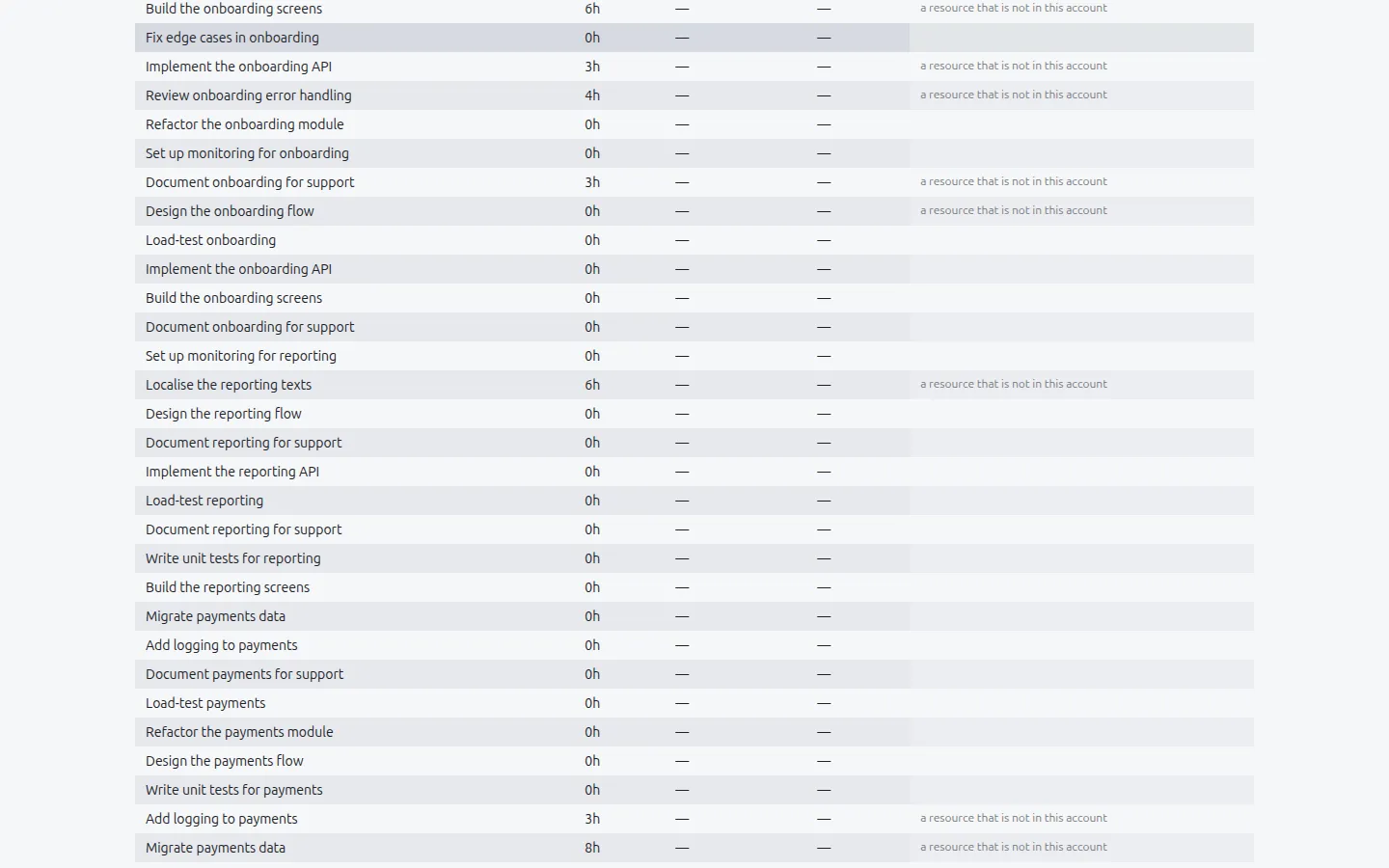
Work that nothing places on the calendar — no scheduled date, no iteration, no deadline — is listed as not on the calendar and left out of the utilisation and idle figures rather than placed on a day nobody chose.
On the Dashboard, Set a budget on the cost card records a budget for the project and a Warn at percentage (80 % to start with). The card then shows what is spent (the actual cost of finished work), what is committed (the estimate of open work) and what is remaining, with a bar of spent and committed against the budget that warns past that percentage and turns red over budget. Remove it drops the budget. The card is always the whole project’s, whichever tab is chosen.
19. Comments, images, files and history
Comments
Every task has one conversation, on its Comments tab, once the task has been saved; groups have none. Comments are shared with everyone who can see the task; Reply answers one in place, and you can edit or delete your own. A comment is posted at once, not on Save. On the row, a speech-bubble tag counts the comments, highlighted while there is something you have not read.
Images and files
Images belong on the Description tab, under the text: drop, paste or Add images… — PNG, JPEG, GIF or WebP, up to 15 MB each and 100 a task; click a thumbnail to see it large and step through all of them with ← and →. Files of any kind go on the Attachments tab — Attach files…, drop or paste, up to 25 MB each and 50 a task — and are download links. Both belong to tasks only, once saved. Both are kept at once, not on Save; deleting one asks first, then removes it for everyone, with no undo.
History
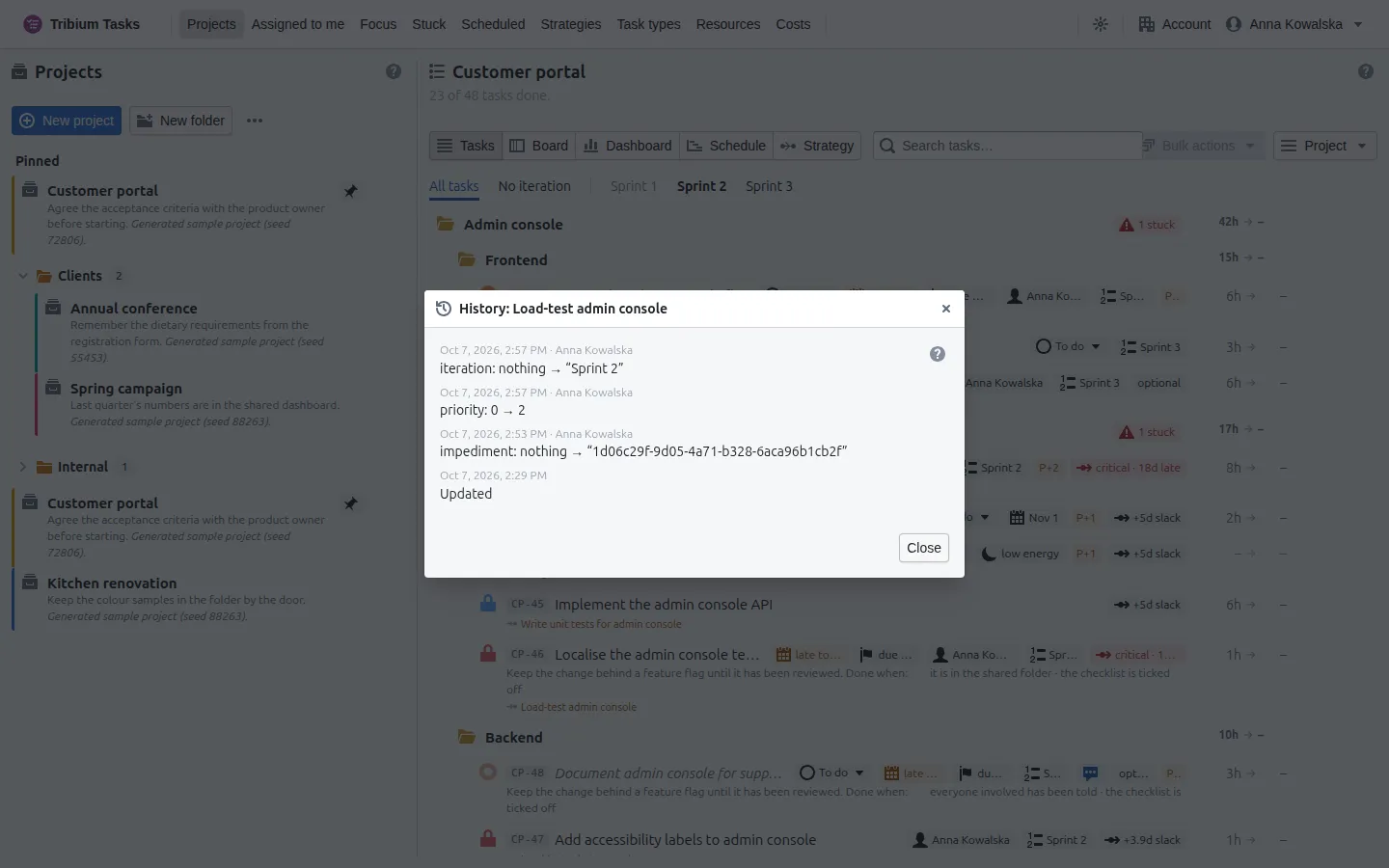
Every change made to a task is recorded by the server as it is written: which fields changed, from what to what, who did it and when. History… on a task’s menu, or at the foot of a task’s or a group’s dialog, shows the record, newest first. It cannot be edited. The Dashboard’s Who changed what, Rework and Scope changes panels are read from it.
20. Export and import
Both are PREMIUM features; without that level the items are not shown.
Export
Export to file on a project’s ⋯ menu writes one project — its tasks, groups, iterations, comments and strategy, its own resources, and the account’s task types its tasks use — to a file. Export all projects on the workspace’s ⋯ menu (beside New folder) writes every project, archived ones included, the folder tree and every strategy, cross-project ones too, to one file. The files are plain JSON: a backup, a way to move a project to another account, or material to edit. Images, attached files, history, cost rates and the account’s own resources are not in them.
Import
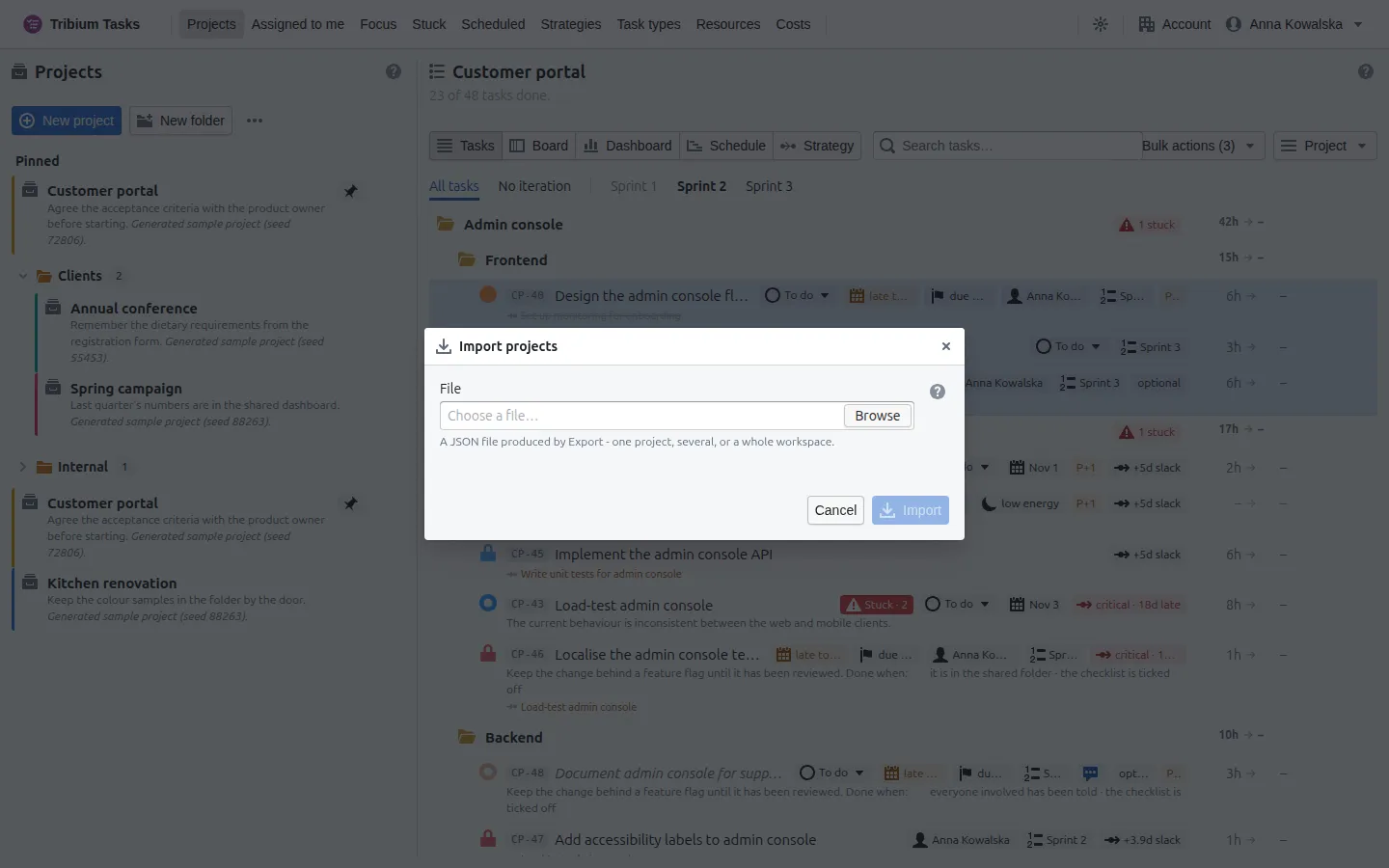
Import from file… on the workspace’s ⋯ menu brings projects in from a file exported from Tasks. Choose the file and check what it holds; a file with several projects can be imported whole, or choose Only the projects I pick and tick the ones you want — each comes with its own tasks, comments and strategies, and only the folders that hold one of them. Everything in the file is added under new ids: nothing already here is replaced, and importing the same file twice adds a second copy. A whole-workspace file brings its folders too, added beside yours — a folder with the same name as one of yours is not combined with it. A file may be up to 25 MB.
21. Development mode and the sample projects
On a practice installation — one where the operator has switched development mode on — the navigation bar has a Development menu with a DEV tag. On a production installation the menu is absent, and the server refuses the permanent deletion however the permissions are set. The generator grants nothing of its own: it saves through the ordinary import.
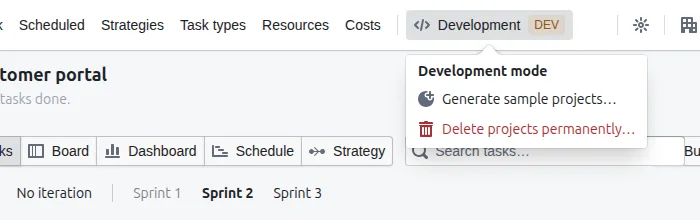
Generate sample projects
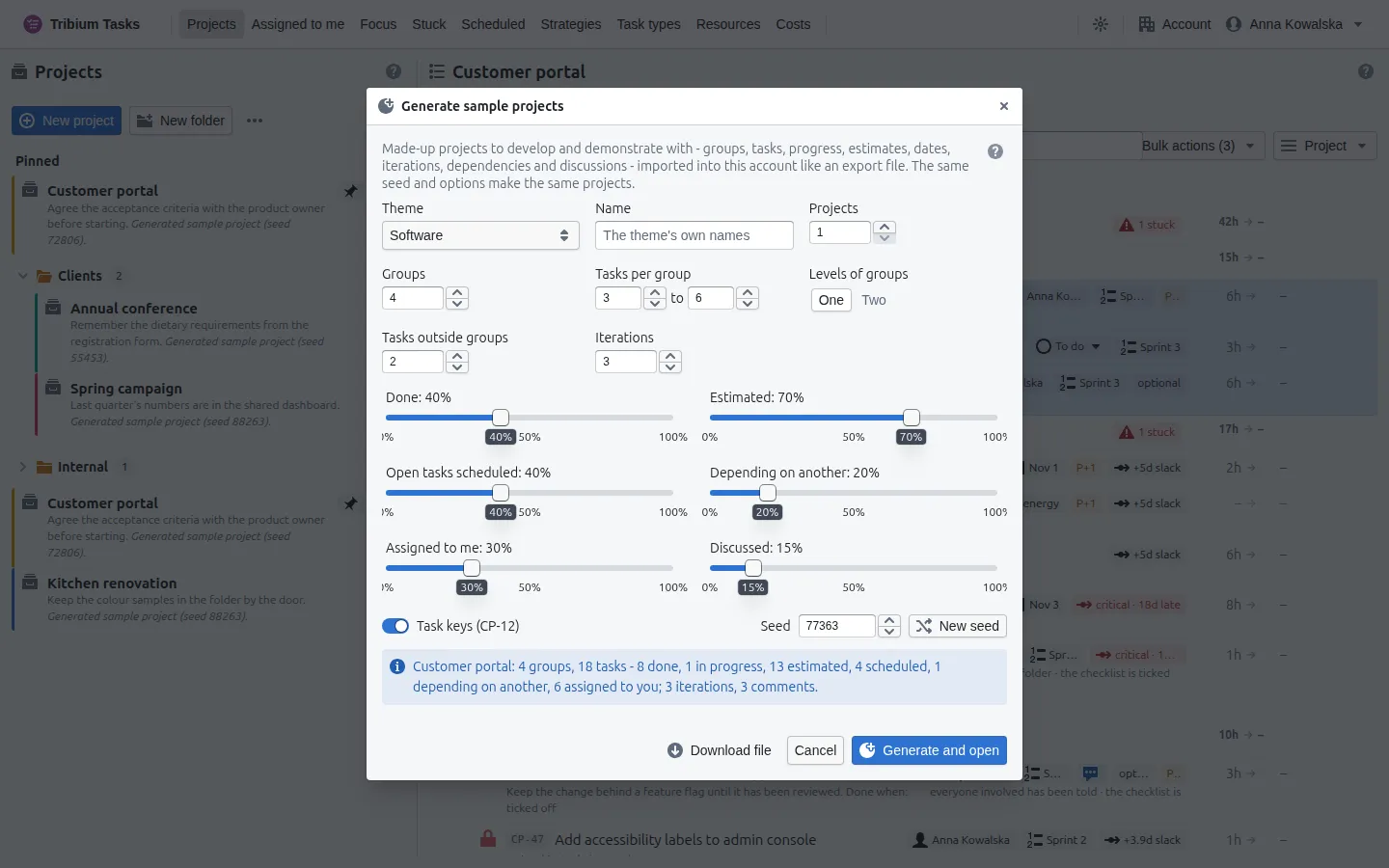
Made-up projects to try things on. Choose a theme — software, home renovation, event, marketing, or mixed — a name (left empty, the theme’s own names), how many projects (1–5), groups (0–8), tasks per group (a range up to 12), levels of groups (one or two), tasks outside groups (0–10) and iterations (0–6), whether tasks get keys, and the shares of tasks that are done, estimated, scheduled (of the open ones), depending on another, assigned to you and discussed. A seed fixes the random choices, and New seed draws another. The summary under the options says what will be made; the same seed and options make the same projects. Generate and open imports them into your account exactly like an export file — through the ordinary import, with your own permissions, so it grants nothing new — and opens the first; Download file keeps the file instead. The screenshots in this manual were taken on such projects.
Delete projects permanently
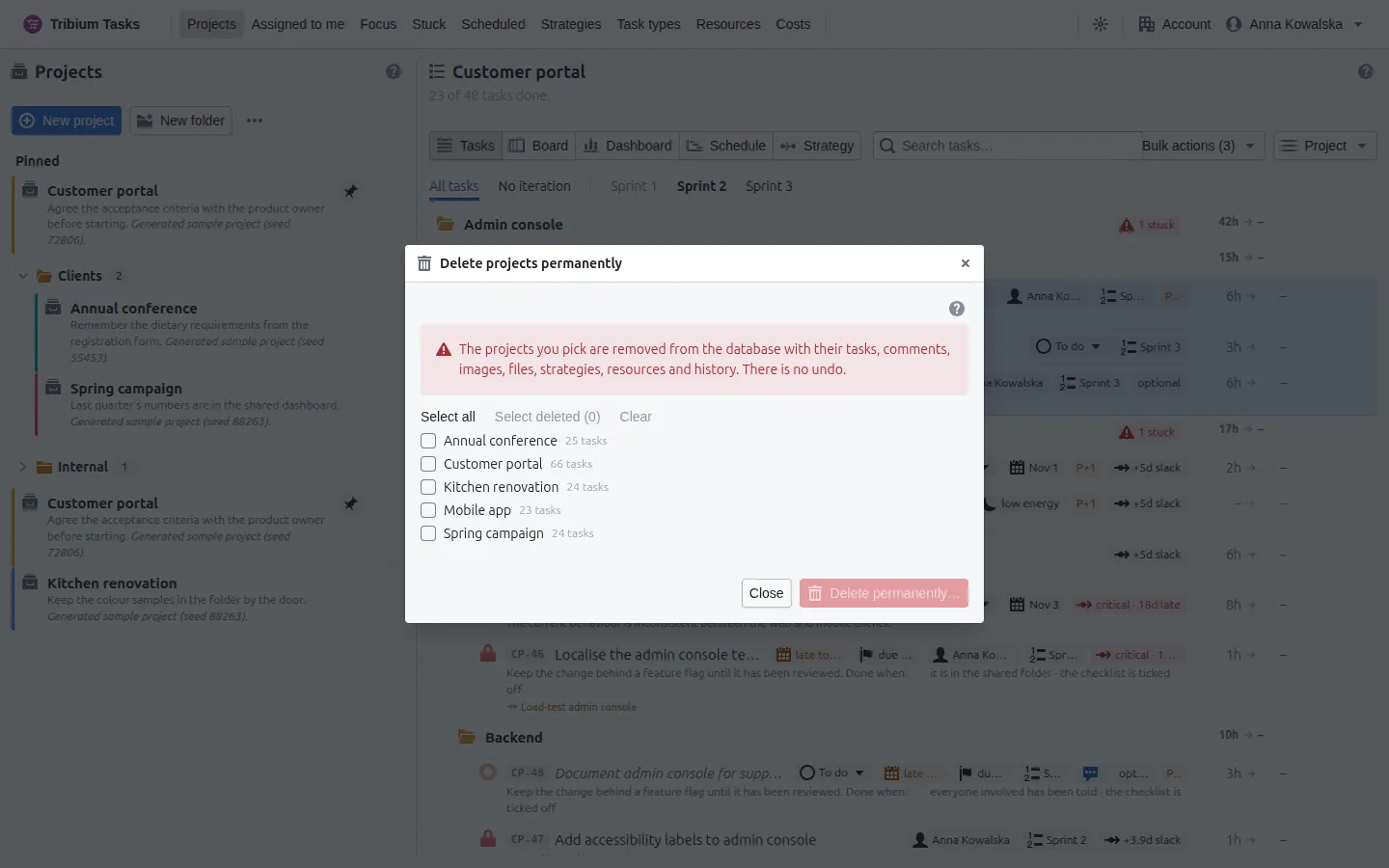
Archiving a project keeps it, and deleting it from the archive (Delete permanently… on its menu) only marks it deleted; its data stays. This removes a project and everything that belongs to it — tasks and groups, comments, images and files, its strategies and resources, its history, and every user’s pins and focus on it — for good. Strategies spanning several projects stay, without its tasks. The list tags each project deleted or archived; Select deleted picks the deleted ones. There is no undo.
22. When something looks wrong
| What you see | What it means and what to do |
|---|---|
| “No projects yet” | A new workspace. Create a project, or on a practice installation generate sample ones. |
| “No project open” on the right | Click a project on the left. A bookmark to a project’s URL opens it directly. |
| “Your workspace did not load” | The server, or the Accounts application behind it, could not be reached. Nothing has been deleted; press Try again, and tell your operator if it persists. |
| “Completed tasks are hidden” | Every task in view is done. Turn off Hide completed in the Project menu to see them. |
| A task cannot be started or finished — “… cannot be finished yet: it depends on …” | It is waiting: its Dependencies tab says for what. Finish that first, or remove the link. |
| A link is refused because a task is in progress | A task under way cannot start waiting for unfinished work. Move it back to to do first, or link the other way round. |
| A red padlock | What the task waits for is stuck. The Stuck page says why and who is chasing it. |
| “Nothing matches the filters” | A filter in the Project menu hides everything; the Filtered tag in the toolbar clears them. |
| A task is gone from the tree | It is probably completed — turn off Hide completed — or archived — turn on Show archived. Search does not find archived work. |
| “Not enough linked work to schedule” | The Schedule needs at least three unfinished tasks linked one after another. Link them; then estimate them — To make this schedule better lists what is missing. |
| The Schedule says late | The linked work cannot finish by the target or the latest deadline. Shorten the critical path — split, re-estimate, remove a link — or move the target. |
| The Dashboard says “Nothing to measure yet” | The slice has no tasks. |
| A figure on the Dashboard is not costed | A task has a resource with no rate in force, a retired resource, no estimate, or an estimate in a unit that cannot be converted; the Costs page’s By task table says which. Set rates on the Resources page. A task with no resources at all is simply not counted. |
| Costs is missing from the top bar, or says “Costs are not yours to see” | You have not been granted the Costs role. Ask an account administrator. |
| Export and Import are missing | They are PREMIUM features; your account’s level is BASIC. |
| A Syncing or Offline tag in the top bar | Syncing: the workspace is still loading. Offline: your browser could not reach the server (point at the tag for why). The tree is as it was at the last successful poll; it catches up by itself. |
| A “data issues” tag in the top bar | Some stored records use a field this version of the client does not know. They are shown as stored and nothing is dropped; tell your operator. |
| A change you saved to a task is gone | Someone else had the same task open and saved after you: the later Save replaces the whole task. Its History… shows both saves; apply your change again. |
| A new task’s estimate means duration when you wanted effort | The project’s properties set the default for new tasks; each task can say otherwise on its Time & Effort tab. |
| You are suddenly on the sign-in page | Your session expired, or a page you opened is not permitted to your role. Sign in again; if it repeats on one page, tell your operator. |
| Calls fail with “The account service is unavailable” | The Accounts application could not be reached, so Tasks cannot tell whose account you are and refuses rather than guesses. Nothing was changed; try again later, and tell your operator. |
Appendix A — Every tag on a task row
Before the name: the task’s key (CP-44) and, for a typed task, its type’s icon. The strip of
tags after the name says what is true of the row. From the most urgent down:
| Tag | Meaning |
|---|---|
| Archived / Duplicate | The task is archived — as a duplicate of another, where it says so. Shown only with Show archived on. |
| Stuck 6d · 3 (red) | Stuck for six days, holding up three tasks; point at it for the reason and who is chasing it. An up arrow once escalated. On a group: N stuck — how many of its tasks are. |
| To do ▾ / a state name | The task’s status or workflow state, with Status on. Click it to change. A waiting task has none: its padlock and the line under its name say what it waits for. |
| A date (plain text) | When a finished task was finished. |
| Nov 2 / late to start (calendar) | Its Scheduled for date — amber once the day has passed without the work starting. |
| due Oct 14 / overdue (flag) | Its Finish no later than — red once past. |
| Anna Kowalska (person) | Who it is assigned to. |
| Load-testing lab (tool) | A resource it uses, other than people. |
| Sprint 2 (list) | Its iteration. |
| Launch the portal (target) | The strategy goal it serves; hover for the strategy and the direction. |
| 💬 2 | How many comments it has; highlighted while something is unread. |
| A pencil | It has work notes. |
| optional | An optional task, left out of progress. |
| low energy, under 10 min | What the task asks of whoever picks it up. |
| P+2 / P-1 | Its priority, when not Normal. |
| +5d slack / critical / critical · 3d late | Its float on the schedule, with Critical path on in the Project menu, while the project can be scheduled. |
| 6h → 4h (right edge) | Estimate and actual, with Estimates and actuals on; red when the actual passed the estimate. Click to change them. A group shows the sum of its tasks. |
| An amount → an amount (right edge) | Estimated and actual cost, with Costs on. |
| A small arrow (right edge) | The link handle: drag it onto the task this one waits for. |
Under the name: the first line of the description, and the tasks this one waits for, each a link.
And at the head of the row: a circle coloured by priority, filled when in your focus; a padlock when waiting; a red padlock when what it waits for is stuck; a folder for a group.
Appendix B — Keyboard shortcuts and the defaults
Shortcuts
In a project’s tree, with rows selected:
| Key | Action |
|---|---|
| d | Choose what the selected tasks wait for (depends on). |
| b | Choose what waits for them (blocks). |
| c | Chain them in order. |
| ? | List every shortcut. |
| Esc | Close a dialog or a menu. |
| ⌘/Ctrl-click, Shift-click | Add or remove one row; select a range (Shift-⌘/Ctrl-click adds a range). |
d, b and c act on tasks; a single selected group stands for the tasks inside it. Shortcuts never fire while you type in a field, while a dialog is open, or on the Dashboard, the Strategy or the Schedule view. Elsewhere: ↑, ↓ and Enter choose a search result; ← and → step through images; Enter in a task’s name saves it.
The defaults
| Setting | Default |
|---|---|
| A working day | 8 hours; Monday to Friday worked; no holidays |
| A new task’s estimate means | Effort (set per project) |
| A task’s priority | Normal (0) |
| A task’s type | None — the plain lifecycle (set per account, project and group) |
| Hide completed | On |
| Show archived, Hide empty groups | Off |
| Status, Critical path, Estimates and actuals, Strategy goals, Task IDs shown on rows | On (Task IDs once the project has a key prefix) |
| Costs shown on rows | Off (offered only to those who may see money) |
| Where the Filter and Show switches are kept | In this browser |
| The Board’s Done column | The last 14 days |
| The Dashboard’s trend window | 90 days |
| An image | PNG, JPEG, GIF or WebP, up to 15 MB, 100 a task; a file up to 25 MB, 50 a task |
| Search | From 3 characters |
| The browser’s poll of the server | Every 5 seconds; after a failure the wait doubles, up to 5 minutes; about once a minute while the tab is hidden |
Tribium Tasks — User Manual. Written against the application as of October 2026. The in-app help (the ? on every page) is kept in step with the application; where this manual and the help differ, the help is newer.